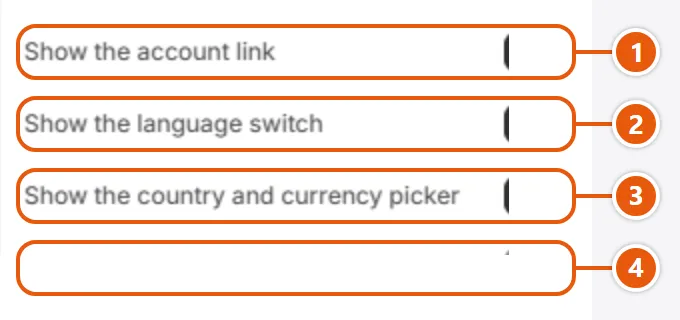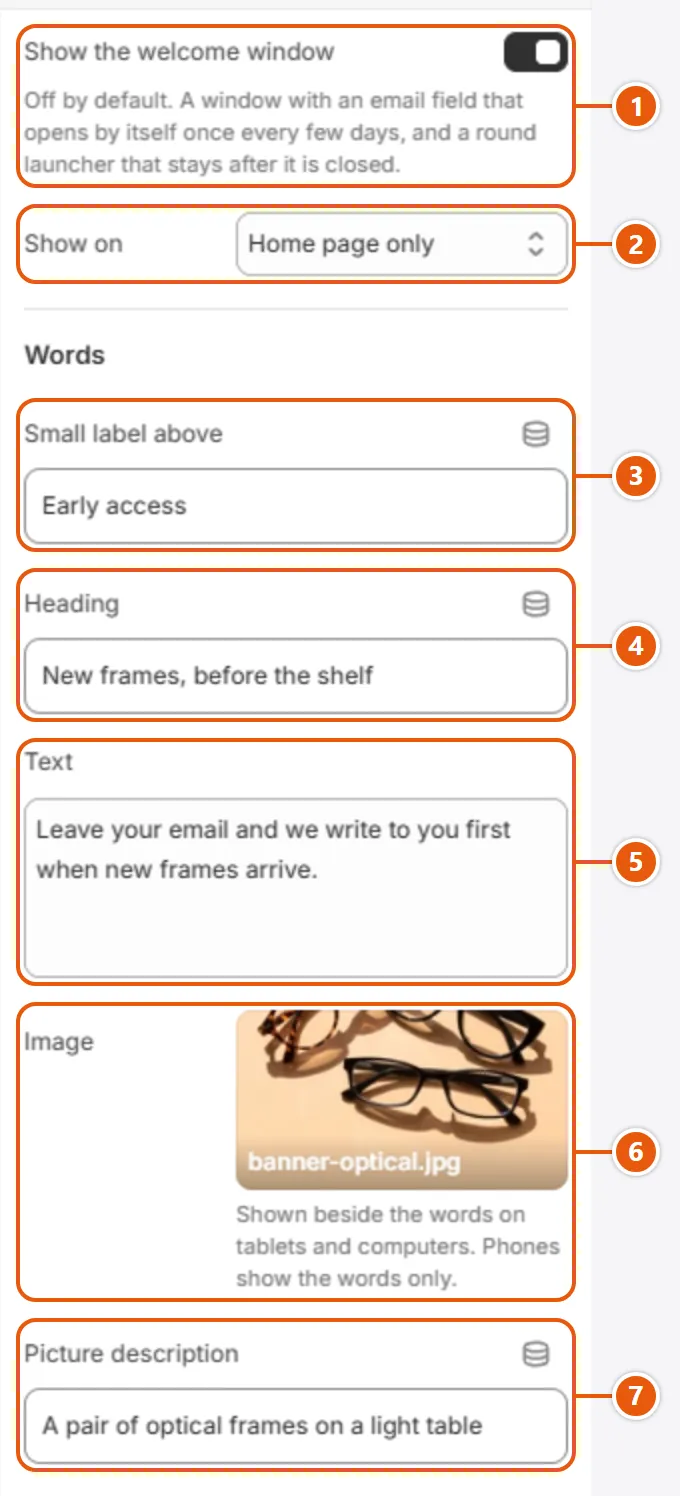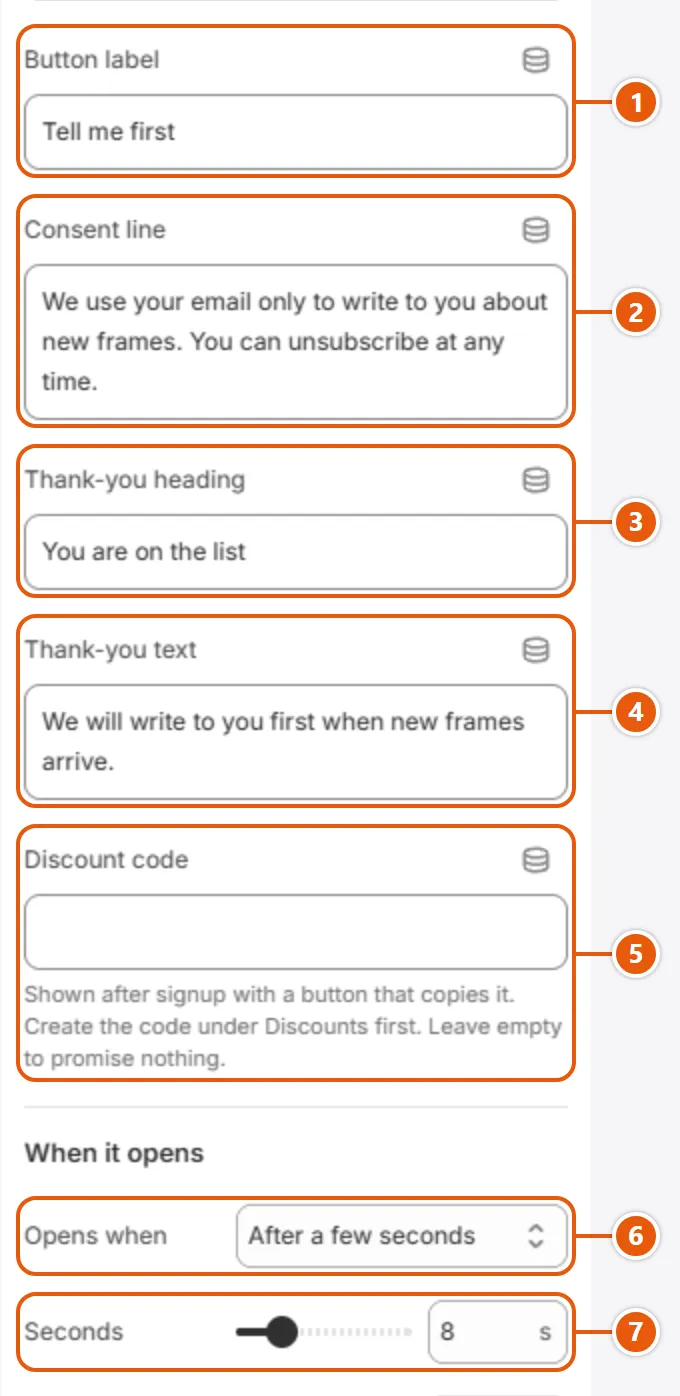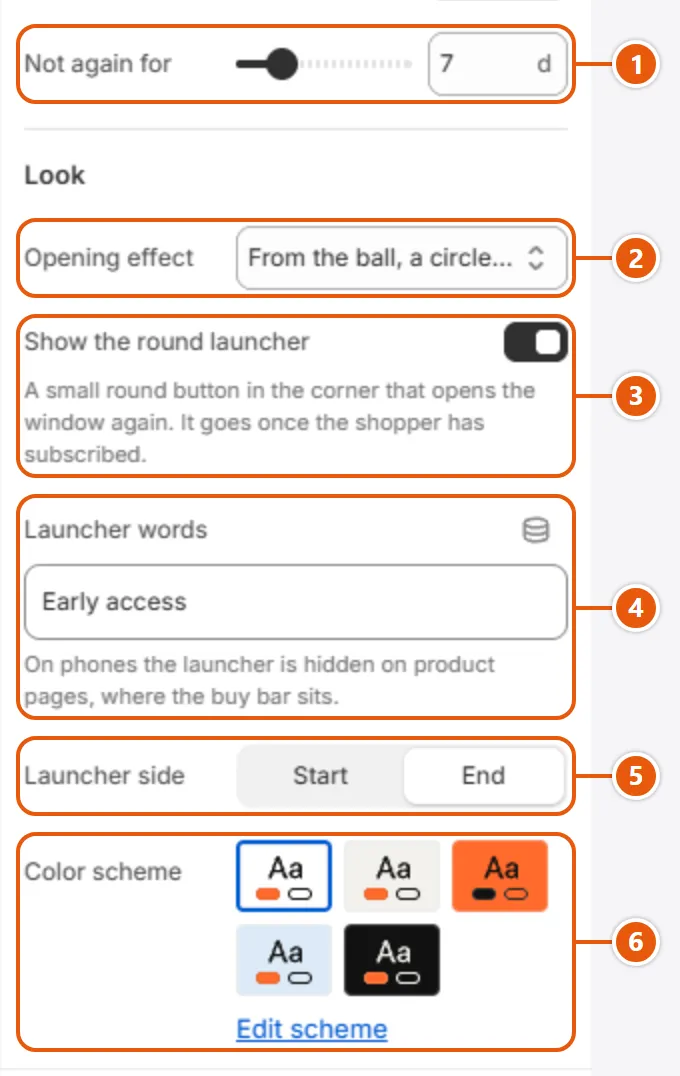








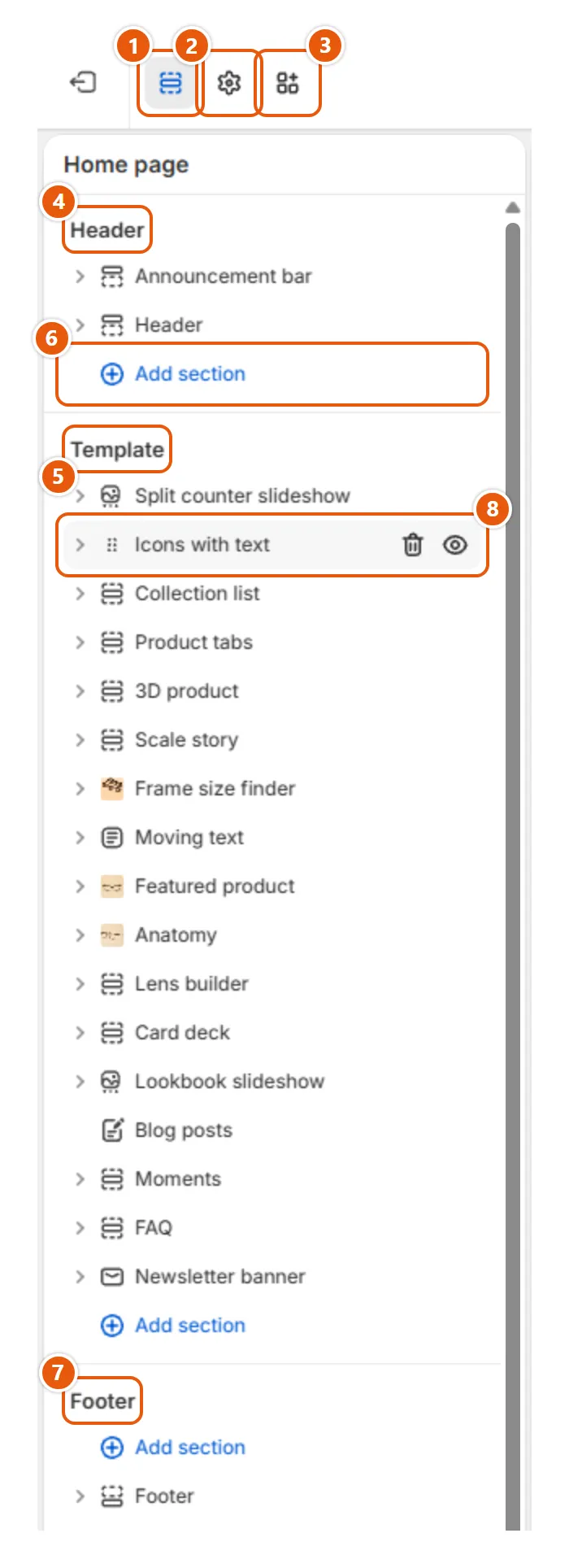
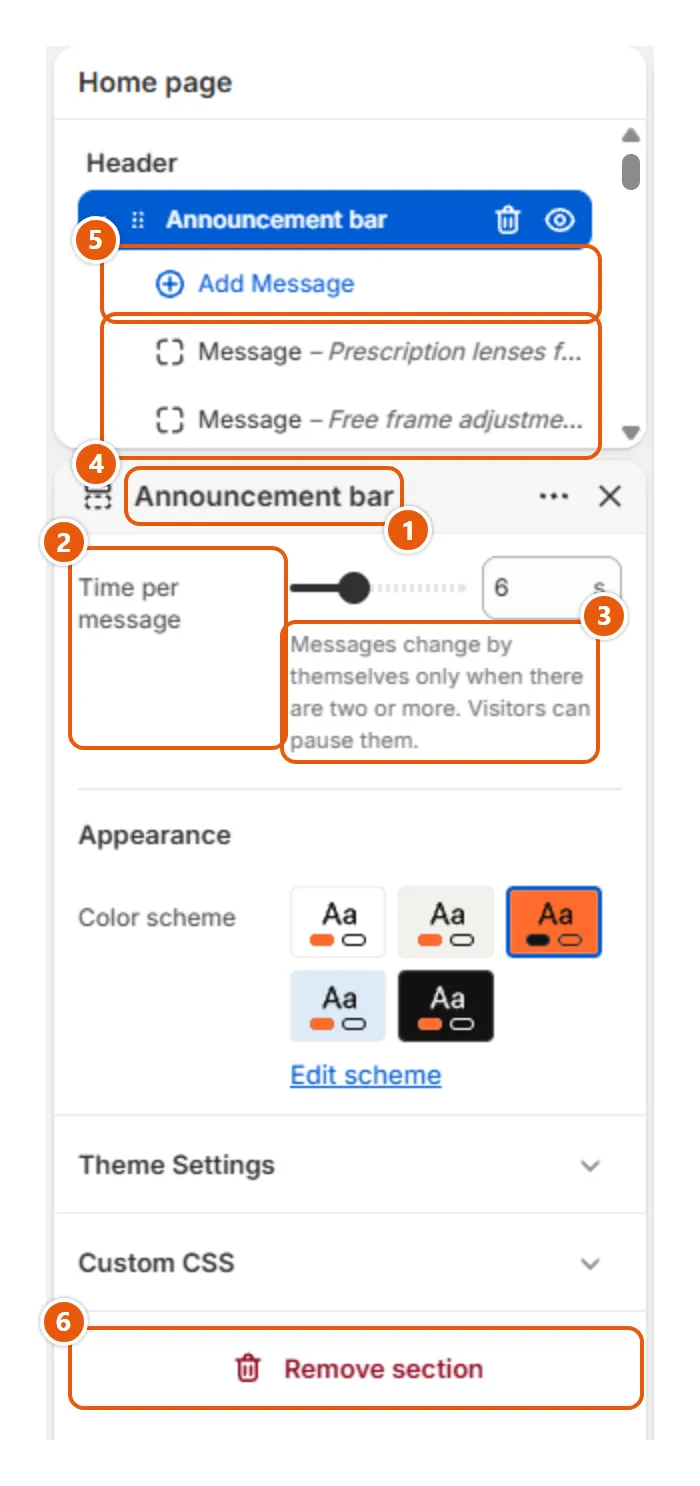
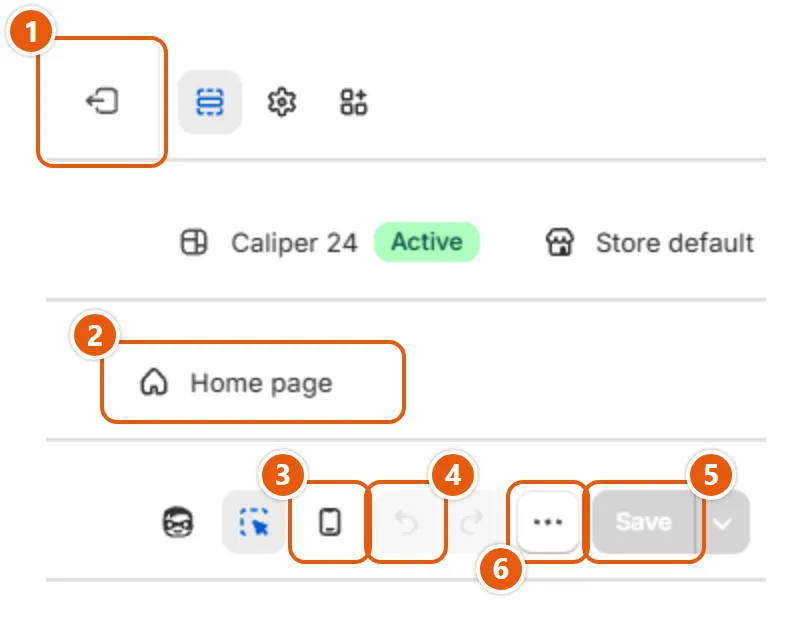
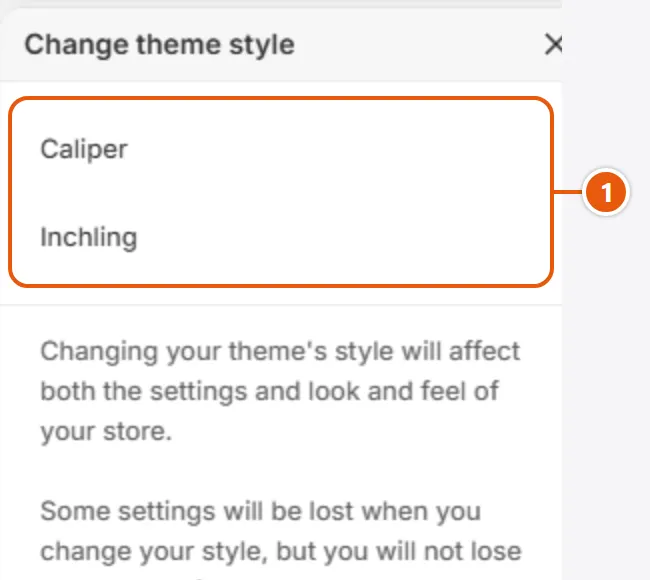














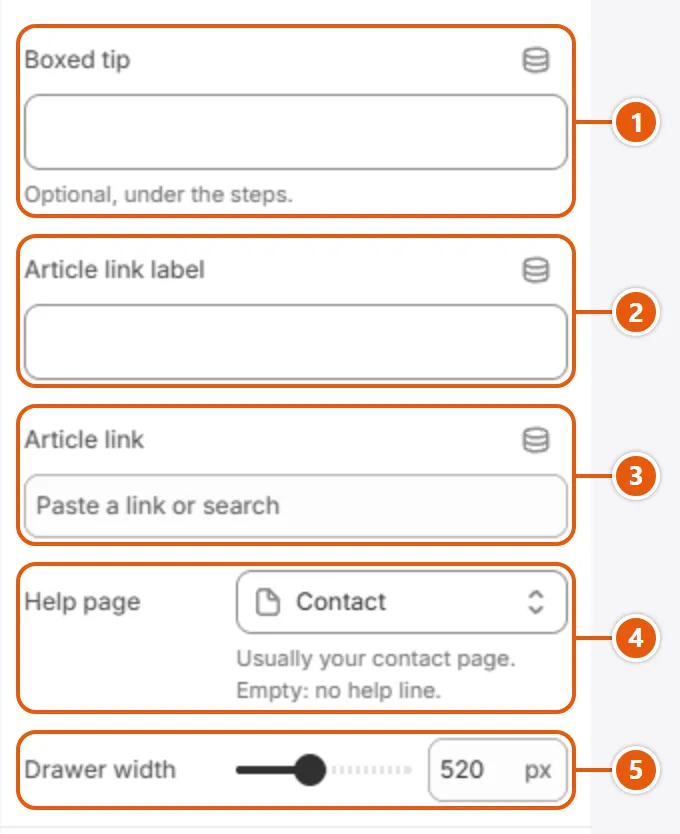
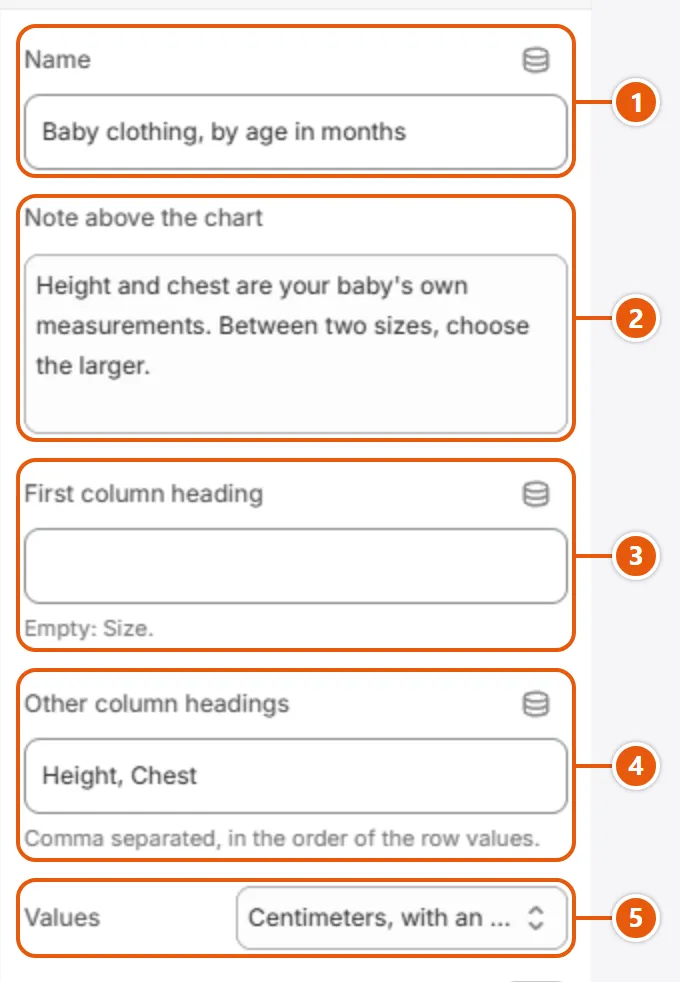
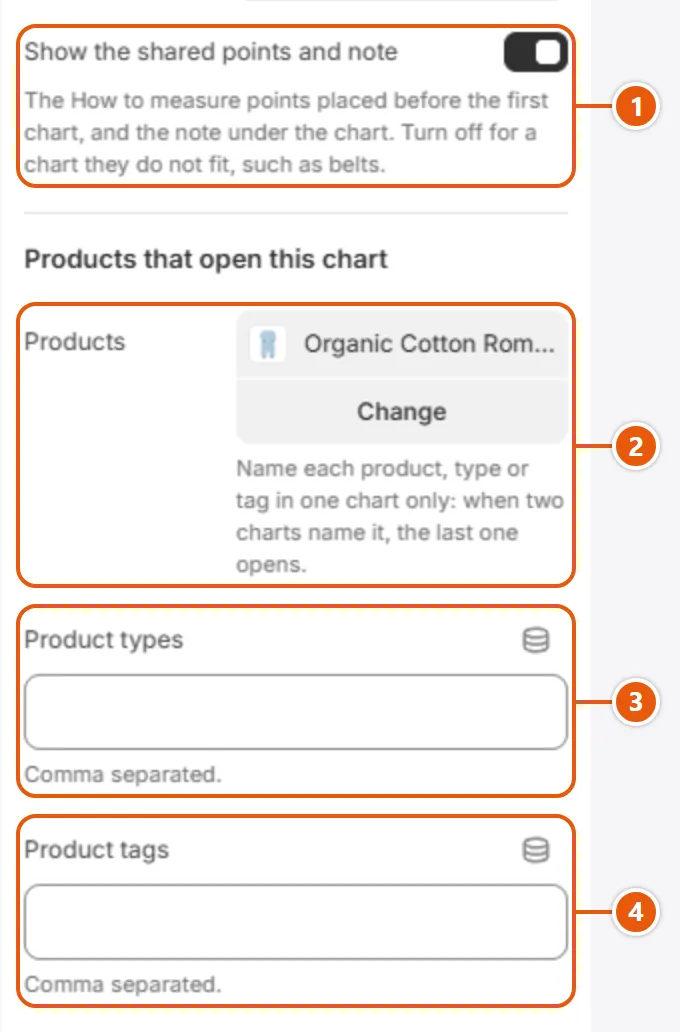

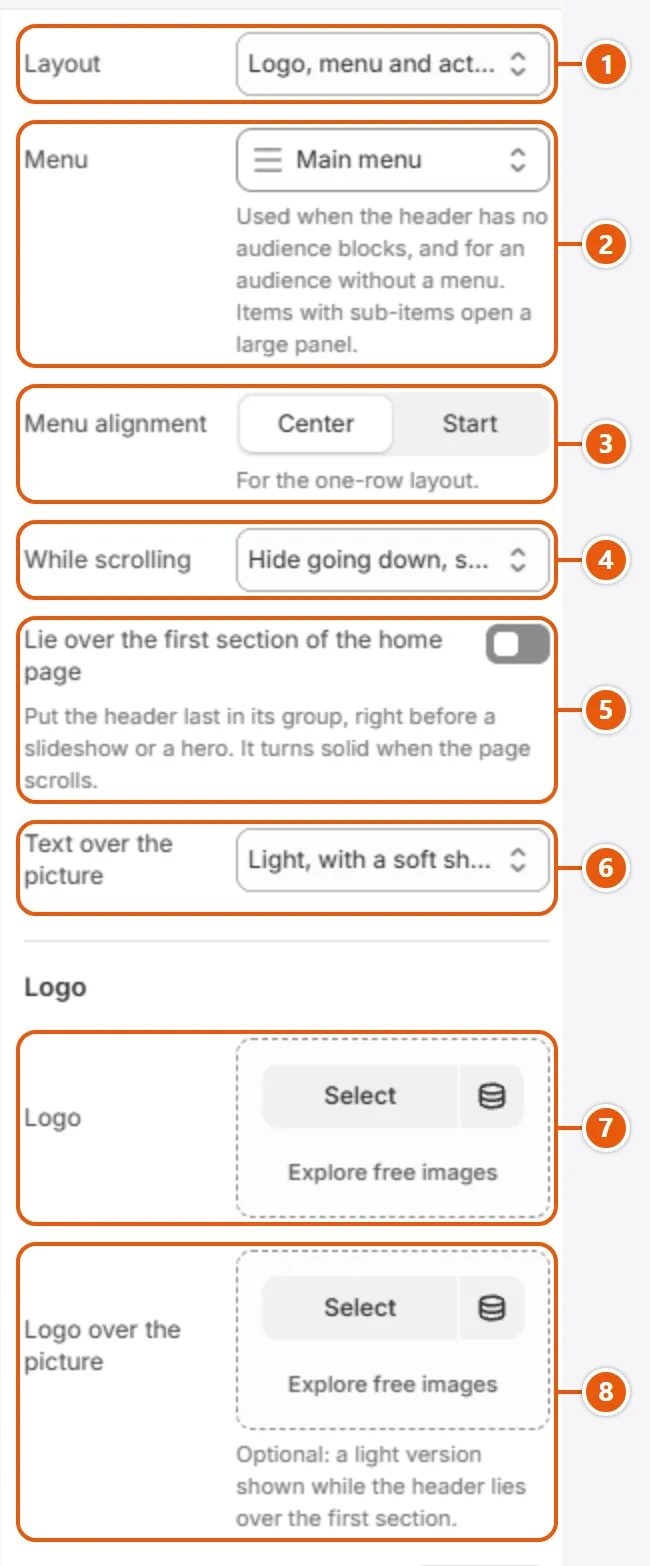


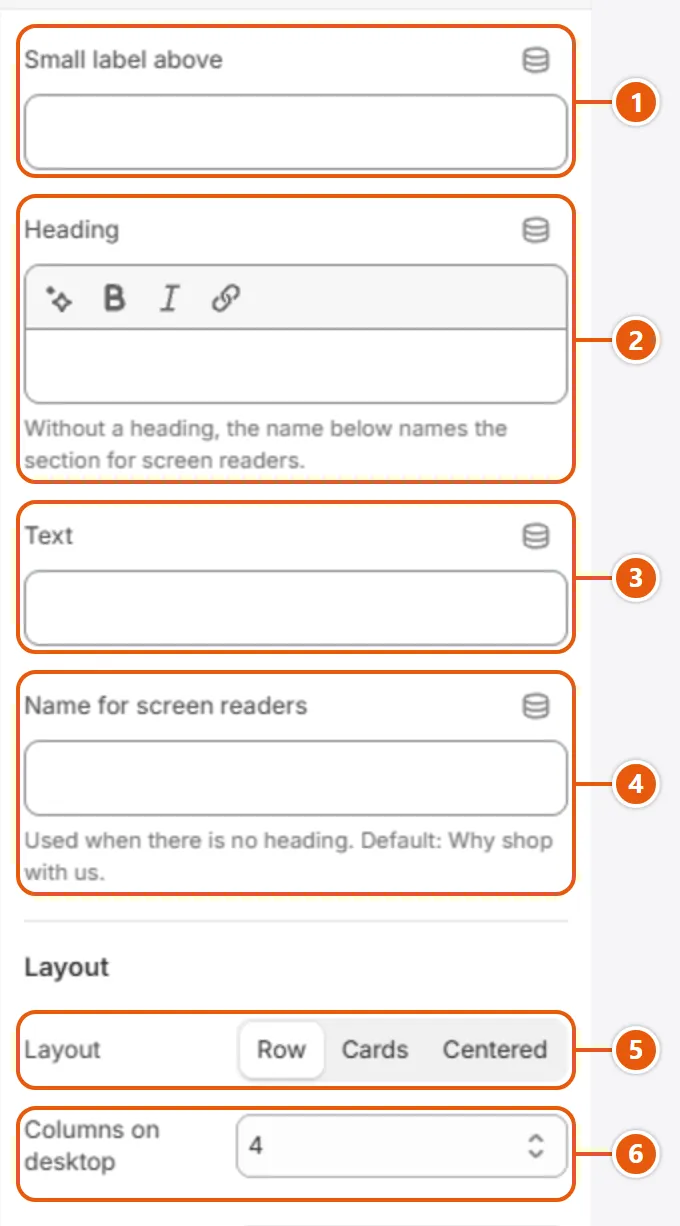
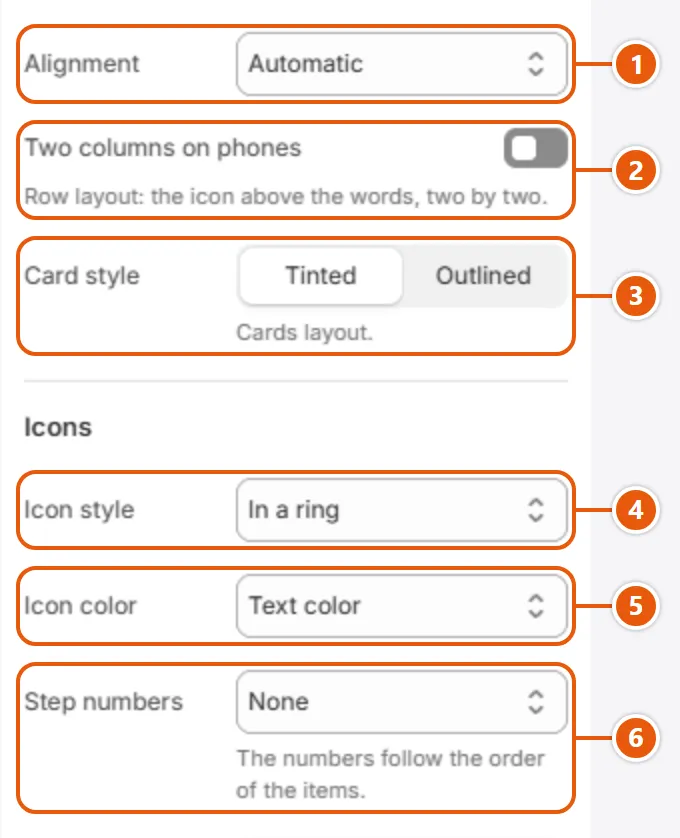
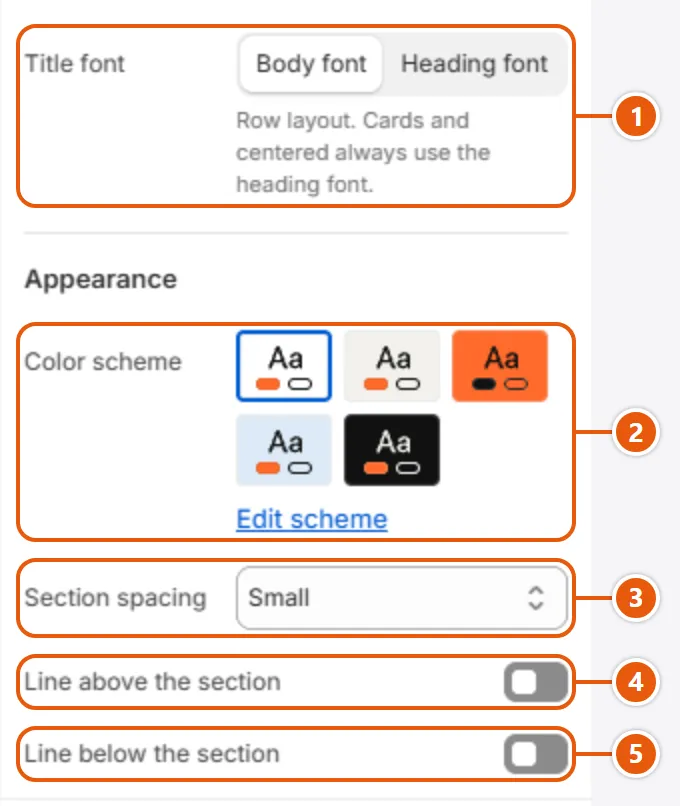
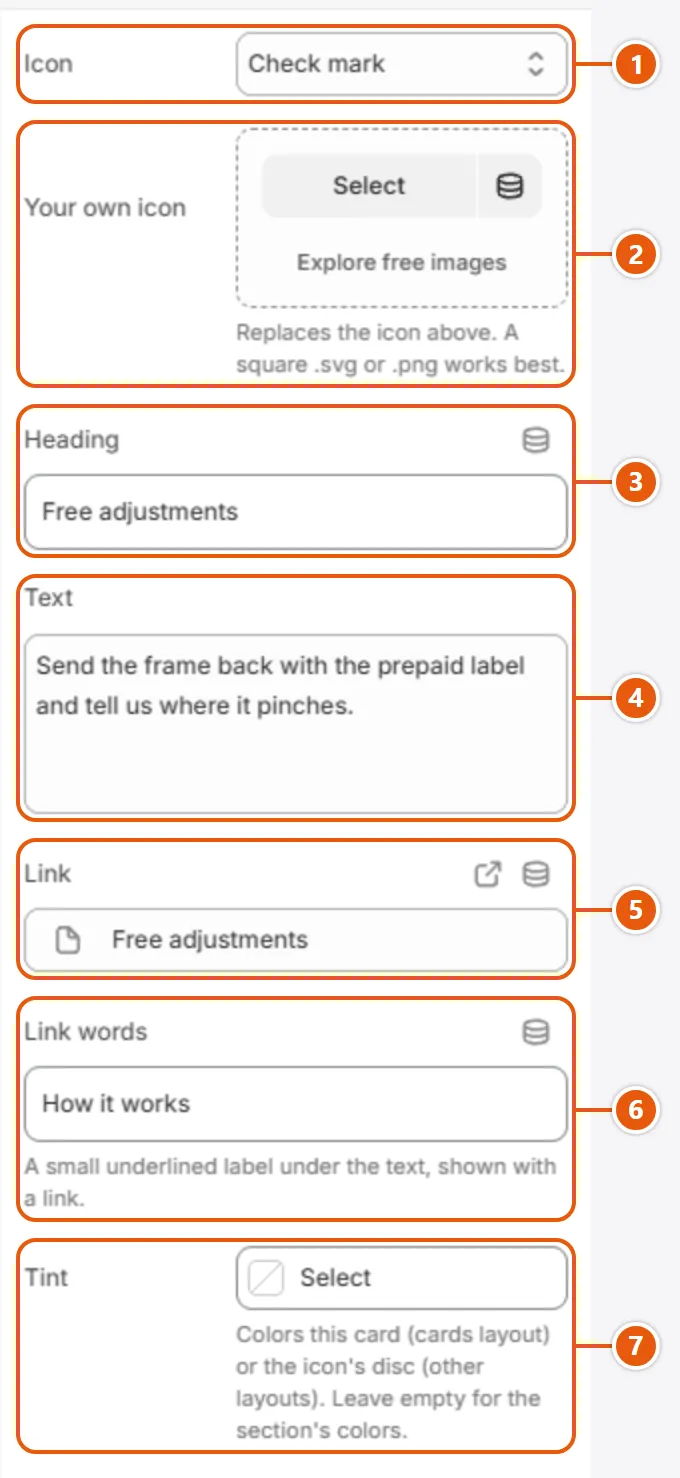













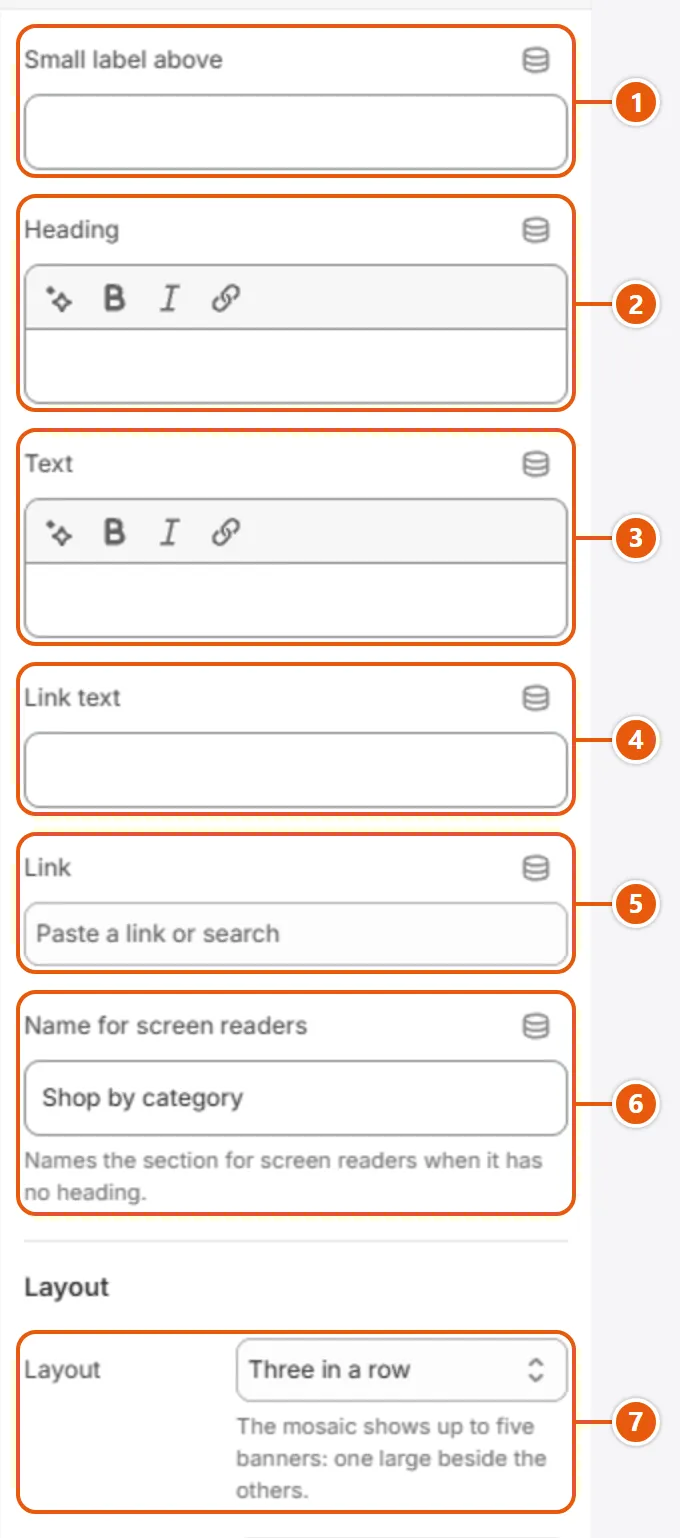
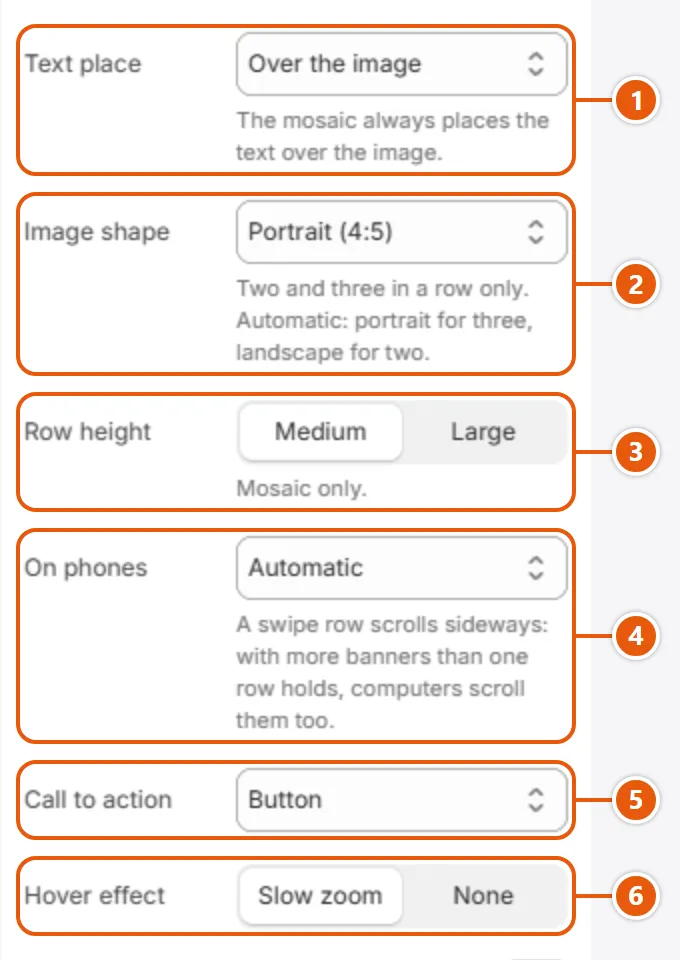
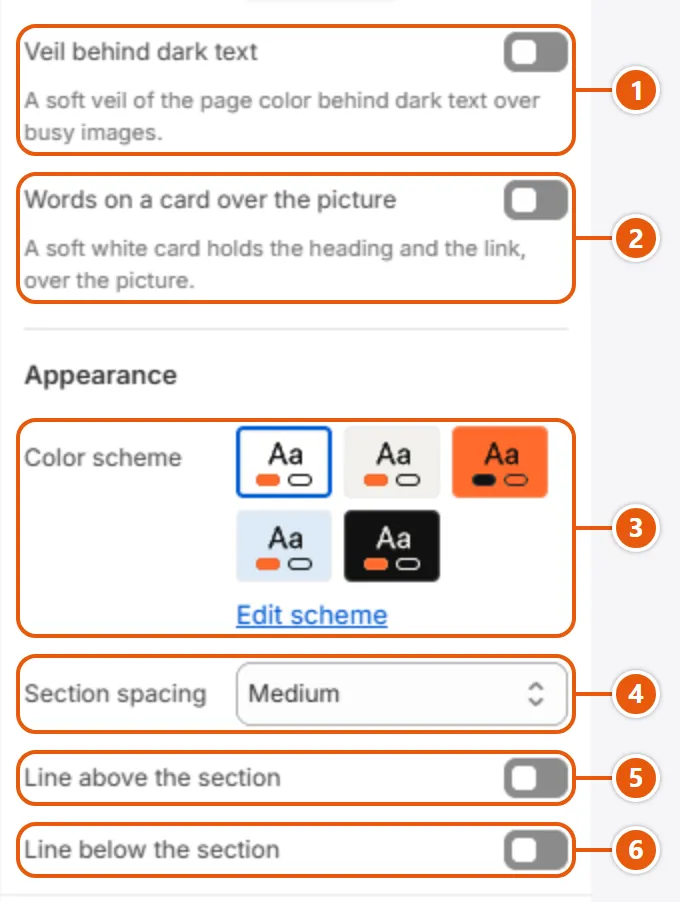
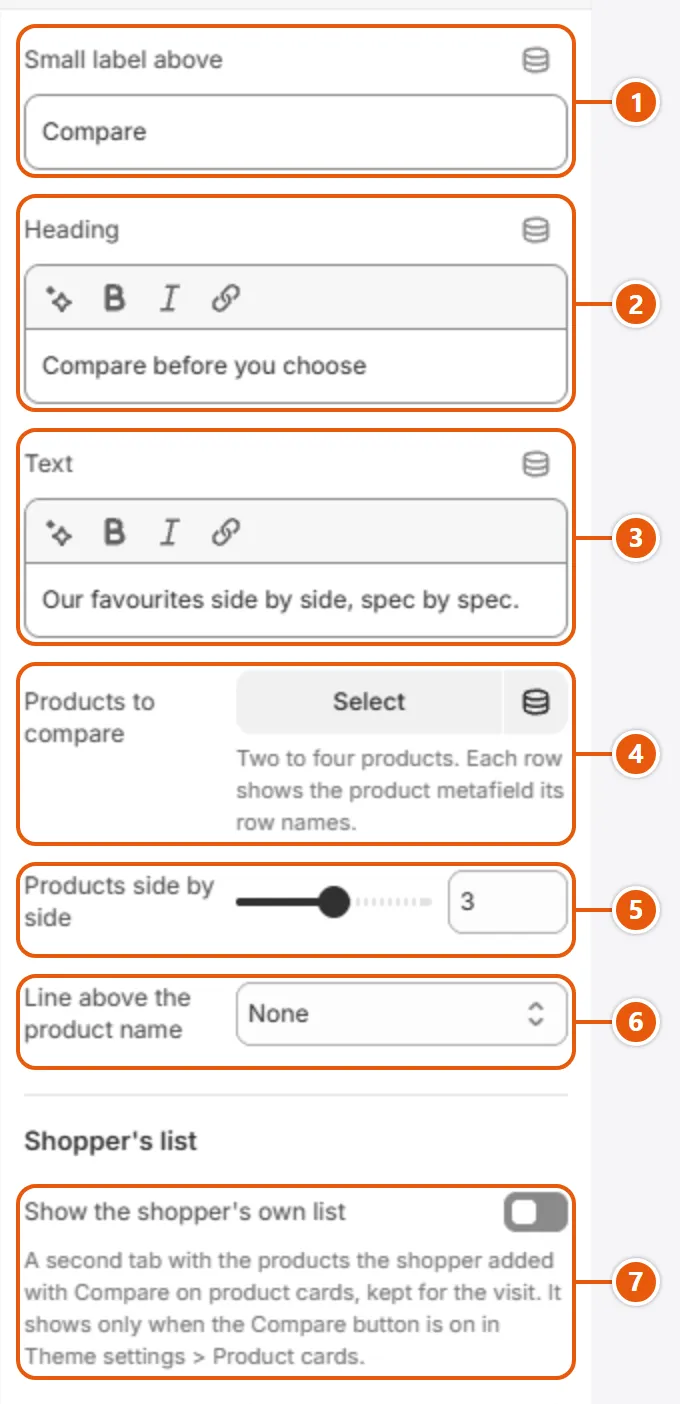







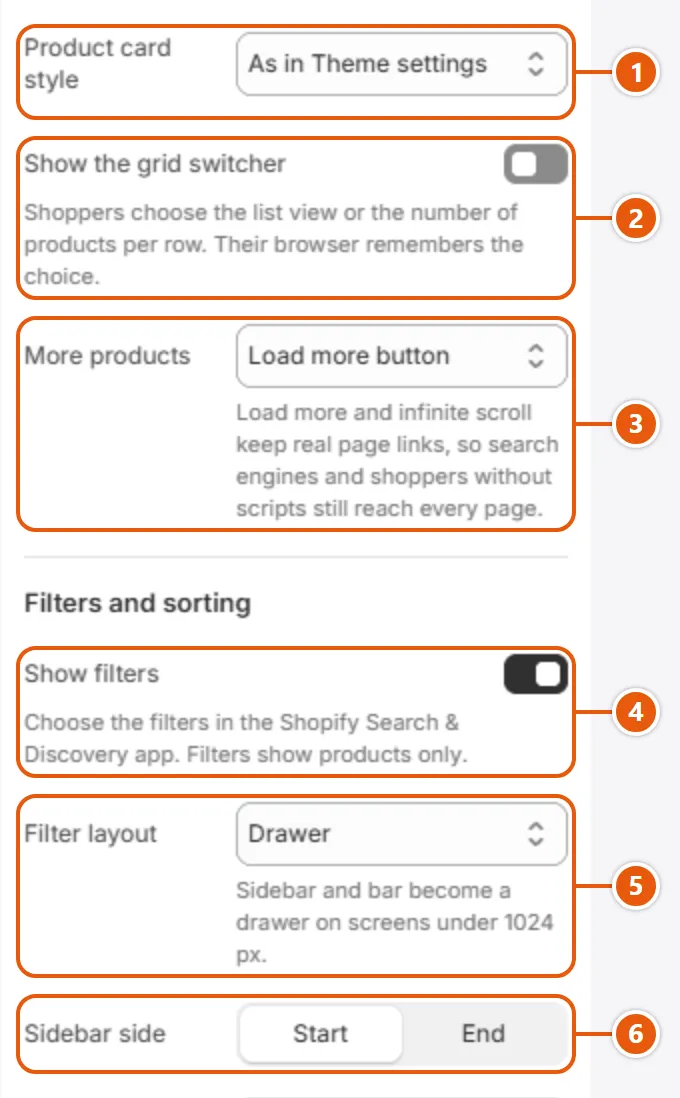
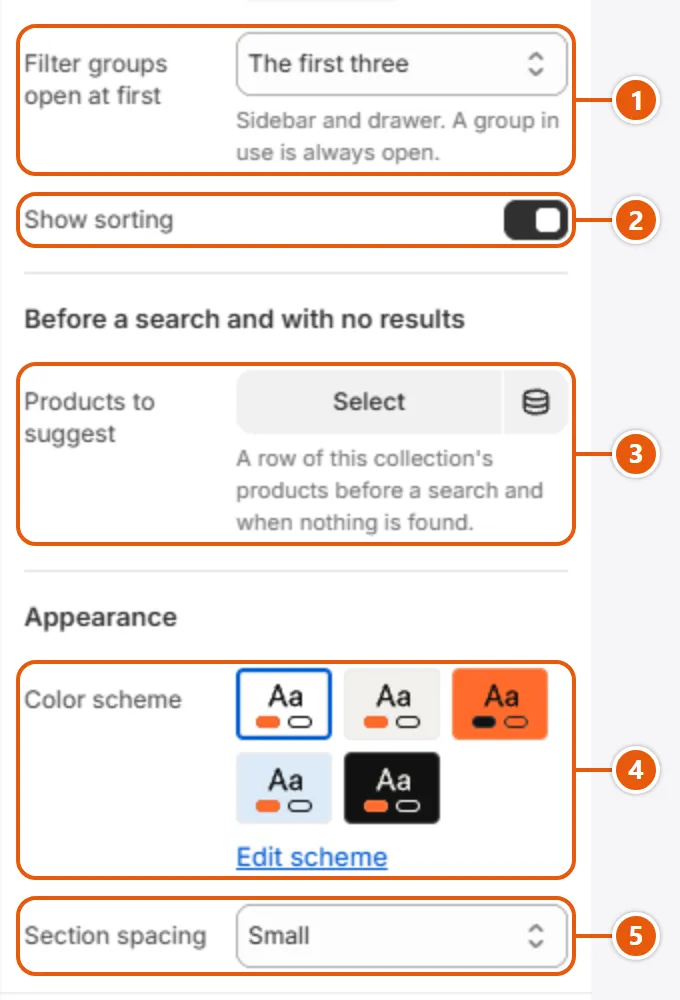



The article page: title, picture and words, then topics, share buttons, the author's note, the previous and next articles, comments, and related articles from the same blog.
The words, picture and tags are written under “Blog posts”.

- 1“Title and picture”
“Title beside the picture” sits side by side on computers; “Title on the picture” puts white words over a full-width picture. An article with no picture shows the title only. - 2“Show author”
“By” and the author's name under the title, with the author's account picture when there is one. - 3“Show share button”
A “Share” row under the article: X, Facebook, WhatsApp, Pinterest (with a picture), LinkedIn and email, plus a button for the device's share sheet or copying the link. - 4“Show previous and next articles”
Links to the blog's previous and next articles under the article. - 5“Show related articles”
Articles from the same blog at the foot of the page, those sharing a tag first, then the newest.
Step by step
- From “Online Store”, click “Edit theme”, choose “Blog posts” and an article in the page picker at the top, and click “Article”.
- Under “Top of the article” pick the “Title and picture” and what the line under the title shows.
- Under “After the article” choose the share button, the author's note and the previous and next articles.
- Under “Related articles” set the “Heading” and the “Number of articles”, then click “Save”.
Where to find its settings
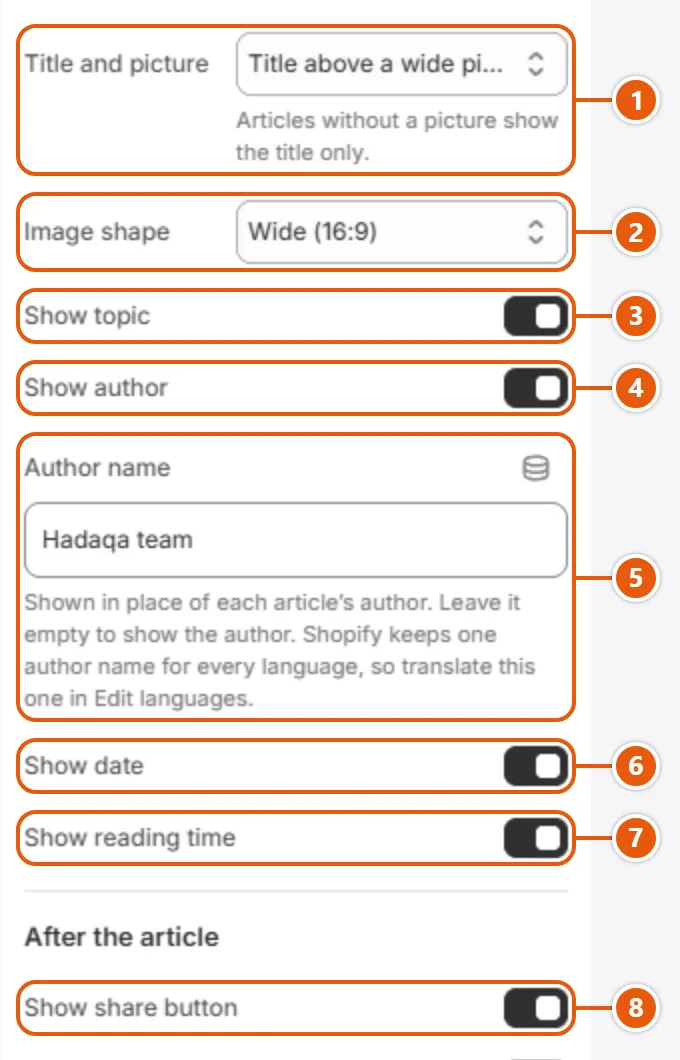
- 1“Title and picture”
- 2“Image shape”
The cover picture is cropped to this shape.Shown when “Title and picture” is “Title above a wide picture”, or when “Title and picture” is “Title beside the picture” - 3“Show topic”
The first tag above the title, linking to the blog filtered by it. - 4“Show author”
- 5“Author name”
Replaces the article's author in the “By” line and the “About the author” card; empty shows the author. Shopify keeps one author name for all languages, so translate this one: “Translate your own words”. - 6“Show date”
The publish date under the title. - 7“Show reading time”
The reading time under the title, at 200 words a minute, at least one minute. - 8“Show share button”
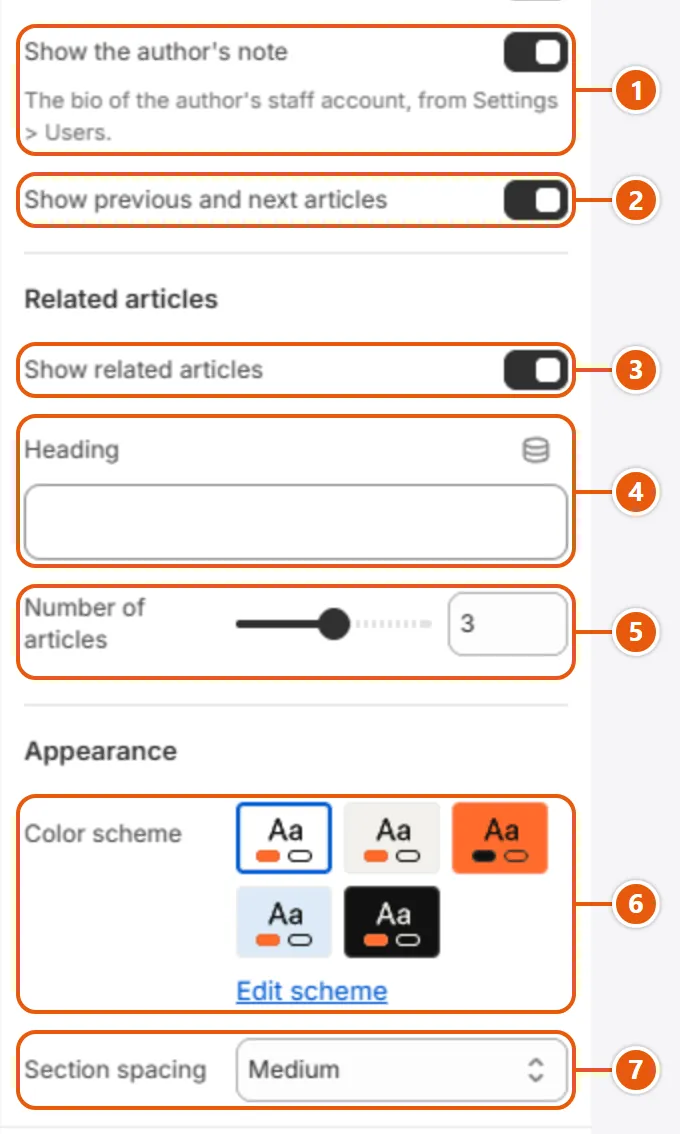
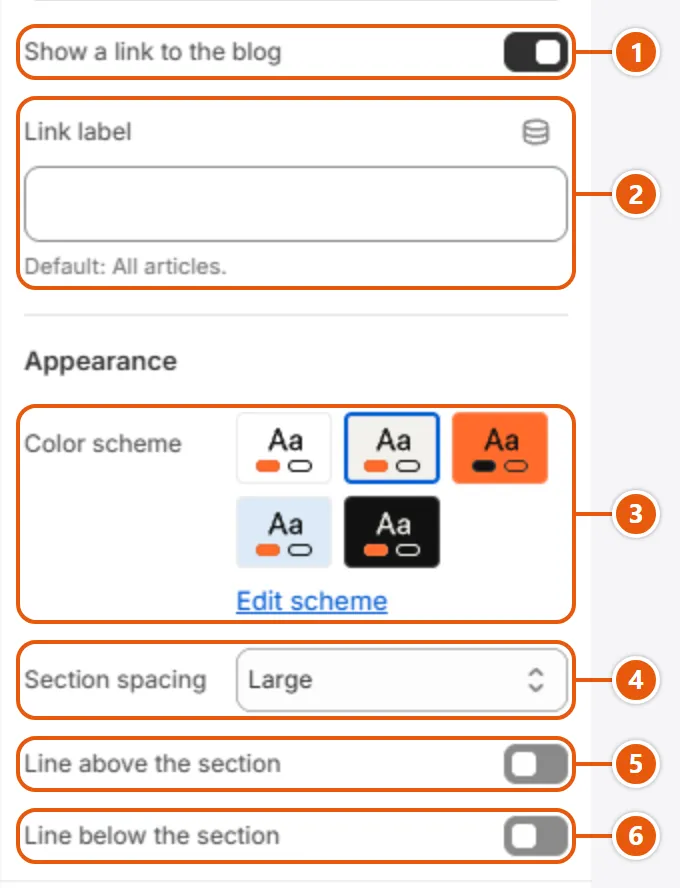
- 1“Show the author's note”
An “About the author” card with the bio of the author's staff account (from “Settings” > Users); hidden when there is no bio. - 2“Show previous and next articles”
- 3“Show related articles”
- 4“Heading”
The related articles' heading. Empty reads “Keep reading” in the page's language; your own words need translating.Shown when “Show related articles” is on - 5“Number of articles”
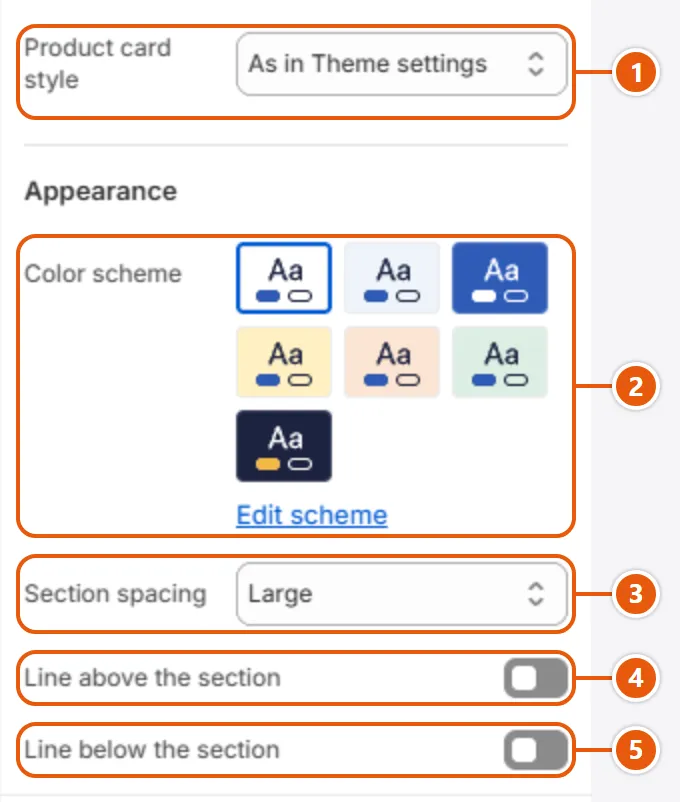
How many related articles show, in as many columns on computers and two on tablets and large phones.Shown when “Show related articles” is on - 6“Color scheme”
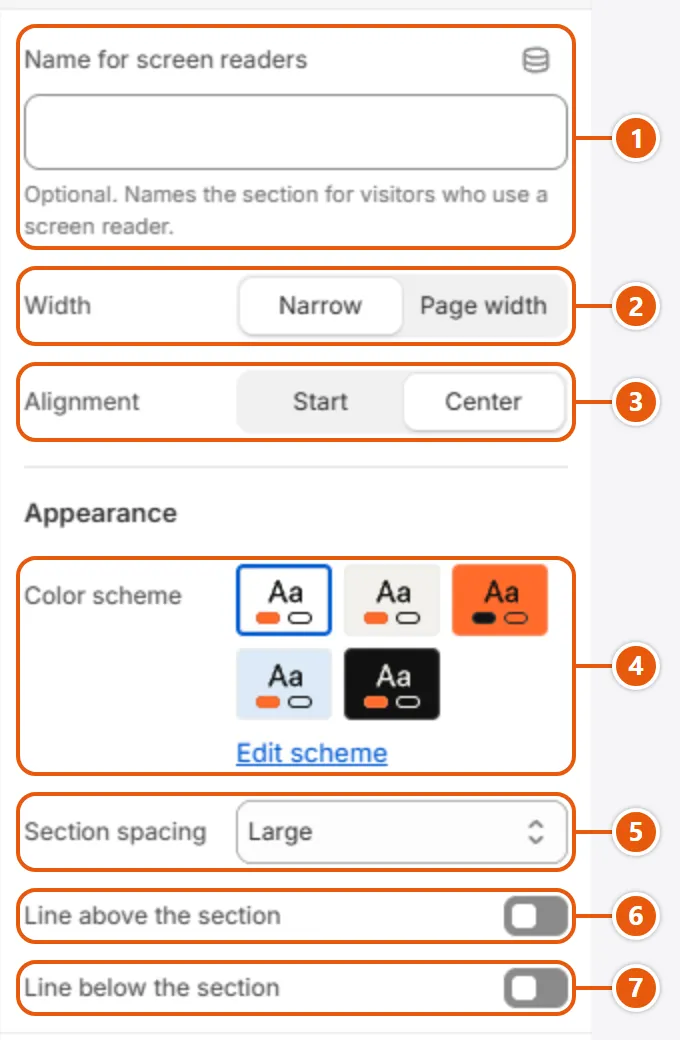
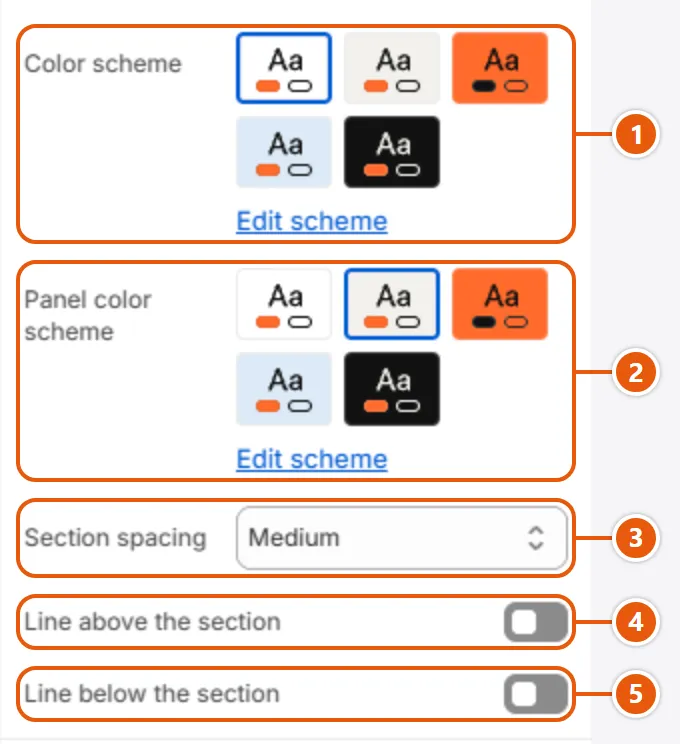
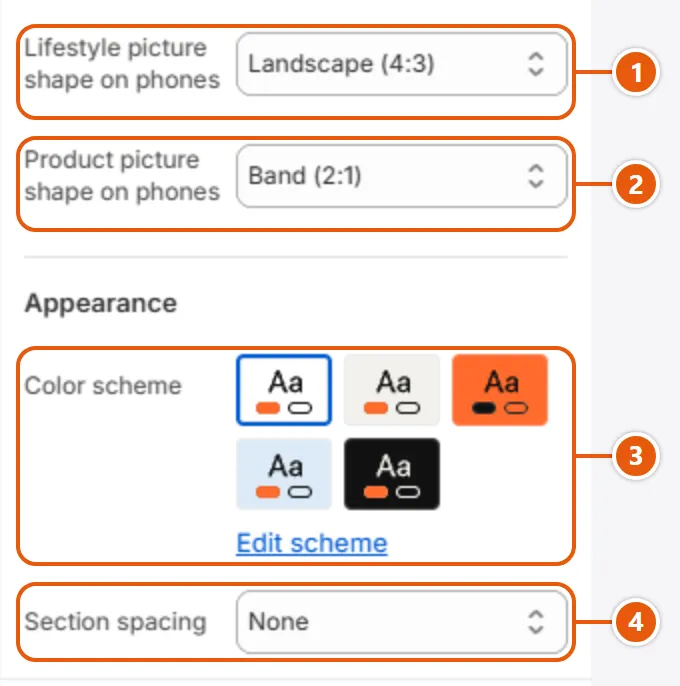
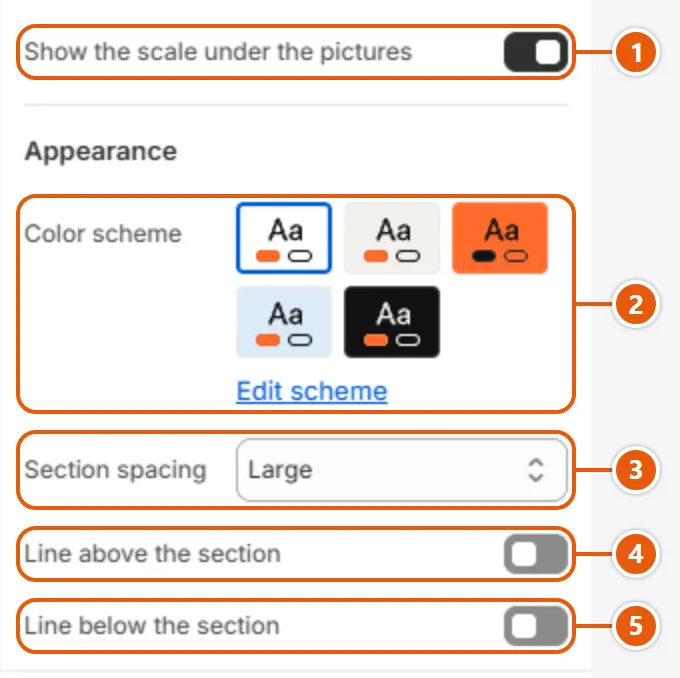
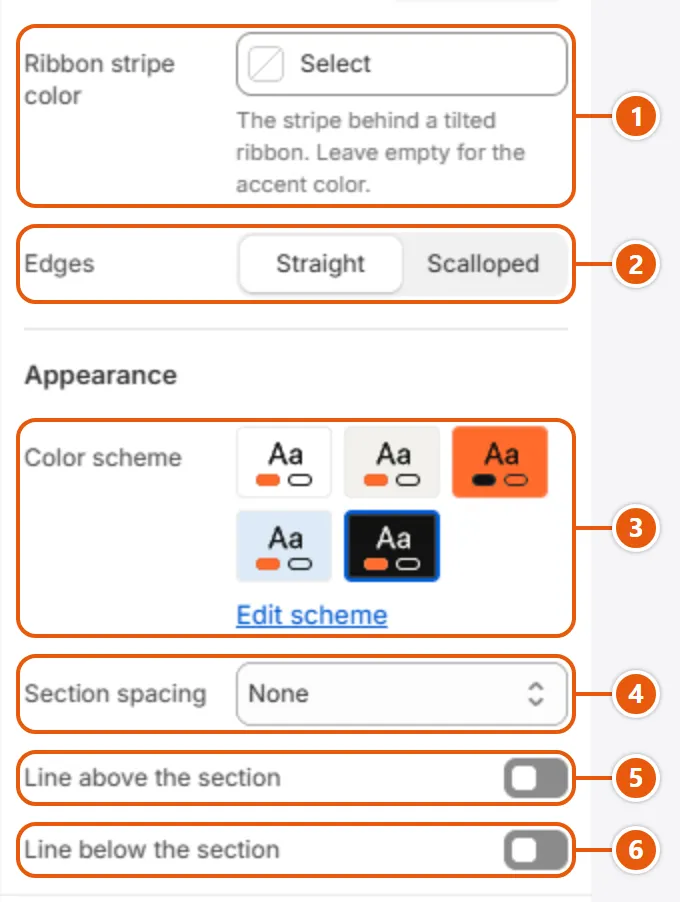
The page's colors, from “Colors”; words on the picture stay white. - 7“Section spacing”
Space above and below the section, sized in “Theme settings” > “Layout”; with “Title on the picture” the picture meets the header.
The other settings
- Picture darkening: How dark the picture is under the white words; it deepens toward the bottom, so even 0 leaves a light shade under the title.Shown when “Title and picture” is “Title on the picture”
- App blocks: Blocks from your installed apps (reviews, comments...), shown right after the article's words.
Tips
- These settings apply to every article on the same template.
- Comments show only when the blog takes comments, in its settings in Shopify; if comments are moderated, the shopper is told theirs will appear once approved.
- With an “Author name”, the “About the author” card keeps the staff account's bio, and shows the staff picture only when “Author name” is empty.