








Multi-design theme · 2 designs

Caliper 2 designs
in one theme

Every product tells the shopper whether it fits, before they buy. Two ready designs: Caliper for eyewear and Inchling for kids. Pick the one closest to your store when you add the theme from the Shopify Theme Store.

Every design for one price Arabic and English
Designs

2 designs, ready to apply

Each has its own home page, header, footer, product cards and colors. Try its demo store before you buy.

2 designs
hadaqa-caliper-b9de00nc.myshopify.com
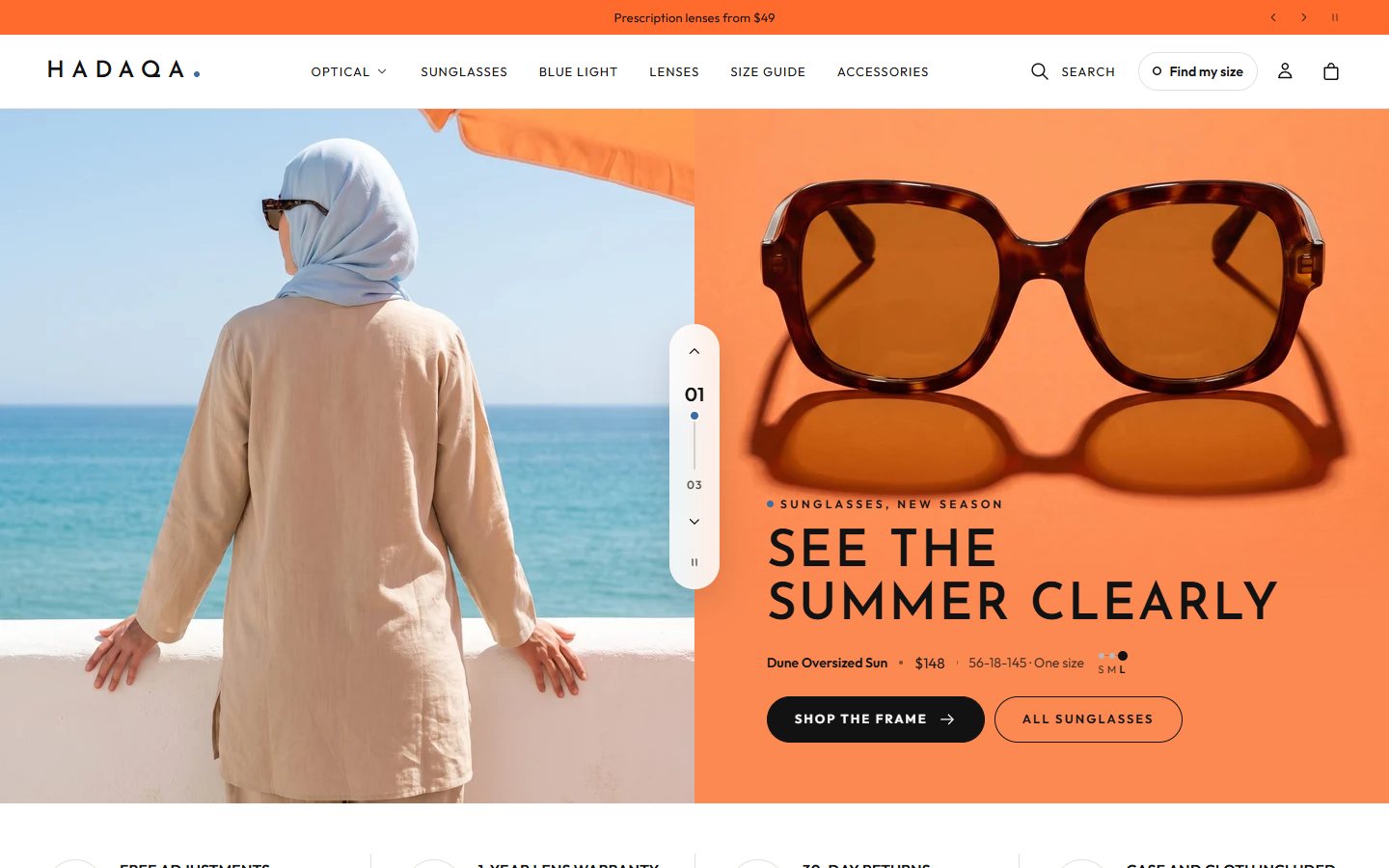
Home page of the Caliper design on desktop
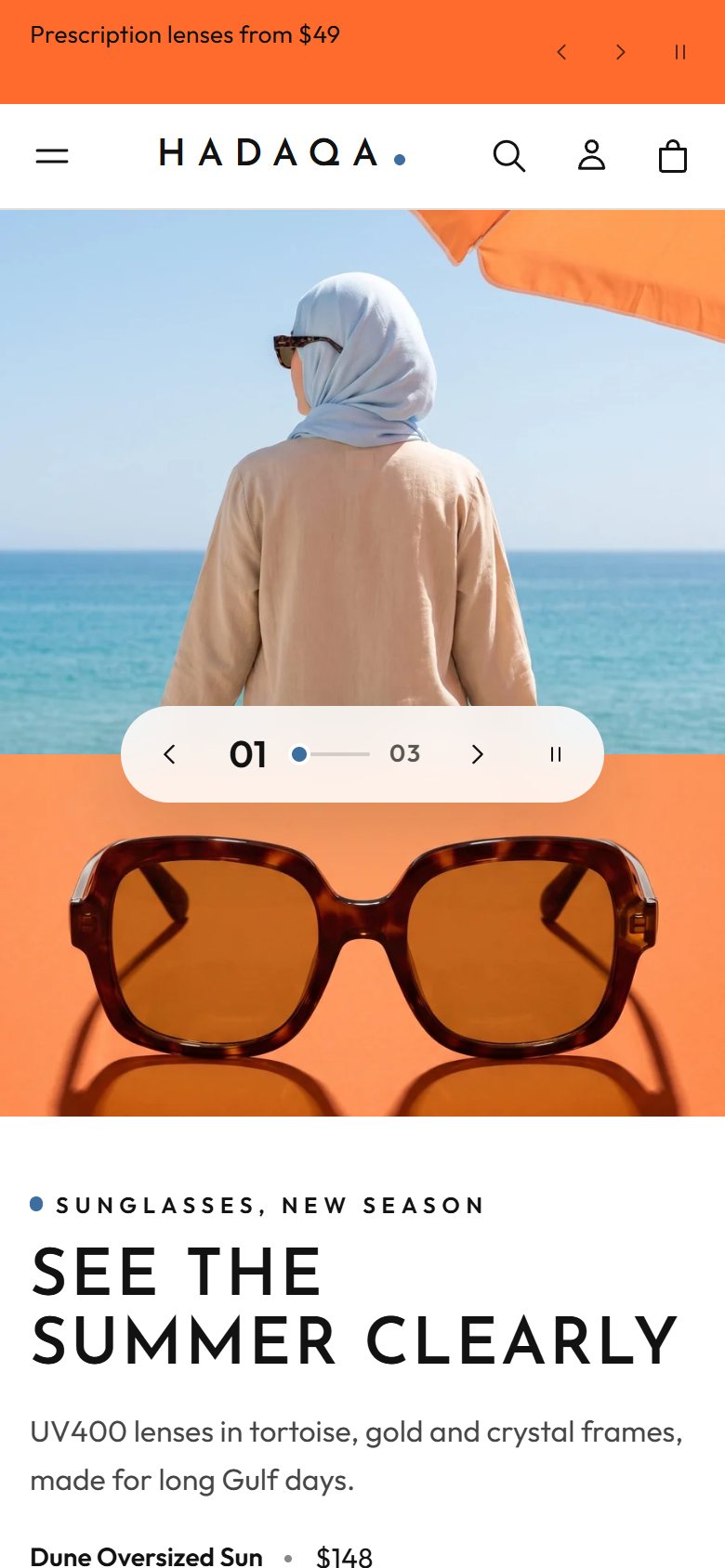
The Caliper design on a phone
Hover or click the picture to scroll the pageTap the picture to scroll the page
Design 01
1 of 2

Caliper

For prescription glasses and sunglasses
Eyewear
ColorsFont: Josefin Sans
Live demo of Caliper

All designs come in one theme at one price, with the same features and settings.

Picking a design

Designs install from the Shopify Theme Store

Each design here is one of Caliper's styles in the Shopify Theme Store, with its own demo store there.

  1. 1

    Open Caliper in the Shopify Theme Store

    Search for Caliper in the Shopify Theme Store.

  2. 2

    Pick the style

    On the theme's page there, pick the style of the design that fits your business. You can open its demo store first.

  3. 3

    Add it to your store and publish

    The theme lands in your store's theme library with the style you picked. Customize it, then publish when it is ready.

Want another design later? Add the theme again with the other style. A new copy lands in your theme library, and your published theme stays as it is.

Features

Features in every design

The shopper's size on every product

Shoppers save their size or their child's age once; every card, product page and cart line then tells them whether it fits.

Frame size finder and lens builder

The numbers inside a glasses arm draw the frame to scale, and lenses go in the cart with the frame at their prices, in one step.

Age path and newborn list

Shop by the child's age from newborn to six, and a newborn list that goes in the cart at once with its real total.

How it fits

Product pages draw each frame to scale and turn the store's size chart into a growth chart that chooses the size.

Arabic and English

Every page is translated into Arabic and turns right to left by itself.

3D models and video

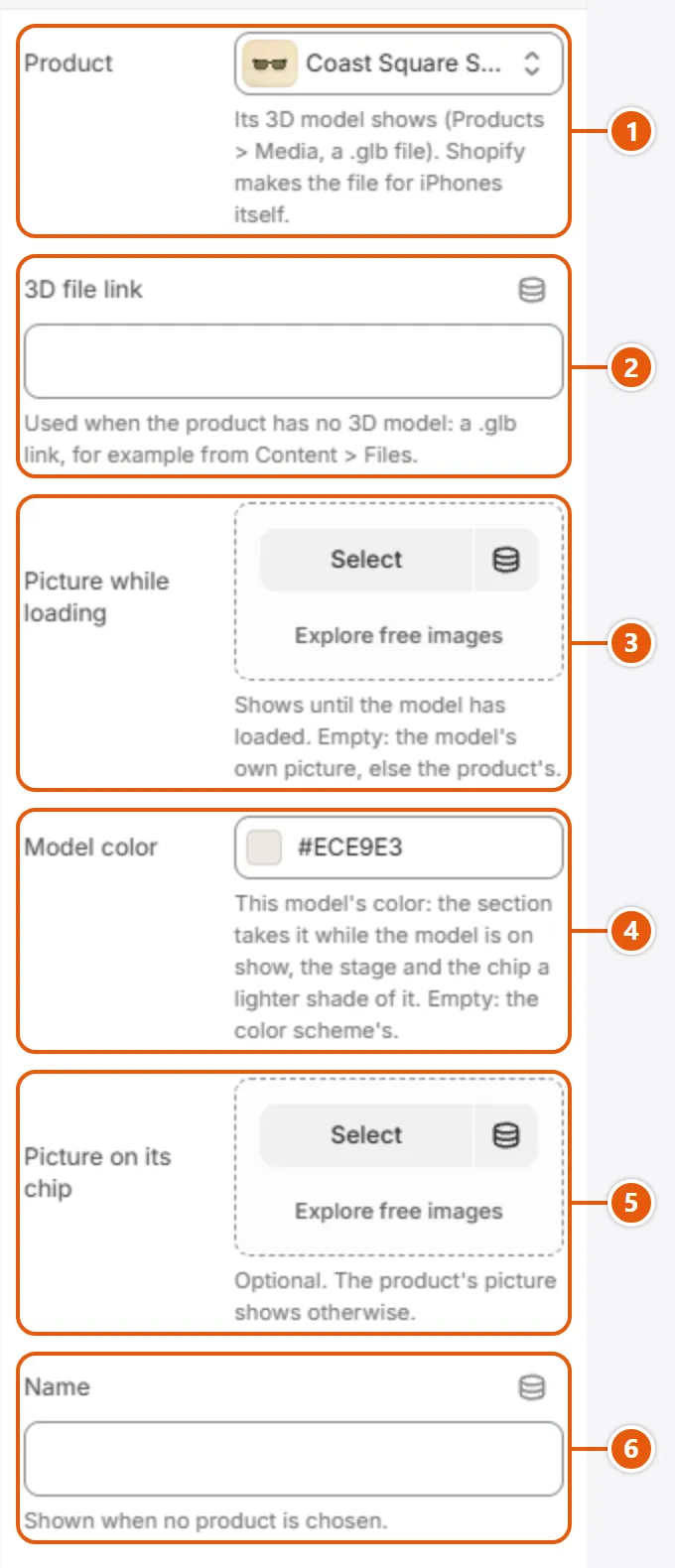
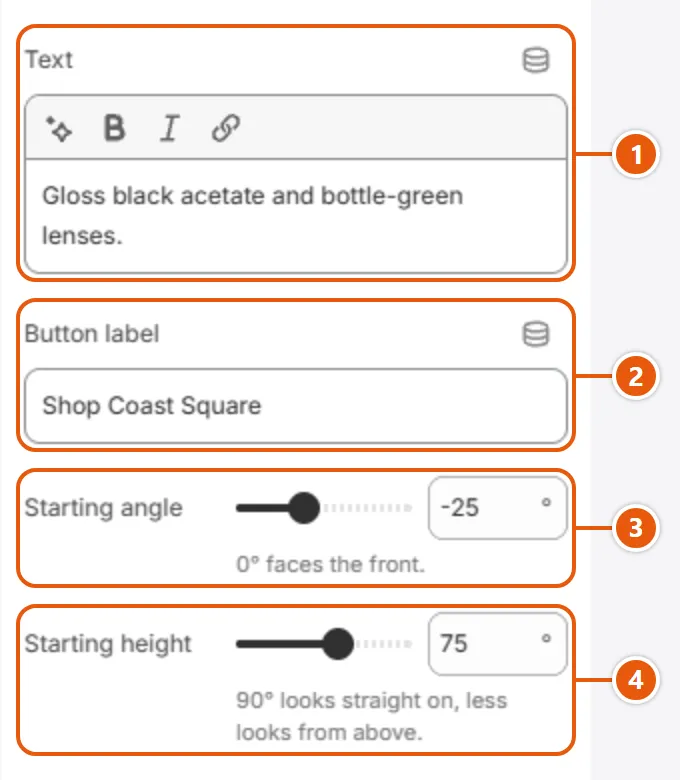
Products turn in 3D with numbered spots on their details, and short pictures and videos carry the product.

Cart drawer, search and filters

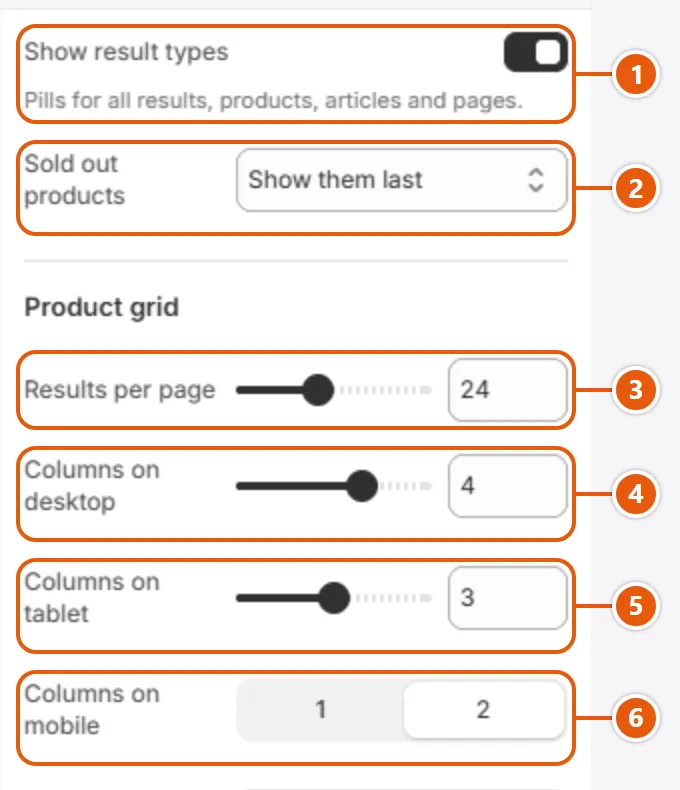
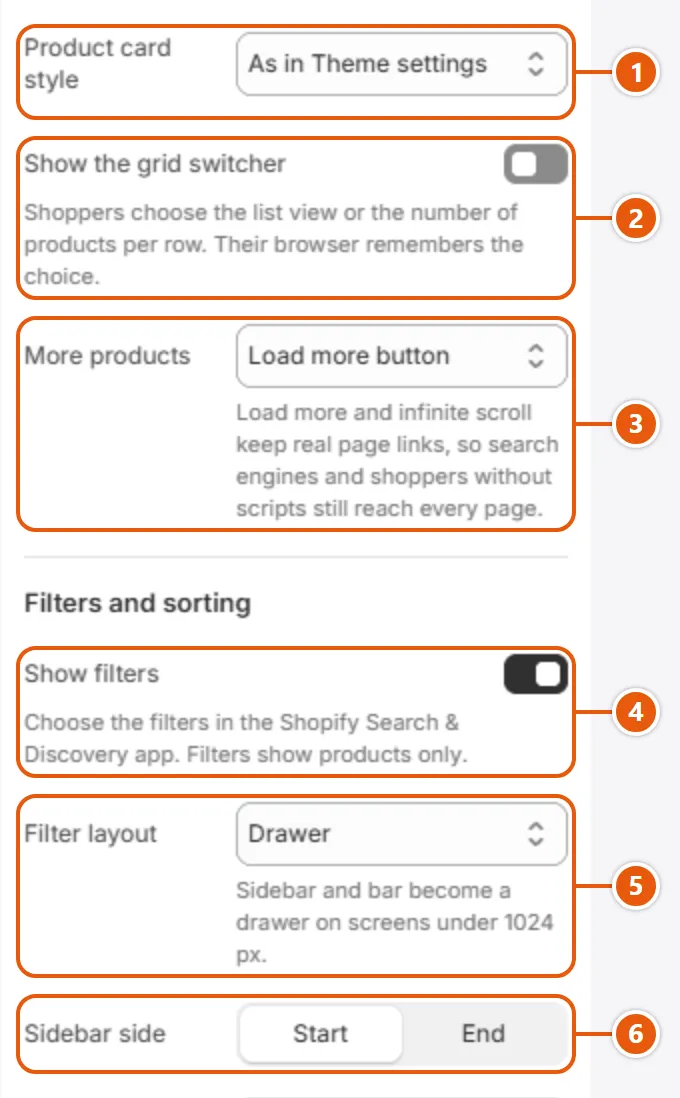
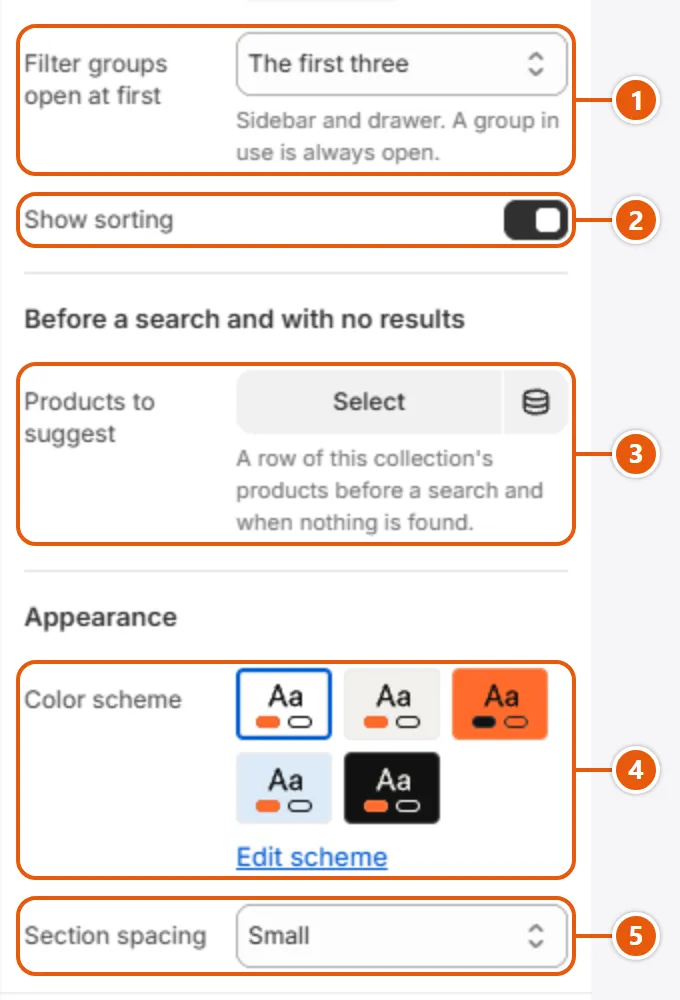
Quick add with the saved size, predictive search, and filters and sorting on collections and search.

User guide

Theme user guide

One guide for every design: the settings are the same.

Guide contents

Start here

Just added Caliper? Start here. Guide last updated October 23, 2026, for version 1.0.0.

Everything in Caliper is changed in the theme editor, with no code. Open it from “Online Store” with “Edit theme”.

Step by step

  1. To add a section: click “Add section” and pick it from the list.
  2. To move a section: drag it up or down by the handle beside its name.
  3. To hide a section without deleting it: click the eye beside its name.
  4. To delete a section: open it and click “Remove section”.
  5. To add a block inside a section: click the button under its blocks, such as “Add Message” in “Announcement bar”.
  6. Click “Save”.
“The editor map” with its numbers
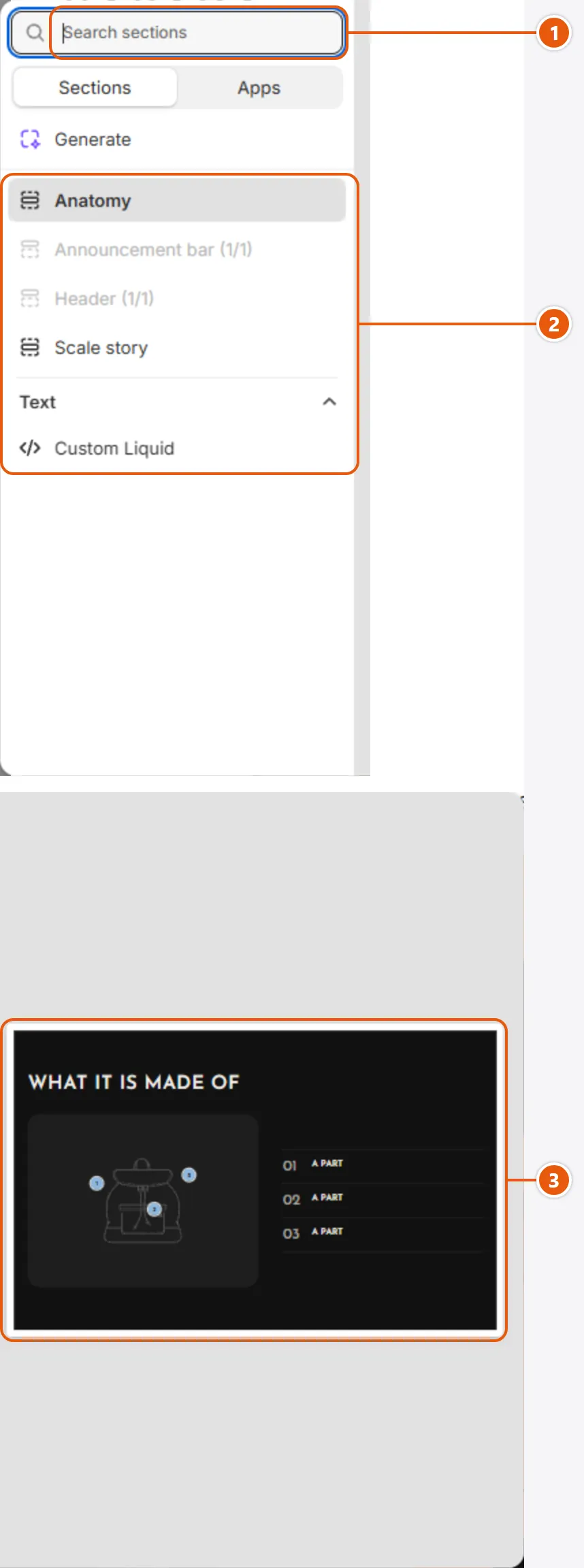
  1. 1“Search field”
    Type part of the section's name.
  2. 2“Section list”
    Caliper's sections, named as in this guide; a section with more than one starting point shows under more than one name.
  3. 3“Preview”
    Shows the section before you add it.
“The editor map” with its numbers
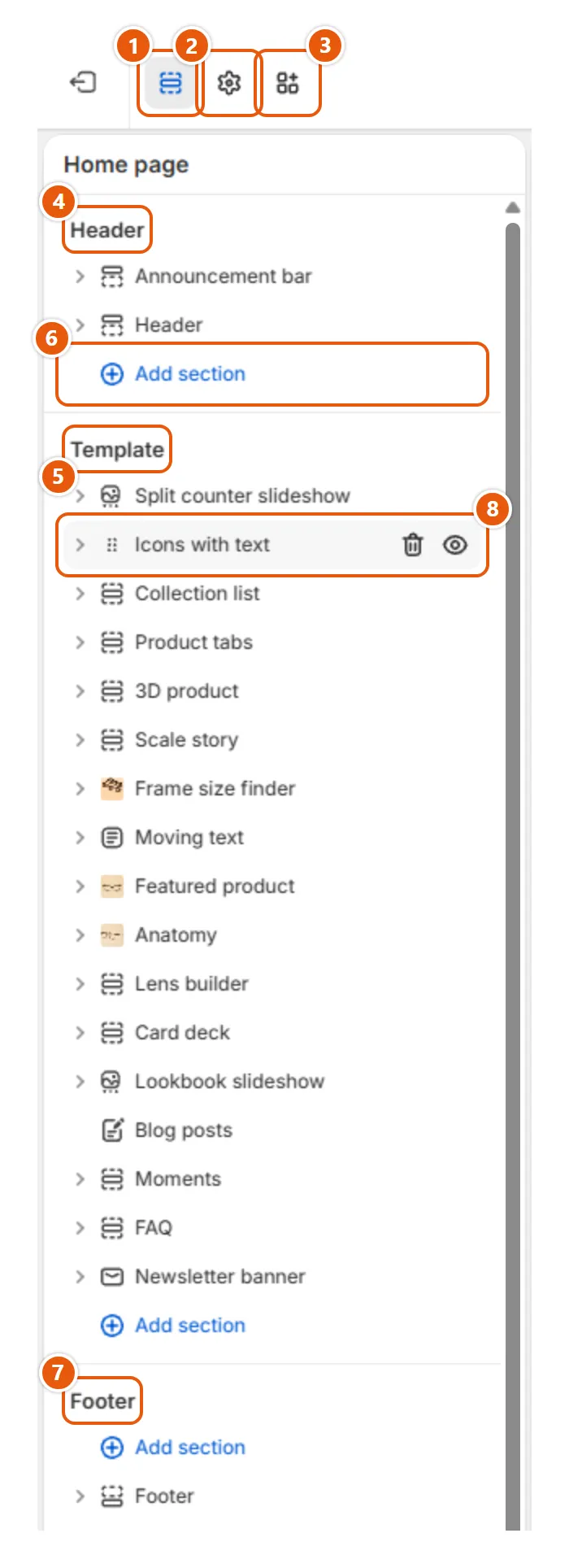
  1. 1“Sections”
    The sections of the page you have open.
  2. 2“Theme settings”
    Settings for the whole store: logo, colors, fonts, buttons, cards, sizes and more.
  3. 3“App embeds”
    Turns on apps that show on every page, such as a chat bubble.
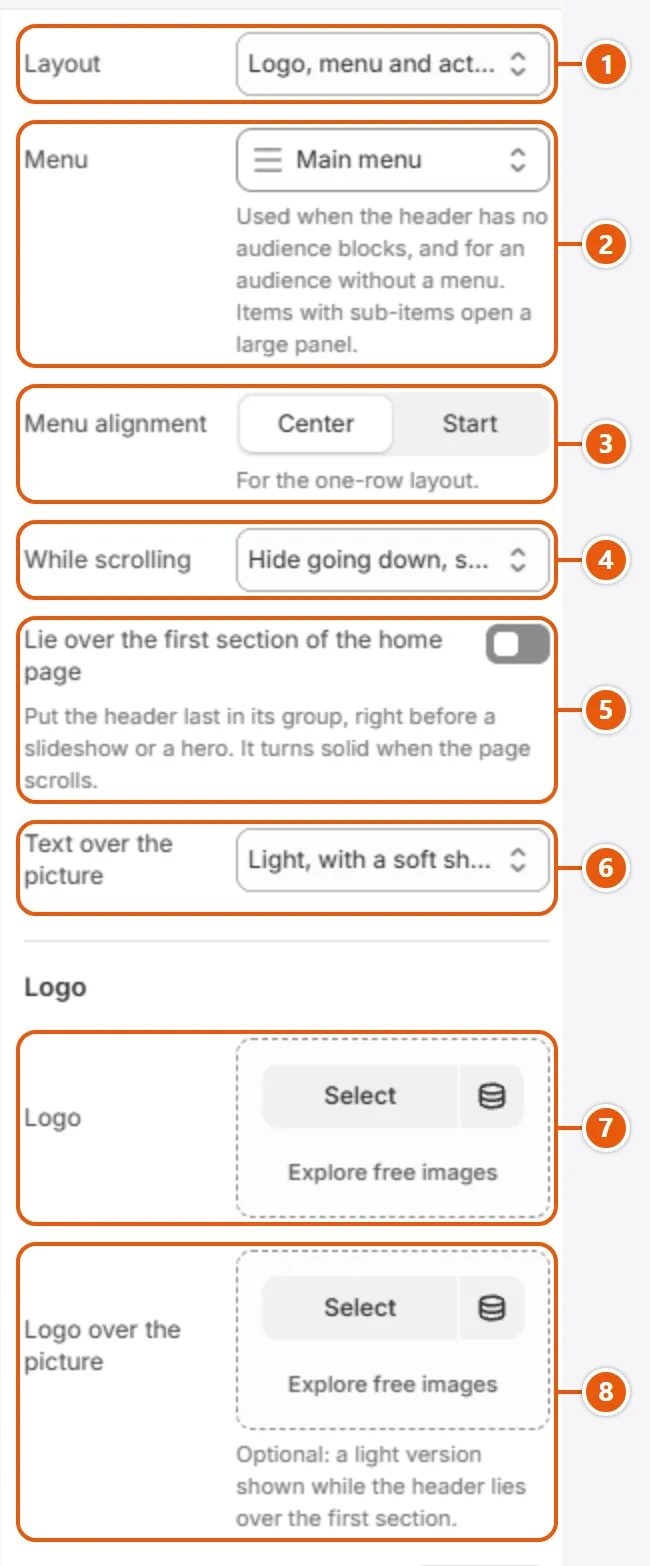
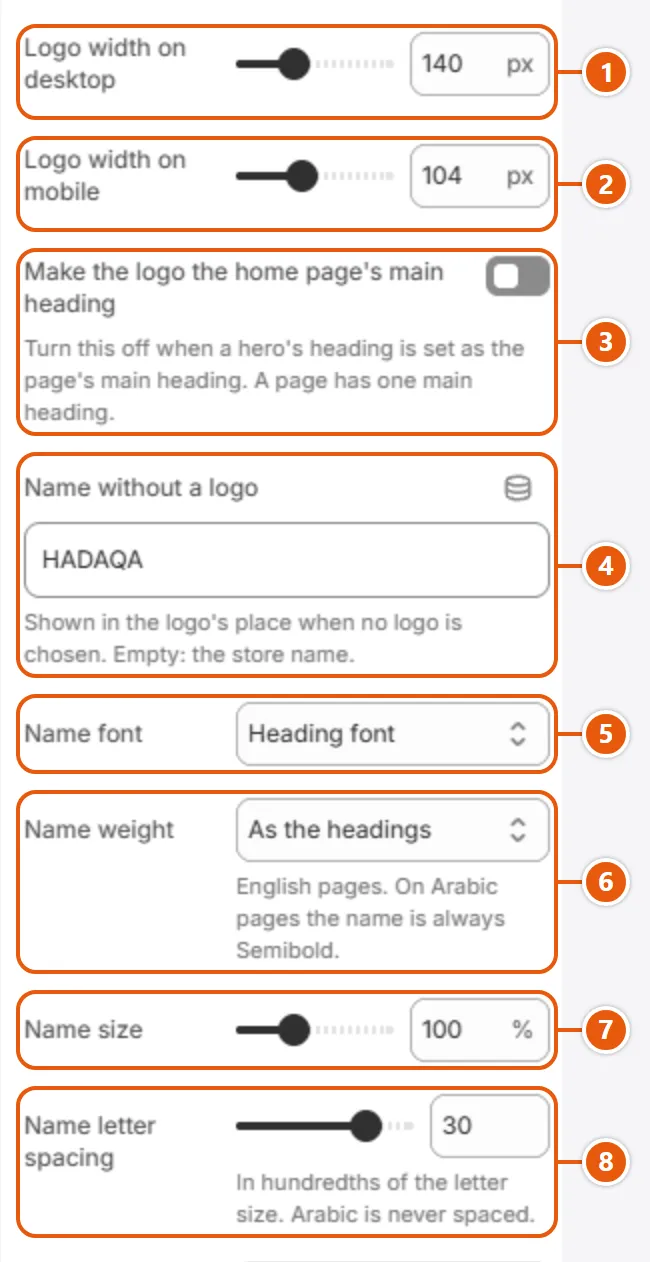
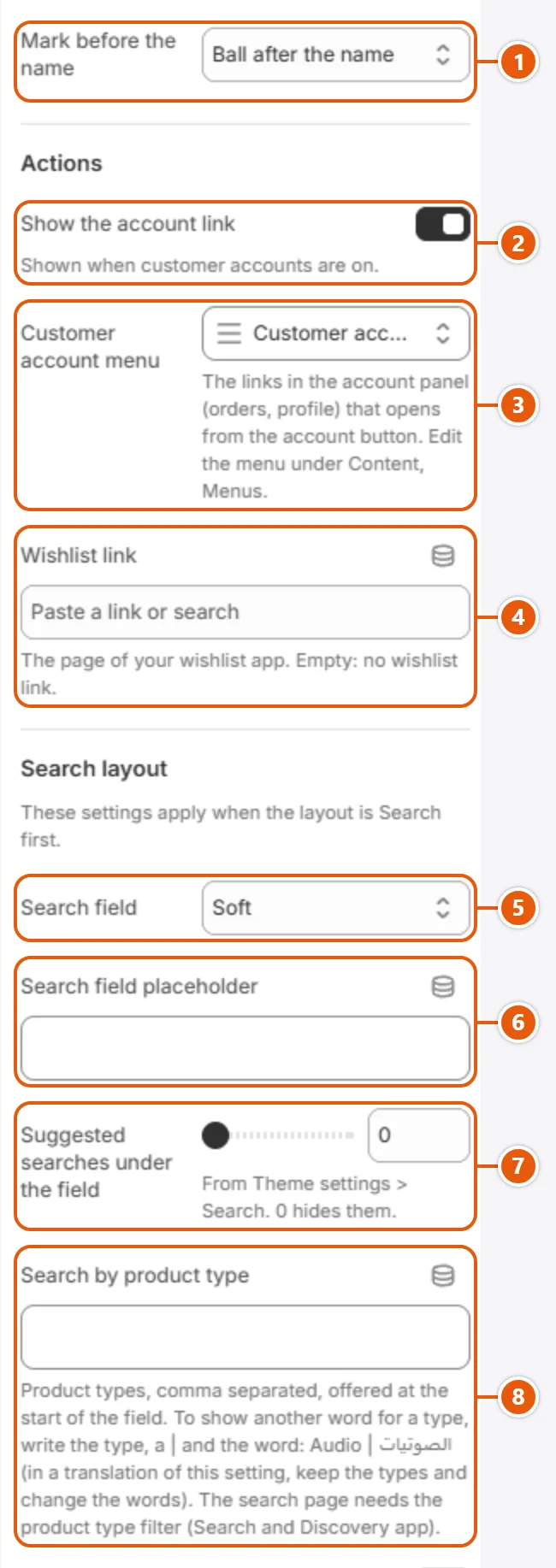
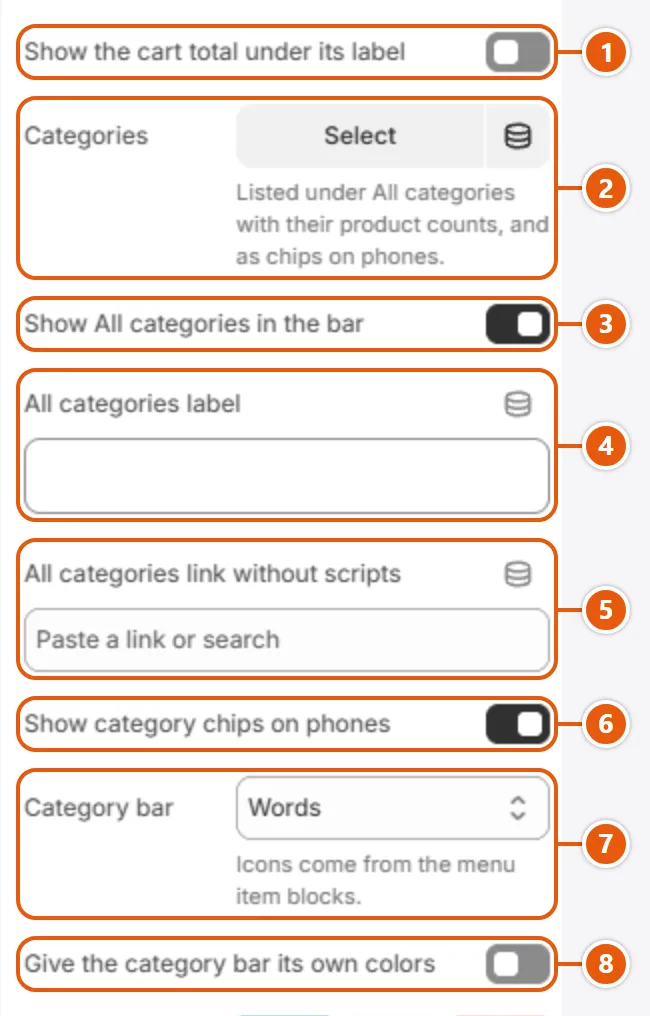
  4. 4“Header”
    The announcement bar and the header, shared by the store's pages.
  5. 5“Template”
    This page's own sections, in the order they show.
  6. 6“Add section”
    Adds a new section to the page.
  7. 7“Footer”
    The footer, shared by the store's pages.
  8. 8“Drag handle and eye”
    They appear when you point at a section's name: drag the handle to move it, click the eye to hide it.
“The editor map” with its numbers
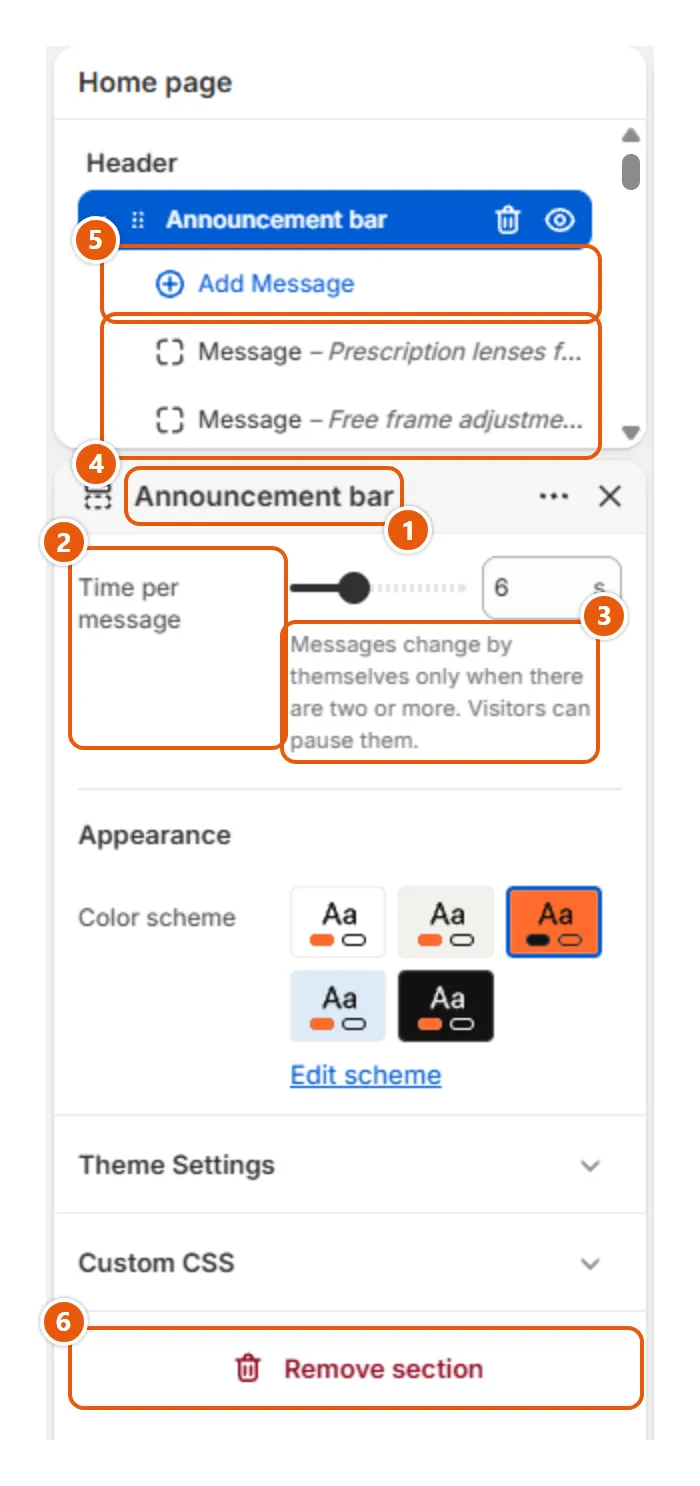
  1. 1“Section name”
    The section whose settings are open.
  2. 2“Setting name”
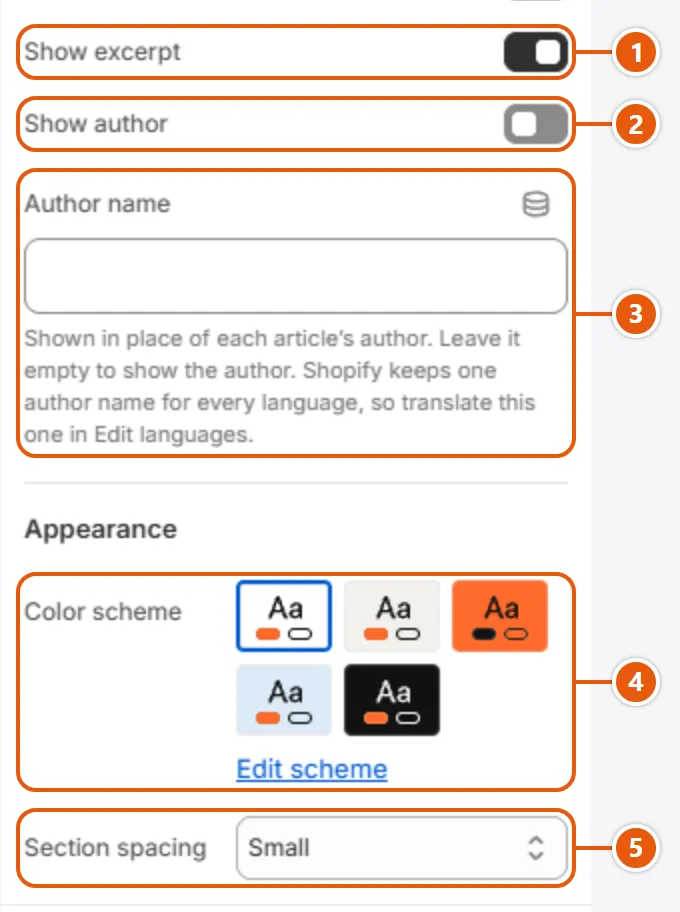
    The words the guide quotes, so search for them.
  3. 3“The small line under a setting”
    A short note from the theme; read it before changing.
  4. 4“Blocks”
    The parts of the section, such as messages or questions: click one to open it, drag it to reorder.
  5. 5“Add Message”
    Adds a new block inside the section; the button carries the block's name.
  6. 6“Remove section”
    Deletes the section from the page. To hide it only, use the eye.
“The editor map” with its numbers
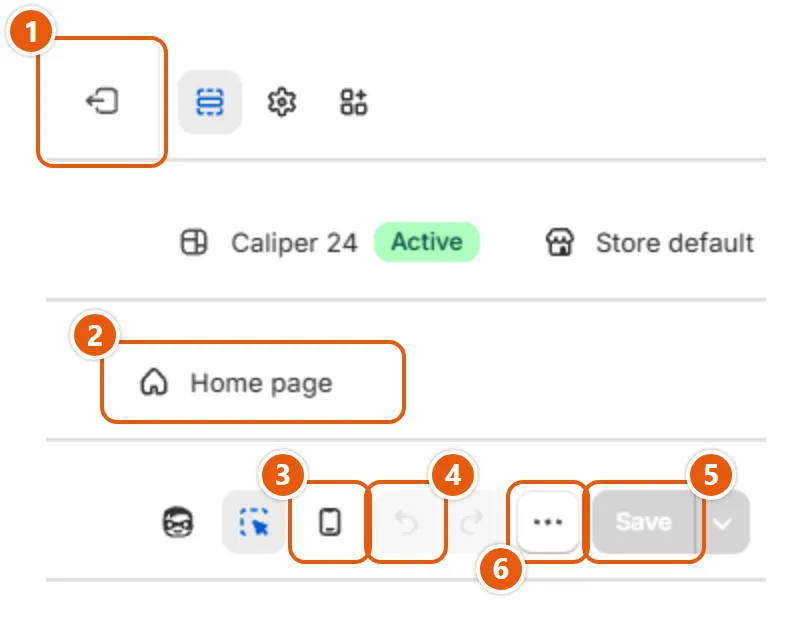
  1. 1“Exit”
    Takes you back to “Online Store” in the Shopify admin.
  2. 2“Home page”
    Pick the page to edit here: product, collection, cart and the rest.
  3. 3“Enable mobile preview”
    Shows the page as on a phone; click it again for desktop.
  4. 4“Undo arrow”
    Takes back your last change.
  5. 5“Save”
    Saves your changes. On the published theme, visitors see them right away.
  6. 6“The three dots”
    Holds “View documentation”, which opens this guide.

Most picture spots fill their space and crop the overflow at the edges, so keep what matters in the middle. Sizes are in pixels, width then height; larger in the same shape works too. Set a “Focal point” on a picture whose subject is off center.

  • “Brand and favicon”
    • “Favicon image”: 64 x 64 (1:1) A square PNG, at least 32 x 32.
  • “Header”
    • “Logo”: 600 x 200 A PNG or WebP on a transparent background, at least 600 wide (twice its largest width).
    • “Logo over the picture”: 600 x 200 The main logo's proportions in a light color, on a transparent background.
    • “Icon image”: 72 x 72 (1:1) On a transparent background; it shows at about 22 px.
    • “Card image”: 456 x 608 (3:4)
  • “Split counter slideshow”
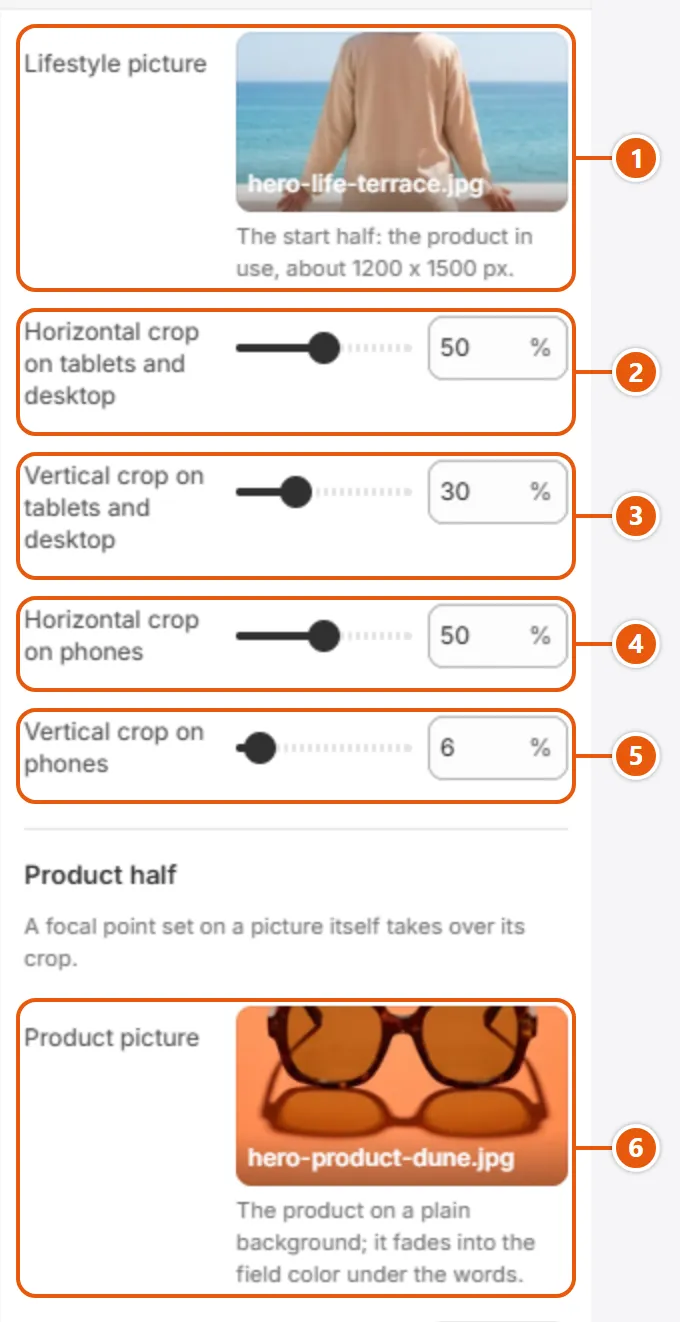
    • “Lifestyle picture”: 1200 x 1500 (4:5)
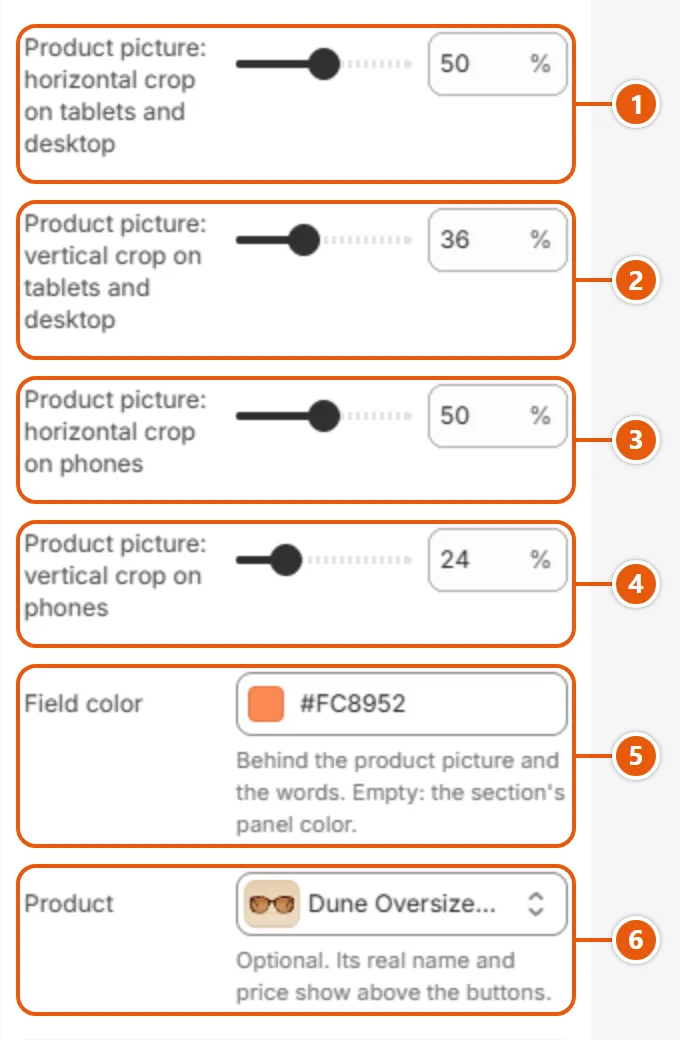
    • “Product picture”: 1440 x 1080 (4:3) The product centered on a plain background.
  • “Icons with text”
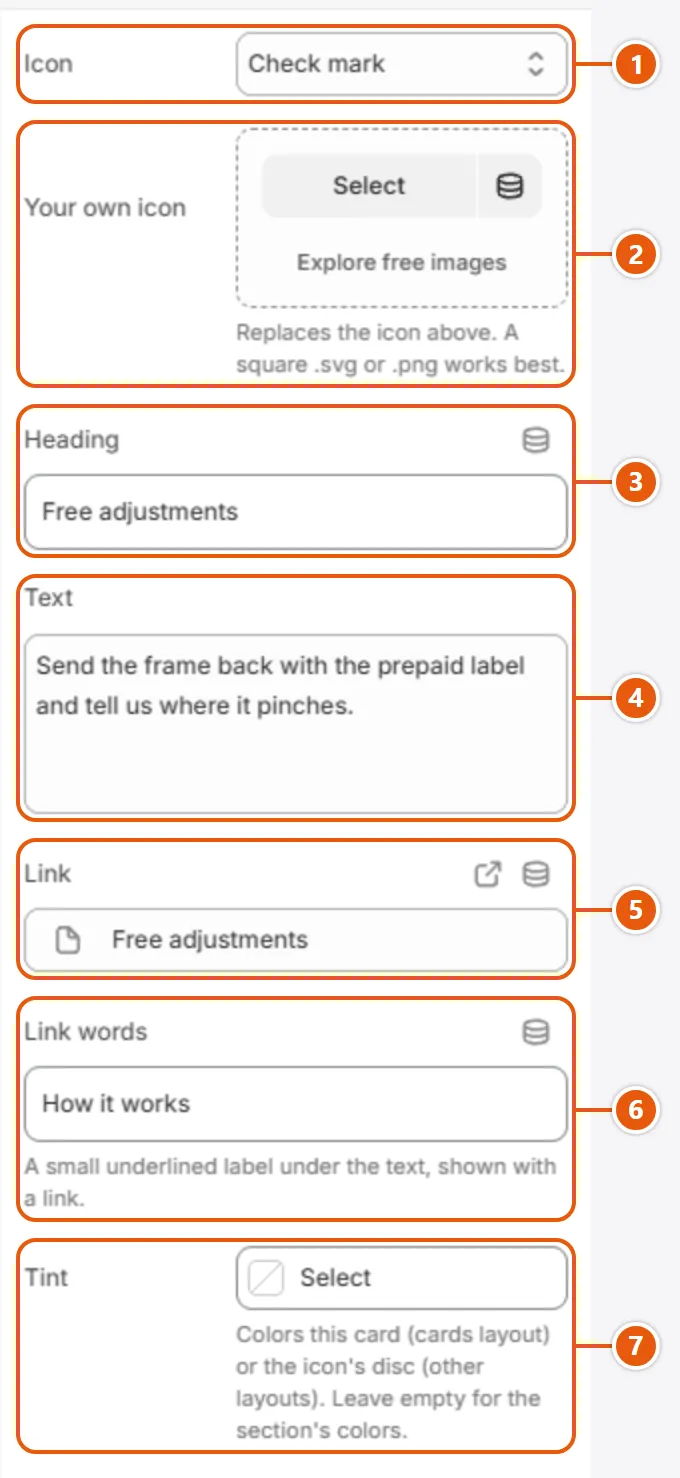
    • “Your own icon”: 136 x 136 (1:1) SVG or PNG on a transparent background; it shows at 34 px.
  • “Collection list”
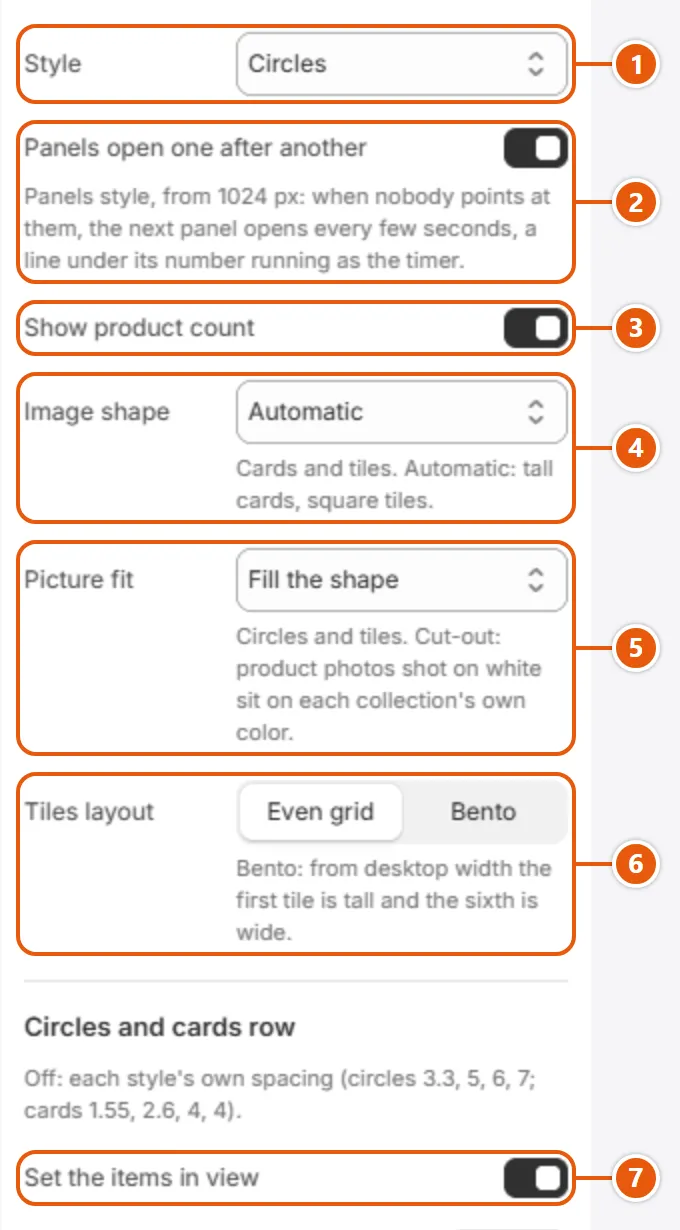
    • “Image”: 900 x 1200 (3:4) Subject centered: Circles and Tiles crop from the middle.
    • “Desktop image”: 1320 x 660 Bento tiles only: the sixth tile is 2:1, the first tall, about 1:2 (660 x 1360).
  • “3D product”
    • “Picture while loading”: 1500 x 1125 (4:3) The product centered on white.
    • “Picture on its chip”: 168 x 168 (1:1) Shown in a 56 px circle.
  • “Scale story”
    • “Image”: 1400 x 1400 (1:1) The pinned area is close to square and the picture is cropped to it.
  • “Moving text”
    • “Picture”: 256 x 256 (1:1) Subject centered; it shows very small (30 to 128 px wide).
  • “Anatomy”
    • “Image”: 1360 x 1020 (4:3) The area takes your picture's shape; it is cropped only when taller than 78% of the window.
  • “Lens builder”
    • “Picture when a frame has none”: 1296 x 972 (4:3)
  • “Card deck”
    • “Picture”: 1600 x 1200 (4:3) Its edges are cropped to the area.
    • “Picture on phones”: 1080 x 810 (4:3) Full screen width under 768 px.
  • “Lookbook slideshow”
    • “Image”: 1200 x 1500 (4:5) In the “Image shape” you picked (4:5 by default), so nothing is cropped.
  • “Moments”
    • “Image”: 900 x 1200 (3:4) Cropped to the “Image shape”: 3:4, 4:5 (900 x 1125), 2:3 (900 x 1350) or 9:16 (900 x 1600).
    • “Picture on the product chip”: 252 x 252 (1:1) In a 58 px circle, enlarged 25%, so let the product fill the frame.
  • “Newsletter banner”
    • “Picture”: 1400 x 1000 With “Picture beside the form” close to 6:5, and 4:3 on phones.
    • “Picture on phones”: 1080 x 810 (4:3) Full screen width.
  • “Shop by age”
    • “Image”: 360 x 360 (1:1)
  • “Checklist”
    • “Image”: 1120 x 1400 (4:5)
  • “Banner grid”
    • “Image”: 1200 x 1500 4:5 for “Three in a row”; 1400 x 1120 (5:4) for “Two in a row”.
    • “Phone image”: 1080 x 1350 (4:5) Full screen width, in the banner's shape.
  • “Product information”
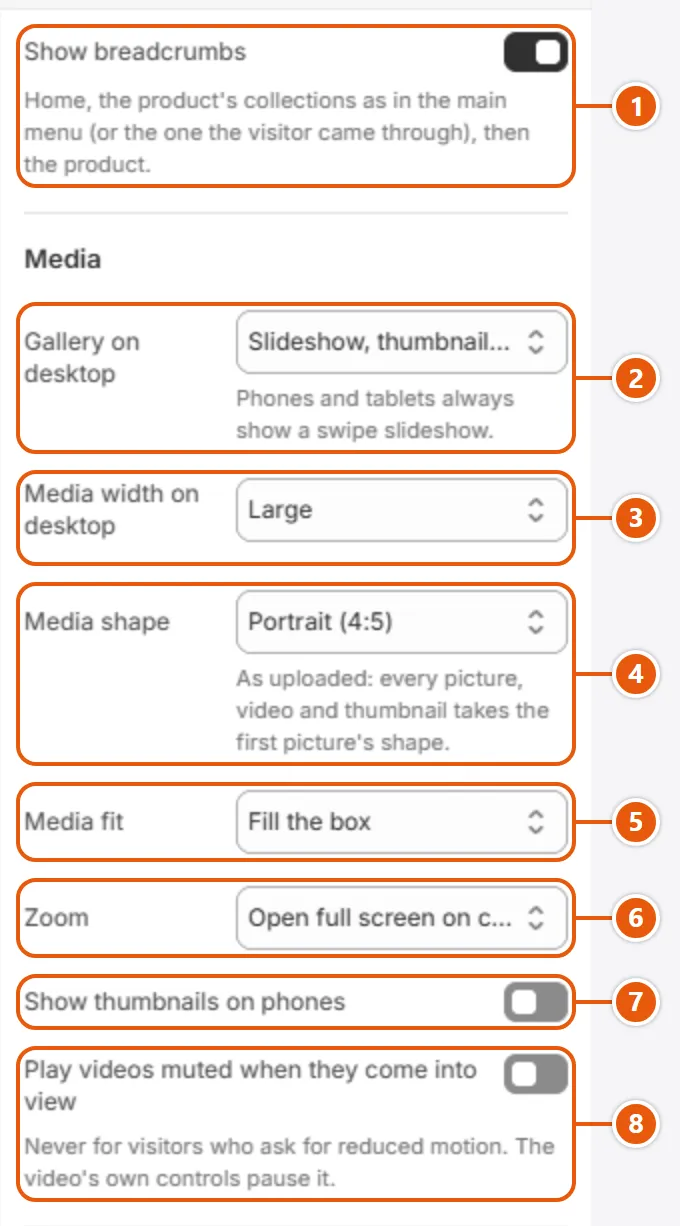
    • 1600 x 1600 Gallery pictures come from the product's own media: at least 1600 on the long side; the shape follows “Media shape”.
  • “Collection banner”
    • “Picture”: 2400 x 800 (3:1)
    • “Picture on phones”: 1080 x 810 (4:3)
  • “Collection products”
    • “Picture”: 1200 x 1200 (1:1) Roughly.
  • “Image with text”
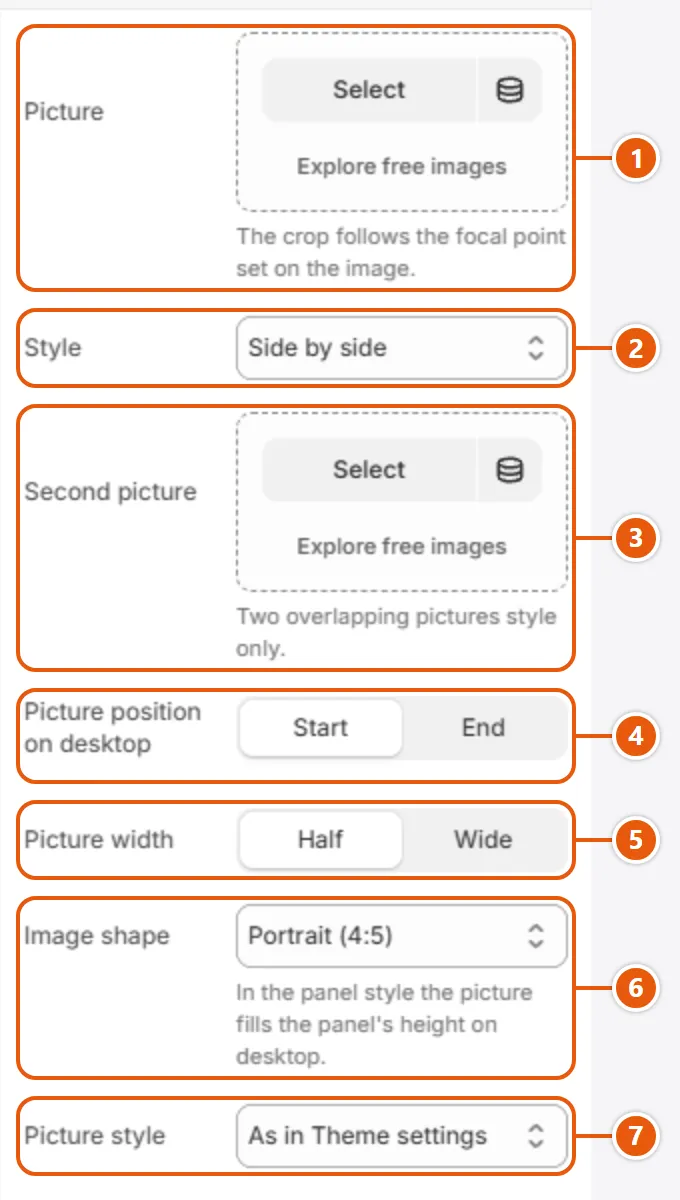
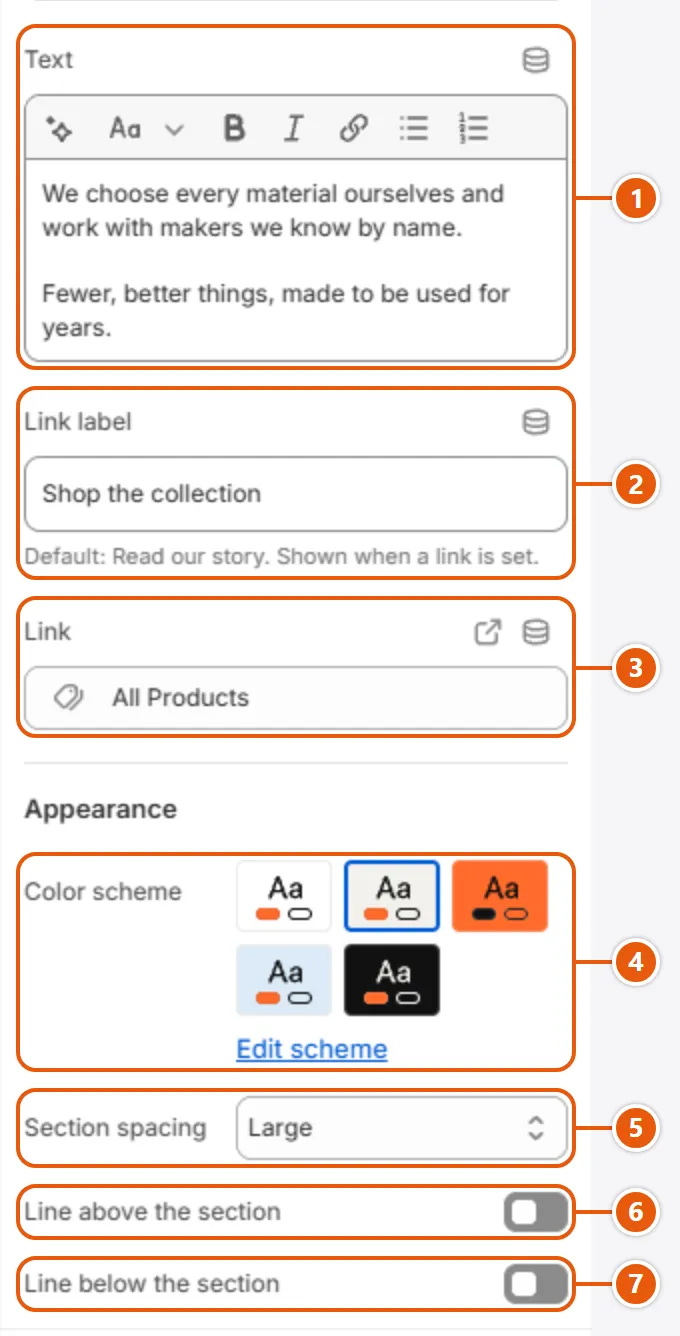
    • “Picture”: 1200 x 1500 (4:5) Or the proportion you choose in “Image shape”.
    • “Second picture”: 600 x 750 (4:5) 46% of the main picture's width, in a frame of the page color.
  • “Brand story”
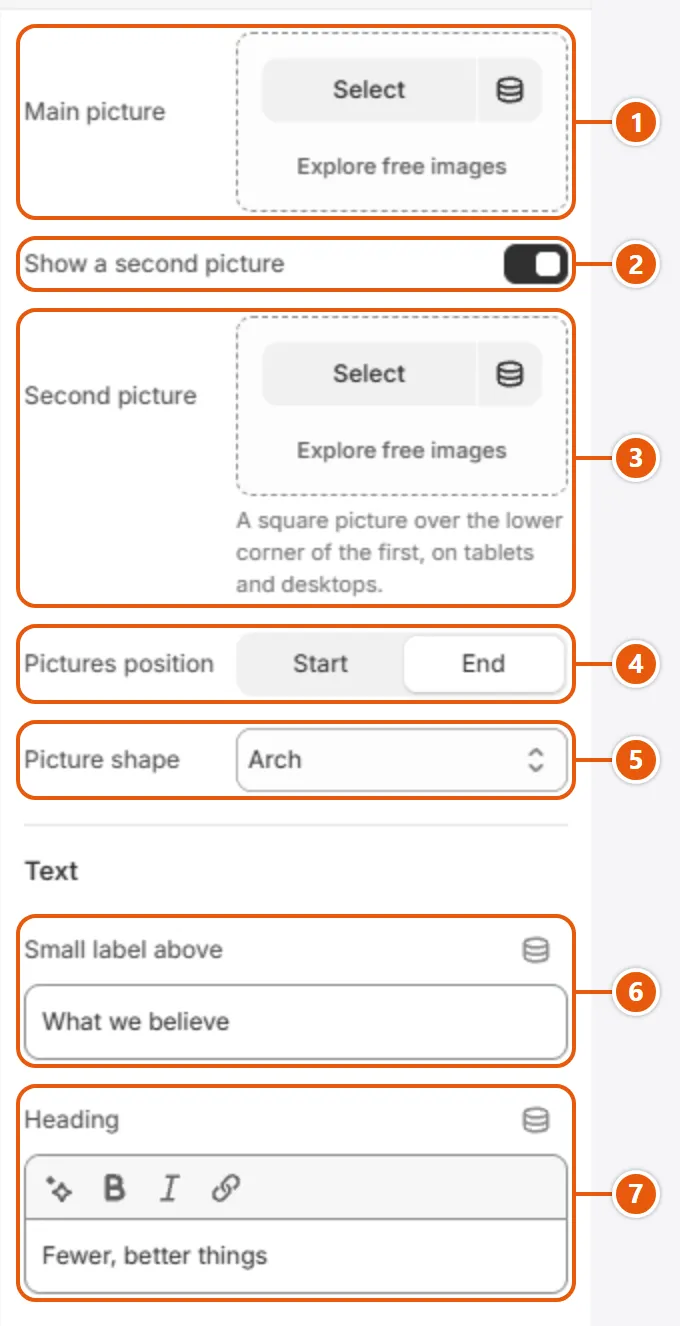
    • “Main picture”: 1200 x 1500 (4:5) In an arch; full width on phones.
    • “Second picture”: 700 x 700 (1:1) Its frame in the section's background color crops the edge a little.
  • “Page not found”
    • “Picture”: 1200 x 1500 (4:5) Or square or 3:4, to match “Image shape”.
  • “Password page”
    • “Picture”: 2000 x 1500 Roughly 4:3, subject centered.
    • “Logo”: 600 x 240 Any proportion, best a PNG on a transparent background.
  • “Menu drawer”
    • “Image”: 510 x 680 (3:4)
  • “Welcome window”
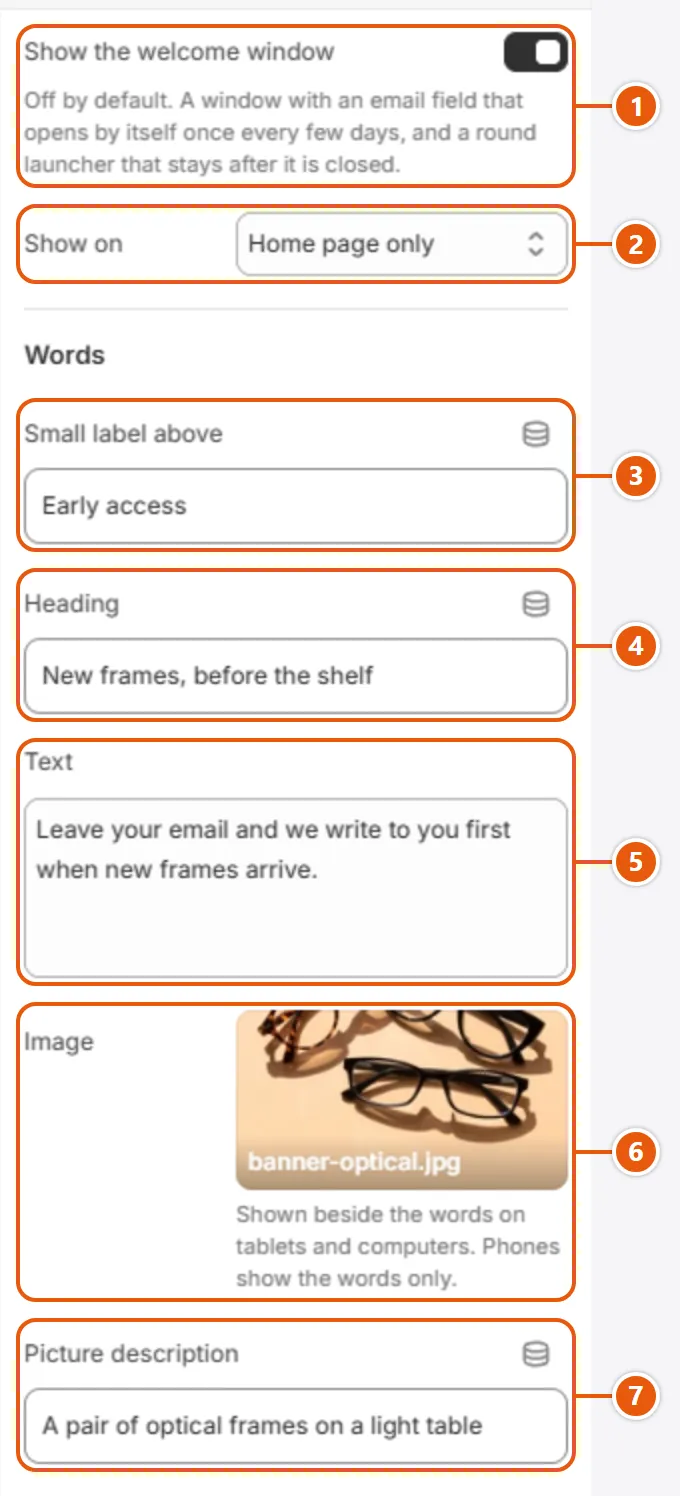
    • “Image”: 900 x 900 (1:1) Subject centered.
  • “Footer”
    • “Logo”: 600 x 200 A PNG or WebP on a transparent background, at least 600 wide.

Caliper is a Shopify theme in Arabic and English with two designs: Caliper for eyewear and Inchling for children. Its idea: every product tells the shopper whether it fits, with a size scale on every card, a “Find my size” button in the header, and tools such as the frame size finder, the lens builder and the age path.

Comes with the design: the pages with their sections, the header and footer, colors, fonts, and the theme's own words in Arabic and English.

Does not come: products, collections, pictures, posts, pages, color swatches, translations of your words, and menus (Shopify creates only “Main menu” and “Footer menu”). Add them in the order of “Your first 12 steps”.

Good to know: Right after you add the theme, faint drawings fill the picture and product spots: they mark where your content goes and disappear once you pick it.

In this order:

  1. Duplicate the theme as a backup: “Choosing and changing the design”.
  2. Pick your main language and add Arabic: “Add Arabic or make it the default”.
  3. Upload the logo in “Header” and the favicon in “Brand and favicon”.
  4. Check the colors and fonts: “Colors”, “Typography”.
  5. Add your products, with pictures that all share one shape: “Picture sizes”.
  6. Tag each product with its sizes: “Set up sizes: the scale, tags and options”, “Frame numbers: lens, bridge and temple”.
  7. Create your collections in “Products” > “Collections”, each with a picture: “Collection list”.
  8. Create the menus: “The menus your design expects”.
  9. Fill the home page sections in the order of your design's map: “Caliper design”, “Inchling design”.
  10. Set up the product page: “Product information”, and for glasses the lens choice: “Lens choice on the frame page”.
  11. Add your contact details, social links and policies: “Social media”, “Footer”.
  12. Turn on filters: “Collection filters”. Check every page on a phone, click “Save”, then “Publish”.
  • “Sections”: the parts of a page, stacked, such as “Split counter slideshow”.
  • “Color scheme”: background, text and button colors under one name, edited in “Colors”.
  • “Drawer”: a panel that slides in from the side, such as the cart and the phone menu.
  • “Scale”: a row of short segments showing a product's sizes, with the ball on the shopper's size.
  • “The ball”: the round dot in the accent color that marks the saved size and more.
  • “Age bands”: children's ages (newborn, 3-6 months...) instead of S, M and L.
  • “Lens, bridge and temple”: the three numbers printed inside a frame's arm, in millimeters.
  • “Add-on product”: an ordinary product added with the frame, such as a lens coating.
  • “Variants”: each choice of a product with its own price and stock, such as a color and a size.
  • “Tags”: words on a product; the theme reads its sizes from them.
  • “Focal point”: the spot you mark on a picture so it stays in view when cropped.
  • “Theme style”: one of the two designs; it changes the look and the size scale, not the sections.

Write to us at [email protected]; we reply within two business days.

Support covers: Caliper's settings and sections, and anything in the theme that does not work as this guide says.

It does not cover: code you add or change, or other apps and their settings.

Tips

  • Send your store's address, the design's name, the page and a screenshot of the problem.

Each design has its own Theme Store page. Pick the design there before you add the theme: its pages with their sections, header and footer arrive only with the design you pick.

Later, “Theme style” applies the other design's settings: colors, fonts, heading sizes, the card picture shape, shadows, and the size scale (letters in Caliper, age bands in Inchling) with its tag start.

Note: “Theme style” keeps your sections, pictures and words, but resets your colors, fonts and size scale to the design's, so duplicate the theme first.

Step by step

  1. In “Online Store”, click the three dots next to Caliper and choose “Duplicate”.
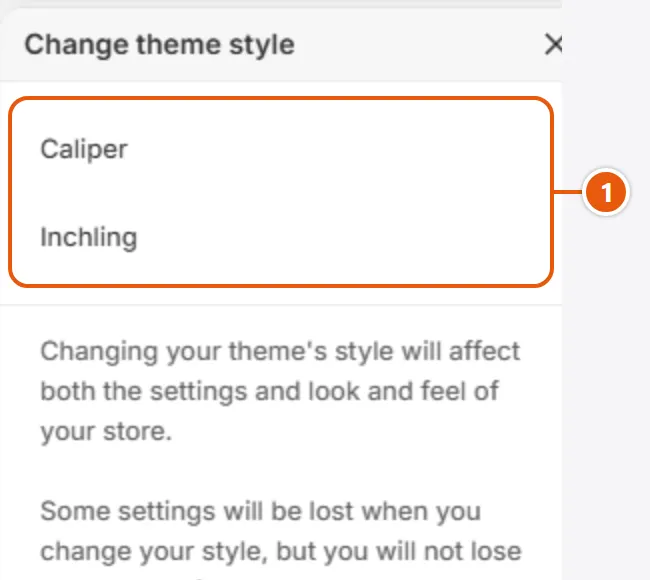
  2. Click “Edit theme”, open “Theme settings”, then “Theme style”.
  3. Pick a design and click “Change style”.
  4. Check the preview on desktop and mobile, then click “Save”.
“Choosing and changing the design” with its numbers
  1. 1“Theme style”
    The two designs: Caliper and Inchling.

Tips

  • Want another design's whole home page? Add that design from its Theme Store page as a second theme in your library.

The theme's designs

One theme, two designs: Caliper for eyewear and Inchling for children's clothes and things. The same sections and fit tools; they differ in colors, fonts, the home page and the size scale. Choose the design on the theme's Theme Store page before you add it.

For prescription glasses and sunglasses: frames in sizes, and lenses added at their prices. The home page opens with a split slideshow and carries the “Frame size finder” and the “Lens builder”, in orange and sand, with Josefin Sans headings.

The Caliper design's home page, first screen

This is the theme's default design.

Its home page has 17 sections between the header and the footer, in this order:

Header and footer

  • Announcement bar
  • Header
  • Footer

From “Theme settings”

  • Body font: “Outfit”

Step by step

  1. Add the theme to your store from the Caliper design's Theme Store page.
  2. In “Online Store”, click “Edit theme”.
  3. Fill the home page sections with your products, collections and pictures, in the order of the map.
  4. Set up sizes and frame numbers: “Set up sizes: the scale, tags and options”, “Frame numbers: lens, bridge and temple”.
  5. Check the page on a phone, click “Save”, then “Publish”.

Tips

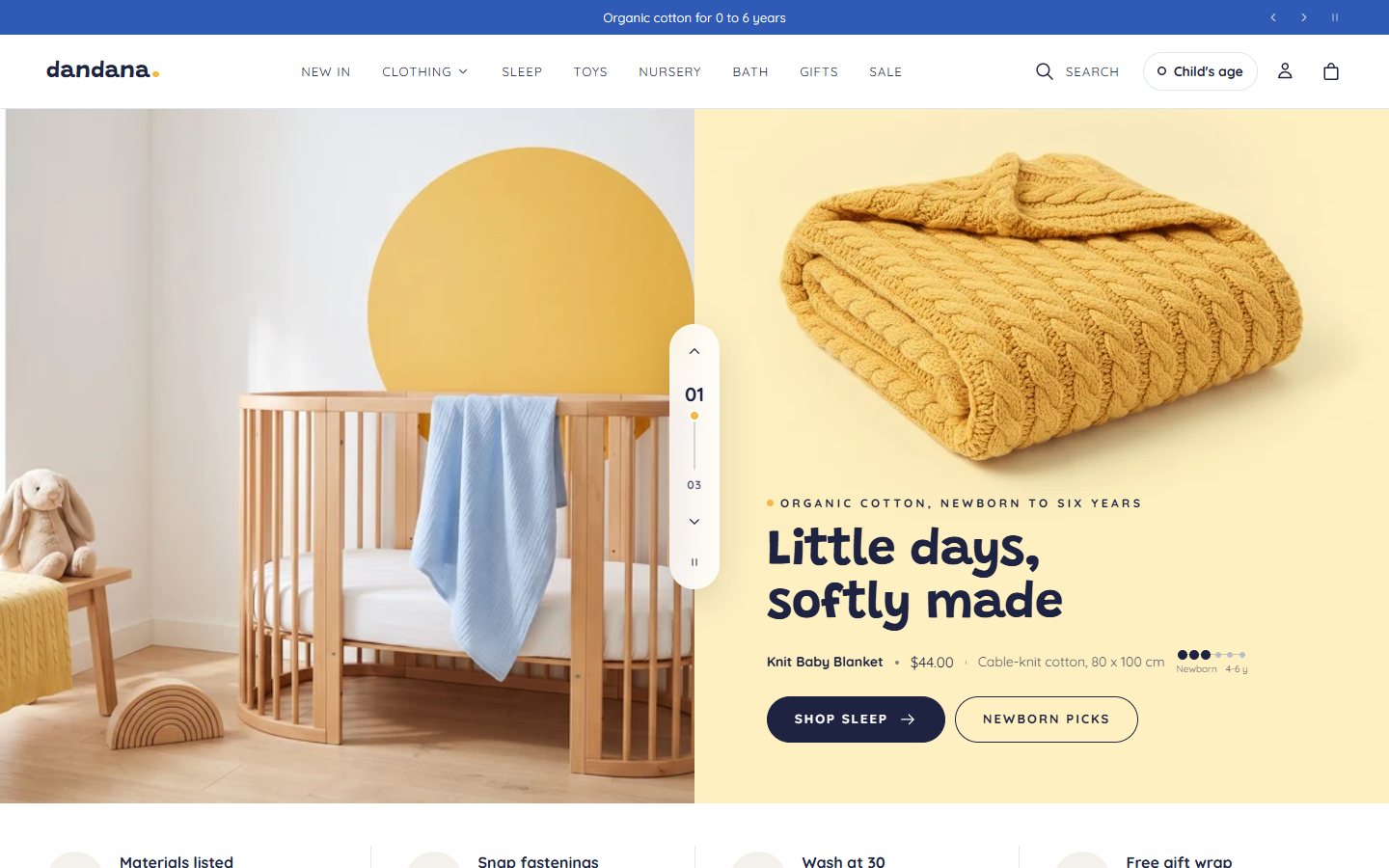
For children's clothes and things: the size is the child's age, so the scale is a row of age bands and the words say “Fits your child”. The home page carries “Shop by age” and the newborn “Checklist”, in blue and warm yellow, with Grandstander headings.

The Inchling design's home page, first screen

Its home page has 17 sections between the header and the footer, in this order:

Header and footer

  • Announcement bar
  • Header
  • Footer

From “Theme settings”

  • Body font: “Quicksand”

Step by step

  1. Add the theme to your store from the Inchling design's Theme Store page.
  2. In “Online Store”, click “Edit theme”.
  3. Fill the home page sections with your products, collections and pictures, in the order of the map.
  4. Tag your products with their ages, such as age-3-6m: “Set up sizes: the scale, tags and options”.
  5. Check the page on a phone, click “Save”, then “Publish”.

Arabic and other languages

Caliper's own words come in Arabic and English, and an Arabic page turns right to left by itself. The rest happens in Shopify: add Arabic, publish it and translate your own words. Do it before you type in the editor, because what you type is saved in the store's default language.

Arabic is added and published in “Settings” > “Languages”; your Arabic pages then open at your store's address followed by /ar.

Note: Changing the default language deletes the translations already made into the new one, so choose it before you translate.
Good to know: The section text that comes with the theme is English; if Arabic becomes the default, retype it in Arabic in the editor.

Step by step

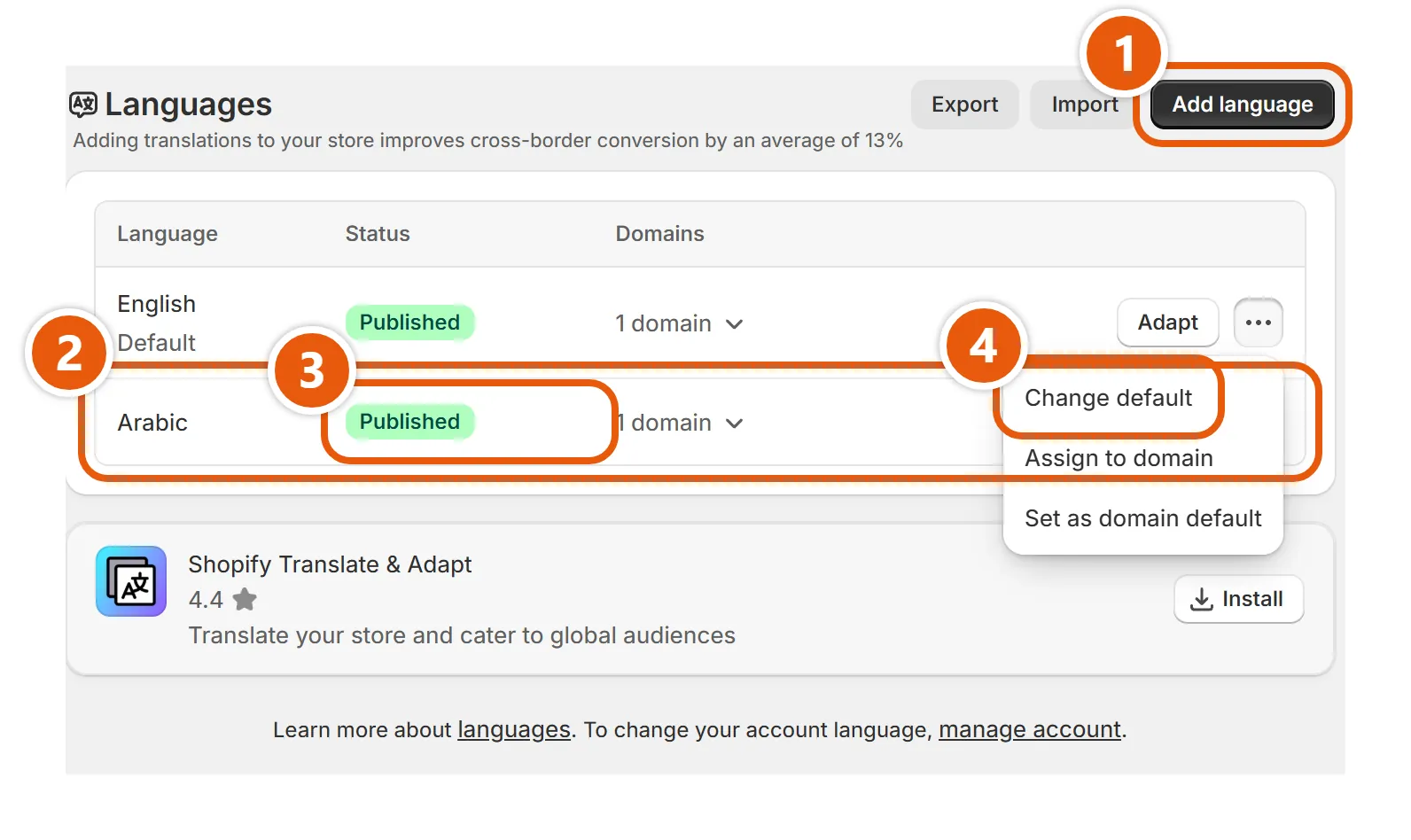
  1. In “Settings” > “Languages”, click “Add language”.
  2. Choose “Arabic” and click “Next”.
  3. Turn on your store's domain and click “Done”.
  4. In the Arabic row, open the menu and click “Publish”; confirm if it asks about translations.
  5. To make it the default: in your current default language's row, open the menu and click “Change default”.
  6. Choose “Arabic” and click “Save”.
“Add Arabic or make it the default” with its numbers
  1. 1“Add language”
    Opens the list of languages to pick Arabic from.
  2. 2“Arabic”
    Arabic's row; the menu beside it holds publishing and the domains.
  3. 3“Published”
    Shows beside Arabic once it is published; until then it is added but hidden from shoppers.
  4. 4“Change default”
    In the menu of your current default language's row; it makes Arabic the store's default language, the one the editor saves your words in.

Tips

  • To show Arabic first without changing the default, use “Set as domain default” in Arabic's menu.

All of Caliper's own words, such as buttons and the cart and search messages, come in Arabic, and an Arabic page turns right to left as a whole: header, slides, cards, cart and the size scale. There is nothing to set up.

Good to know: Pictures are not mirrored on Arabic pages. A setting that says left or right means the picture's side; start and end follow the language.

What you write is not translated on its own: products, “Collections”, menus, pages, and every heading and text in sections. Translate it in Shopify's free “Translate & Adapt” app, whose automatic translation supports Arabic; if it is not installed, its card is in “Settings” > “Languages”.

Step by step

  1. From “Apps”, open “Translate & Adapt”.
  2. Choose the language you translate into: “Arabic”, or English if Arabic is your default.
  3. In the menu at the top, pick what to translate: a product, a menu, a page; section text is under “Theme”.
  4. Type the translation beside the original and click “Save”.

Tips

  • For automatic translation, choose the language, click “Auto-translate” and confirm, then review names and headings. It never changes what you translated by hand.
  • Translate section text once the editor work is done: a heading changed later gets its translation marked outdated.

When your Shopify account language is Arabic, the editor shows Caliper's settings by their Arabic names, as in this guide's Arabic pictures. It changes what you see, not your store.

Good to know: Shopify's Arabic admin is still in beta: the editor is mirrored with the section list on the right, and a few buttons such as “Save” stay in English.

Step by step

  1. In the admin, click your store name at the top, then your profile.
  2. Under “Preferred language”, choose “Arabic” in “Language” and click “Save”.

Shopify's font library has no Arabic letters, so the fonts you pick in “Typography” show on English text and digits, while Arabic letters take the shopper's device font and vary a little by device. For Arabic you pick the “Arabic headings” style (Modern or Naskh) and set their size, line spacing and the “Arabic body text size”: “Typography”.

On Arabic pages these settings do nothing: “Bold body weight”, “Body text size”, “Heading case”, “Label case”, “Heading letter spacing”, “Label letter spacing”, and “Text case” in “Buttons”.

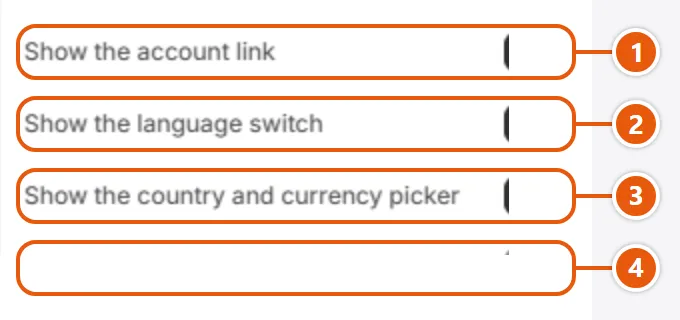
The language switch appears once you have more than one published language, and the country and currency picker once your store sells in more than one country through “Markets”. They sit in “Menu drawer” and “Footer”, each of which can hide them with “Show the language switch” and “Show the country and currency picker”.

Brand and theme settings

Settings that change the whole store at once: logo, colors, fonts, buttons, cards, cart and search, in “Theme settings”, group by group.

Every color lives in a color scheme (background, text and buttons) that sections pick from. Here you also set the page and drawer schemes, badge colors over pictures and the backdrop behind drawers.

Color schemes in each design

“Caliper design”
AaButton
Scheme 1
AaButton
Scheme 2
AaButton
Scheme 3
AaButton
Scheme 4
AaButton
Scheme 5
AaButton
Scheme 6
AaButton
Scheme 7
“Inchling design”
AaButton
Scheme 1
AaButton
Scheme 2
AaButton
Scheme 3
AaButton
Scheme 4
AaButton
Scheme 5
AaButton
Scheme 6
AaButton
Scheme 7

Step by step

  1. Click “Edit theme”, open “Theme settings”, then “Colors”.
  2. Click the scheme you want to change and edit its colors.
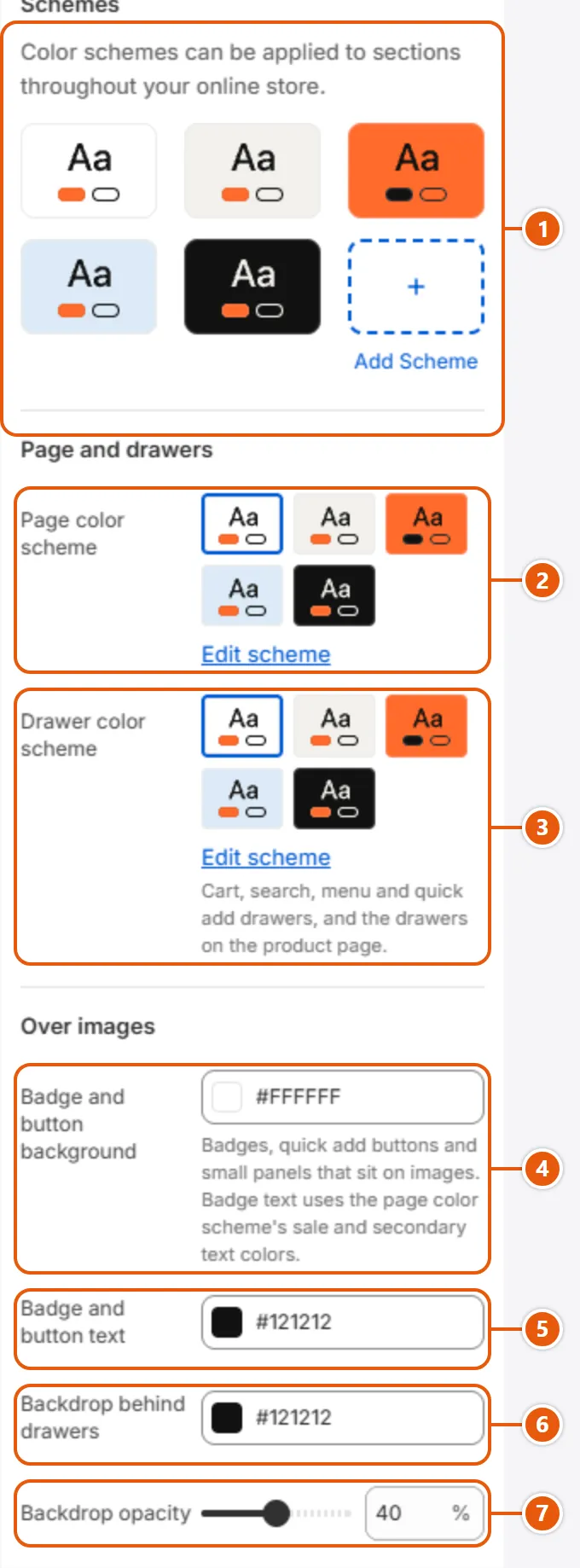
  3. Pick the “Page color scheme” and the “Drawer color scheme”.
  4. To recolor one section, open it and pick another scheme in “Color scheme”.
  5. Click “Save”.

Where to find its settings

“Colors” settings in the Shopify editor
  1. 1“Schemes”
    The schemes sections pick from. The theme comes with seven and you can add more; editing a scheme changes every section that uses it.
  2. 2“Page color scheme”
    The page's own scheme: its background and text. Sale and sold out badges over pictures also take their text color from it.
  3. 3“Drawer color scheme”
    The cart, search, menu and quick add drawers, the quick view, the size guide, collection filters and the product page's drawers.
  4. 4“Badge and button background”
    Behind badges, the quick add and quick view buttons and small panels on pictures. Sale and sold out badge text comes from the page scheme.
  5. 5“Badge and button text”
    Text and icons on badges and buttons over pictures, except the sale and sold out badges.
  6. 6“Backdrop behind drawers”
    The layer that covers the page behind drawers and the welcome window.
  7. 7“Backdrop opacity”
    How solid that layer is; 0 makes it fully clear.
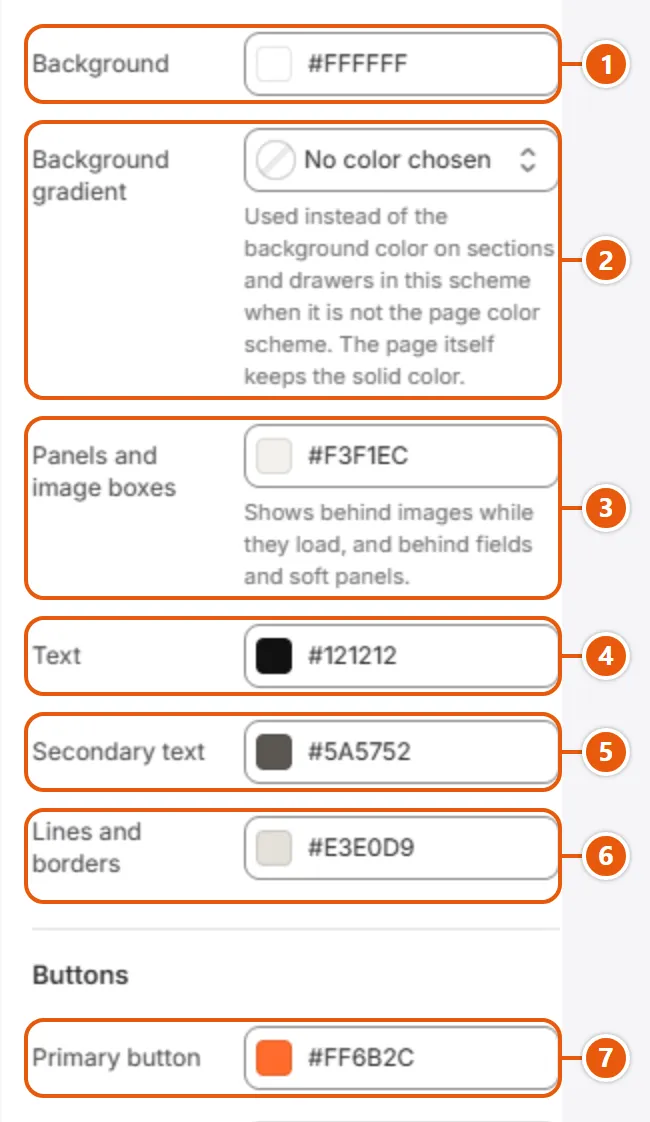
Inside each “Schemes” (click it in the side bar)
“Schemes” settings in the Shopify editor (1 of 2)
  1. 1“Background”
    The background of sections that use the scheme; the scheme chosen as “Page color scheme” also colors the page itself.
  2. 2“Background gradient”
    A gradient that replaces the background color on sections and drawers in this scheme. The page, and sections in the page color scheme, keep the solid color.
  3. 3“Panels and image boxes”
    The color behind images while they load, behind fields and soft panels, and around a product picture with “Show the whole image”.
  4. 4“Text”
    The color of text, links and icons.
  5. 5“Secondary text”
    Lighter text: descriptions, small labels, the line under a card title and the price before a discount.
  6. 6“Lines and borders”
    Divider lines and the borders of fields, cards and panels.
  7. 7“Primary button”
    The primary button's fill and border, such as “Add to cart”.
“Schemes” settings in the Shopify editor (2 of 2)
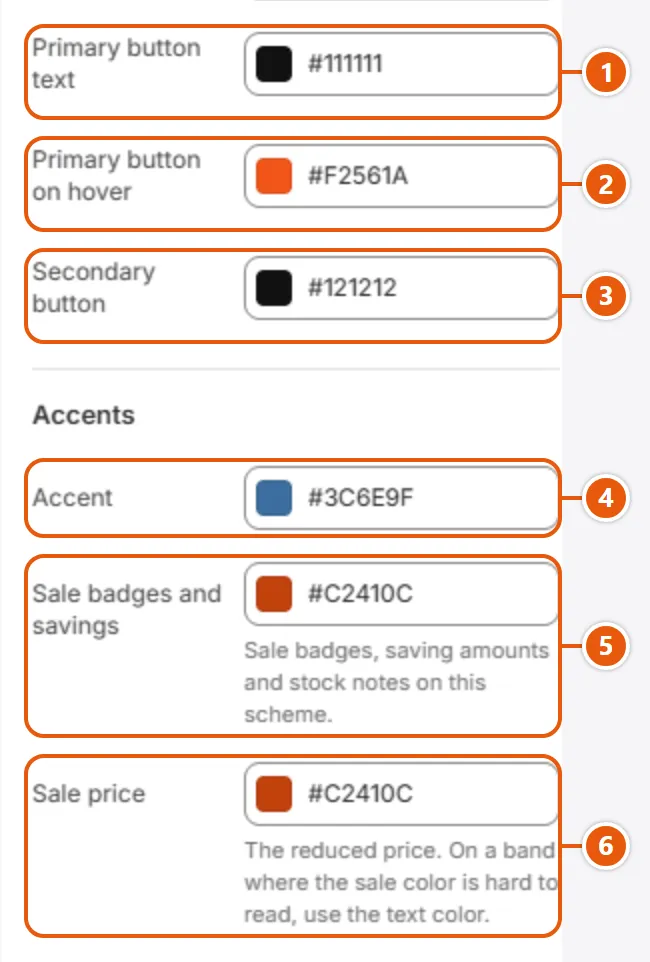
  1. 1“Primary button text”
    The primary button's text; it must read clearly on the button.
  2. 2“Primary button on hover”
    The primary button under the pointer or on keyboard focus.
  3. 3“Secondary button”
    The text and border of the outlined secondary button; on hover it fills with this color and its text takes the background color.
  4. 4“Accent”
    The theme's ball and small marks: the “In your size” dot on the scale, the picture dots on a card and the back to top ball.
  5. 5“Sale badges and savings”
    The saving chip beside a price, saving amounts, stock notes, cart discounts and field errors. Badges over card pictures take theirs from the page scheme.
  6. 6“Sale price”
    The reduced price. On a band where the sale color is hard to read, use the text color.

Tips

  • Change a color in the scheme, not section by section, then check that text still reads on buttons and backgrounds, above all in a dark scheme.

Fonts, heading sizes and letter case. Shopify's font library has no Arabic letters, so Arabic always uses the shopper's device font and has its own settings under “Arabic text”.

Step by step

  1. Click “Edit theme”, open “Theme settings”, then “Typography”.
  2. Pick the fonts under “Latin text”.
  3. Set the desktop and phone sizes under “Heading sizes”.
  4. For an Arabic store, set “Arabic text”.
  5. Click “Save”.

Where to find its settings

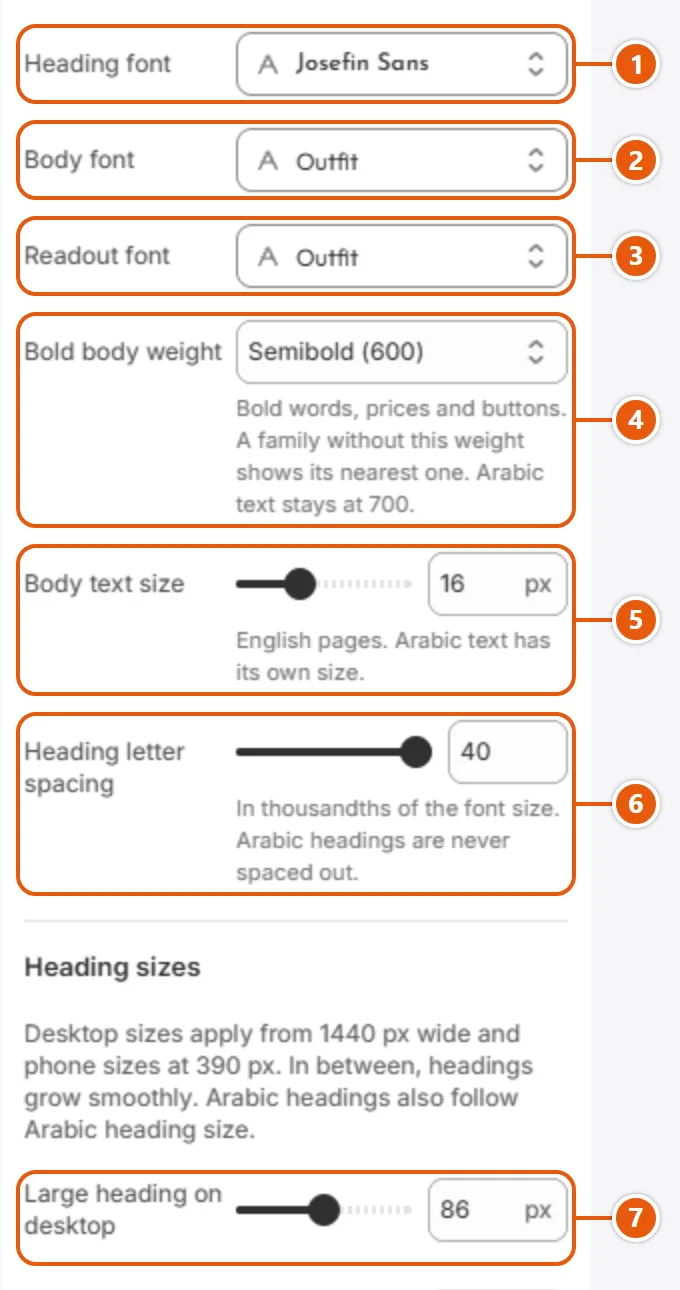
“Typography” settings in the Shopify editor (1 of 3)
  1. 1“Heading font”
    Headings in Latin letters and digits. On Arabic pages it shows only on Latin words and digits inside headings.
  2. 2“Body font”
    Body text, buttons and labels in Latin letters; on Arabic pages, only Latin words and digits.
  3. 3“Readout font”
    Readouts: the size letters on a card's scale, measurements and small counters such as 01.
  4. 4“Bold body weight”
    The weight of bold words, prices and buttons on English pages; a font without it uses its nearest weight. Arabic pages always use 700.
  5. 5“Body text size”
    Body text size on English pages; Arabic pages use “Arabic body text size”.
  6. 6“Heading letter spacing”
    Letter spacing of Latin headings, in thousandths of the font size: negative tightens, positive spreads. The small heading and Arabic pages are not affected.
  7. 7“Large heading on desktop”
    The large heading (page titles, big banners) on desktop; between phone and desktop it grows smoothly.
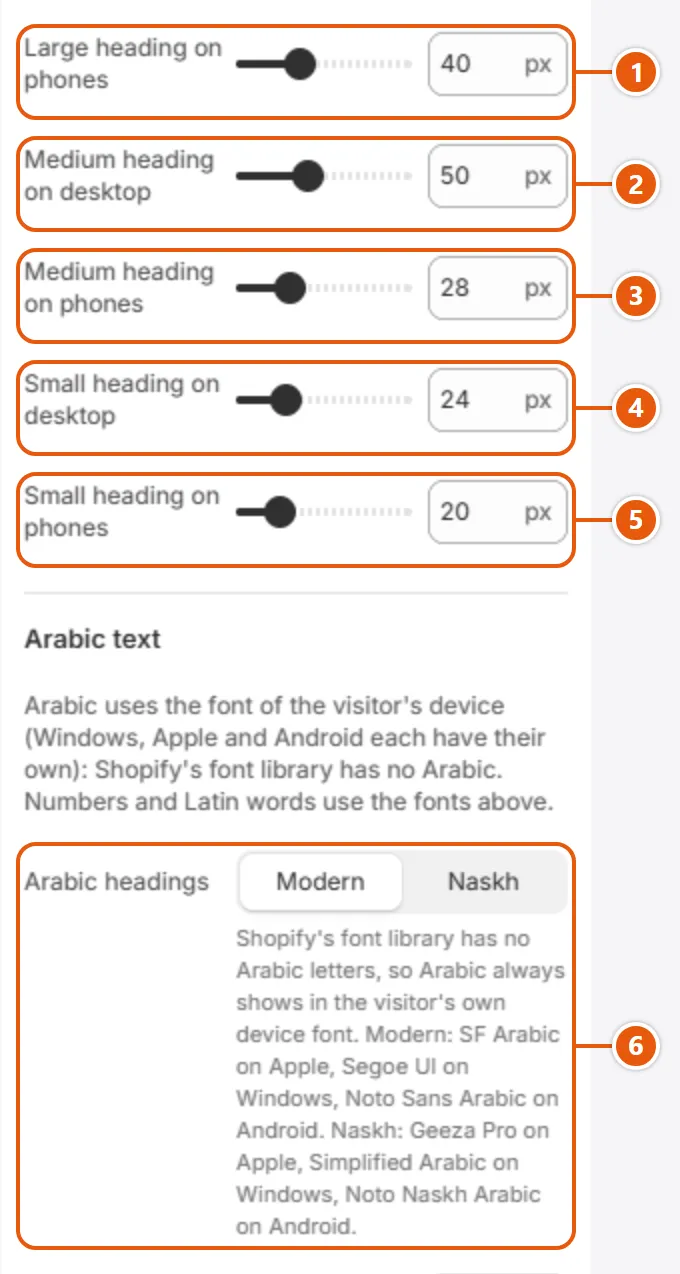
“Typography” settings in the Shopify editor (2 of 3)
  1. 1“Large heading on phones”
    The large heading on phones.
  2. 2“Medium heading on desktop”
    The medium heading, the sections' title, on desktop.
  3. 3“Medium heading on phones”
    The medium heading on phones.
  4. 4“Small heading on desktop”
    The small heading, for sub-headings inside sections, on desktop.
  5. 5“Small heading on phones”
    The small heading on phones.
  6. 6“Arabic headings”
    The look of Arabic headings in the shopper's device font: Modern is a plain sans, Naskh the traditional script. Body text stays Modern.
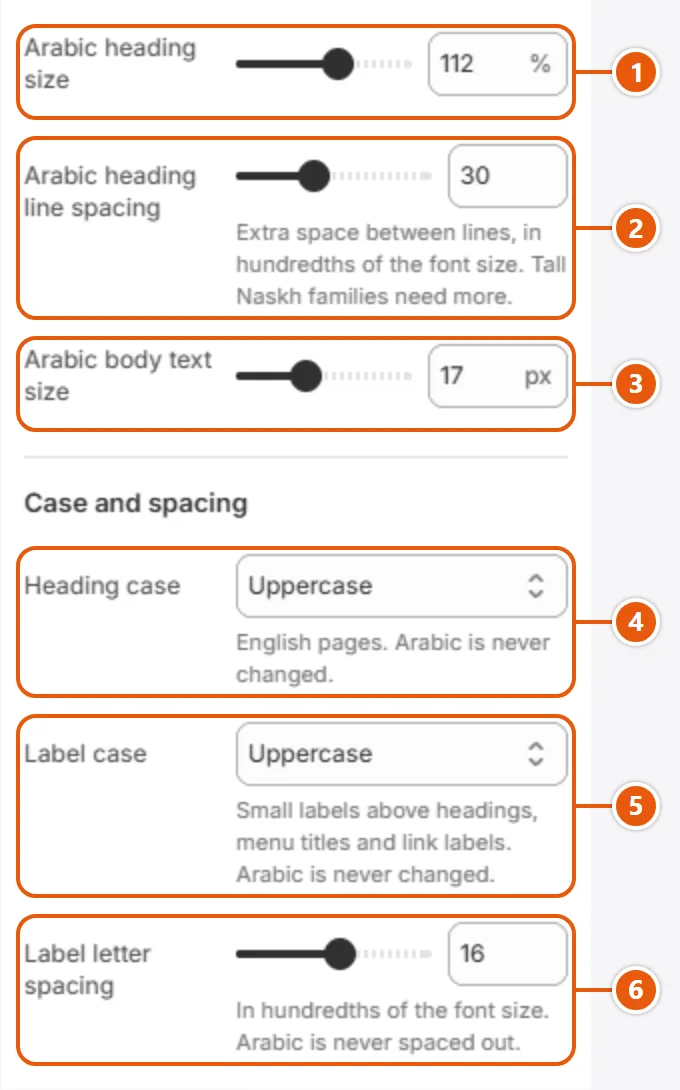
“Typography” settings in the Shopify editor (3 of 3)
  1. 1“Arabic heading size”
    Scales every Arabic heading against the heading sizes; 100% keeps them, so set the Latin sizes first.
  2. 2“Arabic heading line spacing”
    Extra space between lines of Arabic headings, in hundredths of the font size; tall Naskh fonts need more.
  3. 3“Arabic body text size”
    Body text size on Arabic pages, in place of “Body text size”.
  4. 4“Heading case”
    “Uppercase” sets English headings in capitals; “As written” leaves them. No effect on Arabic pages.
  5. 5“Label case”
    Small labels above headings and menu titles: “Uppercase” or “As written”. No effect on Arabic pages.
  6. 6“Label letter spacing”
    Letter spacing of labels, in hundredths of the font size. No effect on Arabic pages.

Tips

  • Arabic uses the visitor's device font, so it varies a little by device. Modern: SF Arabic on Apple, Segoe UI on Windows, Noto Sans Arabic on Android. Naskh: Geeza Pro, Simplified Arabic and Noto Naskh Arabic.

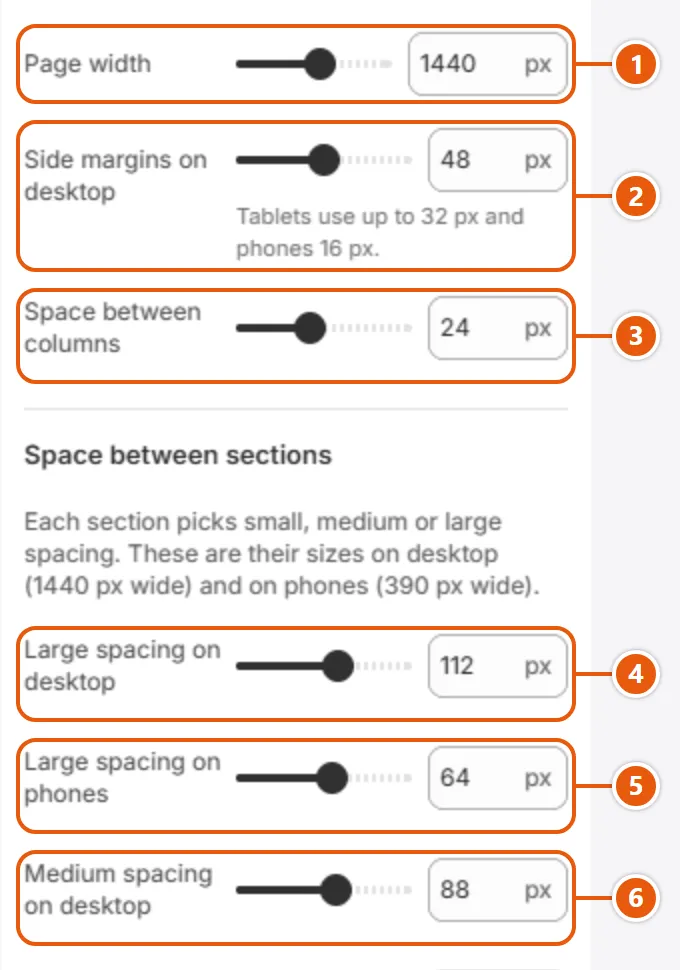
The page's general measures: maximum width, margins, the space between sections, corner rounding and shadow.

Step by step

  1. Click “Edit theme”, open “Theme settings”, then “Layout”.
  2. Set the “Page width” and the margins.
  3. Set the sizes under “Space between sections”.
  4. Choose the rounding under “Shapes” and check the “Shadow”.
  5. Click “Save”.

Where to find its settings

“Layout” settings in the Shopify editor (1 of 3)
  1. 1“Page width”
    The widest the content gets; on a narrower screen it fills the width minus the margins.
  2. 2“Side margins on desktop”
    The gap between the screen edge and the content on desktop. Tablets use up to 32 and phones 16.
  3. 3“Space between columns”
    The space between columns inside sections; at most 16 on phones.
  4. 4“Large spacing on desktop”
    Above and below a section whose “Section spacing” is “Large”, on desktop; it scales between phone and desktop.
  5. 5“Large spacing on phones”
    The same “Large” space on phones.
  6. 6“Medium spacing on desktop”
    Above and below a section set to “Medium”, on desktop.
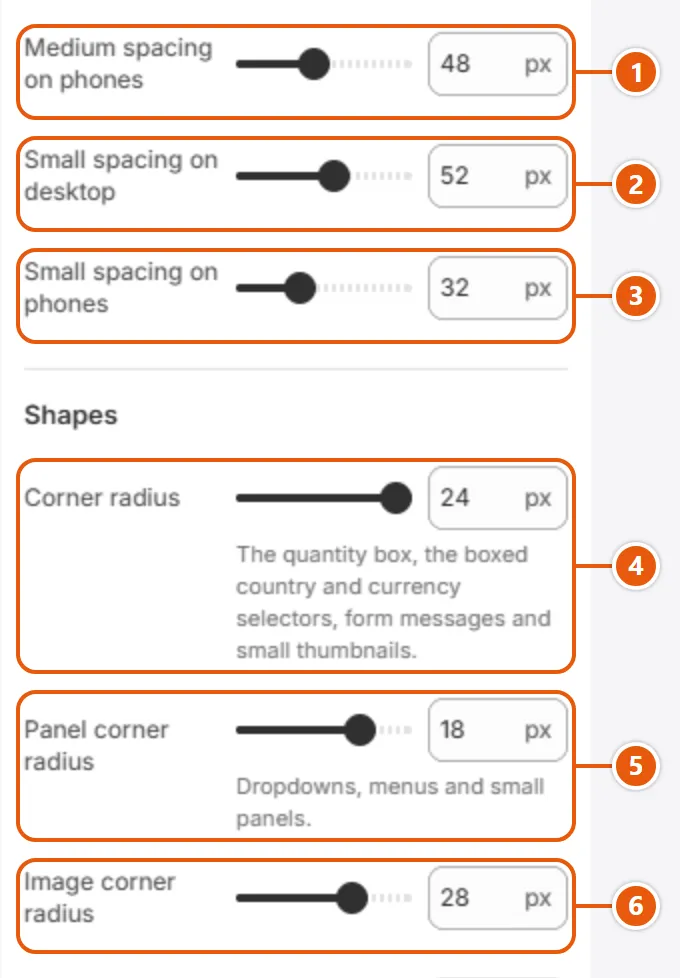
“Layout” settings in the Shopify editor (2 of 3)
  1. 1“Medium spacing on phones”
    The same “Medium” space on phones.
  2. 2“Small spacing on desktop”
    Above and below a section set to “Small”, on desktop.
  3. 3“Small spacing on phones”
    The same “Small” space on phones.
  4. 4“Corner radius”
    Rounds small things: the quantity box, country and currency selectors, form messages and small thumbnails. Badges, buttons, fields and cards have their own.
  5. 5“Panel corner radius”
    Rounds dropdowns and small panels: the header's big menu, product page panels, the cart summary and the size chart.
  6. 6“Image corner radius”
    Rounds pictures in sections: blog, banners, collection lists and Image with text. Card pictures use “Image corner radius” in “Product cards”.
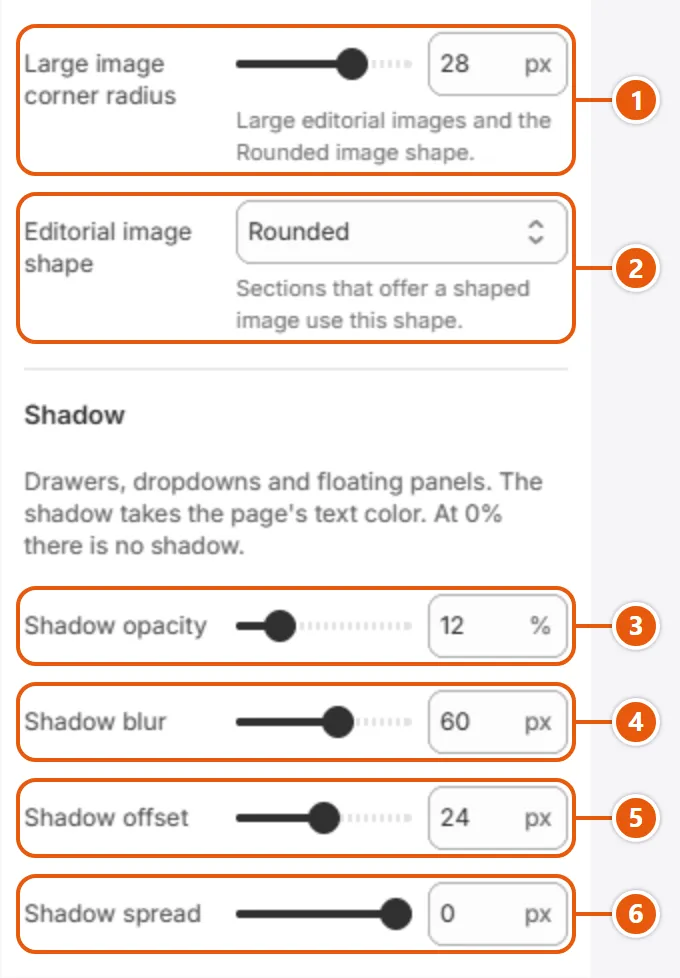
“Layout” settings in the Shopify editor (3 of 3)
  1. 1“Large image corner radius”
    Rounds large editorial pictures (article picture, collection banner, moments, 3D product) and the “Rounded” shape.
  2. 2“Editorial image shape”
    The picture's shape when “Editorial shape (Theme settings)” is chosen in “Picture style” of “Image with text” or “Picture shape” of “Brand story”: Arch has a round top, Pill is a full oval.
  3. 3“Shadow opacity”
    How dense the shadow of drawers, dropdowns and floating panels is; 0 removes it. Its color is the page's text color.
  4. 4“Shadow blur”
    Softness: the higher, the softer and wider the edge.
  5. 5“Shadow offset”
    How far the shadow drops; 0 spreads it evenly around.
  6. 6“Shadow spread”
    Negative values shrink the shadow inside the element; 0 keeps its size.

Tips

  • Two sections in a row on the page background share one gap, so the space you see between them is the second section's alone.

Buttons across the theme: rounding, height, letter case and the ends of chips and tabs. Their colors come from the section's color scheme: “Colors”.

Where “Buttons” shows in the store
  1. 1“Corner radius”
    Button corner rounding, from 0 (square). It also shapes the quick add bar and express checkout buttons, and chips while “Round chips and tabs fully” is off.
  2. 2“Round chips and tabs fully”
    On: filter chips, tabs, size pills, view switches and footer links get fully round ends. Off: they follow the “Corner radius”.
  3. 3“Text case”
    “Uppercase” sets English button text in capitals; “As written” leaves it. No effect on Arabic pages.

Step by step

  1. Click “Edit theme”, open “Theme settings”, then “Buttons”.
  2. Set the “Corner radius” and the “Height”.
  3. Turn on “Round chips and tabs fully” for pill shapes, and choose the “Text case”.
  4. Click “Save”.

The other settings

  • Height: A button's minimum height on desktop; at most 44 on phones.

Text fields (search, newsletter, contact form, order note) and the color swatches on products.

Where “Fields and swatches” shows in the store
  1. 1“Field corner radius”
    Rounds text and search fields.
  2. 2“Field height”
    The minimum height of text and search fields.

Step by step

  1. Click “Edit theme”, open “Theme settings”, then “Fields and swatches”.
  2. Set the “Field corner radius” and “Field height”.
  3. Choose the “Swatch shape”.
  4. Click “Save”.

The other settings

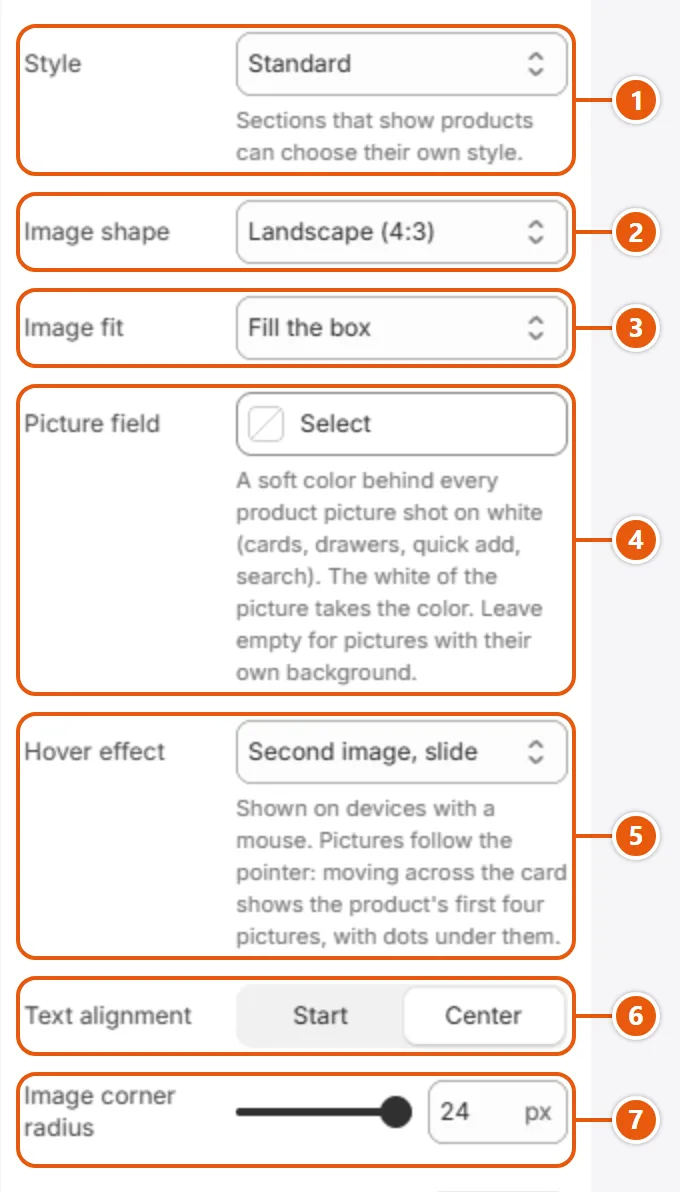
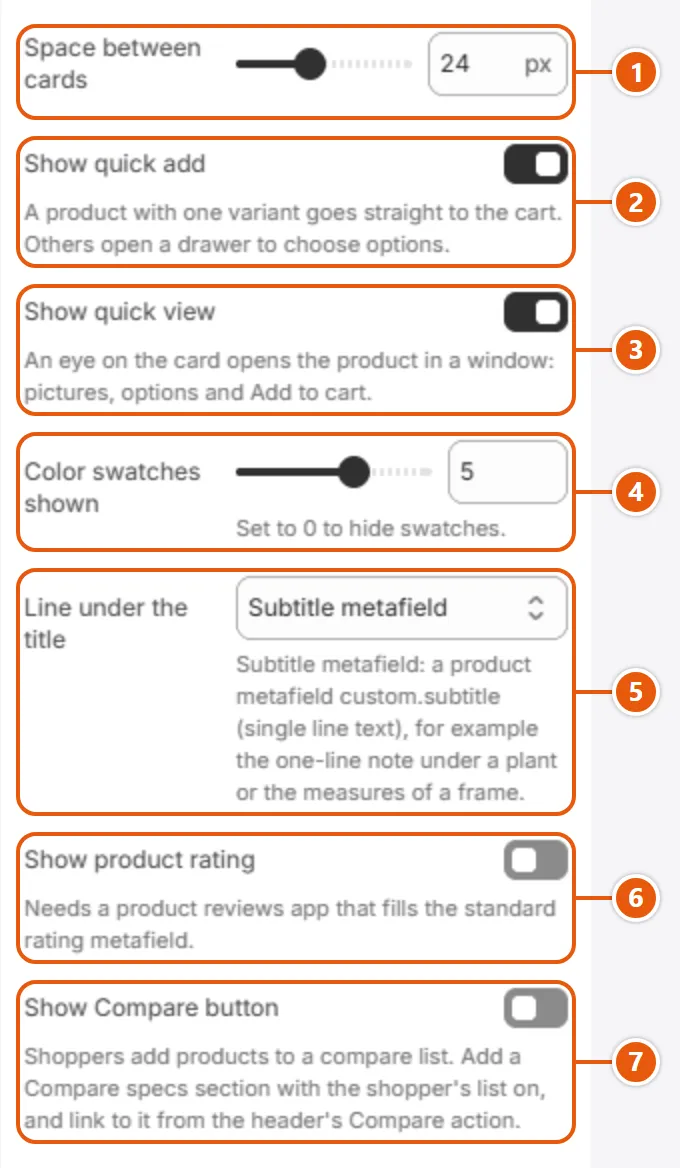
The card repeated in collections, search and slideshows. These settings apply to every card, except “Style”, which a section can override.

Where “Product cards” shows in the store
  1. 1“Style”
    The card's look:
    • Minimal: no panel behind the picture, square corners, title and price on one line, no color swatches.
    • Bordered: a thin frame that darkens and gets a soft shadow on hover.
    • Centered: title and price centered.
    • Quick add bar: a bar with words slides up from the foot of the picture on hover; touch screens keep the round button.
  2. 2“Image shape”
    The card picture's ratio; it is cropped or shown whole as “Image fit” says.
  3. 3“Show quick add”
    A round bag button on the card picture: a one-variant product goes straight to the cart, others open a drawer of options. With a mouse it shows on hover; a sold out product has none.
  4. 4“Line under the title”
    A small line under the title: the “Vendor”, the product type, both, or “Subtitle metafield”, a product metafield custom.subtitle (single line text). “None” removes it.
  5. 5“Color swatches shown”
    The most color swatches a card shows, the rest as +2; 0 hides them. They need a Shopify swatch on every value of the color option and two or more colors, and never show in the “Minimal” style: “Color swatches on products”.
  6. 6“Text alignment”
    “Center” centers the title, price and swatches; “Start” aligns them to the reading start.

Step by step

  1. Click “Edit theme”, open “Theme settings”, then “Product cards”.
  2. Pick the “Style”, “Image shape”, “Image fit” and “Hover effect”.
  3. Decide what the card shows: “Show quick add”, “Show quick view”, “Color swatches shown” and “Line under the title”.
  4. Click “Save” and try a collection page on a computer; hover effects need a mouse.

Where to find its settings

“Product cards” settings in the Shopify editor (1 of 2)
  1. 1“Style”
  2. 2“Image shape”
  3. 3“Image fit”
    “Fill the box” crops the picture to fill the card; “Show the whole image” shows all of it, with edges in the “Picture field” or “Panels and image boxes” color.
  4. 4“Picture field”
    A soft color behind product pictures shot on white (cards, product page, cart, drawers, search): the white takes this color. Leave it empty for pictures with their own background.
  5. 5“Hover effect”
    The effect when the pointer is over a card (mouse devices only):
    • Pictures follow the pointer: the first 4 pictures by pointer position, with dots.
    • Second image, slide: the first slides toward the reading start as the second takes its place.
    • Second image, circle: the second opens as a circle from where the pointer came in.
    • Second image, wipe: the second is uncovered from the reading start.
    • Second image, fade: the second fades in.
    • Zoom: the picture slowly grows.
  6. 6“Text alignment”
  7. 7“Image corner radius”
    Rounds the card picture; the “Bordered” style adds 6 to its outer frame.
“Product cards” settings in the Shopify editor (2 of 2)
  1. 1“Space between cards”
    The space between cards in grids and slideshows; at most 12 on phones.
  2. 2“Show quick add”
  3. 3“Show quick view”
    An eye on the picture opens the product in a window with its pictures, options and Add to cart, on mouse devices only.
  4. 4“Color swatches shown”
  5. 5“Line under the title”
  6. 6“Show product rating”
    A star with the rating and review count under the price. It needs a reviews app that fills the standard rating metafield; without one nothing shows.
  7. 7“Show Compare button”
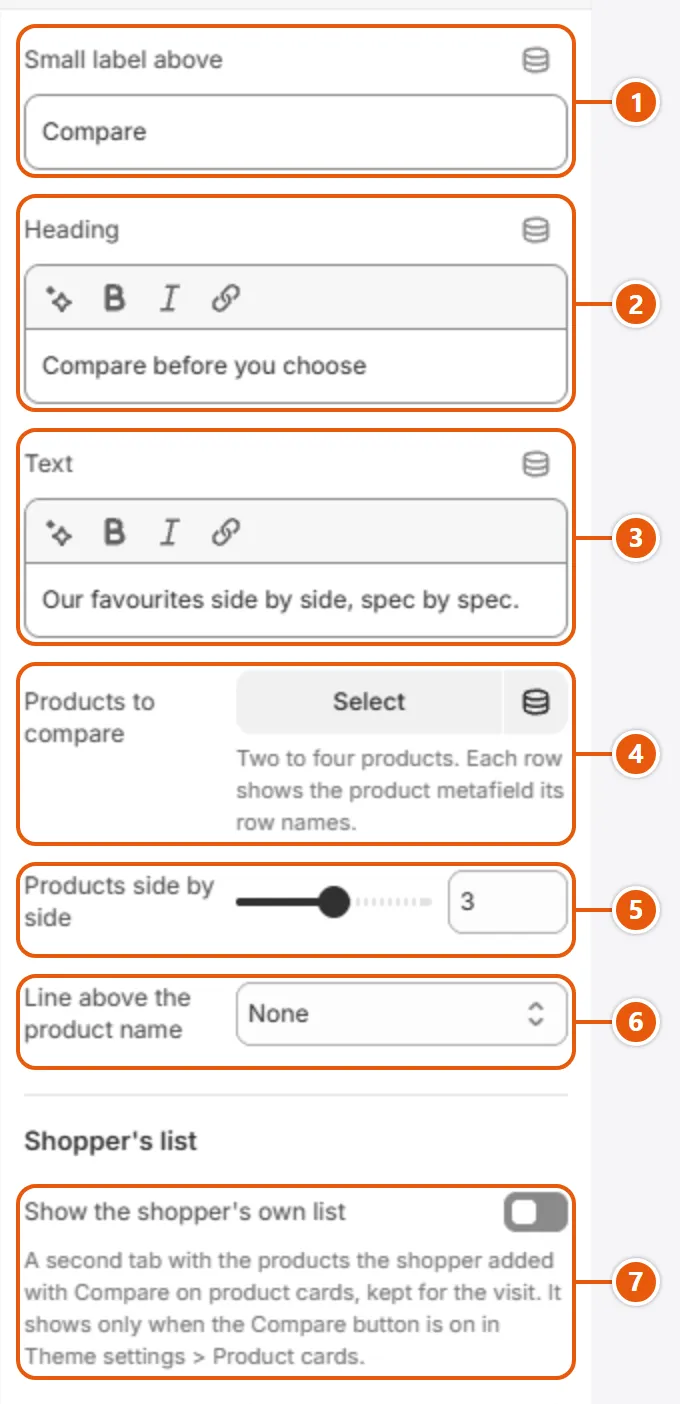
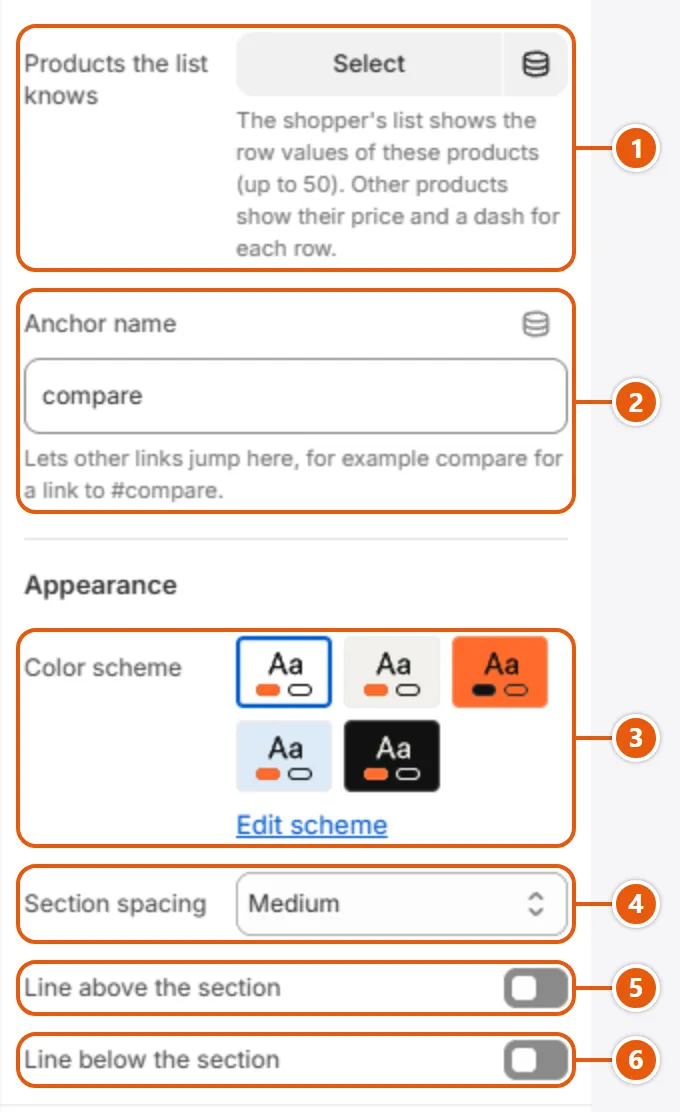
    A “Compare” box under each card. Add a “Compare specs” section with “Show the shopper's own list” on, and a “Compare” action in “Header” linking to it.

The other settings

  • Products in the compare list: The most products in the compare list; when it is full the button reads “List full”.Shown when “Show Compare button” is on

Tips

  • Second-image effects need a product with at least two pictures; a one-picture product stays still (except with Zoom).
  • When the “Subtitle metafield” has text, the age range line under the card's scale in the Inchling design is left out.

Small labels on product cards and the product page: sold out, sale, new, and any words from a product tag. A product shows two at most, and only from its real data.

Step by step

  1. Click “Edit theme”, open “Theme settings”, then “Badges”.
  2. Pick the “Sale badge” and the “Position on images”.
  3. Type in “New badge tag” the tag you will put on new products.
  4. In “Products”, add that tag in “Tags”, or a tag such as badge:Limited for a badge in your own words.
  5. Click “Save”.

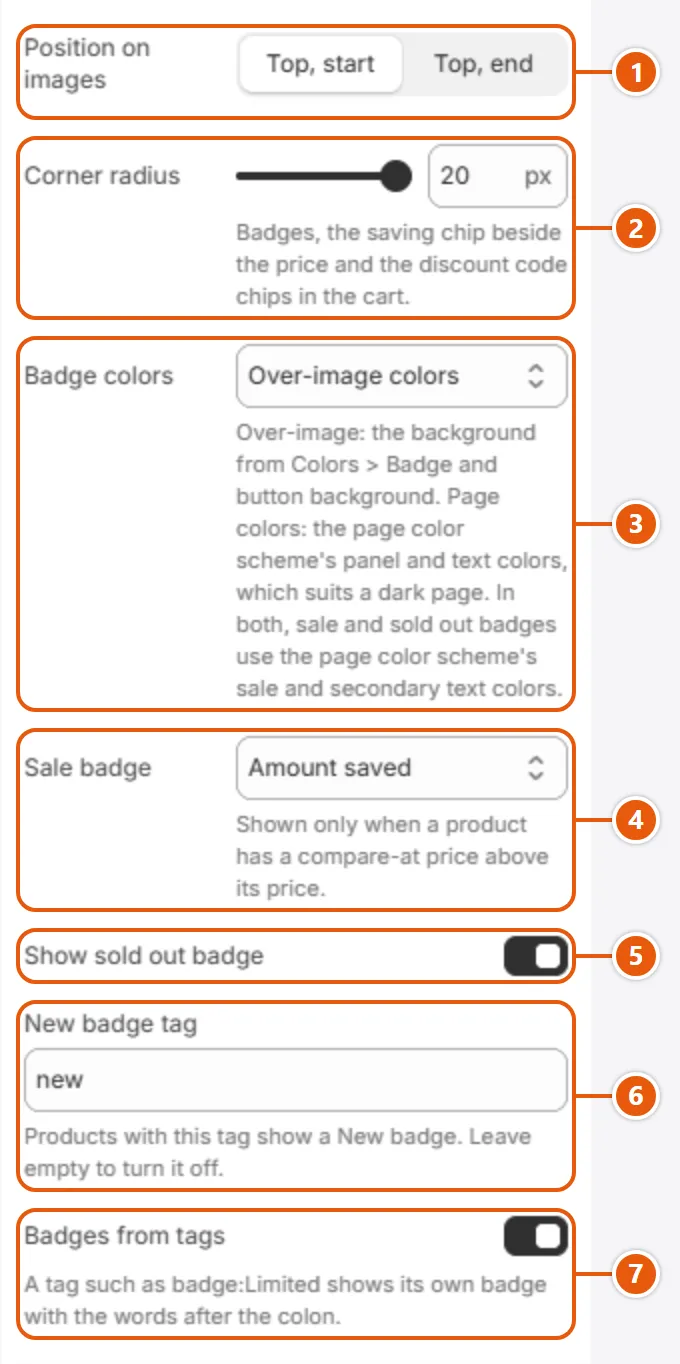
Where to find its settings

“Badges” settings in the Shopify editor
  1. 1“Position on images”
    The card picture corner where badges sit: “Top, start” is where reading begins (left in English) and “Top, end” the other side. Product page badges are not affected.
  2. 2“Corner radius”
    0 gives square corners; higher values round them more. The same rounding applies to the “Save” chip beside the price and to discount code chips in the cart.
  3. 3“Badge colors”
    “Over-image colors”: from “Badge and button background” and “Badge and button text” in “Colors”. “Page colors”: the page scheme's “Panels and image boxes” and text, better on a dark page. Either way, sale and sold out badge text uses the page scheme's sale and secondary text colors.
  4. 4“Sale badge”
    “Amount saved” and “Percent saved” print Save and the amount or percentage, “Sale” the word only, and “None” removes it. It shows when the “Compare-at” price is above the price; a product whose variants differ in price always says Sale.
  5. 5“Show sold out badge”
    A product with nothing left to buy shows “Sold out”.
  6. 6“New badge tag”
    A product with this tag shows “New”, whatever the letter case; empty turns the New badge off.
  7. 7“Badges from tags”
    A tag that starts with badge: prints a badge with the words after the colon, as typed, such as badge:Limited.

Tips

  • The order is sold out, sale, new, then tag badges, and only two show: a sold out product on sale shows no “New”.
  • On the product page badges sit above the price, so the position and colors here do not apply; “Show badges” in the “Price” block (“Product information”) controls them.

One setting for how every price looks: with or without the currency code.

Where “Prices” shows in the store
  1. 1“Show currency codes”
    Adds the currency code after each amount, such as USD, on cards, the product page, the cart and the header's cart total. Useful when you sell in currencies that share a symbol.

Step by step

  1. Click “Edit theme”, open “Theme settings”, then “Prices”.
  2. Turn “Show currency codes” on or leave it off.
  3. Click “Save”.

Links to your accounts. Only the ones you fill in show, each opening in a new tab.

Where “Social media” shows in the store
  1. 1“Instagram”
    The full link, such as https://instagram.com/….
  2. 2“TikTok”
    The full link, such as https://tiktok.com/@….

Step by step

  1. Click “Edit theme”, open “Theme settings”, then “Social media”.
  2. Paste each account's full link, starting with https://.
  3. Click “Save” and look at the footer.

Where to find its settings

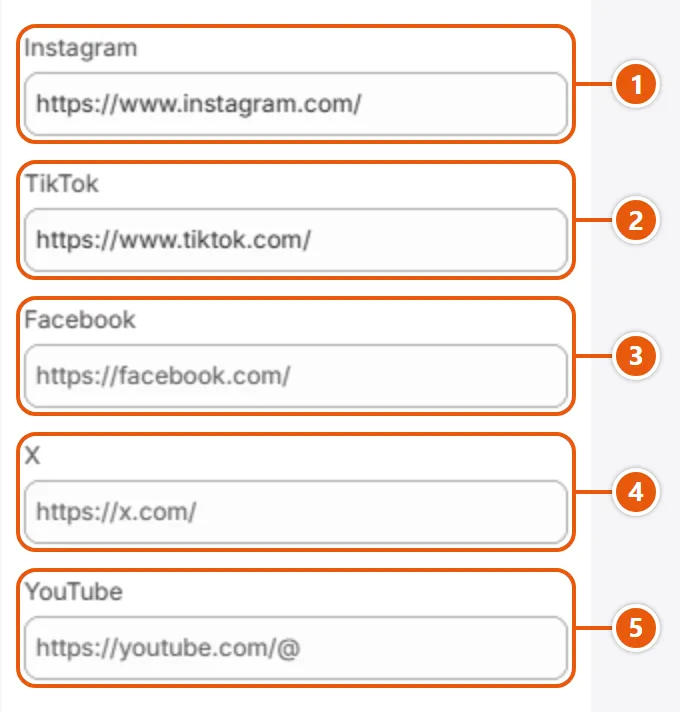
“Social media” settings in the Shopify editor (1 of 2)
  1. 1“Instagram”
  2. 2“TikTok”
  3. 3“Facebook”
    The full link, such as https://facebook.com/….
  4. 4“X”
    The full link, such as https://x.com/….
  5. 5“YouTube”
    The channel link, such as https://youtube.com/@….
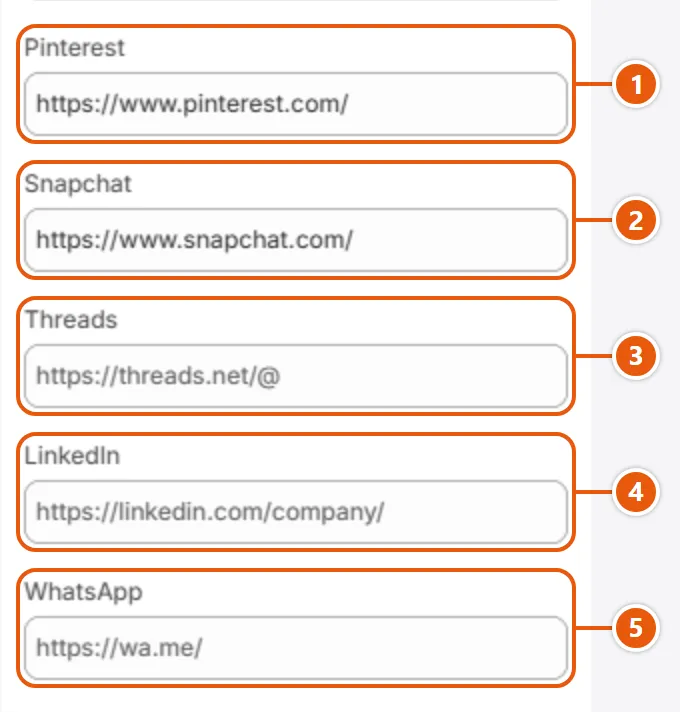
“Social media” settings in the Shopify editor (2 of 2)
  1. 1“Pinterest”
    The full link, such as https://pinterest.com/….
  2. 2“Snapchat”
    The full link, such as https://snapchat.com/add/….
  3. 3“Threads”
    The full link, such as https://threads.net/@….
  4. 4“LinkedIn”
    The company page link, such as https://linkedin.com/company/….
  5. 5“WhatsApp”
    https://wa.me/ followed by your number with the country code, no spaces.

Tips

A round arrow button that takes shoppers back to the top. It appears once they scroll a little, with a ring that shows how far they have read.

Where “Back to top” shows in the store
  1. 1“Show a back to top button”
    A corner button that appears after scrolling about 80% of a screen's height and leaves near the top. A press scrolls up smoothly, unless the device asks for reduced motion.
  2. 2“Show how far the page has been read”
    A ring round the button fills as the page is read, with a ball in the “Accent” color. Off: a plain button.

Step by step

  1. Click “Edit theme”, open “Theme settings”, then “Back to top”.
  2. Turn on “Show a back to top button” and pick the “Corner”.
  3. Turn “Show how far the page has been read” on or off.
  4. Click “Save” and scroll down any page.

The other settings

  • Corner: The button lifts itself above the welcome window's button in the same corner, and above the product page's sticky buy bar.

Tips

  • The button's background and arrow come from the page color scheme, the ball from its “Accent”: “Colors”.

Page motion: sections rising in as you scroll, slideshows moving on their own, how windows open, and hover effects. Visitors whose device asks for less motion see no movement and no autoplay.

Step by step

  1. Click “Edit theme”, open “Theme settings”, then “Animations”.
  2. Turn on “Reveal sections on scroll” and pick the “Scroll motion”.
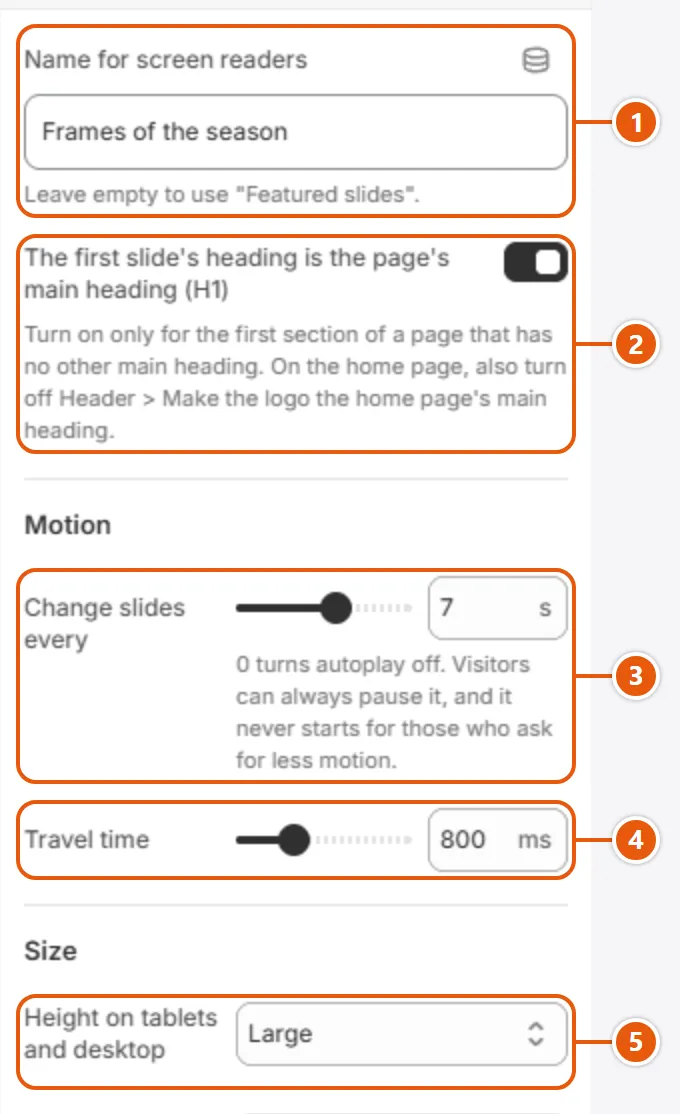
  3. Set “Slideshows move on their own every” (0 keeps them still).
  4. Choose “Windows open from” and “Hover effects”.
  5. Click “Save”.

Settings

  • Reveal sections on scroll: Section headings and items rise in quietly the first time they come into view. Off: everything stays still.
  • Scroll motion: Lively: titles rise word by word, large pictures open like a curtain, the size scale draws itself and some sections' pictures drift gently as you scroll. Gentle: sections only rise in.Shown when “Reveal sections on scroll” is on
  • Slideshows move on their own every: Seconds between moves of product, collection, article and look slideshows, one card at a time, back to the first after the last; 0 keeps them still. They stop under the pointer, on focus and after a swipe, and end with a pause button.
  • Windows open from: “The button that opened them”: the quick view grows as a circle from its eye. “The middle, rising in”: it rises into the center. On phones it opens from the bottom either way.
  • Hover effects: “Movement and colors”: pictures and cards move and change color on hover. “Colors only”: colors change, nothing grows or moves, and the second-image effect swaps the picture in place.

Tips

  • The reveal does not run inside the editor or on the first screen; open the store preview and scroll to see it.
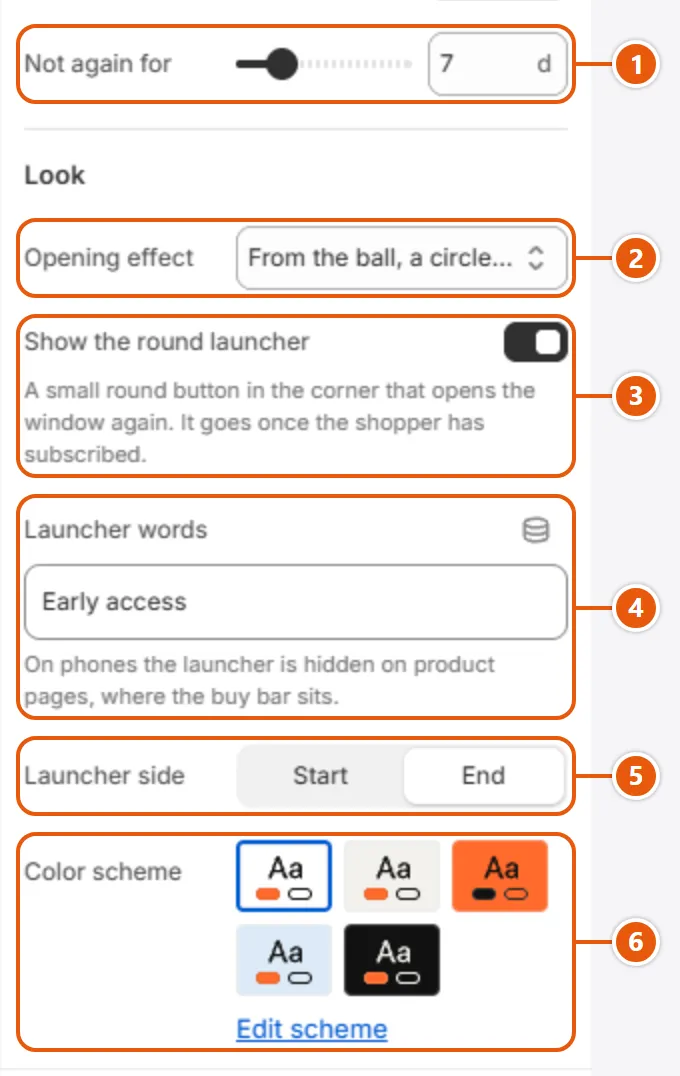
  • The welcome window has its own opening effect: “Welcome window”.

Color swatches (the small circles) show on the card and the product page only when every value of the color option has a swatch in Shopify and there are at least two colors. Otherwise the product page shows the values as buttons with their names. The theme never guesses a color from its name.

Step by step

  1. In “Products”, open the product and pick its “Category” (for example eyeglasses).
  2. In “Variants”, click the color option and connect it to “Color” (“Connected to Color”).
  3. For each value pick a color from the “Color” list or add a new one.
  4. To define a new color, open “Content” > Metaobjects > Color and click “Add entry”: its name (“Label”) and a color or picture.
  5. Click “Save” and open the product in the store.

Tips

Fit tools and size data

This is what sets Caliper apart: every product tells the shopper whether it fits before they buy. You set the sizes up once and the rest follows. Here are the idea, the setup and the settings of each tool.

The group that runs the size system across the store: while it is on, every card, product page and cart line tells the shopper whether the product comes in their size, and the header gets a “My size” button. The whole idea is in “The idea: every product says whether it fits”, the setup step by step in “Set up sizes: the scale, tags and options”.

Where “Fit and sizes” shows in the store
  1. 1“Scale”
    “Letters or numbers (S, M, L)” draws a size scale; “Age bands (children)” a row of ages saying “Fits your child”. A saved age moves on with the months, and the “My child” panel asks to confirm it.
  2. 2“Sizes, in order”
    The store's sizes in the order every scale shows them, separated by commas: S, M, L. With age bands write each band as a range (3-6m), or leave S, M, L for the standard bands.
  3. 3“Size tags start with”
    The start of the tag that says a product comes in a size: with size- the tag for M is size-m. A product with no size tag reads its Size or Age option instead.

Step by step

  1. Click “Edit theme” on the theme, then “Theme settings” in the sidebar.
  2. Open “Fit and sizes” and turn on “Show sizes and "My size"”.
  3. Pick the “Scale”, then fill in “Sizes, in order” and “Size tags start with”.
  4. If a page of yours has a “Frame size finder” section, put its address in “Size finder link”.
  5. Click “Save” and check the card of a product with a size tag.

The other settings

  • Show sizes and "My size": On: cards, the product page and the cart show each product's sizes, and the header gets a “My size” button. Off: all of it goes, except “How it fits” for a frame with numbers.
  • Size finder link: Where “Find my frame size” leads, from the “My size” panel, a product's sizes and “How it fits”. With age bands it reads “Open the size guide”, so point it at a page with your size chart. Empty hides it.

Tips

  • The tag is the prefix followed by the size as written in “Sizes, in order”, in lower case with a hyphen for a space: XL becomes size-xl, “Extra Large” becomes size-extra-large.
  • With age bands the prefix size- is read as age-, so the tag for 3-6m is age-3-6m. The standard bands run from Newborn (0 to 3 months) to 4-6y.
  • The “Frame size finder” has its own “Size tag prefix”: keep it the same as this one so one set of tags serves both.

The shopper types the three numbers printed inside their glasses' arm (lens, bridge, temple) or picks a face width, and sees their size, the frame drawn to scale and the frames in that size. The size is saved as their “My size”, which the rest of the store answers: “The idea: every product says whether it fits”.

Your size table is the “Size” blocks you add; each frame is matched to a size by a tag such as size-m.

Note: A frame with no size tag never shows in the rail, even in “Frames first”. The tag is the “Size tag prefix” followed by the “Key”, such as size-m.

Step by step

  1. In “Products”, add each frame's size tag, such as size-m, in “Tags”.
  2. Make one collection per size in “Collections” with that tag as its condition (optional, but the count and link are then exact).
  3. In the editor, click “Add section” and choose “Frame size finder”.
  4. In the ready sizes (S, M and L), edit the “Letter”, “Name”, “Key”, “From (mm)” and “To (mm)”, and add more with “Add Size”.
  5. Pick the “Collection” that holds your frames and check “Numbers at first”.
  6. Click “Save” and try numbers from every size.

Where to find its settings

“Frame size finder” settings in the Shopify editor (1 of 2)
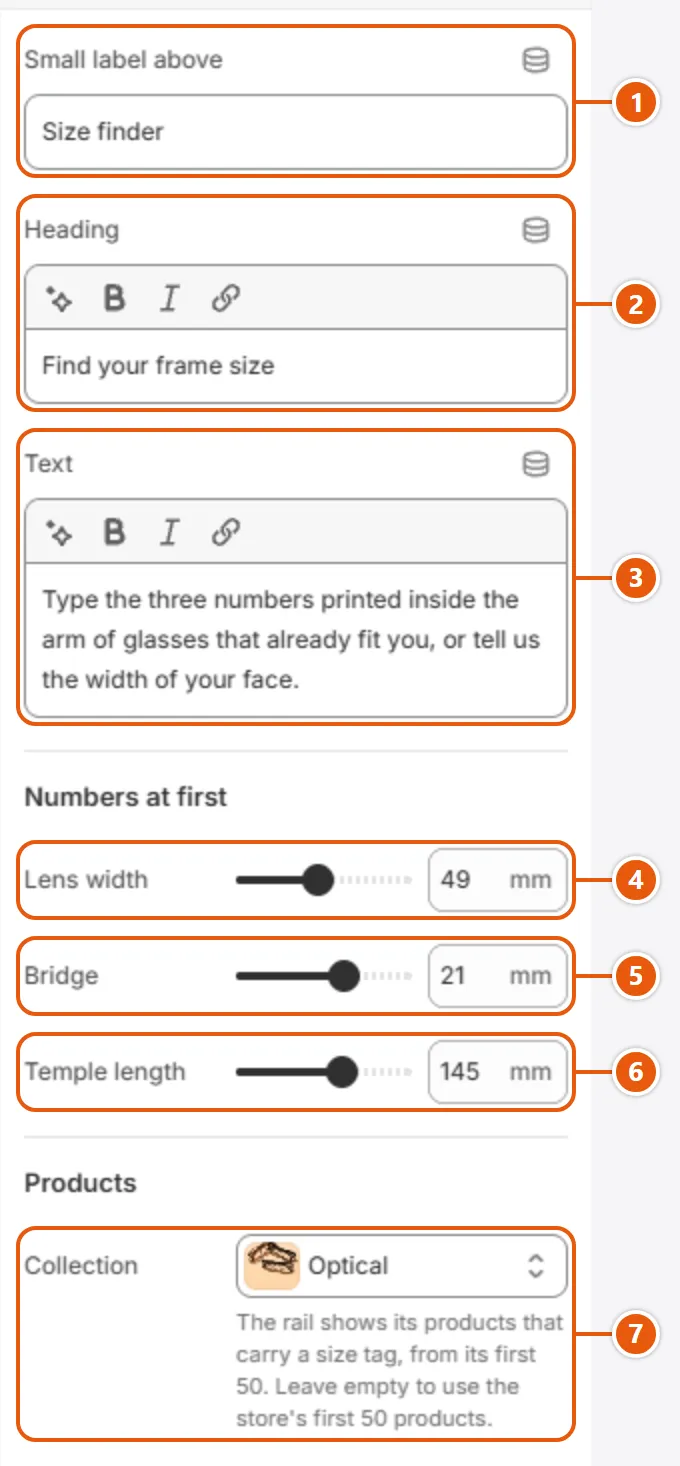
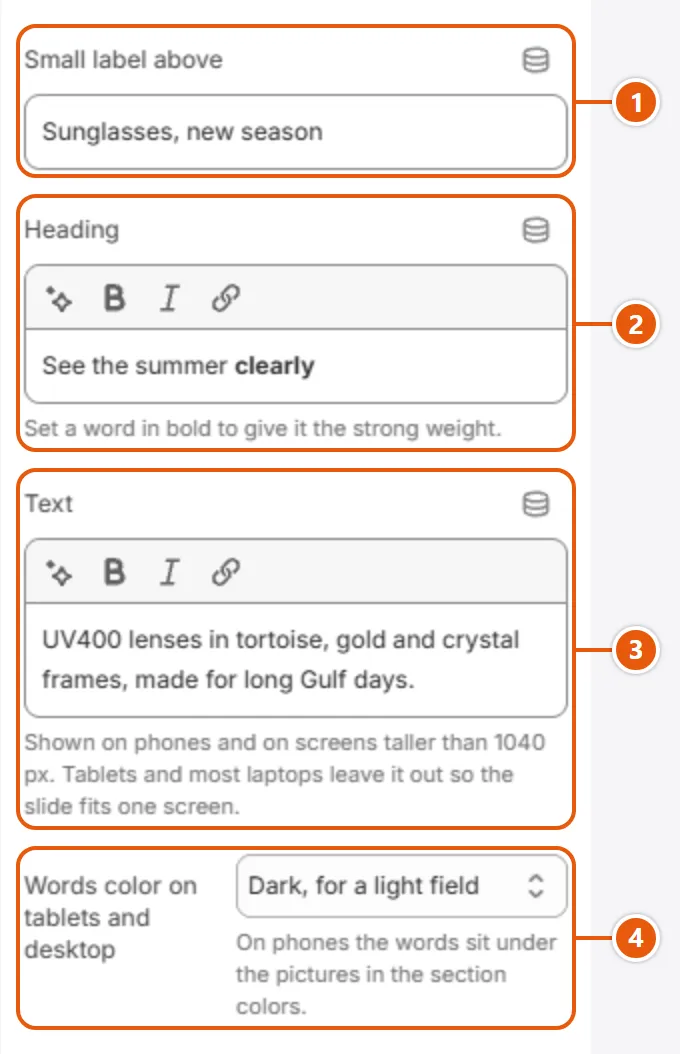
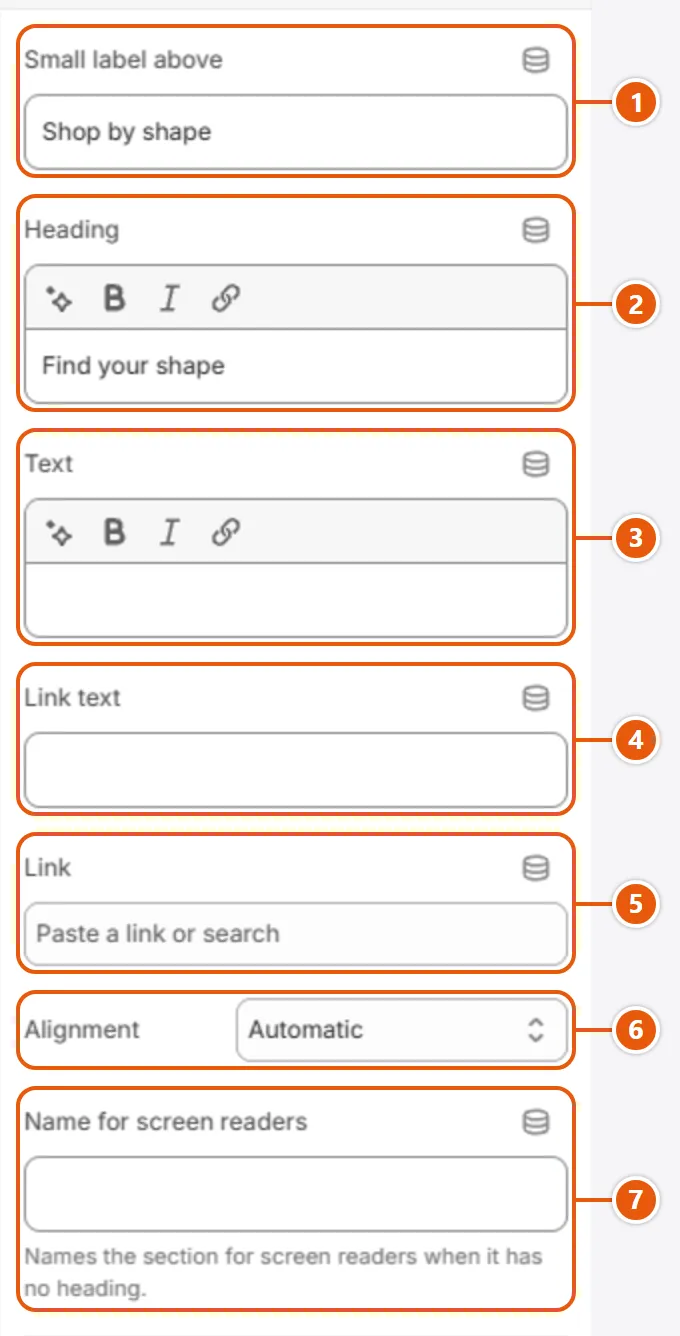
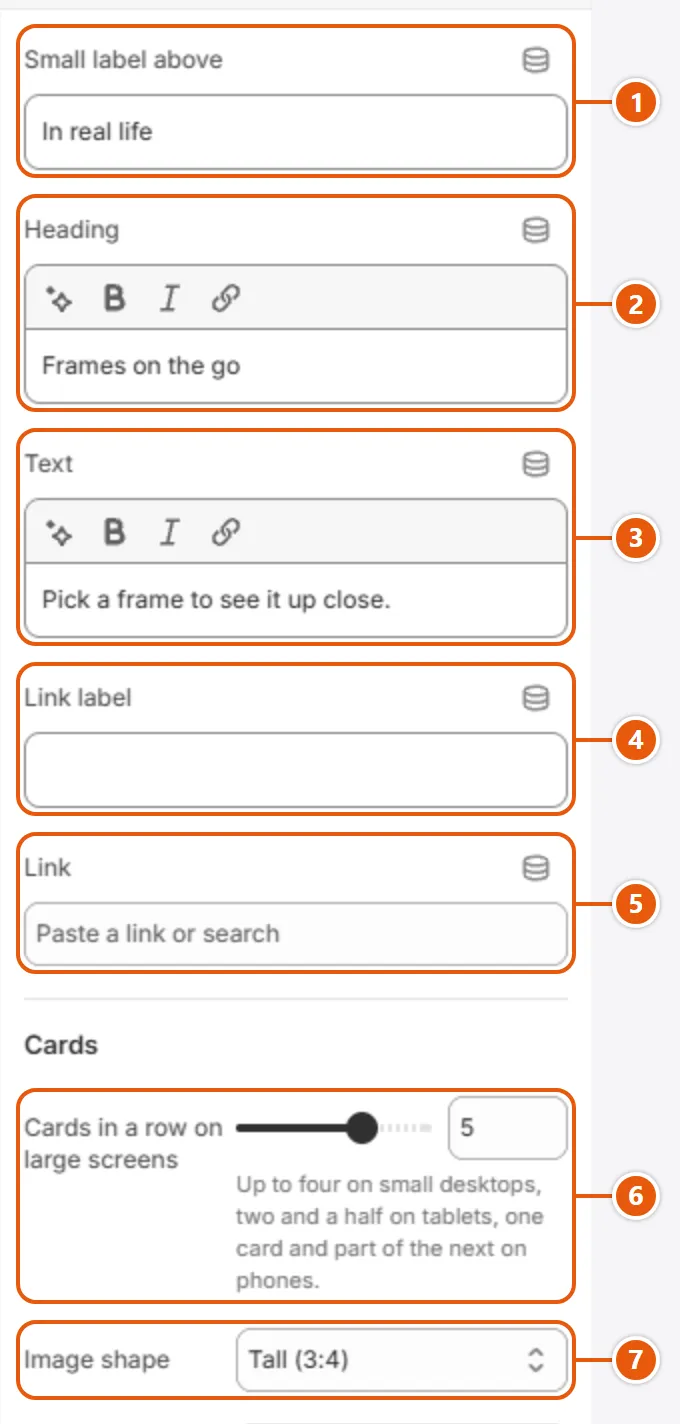
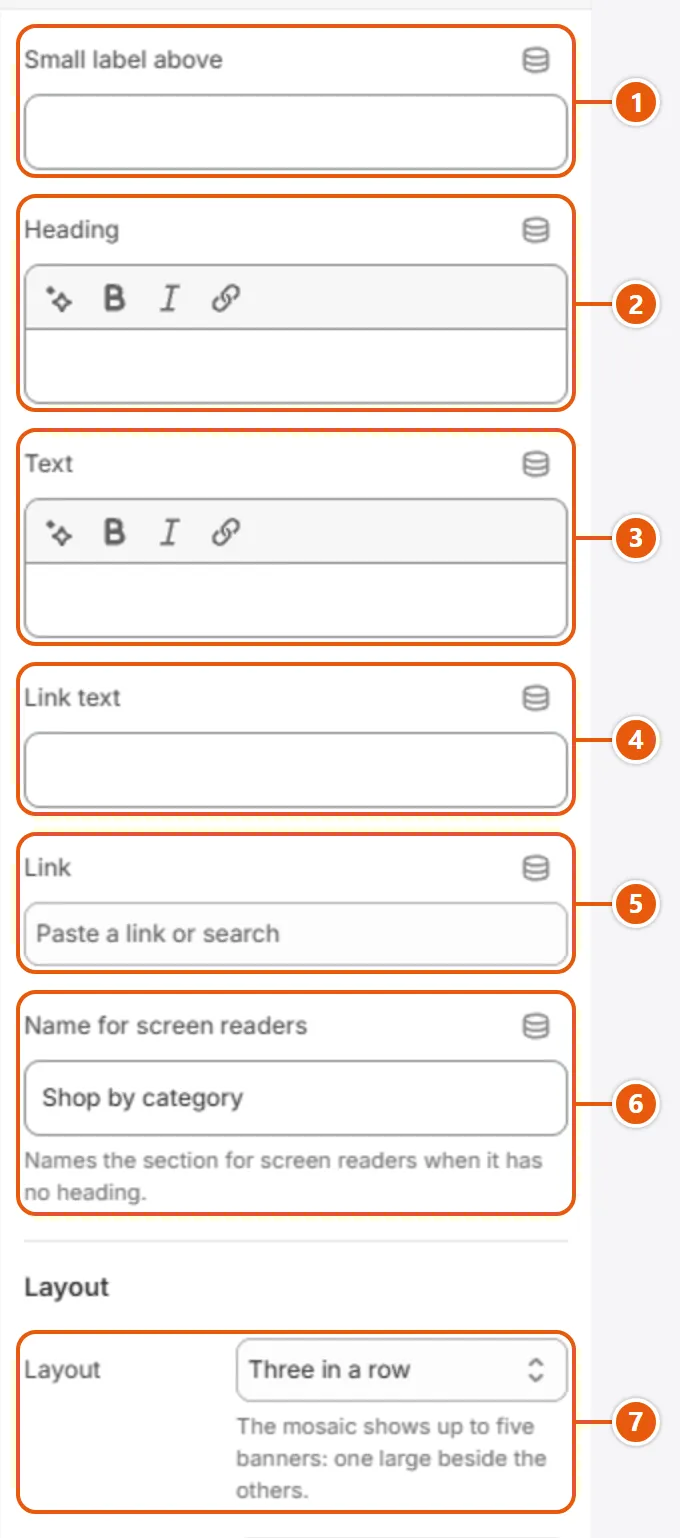
  1. 1“Small label above”
    A small line above the heading; empty hides it.
  2. 2“Heading”
    The heading; simple formatting such as bold works. Empty: no heading.
  3. 3“Text”
    A line under the heading telling the shopper what to do; empty hides it.
  4. 4“Lens width”
    The lens width the finder starts with, from 38 to 62 mm; with the bridge it sets the size shown first.
  5. 5“Bridge”
    The bridge the finder starts with, from 12 to 26 mm; added to the lens, it picks the first size from your table.
  6. 6“Temple length”
    The starting temple length, from 120 to 160 mm; it changes the drawing and numbers only, not the size.
  7. 7“Collection”
    Where the rail takes its frames (only those with a size tag), and the link of any size with no “Size collection”. The rail reads its first 50 products; empty: the store's first 50.
“Frame size finder” settings in the Shopify editor (2 of 2)
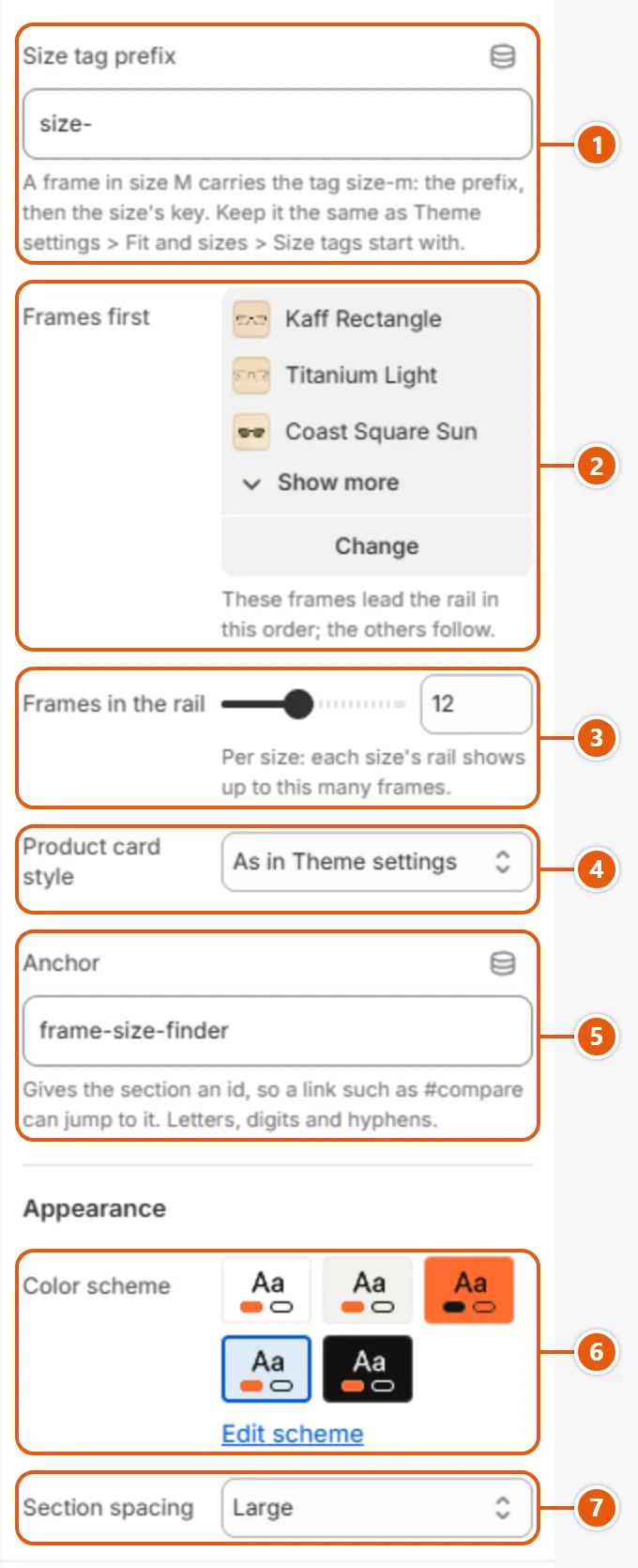
  1. 1“Size tag prefix”
    The start of the tag before the size's key: with size- the tag for M is size-m; empty means size-. Keep it equal to “Size tags start with” in “Fit and sizes”.
  2. 2“Frames first”
    Frames you pick (up to 12) lead the rail in your order, then the rest of the collection. A frame with no size tag is skipped.
  3. 3“Frames in the rail”
    The most frames in each size's rail, from 4 to 24.
  4. 4“Product card style”
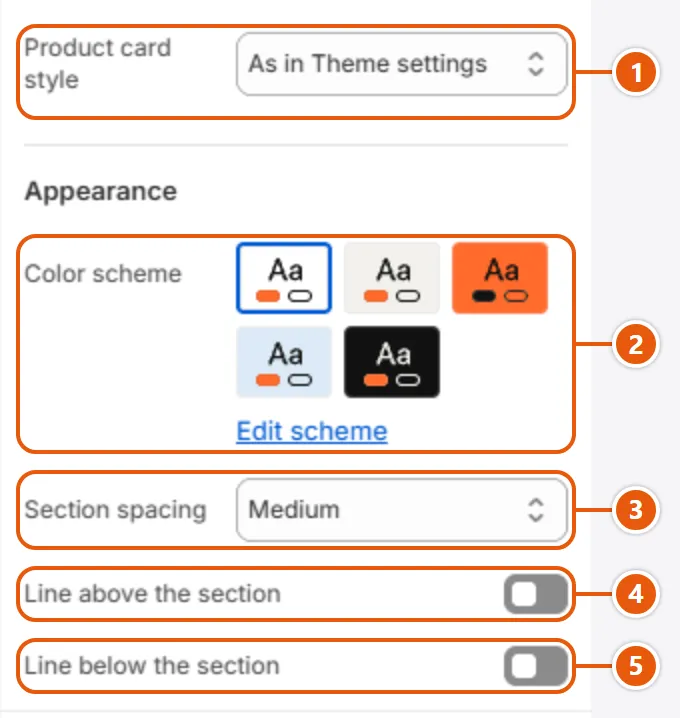
    The card style in the rail. “As in Theme settings” follows “Style” in “Product cards”, where the other choices are described.
  5. 5“Anchor”
    An id so a link ending in #frame-size-finder (or what you type) jumps to the section. Latin letters, digits and hyphens; empty: no id.
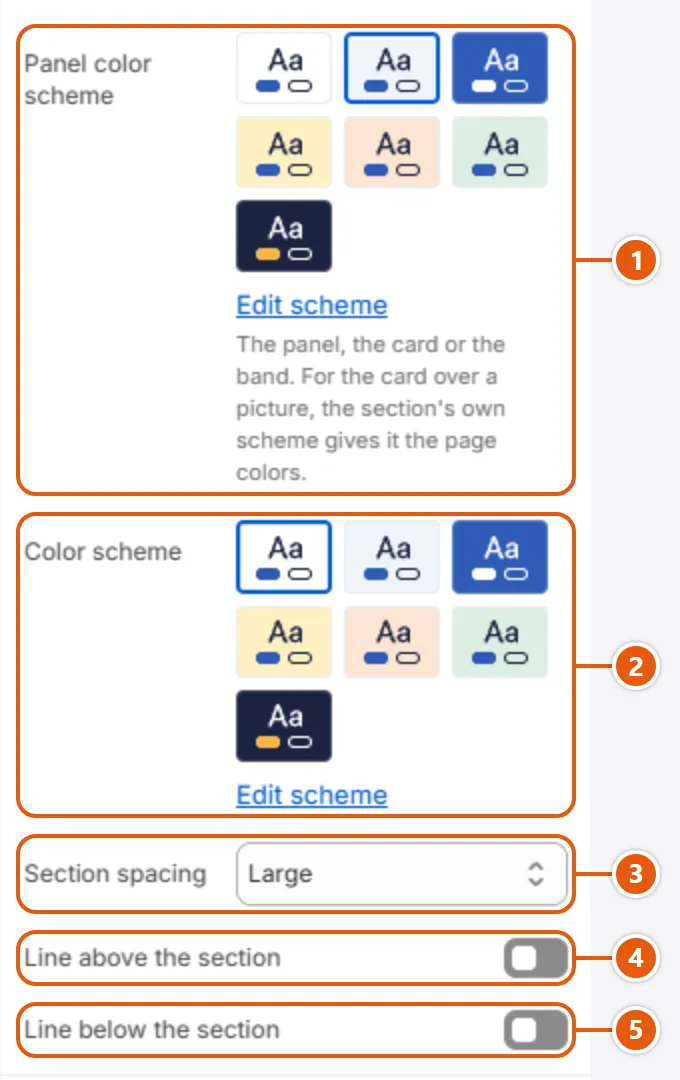
  6. 6“Color scheme”
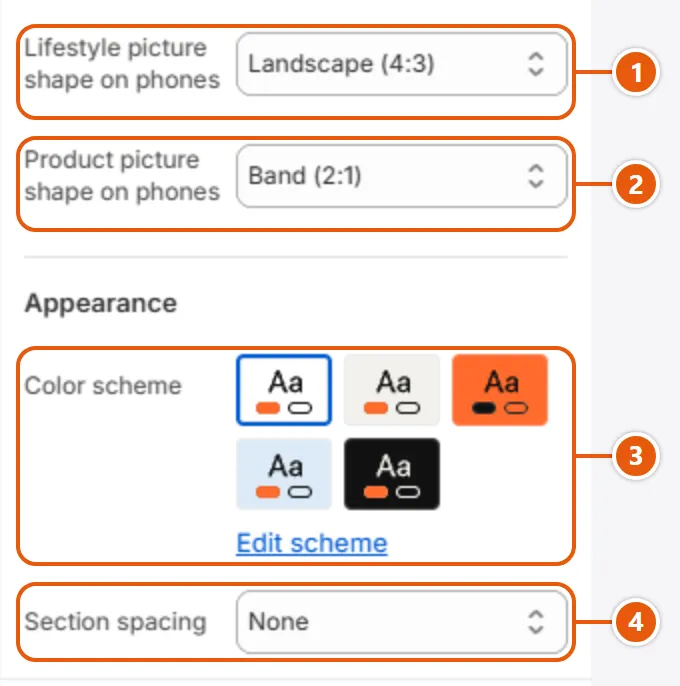
    The section's colors: background, text, links and buttons, from the color schemes you set in “Colors”. Switch the scheme to make a section light, dark or accent-colored without changing its colors one by one.
  7. 7“Section spacing”
    The space above and below the section: “None” joins it to its neighbors; “Small”, “Medium” and “Large” add more.
Inside each “Size” (click it in the side bar)
“Size” settings in the Shopify editor (1 of 2)
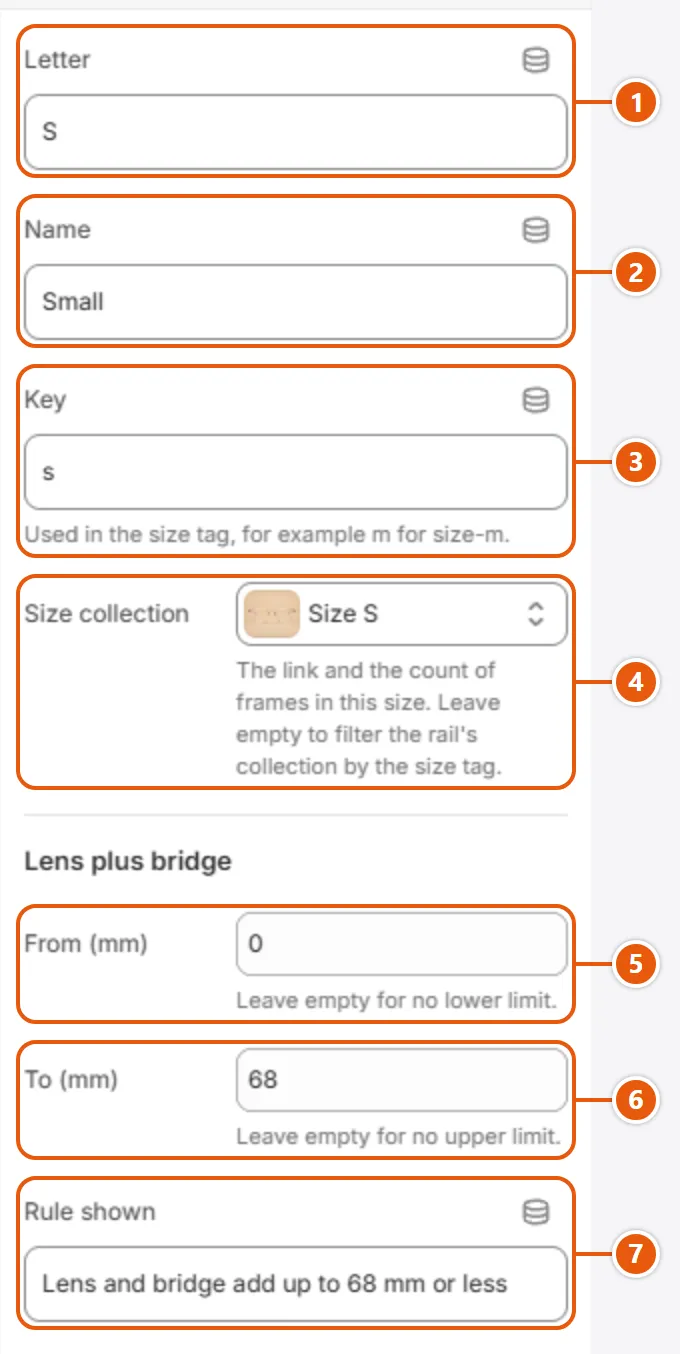
  1. 1“Letter”
    The letter in the big circle and on the size's button, such as M; empty uses the “Key”.
  2. 2“Name”
    The size's name in the answer, such as Medium; empty shows the letter only.
  3. 3“Key”
    The part after the prefix in a frame's tag: m with size- means size-m. It is also what is saved as “My size”, so match a size in “Sizes, in order” in “Fit and sizes”. No spaces, never in two sizes.
  4. 4“Size collection”
    This size's collection (best a smart one on the size tag): the “Shop size” link and the true count come from it. Empty: the link filters the rail's collection by the tag, counted over its first 50 products.
  5. 5“From (mm)”
    The smallest lens plus bridge total, in millimeters, in this size; empty: no lower limit. A total that fits two sizes goes to the first in the list.
  6. 6“To (mm)”
    The largest lens plus bridge total in this size; empty: no upper limit. A total in a gap between two sizes gets the nearest size.
  7. 7“Rule shown”
    A line under the size's name in the answer, such as lens and bridge adding up to 69 to 71 mm. You type it, so keep it matching “From (mm)” and “To (mm)”.
“Size” settings in the Shopify editor (2 of 2)
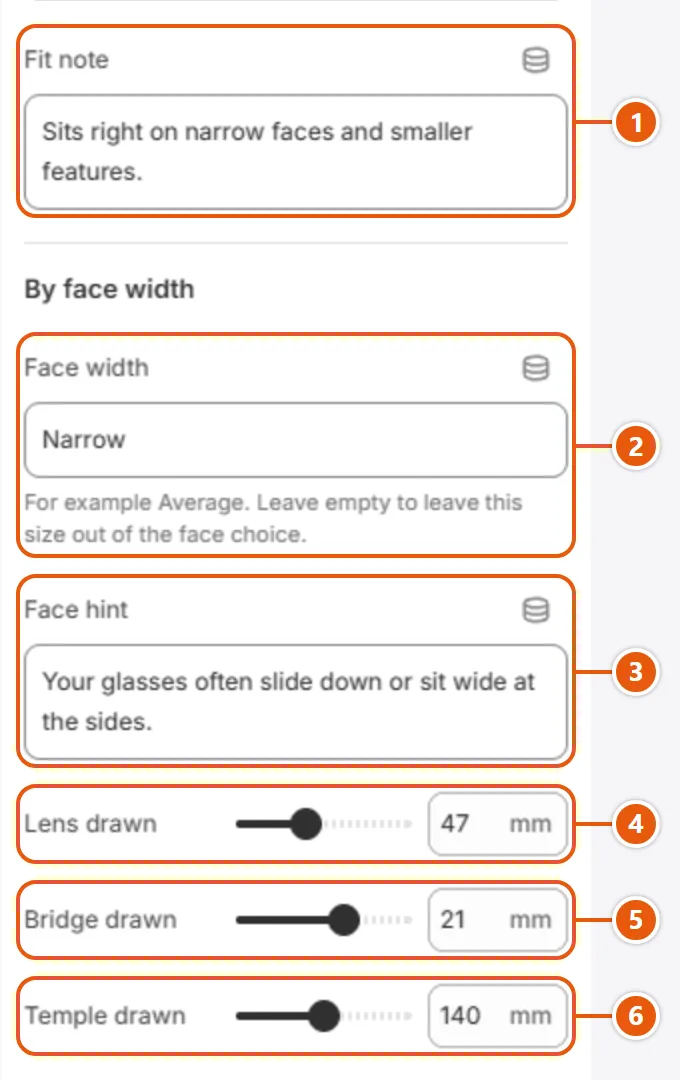
  1. 1“Fit note”
    A short sentence on the face this size suits, under the rule in the answer.
  2. 2“Face width”
    The face width this size suits, such as Narrow or Average, as a choice under “By face width”. Empty leaves the size out of it; if every size is empty, the face choice disappears.
  3. 3“Face hint”
    A small line under the face width name describing that face; it shows only with “Face width” filled in.
  4. 4“Lens drawn”
    The lens width drawn when the shopper picks this size by face width, from 38 to 62 mm; typed numbers draw themselves.
  5. 5“Bridge drawn”
    The bridge drawn for a face width pick, from 12 to 26 mm.
  6. 6“Temple drawn”
    The temple drawn for a face width pick, from 120 to 160 mm.

The other settings

  • Size: Your size table: one block per size (up to 6), smallest first. With no blocks the section shows in the editor only. A new block starts with size M's values, so change them.Up to 6 items

Plus every option in “Options every section shares”.

Tips

  • A frame with several size tags shows under each of its sizes.
  • The tag-filtered link (with no “Size collection”) works only when the product tag filter is on in the Search & Discovery app.
  • Keep the ranges joined: if one size ends at 68 and the next starts at 70, a total of 69 goes to the nearest size, the first one on a tie. A new size starts empty and shows once you give it a letter or a key.

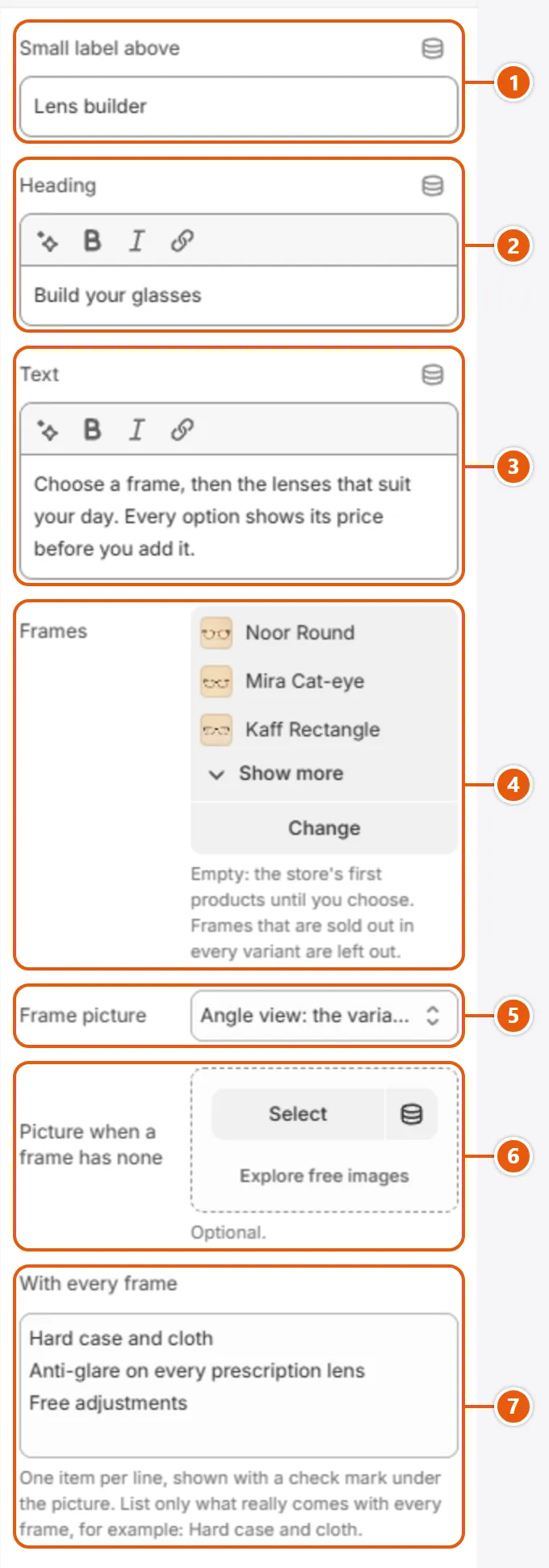
The shopper picks a frame, its color and size, then the lenses step by step (use, coating, thickness), each option at its real price with the total beside it, and one click puts the frame and the lenses in the cart.

Each step is a “Step” block followed by its “Option” blocks; the first option of a step starts chosen. An option with an “Add-on product” takes that product's price; one without reads “Included”.

Where “Lens builder” shows in the store
  1. 1“Heading”
    The section heading; simple formatting works. Empty shows “Build your glasses”.
  2. 2“Frames”
    The frames the shopper chooses from, up to 12; a frame sold out in every variant is left out. Empty: the store's first 4 products until you choose.
  3. 3“Frame picture”
    The big picture follows the chosen color: “Angle view: the variant's second picture” shows the picture after the color's own (unless it is another color's), “Front view: the variant's first picture” the color's own.
  4. 4“With every frame”
    A checked list under the picture, one item per line. List only what really comes with every frame. Empty: no list.
  5. 5“Heading”
    The step's name, above its options after its number (02, 03...). It goes with the shopper's choice into the cart and the order, as in “Coating: Blue-light filter”.
  6. 6“Add-on product”
    A product whose price (first variant in stock) is added to the frame's; it joins the cart as its own line naming the frame. Empty: included. Sold out: crossed out.

Step by step

  1. From “Online Store”, click “Edit theme” on the theme.
  2. Pick the page (for example “Home page”), click “Add section” and choose “Lens builder”.
  3. In “Frames” choose your frames, then click “Add block” and choose “Step” for each step.
  4. After each Step add “Option” blocks: write the “Label”, and pick an “Add-on product” for a paid option; leave it empty for an included one.
  5. Click “Save” and try the builder on the store.

Where to find its settings

“Lens builder” settings in the Shopify editor (1 of 2)
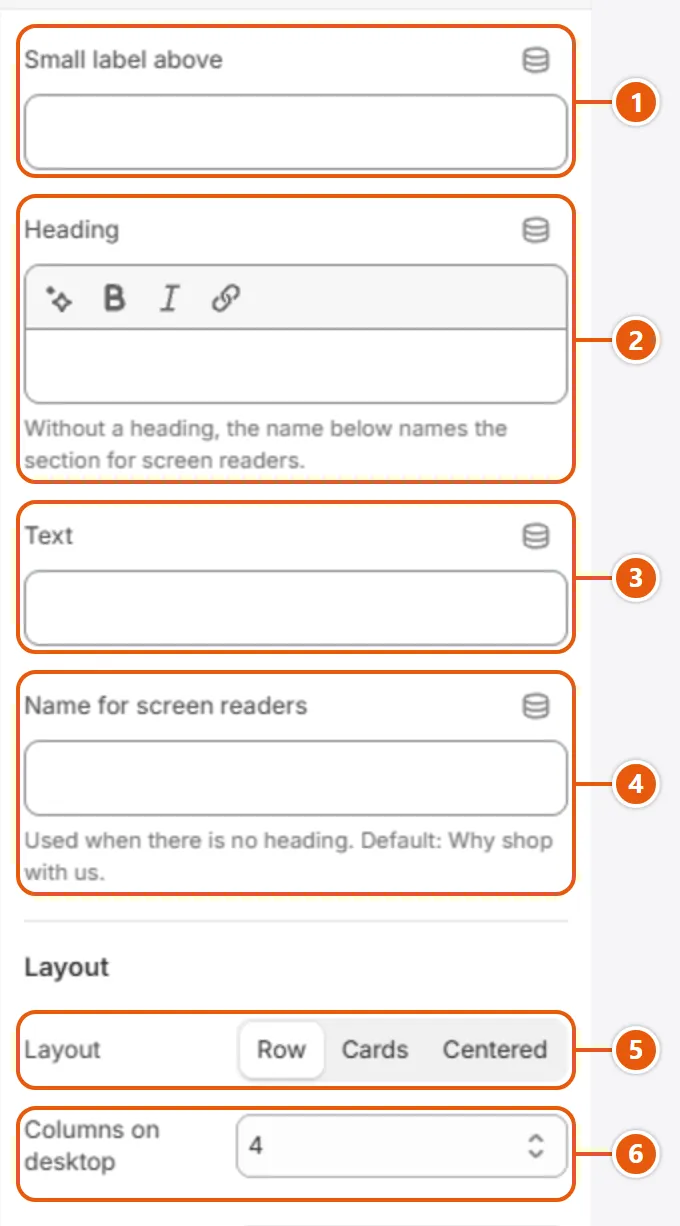
  1. 1“Small label above”
    A small line above the heading. Empty hides it.
  2. 2“Heading”
  3. 3“Text”
    A line under the heading. Empty hides it.
  4. 4“Frames”
  5. 5“Frame picture”
  6. 6“Picture when a frame has none”
    Shown in place of the picture of any frame that has none. Leave it empty if every frame has pictures.
  7. 7“With every frame”
“Lens builder” settings in the Shopify editor (2 of 2)
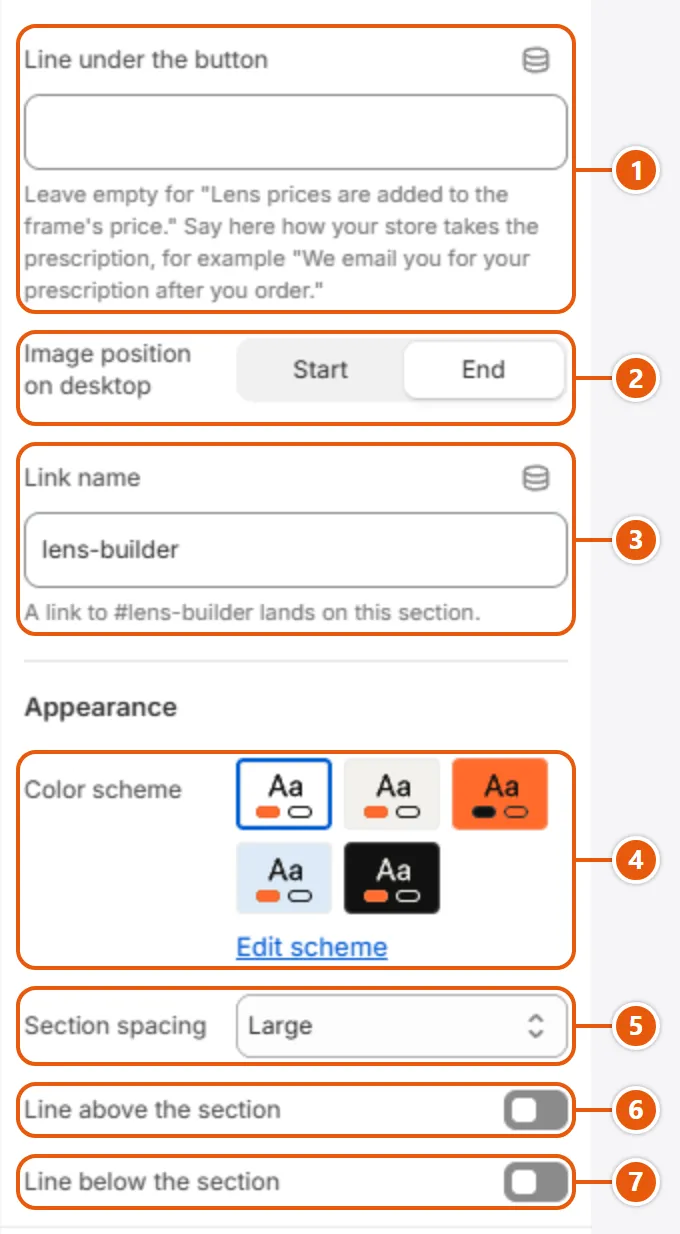
  1. 1“Line under the button”
    A small line under the add button. Empty shows “Lens prices are added to the frame's price.” Say here how your store takes the prescription, such as “We email you for your prescription after you order.”
  2. 2“Image position on desktop”
    Which side the picture takes on computers: “Start” is where reading begins (right in Arabic, left in English), “End” the other. On phones and tablets it follows the heading.
  3. 3“Link name”
    The section's link name: a link ending in #lens-builder (or what you type) jumps here. Latin letters, digits and hyphens; empty gives an automatic name you cannot link to.
  4. 4“Color scheme”
    The section's colors: background, text, links and buttons, from the color schemes you set in “Colors”. Switch the scheme to make a section light, dark or accent-colored without changing its colors one by one.
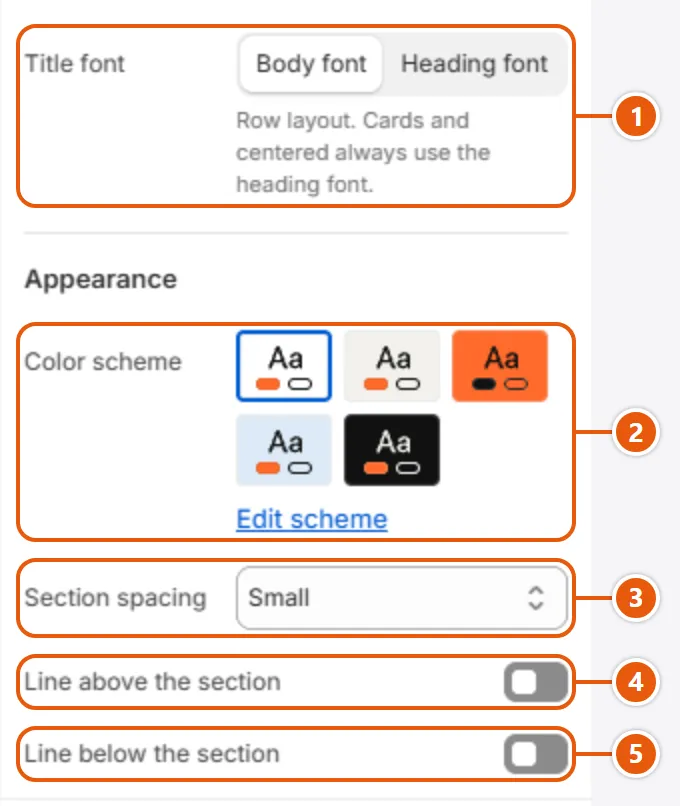
  5. 5“Section spacing”
    The space above and below the section; “None” sets it against its neighbors. The sizes come from “Layout”.
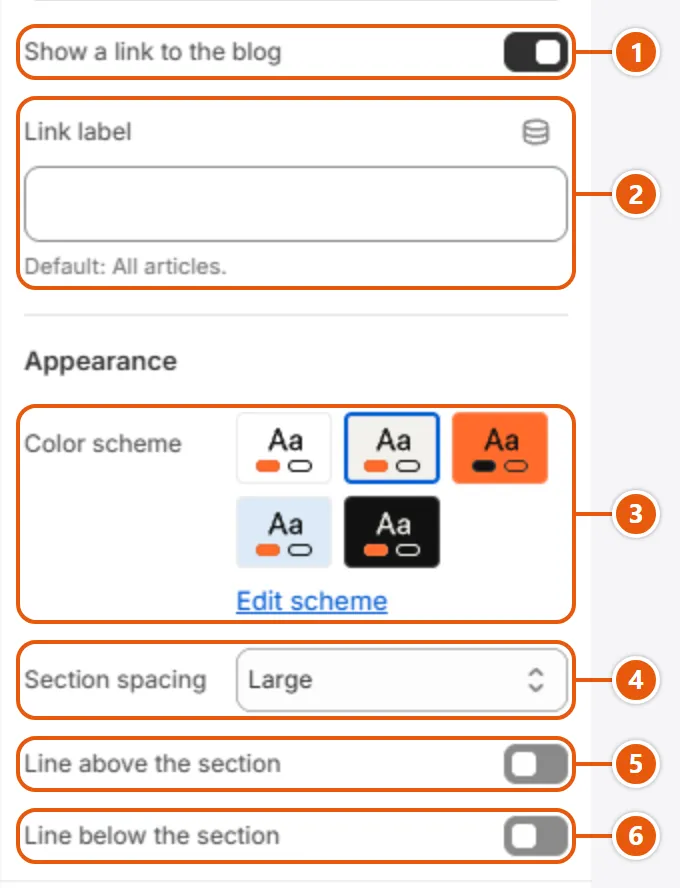
  6. 6“Line above the section”
    A thin line along the section's top edge.
  7. 7“Line below the section”
    A thin line along the section's bottom edge.

The other settings

  • Step: One question about the lenses; its choices are the “Option” blocks after it, up to the next Step. With no step the section shows only in the editor.
  • Option: One choice in the step above it, a pill with its name and price. An option before the first Step never shows. Up to 40 blocks in the section.
    • Label: The option's name on its pill, in the summary and in the cart. Other options name it in “Not available with”, so change it there too.
    • Line under the options: A line under the step's options while this option is chosen, such as how it differs from the others.
    • Not available with: Labels of options in other steps, comma separated: picking one crosses this option out with a note. Match the “Label” exactly; letter case does not matter.

Plus every option in “Options every section shares”.

Tips

  • Example: type Sun in a “Photochromic” option's “Not available with”; picking Sun crosses Photochromic out, and a chosen Photochromic falls back to the step's first option still possible. It works one way: for the reverse, type Photochromic in Sun's “Not available with”.
  • Every choice, paid or included, is written on the frame's line in the cart and the order, and each paid lens has its own line with “For frame” and the frame's name and variant, so the order tells your lab everything.
  • You can offer the same steps on the frame's own page: “Lens choice on the frame page”.

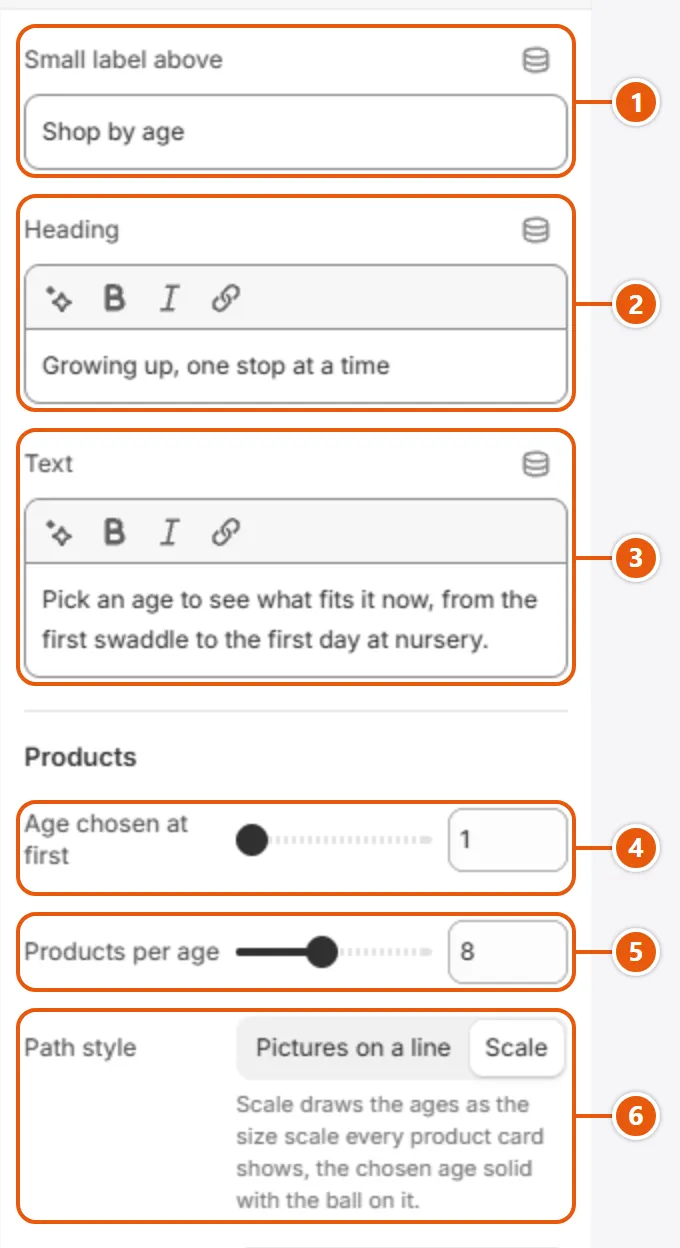
A path of ages: each stop shows an age with its picture, name and its collection's product count, and clicking one swaps the product rail under the path without reloading the page. A shopper who saved their child's age finds the path open on it.

Where “Shop by age” shows in the store
  1. 1“Path style”
    “Pictures on a line”: round picture stops on a dotted zigzag line. “Scale”: dots like the size scale on cards, the ball on the chosen age, with no pictures or badge colors.
  2. 2“Age chosen at first”
    The stop open when the page loads, by stop order; a number above the stop count takes the last one. A saved child's age wins over it.
  3. 3“Age”
    The age's name on the stop, in “Shop all” and in the count line. Empty: the collection's title.
  4. 4“Line”
    A small line under the age's name, such as “First steps”; hidden on phones. Empty hides it.
  5. 5“Collection”
    The age's collection: the rail's products, the count and the “Shop all” link come from it; an empty one reads “Coming soon”. With none chosen, placeholder cards show, to shoppers too.
  6. 6“Products per age”
    The most products the rail shows for each age, from the start of the collection in its order.

Step by step

  1. From “Online Store”, click “Edit theme” on the theme.
  2. Pick the page (for example “Home page”), click “Add section” and choose “Shop by age”.
  3. Click each stop, pick its “Collection” and write its “Age” and “Line”; for another stop click “Add Age”.
  4. Pick the “Path style”; with “Pictures on a line”, set each stop's “Image” and “Badge color”.
  5. Click “Save”.

Where to find its settings

“Shop by age” settings in the Shopify editor (1 of 2)
  1. 1“Small label above”
    A small line above the heading. Empty hides it.
  2. 2“Heading”
    The section heading, centered; simple formatting works. Empty: no heading.
  3. 3“Text”
    A line under the heading. Empty hides it.
  4. 4“Age chosen at first”
  5. 5“Products per age”
  6. 6“Path style”
“Shop by age” settings in the Shopify editor (2 of 2)
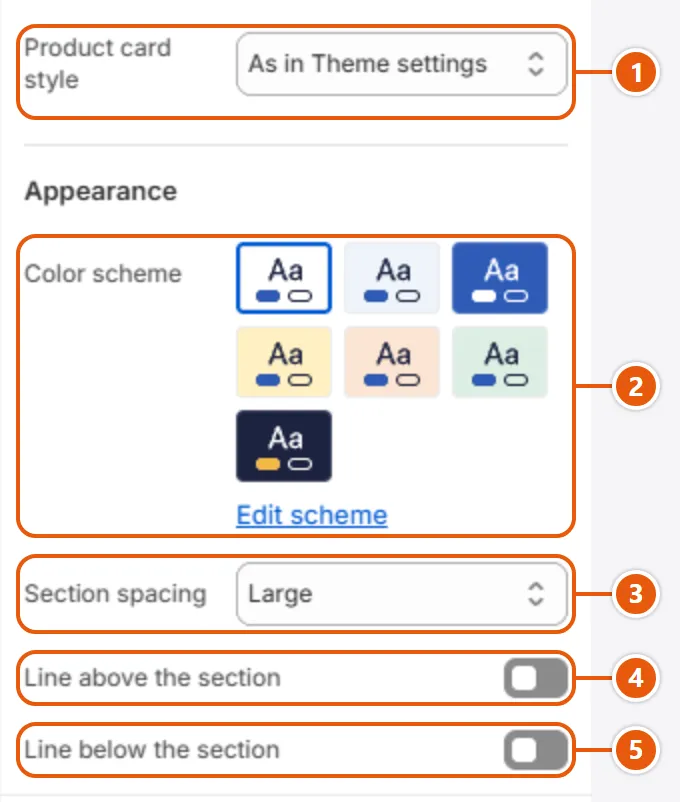
  1. 1“Product card style”
    The card style in the rail. “As in Theme settings” follows “Product cards”; the others apply to this section only.
  2. 2“Color scheme”
    The section's colors: background, text, links and buttons, from the color schemes you set in “Colors”. Switch the scheme to make a section light, dark or accent-colored without changing its colors one by one.
  3. 3“Section spacing”
    The space above and below the section; “None” sets it against its neighbors. The sizes come from “Layout”.
  4. 4“Line above the section”
    A thin line along the section's top edge.
  5. 5“Line below the section”
    A thin line along the section's bottom edge.

The other settings

  • Age: One age on the path: picture, name, line and the collection's product count; clicking it shows its products below. With no stop the section shows only in the editor.Up to 8 items
    • Image: A picture inside the stop's circle, blended into the “Badge color”, so a product shot on white suits it best. Empty: the collection's image. Not shown with “Scale”.
    • Badge color: The color of the circle behind the picture. Empty: a soft tint from the theme colors that changes from stop to stop. Not shown with “Scale”.

Plus every option in “Options every section shares”.

Tips

  • A shopper's click on a stop saves their child's age when “Scale” in “Fit and sizes” is “Age bands (children)” and the collection's handle (the last part of its address) is the age prefix plus the band, such as age-3-6m.
  • In the editor, selecting a stop's block opens its age in the path.

A list of real products, all ticked to start with. The shopper unticks what they already have and picks the size on the row, the total follows, and one click puts every ticked product in the cart. The total is just the sum of the prices, with no bundle price or discount.

Where “Checklist” shows in the store
  1. 1“Heading”
    The list heading; simple formatting works. Empty: no heading.
  2. 2“Text”
    A line under the heading. Empty hides it.
  3. 3“Product”
    The product with its picture, name (a link) and real price; sold out, it shows unticked and cannot be ticked. With no product, a placeholder row “Product name” shows, to shoppers too.
  4. 4“Note”
    A short line under the product's name, such as “Wraps head to toe”. Empty hides it.
  5. 5“Start with”
    Option values, separated by commas, such as Sky, 0-3m: the row starts on the first variant in stock that has all of them. Empty, or no such variant: the first variant in stock.
  6. 6“Note under the button”
    A small note under the add button, such as each item being at its own price. It shows only when the list has a real product. Empty hides it.

Step by step

  1. From “Online Store”, click “Edit theme” on the theme.
  2. Pick the page (for example “Home page”), click “Add section” and choose “Checklist”.
  3. For each product click “Add Item”, pick the “Product” and write a “Note”.
  4. For a product with colors or sizes, fill in “Start with” so its row starts on the right values.
  5. Upload an “Image” if you want a picture beside the list, then click “Save”.

Where to find its settings

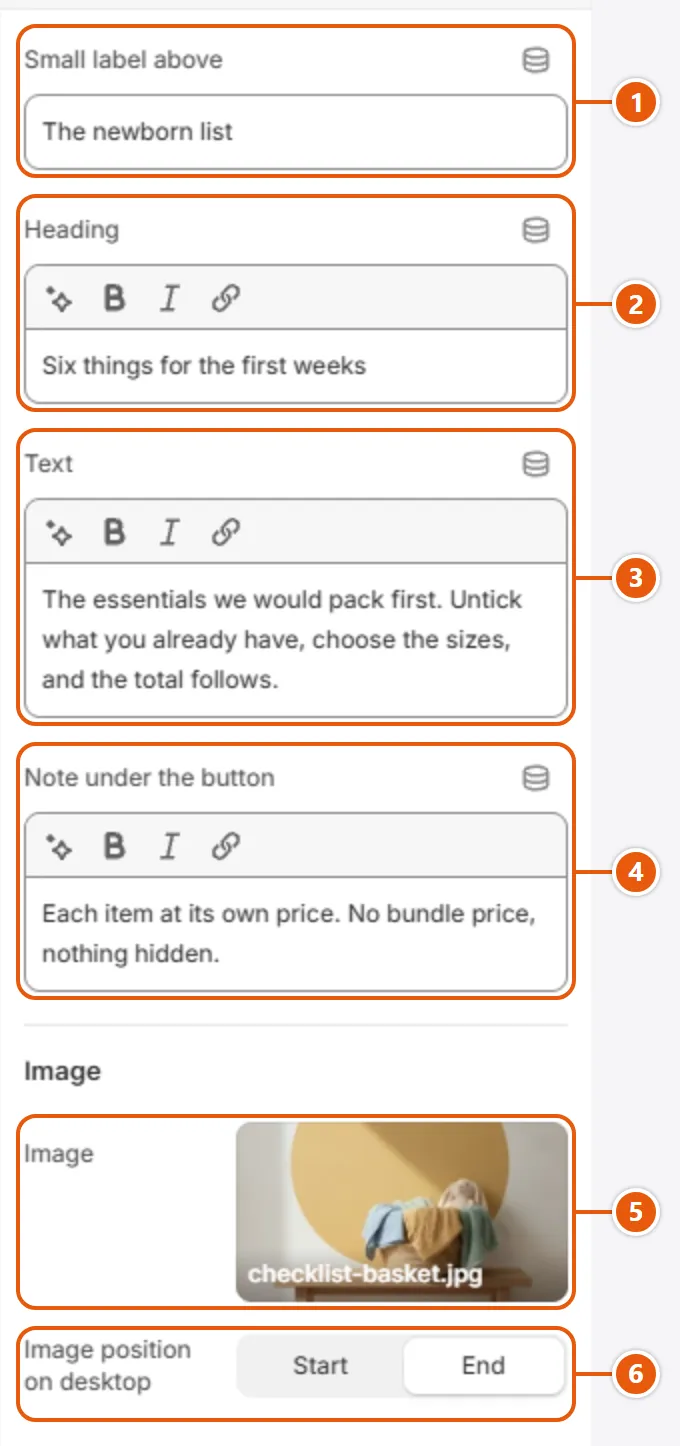
“Checklist” settings in the Shopify editor (1 of 2)
  1. 1“Small label above”
    A small line above the heading. Empty hides it.
  2. 2“Heading”
  3. 3“Text”
  4. 4“Note under the button”
  5. 5“Image”
    A tall picture beside the list on computers (above it on phones) with a round sticker counting the products. Without it the heading stays beside the list on computers as you scroll.
  6. 6“Image position on desktop”
    Which side the picture takes on computers: “Start” is where reading begins (right in Arabic, left in English), “End” the other side. It changes nothing without an “Image”.
“Checklist” settings in the Shopify editor (2 of 2)
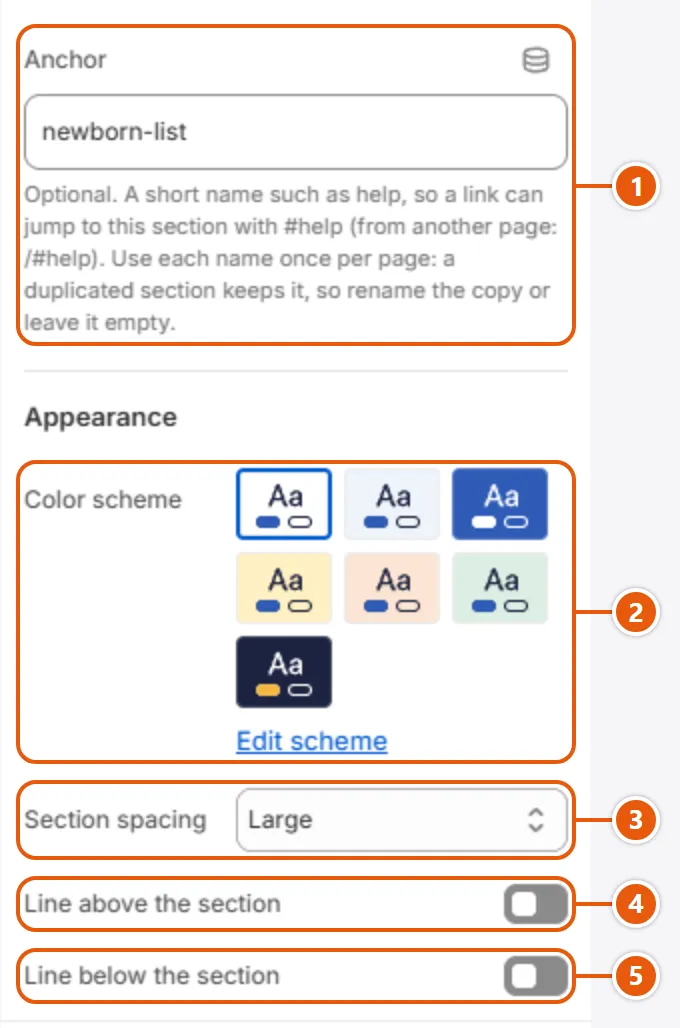
  1. 1“Anchor”
    A short name such as help, so a link with #help (from another page: /#help) jumps here. Use each name once per page: a duplicated section keeps it, so rename or clear the copy.
  2. 2“Color scheme”
    The section's colors: background, text, links and buttons, from the color schemes you set in “Colors”. Switch the scheme to make a section light, dark or accent-colored without changing its colors one by one.
  3. 3“Section spacing”
    The space above and below the section; “None” sets it against its neighbors. The sizes come from “Layout”.
  4. 4“Line above the section”
    A thin line along the section's top edge.
  5. 5“Line below the section”
    A thin line along the section's bottom edge.

The other settings

  • Item: One row: a tick, picture, name, note, size choice and price. A ticked row goes to the cart with a quantity of 1.Up to 12 items

Plus every option in “Options every section shares”.

Tips

  • The row lets the shopper choose the value of the last option with more than one (usually the size); the others, such as color, stay on the starting variant, so set the color in “Start with”. Values are matched in the page's language: in a two-language store, translate “Start with” into the translated values (“Translate your own words”).
  • “Only 3 left” shows under a row when the chosen variant has 1 to 3 left, “Inventory tracked” is on and “Sell when out of stock” is off.

A section under the buy column of the product page: a colored panel with the product's scale at full size, and facing it the frame drawn to scale from its numbers, a growth chart for clothing from the “Size guide”, or the product's second picture. A product with no sizes and no numbers (a case, a cleaning cloth) does not show it.

Where “How it fits” shows in the store
  1. 1“Small label above”
    A small line above the heading. Empty hides it.
  2. 2“Heading”
    The panel's heading. Empty: the product's own name.
  3. 3“Frame numbers”
    The three numbers inside a frame's arm, such as 49-21-145 (lens, bridge, temple in mm), drawn to scale. Leave it empty (it reads the product's field) or connect a field; numbers typed here show on every product. See “Frame numbers: lens, bridge and temple”.
  4. 4“Picture side”
    “After the panel” puts the drawing or picture at the row's end (left in Arabic, right in English), “Before the panel” ahead of it. On phones it is always below.
  5. 5“Panel color scheme”
    The colors of the panel that holds the words. The picture half sits on the “Picture field” color of “Product cards”.

Step by step

  1. From “Online Store”, click “Edit theme” on the theme.
  2. From the page picker choose “Products” > “Default product”; “How it fits” is under “Product information” (if missing, add it with “Add section”).
  3. Write the “Heading” and the “Text”, and pick the “Picture side” and the “Panel color scheme”.
  4. For frames leave “Frame numbers” empty (it reads the product's field), or connect it to a field with the database icon (“Connect dynamic source”).
  5. Click “Save” and open a frame and a piece of clothing on the store.

Where to find its settings

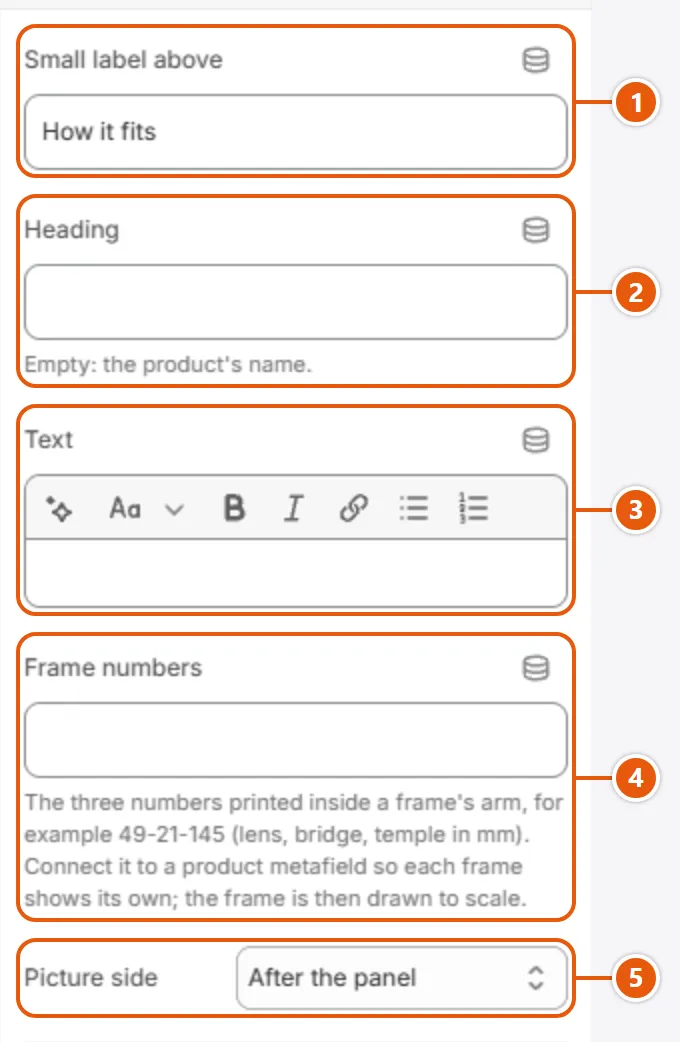
“How it fits” settings in the Shopify editor (1 of 2)
  1. 1“Small label above”
  2. 2“Heading”
  3. 3“Text”
    A paragraph under the heading, with full formatting. Empty hides it.
  4. 4“Frame numbers”
  5. 5“Picture side”
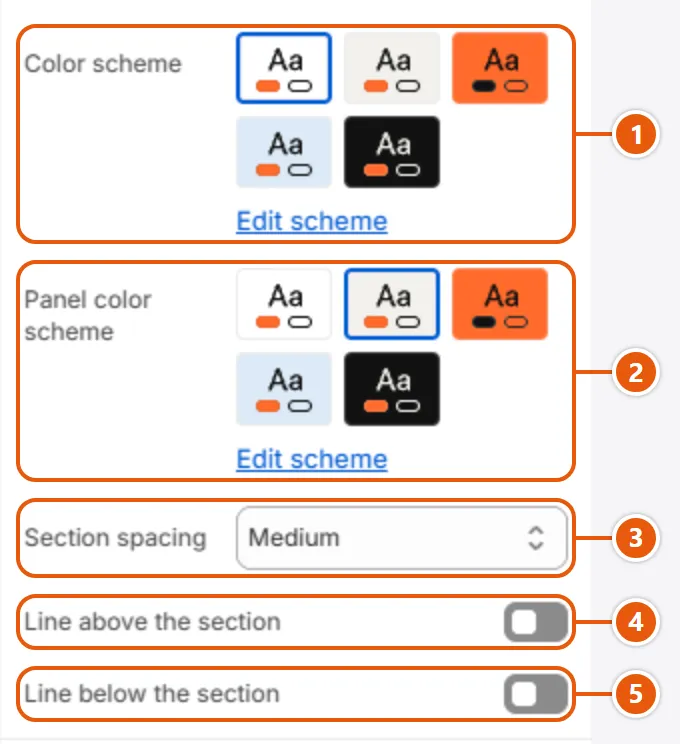
“How it fits” settings in the Shopify editor (2 of 2)
  1. 1“Color scheme”
    The background around the panel and the picture, from the schemes under “Colors” in “Theme settings”. The panel has its own “Panel color scheme”.
  2. 2“Panel color scheme”
  3. 3“Section spacing”
    The space above and below the section; “None” sets it against its neighbors. The sizes come from “Layout”.
  4. 4“Line above the section”
    A thin line along the section's top edge.
  5. 5“Line below the section”
    A thin line along the section's bottom edge.

Tips

  • The picture is the product's second picture (the first is in the gallery above), or its first when it has no other; it blends into the “Picture field” color, so pictures on white suit it best.
  • A product with no frame numbers that a centimeter chart of the size guide names gets a growth chart instead of the picture, with the chosen size's measurements in the panel: “Size charts: the size guide and the growth chart”.
  • If the editor shows a note instead of the section, the product being previewed has no sizes and no numbers: preview another product.

A side window that opens from a “Size guide” link beside the size option on the product page and in the quick add: the size chart with a cm/in toggle, and how to measure. Each product opens its own chart; the setup is in “Size charts: the size guide and the growth chart”.

Step by step

  1. From “Online Store”, click “Edit theme” on the theme.
  2. In the sidebar open the “Drawers” group; if “Size guide” is not in it, click “Add section” and choose it (it can be added once).
  3. Add the charts, their rows and measuring points as shown in “Size charts: the size guide and the growth chart”.
  4. Click “Save” and try the link on a product of a chart.

Where to find its settings

“Size guide” settings in the Shopify editor (1 of 2)
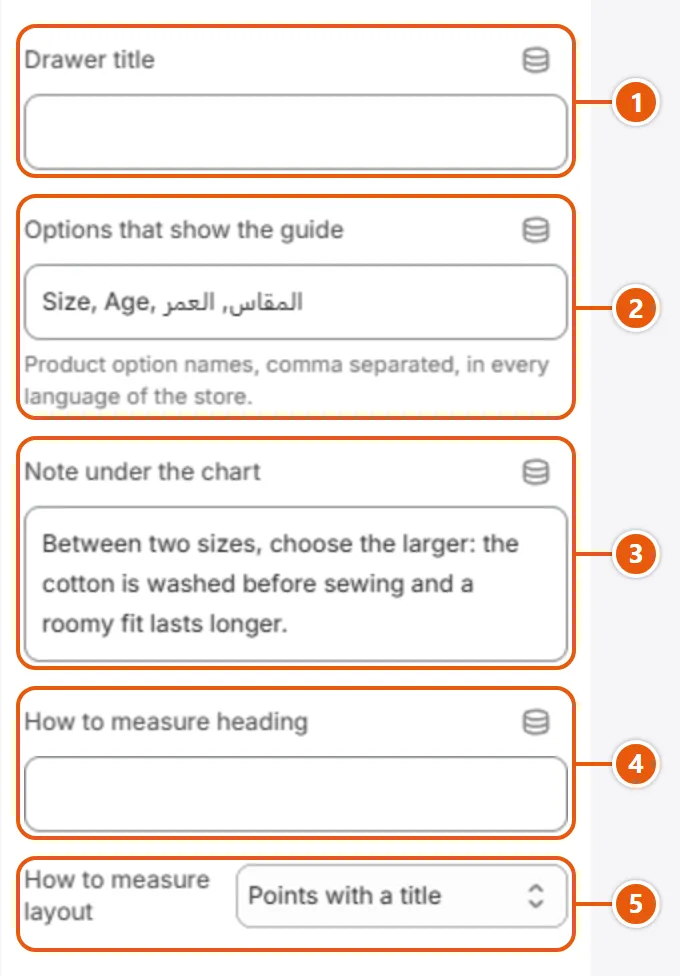
  1. 1“Drawer title”
    The window's title. Empty shows “Size guide”.
  2. 2“Options that show the guide”
    The product options that get the guide link, comma separated, in every language of the store, such as Size, Sizes, المقاس (any letter case). A product without one gets no link.
  3. 3“Note under the chart”
    A note under every chart, such as the larger size fitting more loosely; a chart with “Show the shared points and note” off leaves it out. Empty hides it.
  4. 4“How to measure heading”
    The heading of the measuring points. Empty shows “How to measure”; it is hidden when no point has text.
  5. 5“How to measure layout”
    “Points with a title” shows each point with its heading and text; “Numbered steps” numbers the same points.
“Size guide” settings in the Shopify editor (2 of 2)
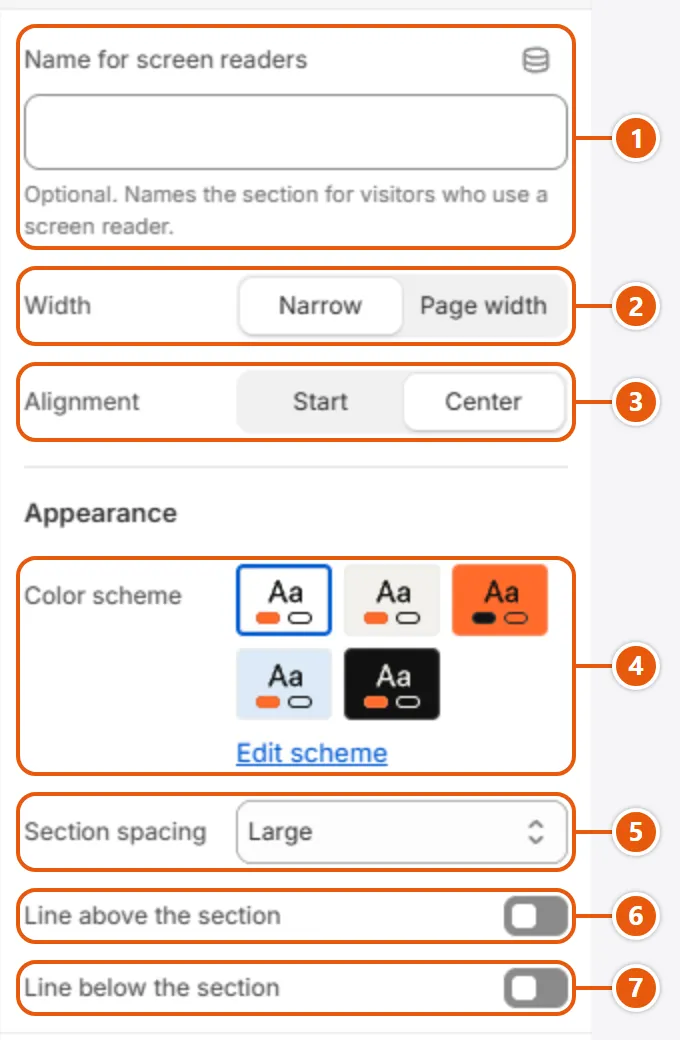
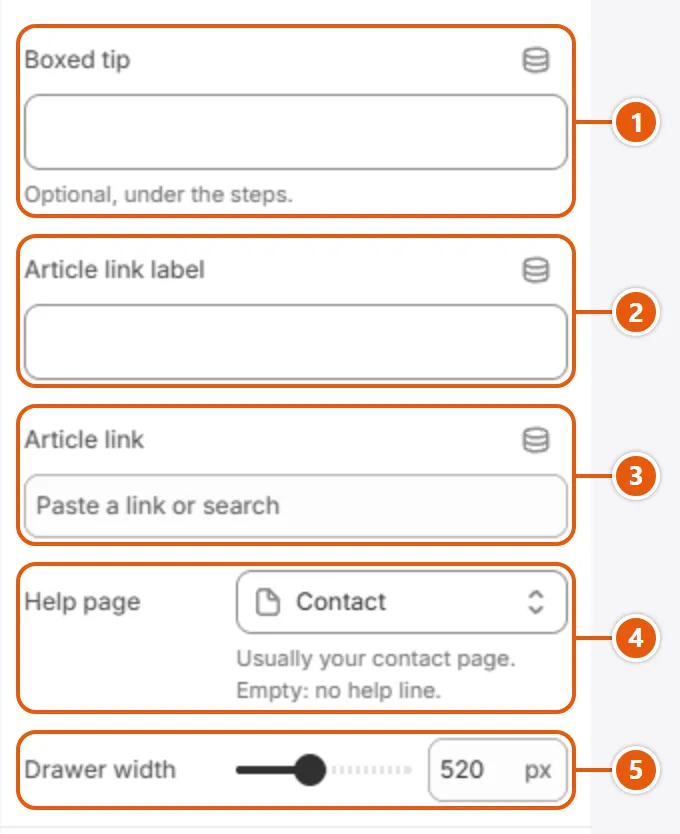
  1. 1“Boxed tip”
    A sentence in a box under the measuring points, such as a tip. Empty hides it.
  2. 2“Article link label”
    The words of the article link at the end of the window; it shows only when “Article link” is filled in too.
  3. 3“Article link”
    The page the article link opens, such as an article on choosing a size; it needs “Article link label” too.
  4. 4“Help page”
    A page (usually your contact page) behind a line at the end of the window: “Still unsure about your size?” with the link “Ask our team”. Empty: no help line.
  5. 5“Drawer width”
    How wide the window is on computers, from 440 to 640; on phones it fills the width.
Inside each “Chart” (click it in the side bar)
“Chart” settings in the Shopify editor (1 of 2)
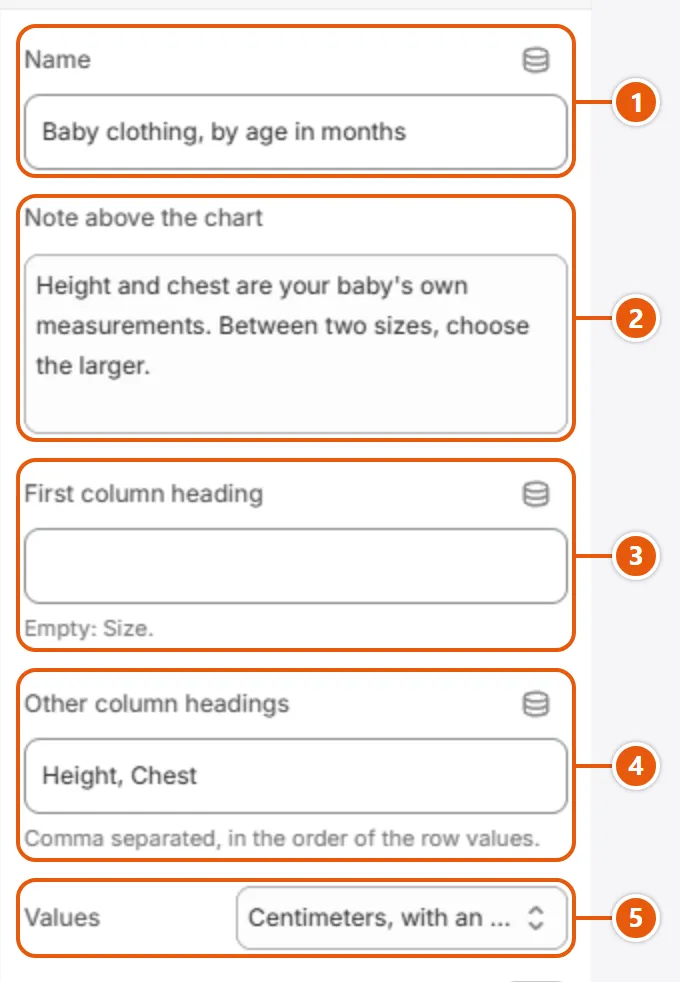
  1. 1“Name”
    The chart's heading above it, also shown under the growth chart in “How it fits”.
  2. 2“Note above the chart”
    A paragraph before this chart only, such as “Measurements are of the body, not the garment”. Empty hides it.
  3. 3“First column heading”
    The heading of the first column (the sizes), such as “Age”. Empty shows “Size”.
  4. 4“Other column headings”
    The other columns' headings, comma separated, in the order of the row values (Height, Chest). The growth chart draws the first; a value with no heading is not shown.
  5. 5“Values”
    “Centimeters, with an inches toggle” adds a cm/in button; “Millimeters” and “As typed” show the values as they are. Only centimeters draw the growth chart in “How it fits”.
“Chart” settings in the Shopify editor (2 of 2)
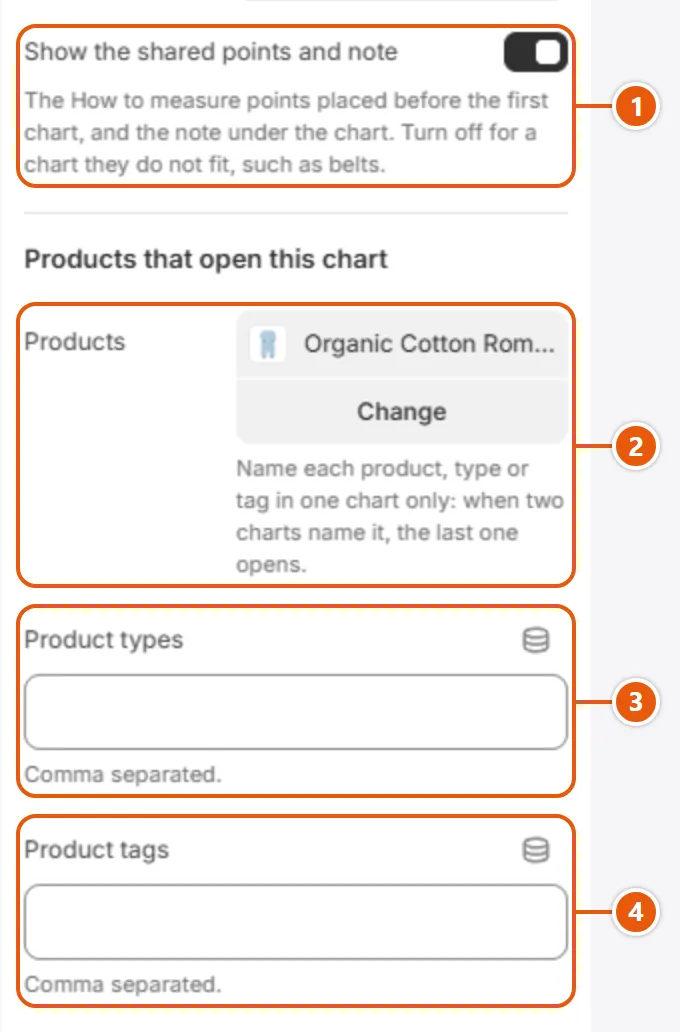
  1. 1“Show the shared points and note”
    On: the “How to measure” points placed before the first chart, and the note under the chart, show with this one. Turn it off for a chart they do not fit, such as belts.
  2. 2“Products”
    Products that open the guide on this chart. Name each product, type or tag in one chart only: when two charts name it, the last one opens.
  3. 3“Product types”
    Product types, separated by commas (any letter case), used when no chart names the product itself.
  4. 4“Product tags”
    Product tags, separated by commas (any letter case), used when no chart names the product or its type.

The other settings

  • Chart: A chart for chosen products; its rows and points are the blocks after it, up to the next chart. Up to 50 blocks in the section; with no chart the window and its links go.
  • Row: One size of the chart above it. A row before the first chart never shows.
    • Size: The size's name in the first column, such as M or 3-6 m, shown as typed.
    • Values: The row's values, separated by commas, in column order; write a range as 84-88. Latin or Arabic-Indic digits both work.
  • How to measure: One measuring point: placed before the first chart it shows with every chart, after a chart with that chart only.
    • Heading: The point's heading, such as “Chest”. Empty: the text alone.
    • Text: How the shopper measures. A point with no text does not show.

Tips

  • The guide link in the quick add is set by “Show the size guide button” in “Quick add”.
  • In the editor, selecting a “Chart” block or a row under it shows that chart in the window.

The shopper saves their size (or their child's age) once, and every scale in the store answers with the ball: it sits on their size when the product comes in it. They see it in:

  • Cards and quick search: a row of sizes, the ones the product comes in solid, and the words “In your size”, “Close to your size” or “Not in your size”.
  • The product page: the “Sizes” block under the price, and the “How it fits” section.
  • The header: a “My size” button (“My child” with age bands), also at the top of the phone menu.
  • Collections and search: a strip with the same scale, when you have a filter called Size or Age.
  • The cart: a line under each item saying whether its size is theirs.

Shoppers set their size from “My size”, the “Frame size finder” or “Shop by age”.

Good to know: All of this works while “Show sizes and "My size"” is on in “Fit and sizes” in “Theme settings”. A product with no sizes (a case, a cleaning cloth) shows nothing.

The theme reads a product's sizes from a tag on it, or from an option called Size or Age. A product with neither shows no sizes. Try one product before the rest.

Note: A Size or Age option is read only when the product has no size tag at all. Once it carries one, only tags count, so tag every size it comes in.

Step by step

  1. Open “Theme settings” > “Fit and sizes” and turn on “Show sizes and "My size"”.
  2. In “Scale”, choose letters or numbers for eyewear and clothes, or age bands for children.
  3. In “Sizes, in order”, type your sizes with commas: S, M, L. With age bands leave it so for the standard bands.
  4. From “Products”, open the product and add a tag for each size in “Tags”, such as size-m or age-3-6m.
  5. In “Size finder link”, put the address of a page with a “Frame size finder”, or leave it empty.
  6. Click “Save”, then check the product's card and page on the store.

Tips

  • With age bands the cart reads the age option when it is written as a range, such as “3-6 months” or “2-3 years” (or Newborn); a single age such as “6M” is not read, so the cart line is left out.
  • For the size strip on the collection page, make a filter on the Size or Age option in the Search & Discovery app.

Every pair of glasses has three numbers in millimeters printed inside its arm, such as 49-21-145: lens width, bridge and temple length. Caliper reads them from a product metafield called custom.subtitle (a single line of text, such as 49-21-145 · 3 sizes) and shows them in a line under the product's name on its card, and as the frame drawn to scale in “How it fits”.

Good to know: The drawing appears only when the numbers are a real frame's: lens 30 to 70, bridge 10 to 30, temple 100 to 170.

Step by step

  1. In “Settings” > “Metafields and metaobjects”, choose “Products” and add a definition: name Subtitle, key custom.subtitle, type Single line text.
  2. Type each pair's numbers in that field: 49-21-145 · 3 sizes; the first three numbers are the ones read.
  3. In “Theme settings” > “Product cards”, choose “Subtitle metafield” in “Line under the title”.
  4. In the “How it fits” section leave “Frame numbers” empty (it reads the field), or connect it to the field with the database icon (“Connect dynamic source”).
  5. Click “Save” and open a pair of glasses on the store.

The “Size guide” opens from a link beside the option named in “Options that show the guide” (such as Size), on the product page and in the quick add, on the chart that names the product, else its type, else one of its tags.

For a product with no frame numbers, a centimeter chart makes “How it fits” draw a growth chart: one bar per size on a centimeter scale from the chart's first value column (such as Height), and the chosen size's measurements in the panel. It needs at least two rows with numbers. The chart follows the size the shopper picks, named with numbers such as 3-6m or with letters such as S.

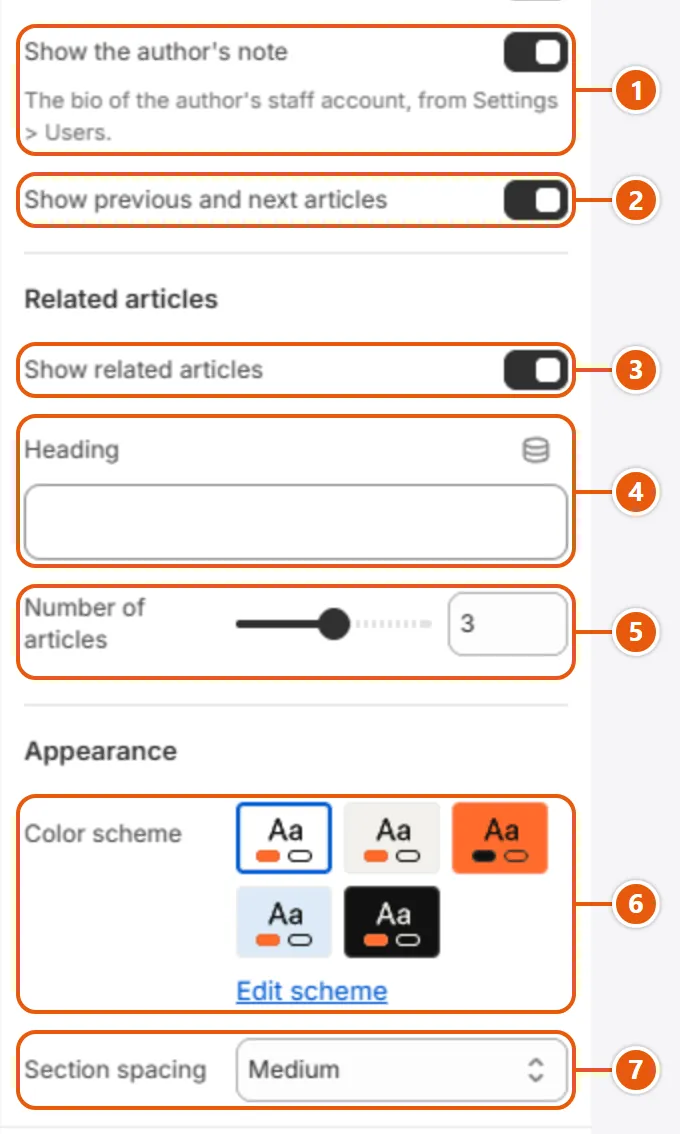
Step by step

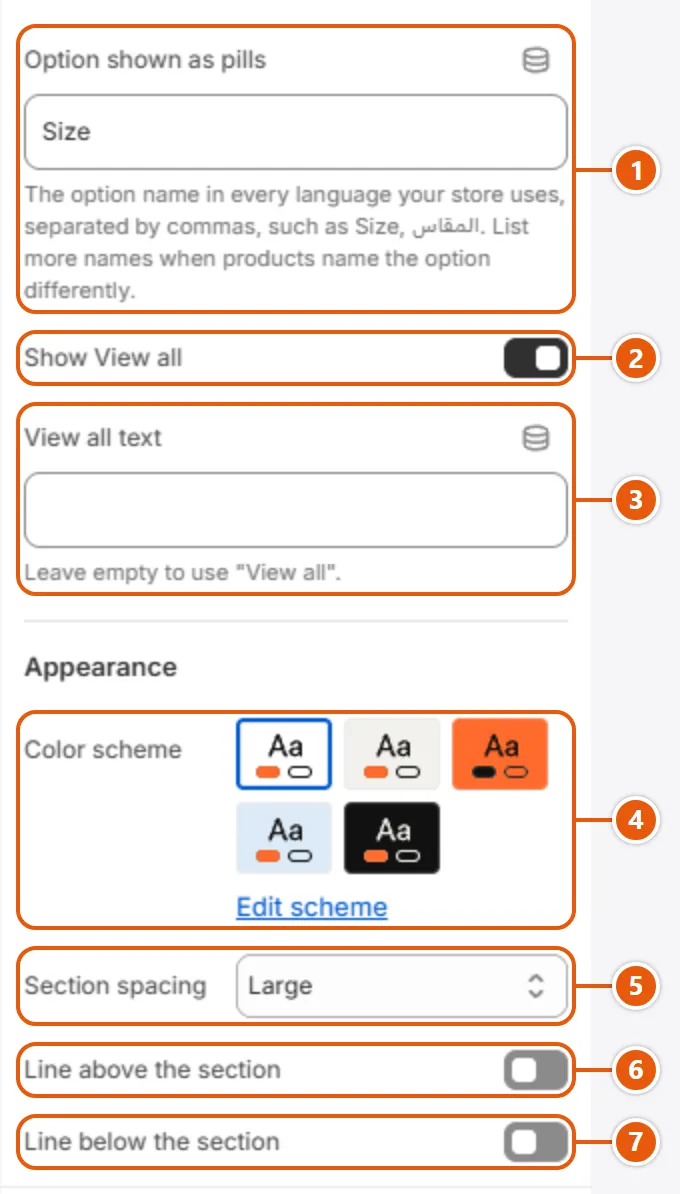
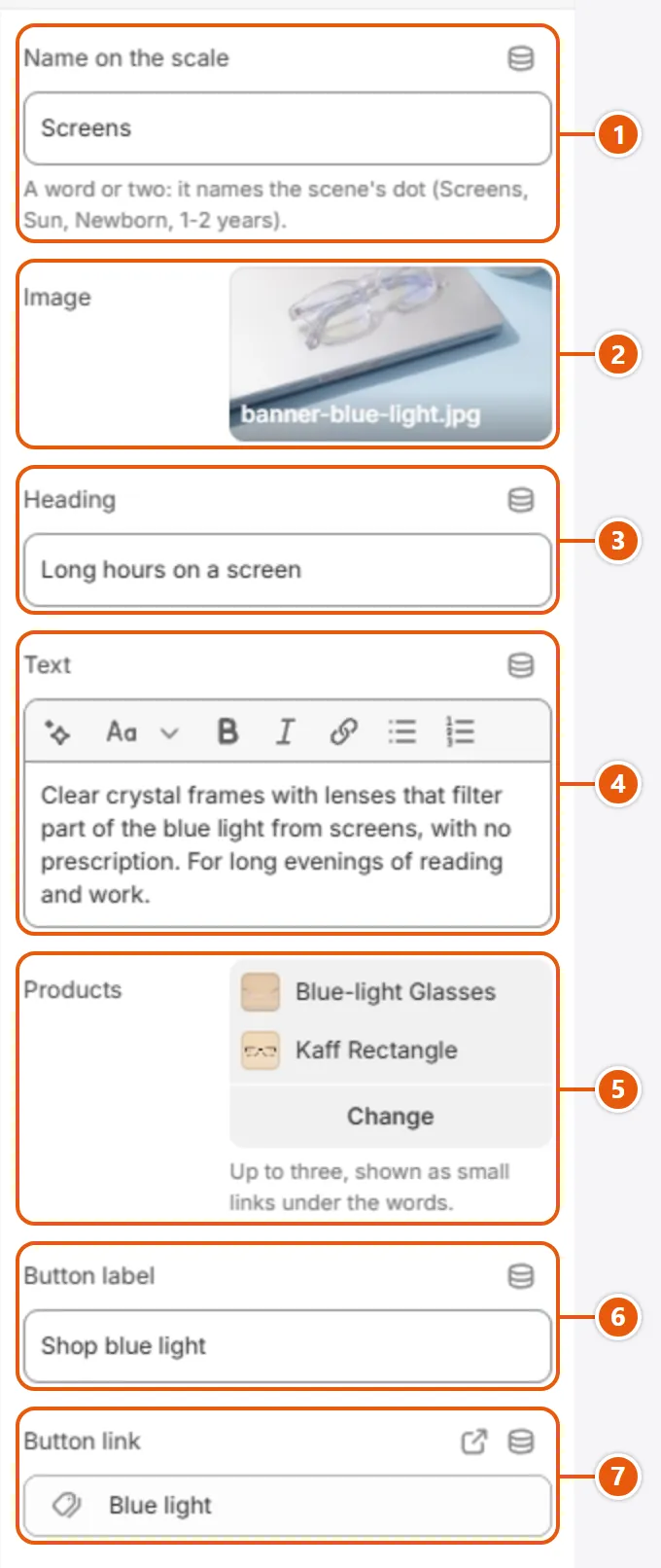
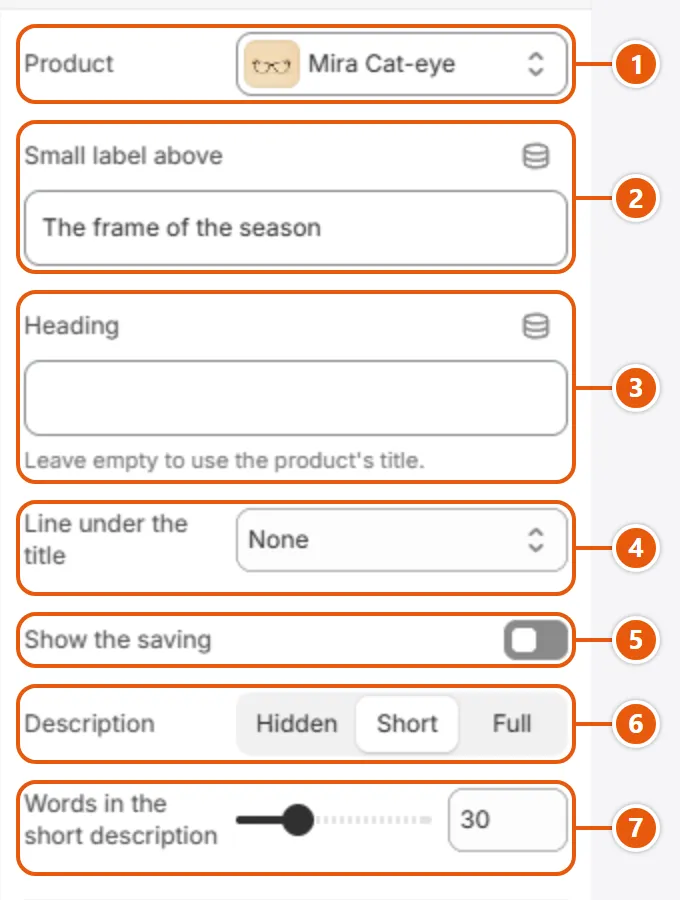
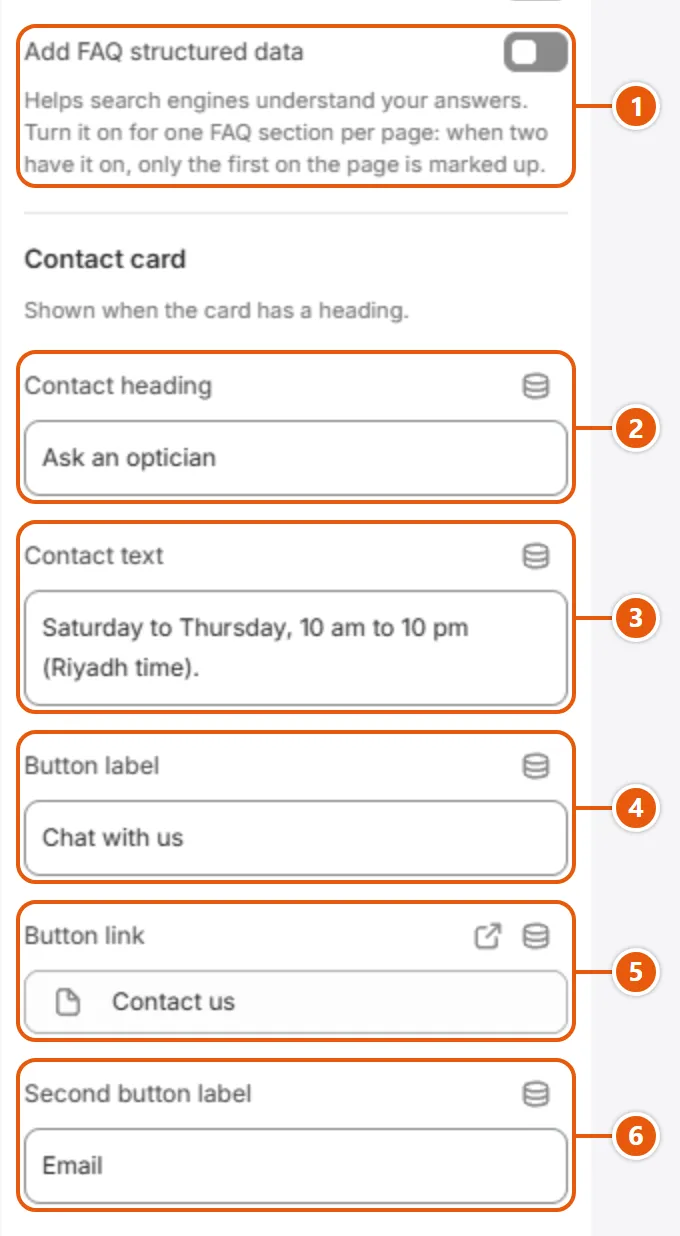
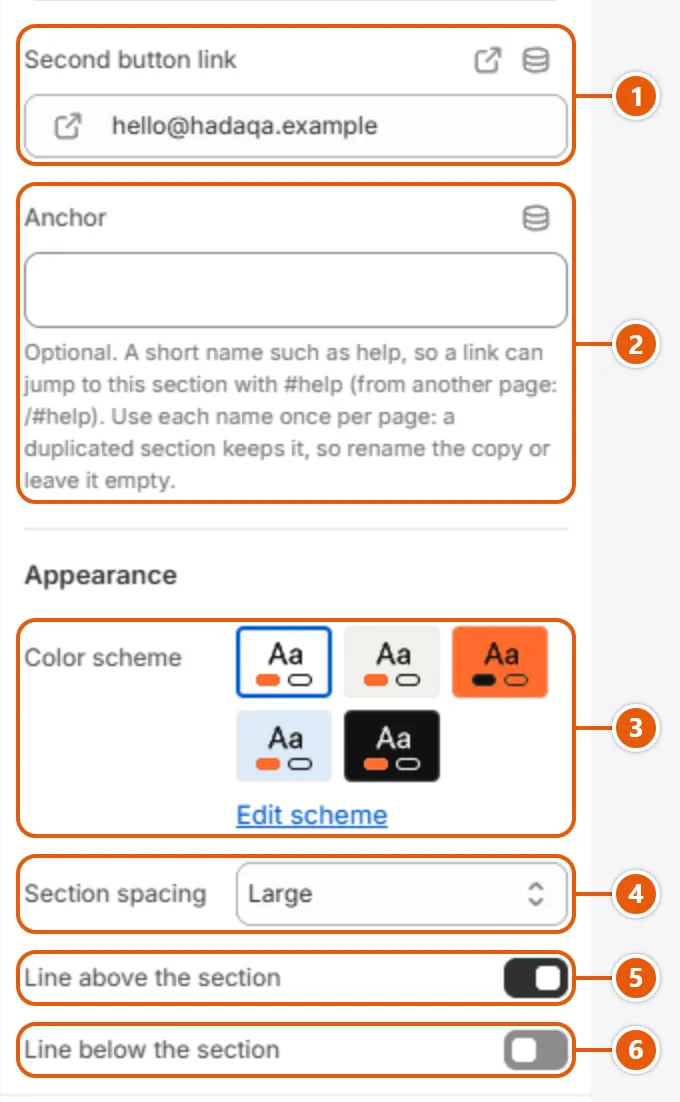
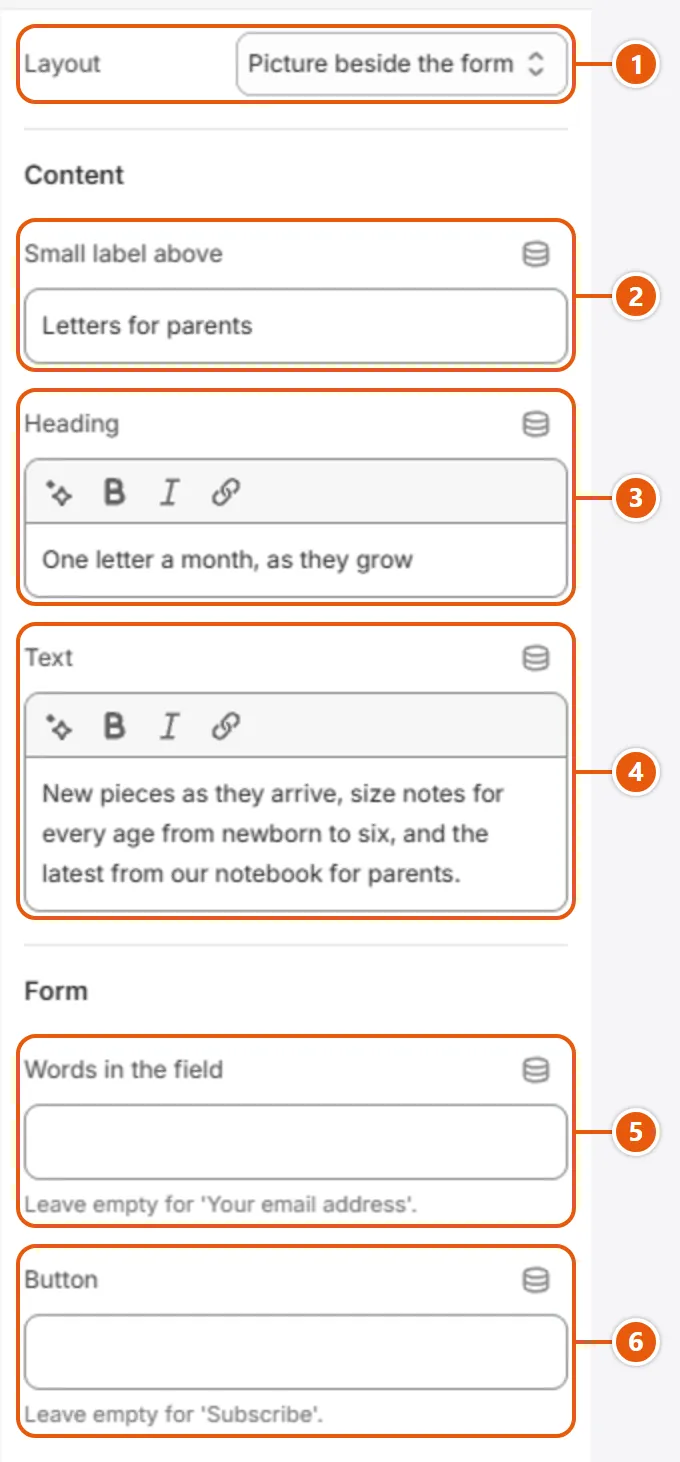
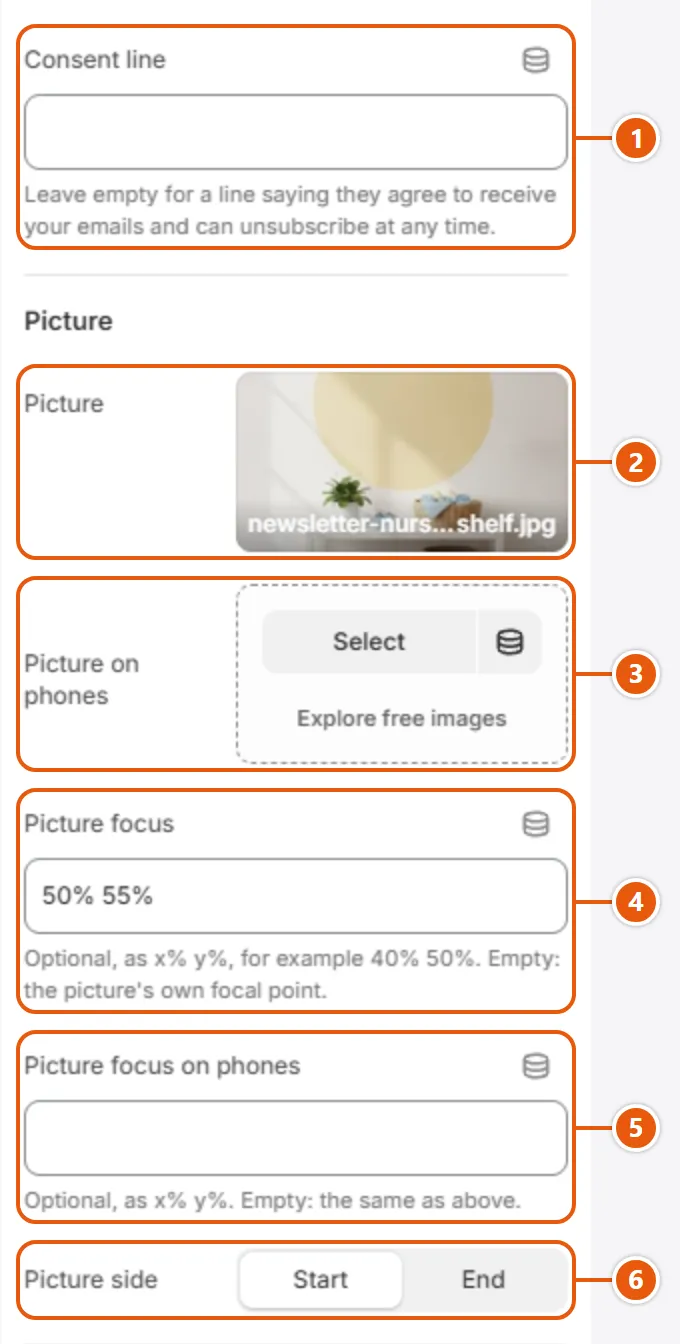
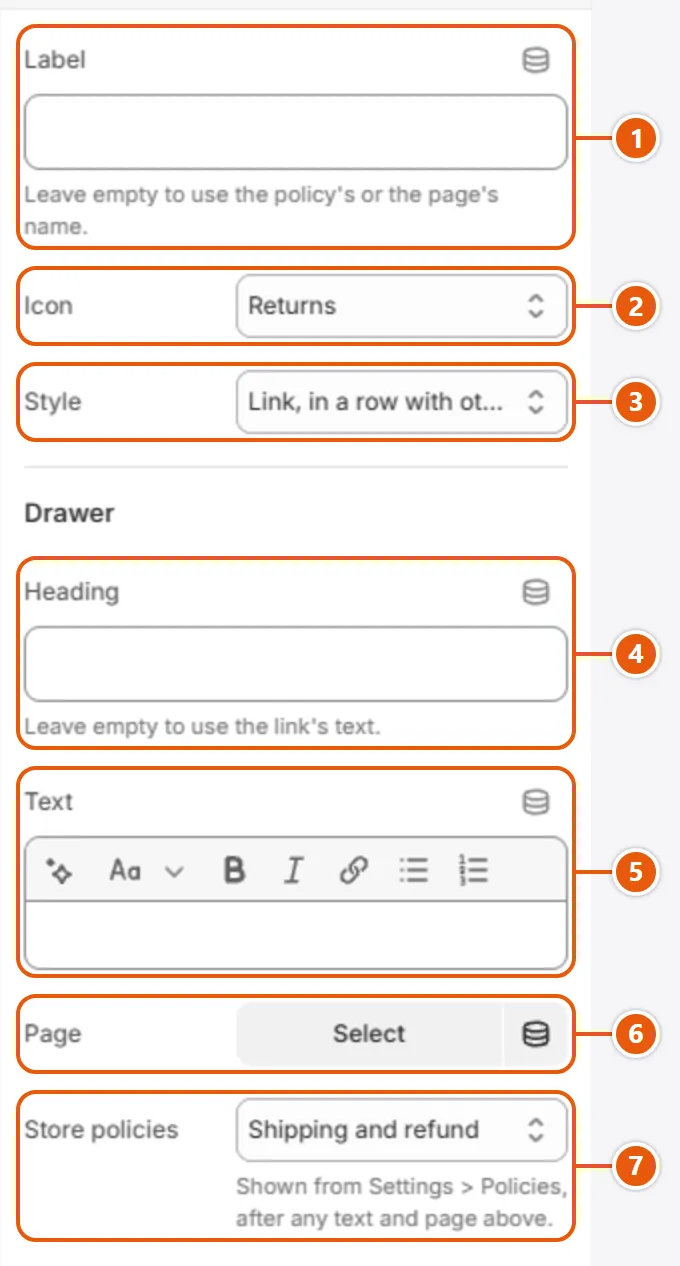
  1. Open the “Drawers” group in the sidebar; if “Size guide” is not in it, add it with “Add section”. In “Options that show the guide”, type your size option's name in every language of your store.
  2. Add a “Chart” block: type the “Name” and “Other column headings”, and choose centimeters in “Values”.
  3. Name the chart's products in “Products”, “Product types” or “Product tags”.
  4. Add a “Row” for each size: the size, then the values with commas in column order; write a range as 84-88.
  5. Add a “How to measure” block for each measuring point.
  6. Click “Save” and try the link on a product of the chart.

Tips

  • No chart for the product? The guide opens on the chart it showed last (the first, at first). With no charts at all the link is left out.

The shopper picks the frame's lenses on its own page: numbered steps (use, coating, thickness), each option at its real price. The frame and the paid lenses go into the cart together, each lens line naming its frame, and every choice (paid or included) is written on the frame's line. The dynamic checkout button hides while a paid lens is chosen, so nobody buys the frame without its lenses.

Step by step

  1. Make a product for each lens option that costs money (such as a blue-light coating), at its real price.
  2. In the editor open “Products” > “Default product”, and in “Product information” click “Add block” and choose “Lenses”.
  3. Inside “Lenses” click “Add Lens step” for each step, and inside each step “Add Lens option” for each option.
  4. On a paid option pick its “Add-on product”; leave it empty for an included one.
  5. In “Show for product tags”, type the tag your glasses carry, so the lenses do not show on cases and cleaning cloths.
  6. Click “Save”.

Tips

  • One option can rule out another (Photochromic with Sun): type the first one's name in the second one's “Not with”.

The shopper's size (or their child's age) is kept in their own browser only and is sent nowhere, not even to your store. Clearing the site's data or a private window starts them over, and the “Clear” button in the “My size” panel removes it at once.

Header and menus

The announcement bar, the header and the menus, shared by every page: change them once and they change everywhere.

A thin bar above the header that shows one short message at a time, such as free delivery or the returns window. With more than one message it changes by itself, and shoppers can pause it or step through with the arrows.

Step by step

  1. From “Online Store”, click “Edit theme”, then “Announcement bar” in the “Header” group.
  2. Click a message, write its “Text”, and add a “Link” if it should open a page.
  3. Add one with “Add Message”, and drag the messages to reorder them.
  4. Click “Save”.

Settings

  • Time per message: How long each message stays, from 3 to 12 seconds; it matters only with two or more messages, and shoppers can pause them.
  • Color scheme: The bar's background, text and link colors, from the color schemes in “Colors”.
  • Message: Each message is a block; an empty one is left out, and the first in the list shows first.Up to 8 items
    • Text: The bar's line, plain text with no formatting. Keep it short: the bar takes the height of its longest message.
    • Link: The whole message links to this page; leave it empty for a message to read only.

Tips

  • Messages not changing while you test? That is expected: they hold while the pointer is over the bar, while a message is selected in the editor, and on devices that ask for reduced motion (shoppers press play themselves).

The bar at the top of every page: logo, menu, search, account and cart.

The levels of the menu you build in “Menus” decide what shows where:

  • Level 1: the words in the bar.
  • Level 2: the links in the item's big panel on a computer, and on the item's own page in the “Menu drawer” on a phone.
  • Level 3: the links under each column title in the panel, and under each group title in the menu drawer.
Good to know: On a computer the panel shows up to 18 sub-items (3 columns of 6), or 4 columns when the sub-items have items under them. When there are more, a “View all” link under them leads to the item's page; the menu drawer on phones shows everything.
Where “Header” shows in the store
  1. 1“Layout”
    How the header is arranged on a computer. “Search first, with a category bar” suits big catalogs and is the one that uses the “Search layout” settings. On tablets and phones every layout is one row: menu button, logo, search and cart.
  2. 2“Name without a logo”
    The name shown in the logo's place when no logo is chosen. Empty: the store name.
  3. 3“Mark before the name”
    “Ball after the name” puts a dot after it; “Bolt” and “Leaf” put a shape before it. With the name only, not with a logo picture.
  4. 4“Menu”
    The menu in the bar, used when there are no “Audience” blocks and for an audience with no menu. An item with sub-items opens a big panel on hover or a first click; a click on an item whose panel is open goes to its page.
  5. 5“Show the account link”
    The account button in the header, shown when customer accounts are on in your store.

Step by step

  1. From “Online Store”, click “Edit theme”, and in the sidebar click “Header” in the “Header” group.
  2. Pick the “Layout” and the “Menu” (you build the menu itself in “Menus”).
  3. Upload the “Logo” and set its width, or type a “Name without a logo”.
  4. To give an item a panel with a picture or products, click “Add block”, choose “Menu item” and type the item's name in “Menu item”.
  5. Click “Save”.

Where to find its settings

“Header” settings in the Shopify editor (1 of 5)
  1. 1“Layout”
  2. 2“Menu”
  3. 3“Menu alignment”
    For the one-row layout: “Center” puts the menu in the middle of the row, “Start” next to the logo.
  4. 4“While scrolling”
    “Hide going down, show going up” hides the header as the page scrolls down and brings it back on the way up; “Always in view” keeps it; “Scrolls with the page” lets it go.
  5. 5“Lie over the first section of the home page”
    Home page only: the header lies over the first section with no background, and turns solid when the page scrolls, on hover or while a panel is open. Keep it last in its group, right before a slideshow or a hero.
  6. 6“Text over the picture”
    The text color while the header lies over the picture: “Light, with a soft shade” is white on a faint dark shade, “Dark” is dark, “Dark, with a pale veil” is dark on a pale veil.
  7. 7“Logo”
    Your logo picture, on every page. Without it the header prints the “Name without a logo”.
  8. 8“Logo over the picture”
    Optional: a light version of the logo, shown while the header lies over the first section. It needs a “Logo” too.
“Header” settings in the Shopify editor (2 of 5)
  1. 1“Logo width on desktop”
    The logo's width on computers; the height follows the picture.
  2. 2“Logo width on mobile”
    The logo's width on tablets and phones.
  3. 3“Make the logo the home page's main heading”
    Makes the logo the home page's main heading (h1). Turn it off when a hero's heading is the page's main heading: a page has one.
  4. 4“Name without a logo”
  5. 5“Name font”
    Sets the name in the heading font or the body font, from “Typography”.
  6. 6“Name weight”
    How bold the name is on English pages; “As the headings” follows the heading weight. On Arabic pages the name is always “Semibold (600)”.
  7. 7“Name size”
    The name's size as a share of its normal size.
  8. 8“Name letter spacing”
    The space between the name's letters, in hundredths of the letter size. Arabic letters are never spaced.
“Header” settings in the Shopify editor (3 of 5)
  1. 1“Mark before the name”
  2. 2“Show the account link”
  3. 3“Customer account menu”
    The links in the account button's panel (orders, profile); edit them in “Menus”.
  4. 4“Wishlist link”
    Your wishlist app's page: a heart button joins the header's buttons on computers. Empty: no button.
  5. 5“Search field”
    “Soft” is a quiet field, “Outlined, with a search button” has a firm edge and a button, “Rounded, light on a colored band” suits a colored header.
  6. 6“Search field placeholder”
    The hint in the empty field. Empty: “Search for products and categories”.
  7. 7“Suggested searches under the field”
    How many suggested searches show as links under the field on computers; their words come from “Search”. 0 hides them.
  8. 8“Search by product type”
    Product types separated by commas, offered as a list at the start of the field. For another word, write the type, a | and the word (Audio | Sound); in a translation keep the types and change the words. The search page needs the product type filter from the Search & Discovery app.
“Header” settings in the Shopify editor (4 of 5)
  1. 1“Show the cart total under its label”
    The cart total under the word “Cart” on wide screens, once the cart holds something.
  2. 2“Categories”
    Up to 20 collections, listed with their product counts under the “All categories” button and as chips on phones. With none, neither the button nor the chips show.
  3. 3“Show All categories in the bar”
    The “All categories” button at the start of the category bar; it opens your “Categories” with their product counts.
  4. 4“All categories label”
    The words on that button. Empty: “All categories”.
  5. 5“All categories link without scripts”
    The page the “All categories” button opens when clicked while its list is open, or without scripts. Empty: all products.
  6. 6“Show category chips on phones”
    Shows your “Categories” as a row of draggable chips under the search field on tablets and phones.
  7. 7“Category bar”
    How the bar's items look on computers: the icon choices spread the items across the bar, each icon beside or above its word. Icons come from the “Menu item” blocks.
  8. 8“Give the category bar its own colors”
    Gives the category bar the “Category bar color scheme” instead of the header's, when the two differ.
“Header” settings in the Shopify editor (5 of 5)
  1. 1“Category bar color scheme”
    The category bar's colors from “Colors”, used when “Give the category bar its own colors” is on.
  2. 2“Category chips on phones take the bar's colors”
    The category chips on phones take the bar's colors too, when the bar has its own.
  3. 3“Note at the end of the bar”
    A short line at the end of the category bar on computers. “Free delivery threshold” prints the amount set for the shopper's currency in “Cart” (no amount, no note); “My own text” prints the “Note text”.
  4. 4“Note text”
    The note's words with “My own text”. Empty: no note.
  5. 5“Note icon”
    The icon before the note. “None” still shows a truck for the delivery note and a chat bubble for your own text.
  6. 6“Note link”
    Makes the note a link to this page. Empty: plain text.
  7. 7“Color scheme”
    The colors of the header and its big panels, from “Colors”.
  8. 8“Cart count”
    The color of the number on the cart icon: the button color or the accent color.
Inside each “Menu item” (click it in the side bar)
“Menu item” settings in the Shopify editor (1 of 2)
  1. 1“Menu item”
    The item this block belongs to: its title as in the menu (Women), or its place (1 for the first), which works in every language of the store. The category chips match a collection's title.
  2. 2“Audience”
    Optional: the audience whose menu this block belongs to, by name (Women) or place (1 for the first). Empty: every audience, so two blocks can name the same item, one per audience.
  3. 3“Icon”
    An icon beside the item's name in the menu bar and on its category chip. “Icon image” replaces it.
  4. 4“Icon image”
    A small picture used instead of the icon; a square one works best.
  5. 5“Show in the sale color”
    Shows the item, its icon and its chip in the sale color, for an item such as Deals.
  6. 6“In the large panel”
    What the panel shows beside the sub-items; each choice uses only its own fields. “Collection tiles” replace the sub-items on computers. A choice with nothing in it and no sub-items opens in the editor only; on the store the item is a plain link.
  7. 7“Card collection”
    For “A collection card”: its picture, title and link. For “Product cards”: the products when you pick none, and where “View all” goes.
  8. 8“Card image”
    The picture of “A collection card”, shown 3:4. Empty: the collection's own picture.
“Menu item” settings in the Shopify editor (2 of 2)
  1. 1“Card title”
    The title under the card's picture. Empty: the collection's title, then the item's name.
  2. 2“Card link”
    Optional: where the card leads. Empty: the collection, else the item's own link.
  3. 3“Tile collections”
    The collections shown as tiles in “Collection tiles”, up to 6, each with its picture, name and product count. With none, and no sub-items, the item is a plain link on the store.
  4. 4“Product”
    The product of “One product”: its picture, name and price, with “Shop now”. Without one no card shows, and with no sub-items either the item is a plain link.
  5. 5“Line above the product”
    The line above the product in “One product” (empty: “Our pick”), and the title of “Product cards” (empty: “Popular in” and the item's name).
  6. 6“Products”
    “A short list of products” shows the first three with picture and price; “Product cards” slide through up to twelve. Product cards with none picked show the first eight of the “Card collection”.
  7. 7“Product cards in view”
    How many cards of “Product cards” are in view at once; the rest slide in. Smaller screens show 2.
  8. 8“Show the size scale under the panel”
    A band at the foot of the panel with the size scale (or child's age) to pick from and the size finder link, when sizes are on in “Fit and sizes”.

The other settings

  • Audience: One block per audience, up to 4, such as Women and Men, each with its own menu. Two or more show as tabs in the header. Add the same audiences, in the same order, to the “Menu drawer”.Up to 4 items
    • Name: The tab's name, such as Women. A “Menu item” block can name it in “Audience” to belong to this audience only.
    • Link: The page the tab opens when clicked while it is showing, or without scripts; usually the audience's collection. Empty: all products.
    • Menu: The tab's menu. None, or a menu with no links: the header's “Menu”.
  • Menu item: Extras for one top-level menu item: an icon, the sale color, and what its panel shows beside the sub-items. One block per item.
  • Action: Extra header buttons, up to 4: an icon (such as Compare), a chip with two lines (such as Deliver to) or a button (such as Buy now).Up to 4 items
    • Style: “Icon” sits with the header's icons, “Chip with two lines” comes before them with a label and a second line, “Button” follows the cart. Icons and buttons show on computers only; the chip shows on phones in the search layout only.
    • Label: The words of the button or chip; for an icon, its name for screen readers (shown beside it in the search layout). Empty: the block shows nothing.
    • Second line: The chip's second line, such as Choose your area.
    • Icon: The action's icon. With “None” a chip gets a location pin and an icon action the grid (in the search layout, its label alone). A button ignores it.
    • Link: Where the action leads. A button needs a link to show; an icon or chip without one goes nowhere unless it opens a drawer.
    • Opens a drawer: Optional: the id of a drawer on the page, such as search-drawer or cart-drawer, to open instead of the link. Without it, or with no such drawer, the link opens.
    • Count: “Products to compare” puts the number of products in the compare list on the icon (hidden at 0), when “Show Compare button” is on in “Product cards”. Point its “Link” at your “Compare specs” section.

Tips

  • The row never wraps: items that do not fit move into “More” at the end of the bar, each item with a panel taking up to 8 of its sub-items along.

The header, the menu drawer and the footer read menus you build in “Content” > “Menus”; Shopify creates “Main menu” and “Footer menu” for you. A menu has up to 3 levels (an item, a sub-item, and one more under it), and each level shows in its own place: “Header”.

Step by step

  1. In “Content” > “Menus”, open “Main menu”, or click “Create menu”.
  2. Click “Add menu item”, type its name and pick the page or collection.
  3. Drag an item under another and inward to make it a sub-item, outward to make it a main item again.
  4. Click “Save”.
  5. In the editor, pick the menu in “Menu” in “Header”, or in a links column block in “Footer”.
“The menus your design expects” with its numbers
  1. 1“Name”
    The menu's name; it is what you see in the “Menu” picker in the editor.
  2. 2“Handle”
    The menu's name in links and code, written from the name.
  3. 3“Add menu item”
    Adds a new item to the menu.
  4. 4“Drag handle”
    Drag an item up or down to reorder it, and inward to make it a sub-item.
  5. 5“Edit item”
    Opens the item's name and link.
  6. 6“Save”
    Without it nothing is kept.

Home page sections

The sections you build the home page with; they work on any other page too. Add one with “Add section”, then move, hide or delete it as you like.

These repeat across most sections of the page, so they are stated once here instead of under every one of them. Each section below says which of them it has.

  • Color scheme: The section's colors: background, text, links and buttons, from the color schemes you set in “Colors”. Switch the scheme to make a section light, dark or accent-colored without changing its colors one by one.

A large hero in two halves that travel in opposite directions: a lifestyle picture, and the product on a color field with the words at its foot. On phones the pictures stack and the words go under them.

Where “Split counter slideshow” shows in the store
  1. 1“Change slides every”
    Seconds on each slide before the next. 0 turns autoplay off and hides the pause button. Shoppers can always pause it, and it never starts for those who ask for less motion.
  2. 2“Lifestyle picture”
    The half on the reading-start side (the right in Arabic): the product in use, about 4:5. Without it a placeholder shows.
  3. 3“Field color”
    The color behind the product picture and the words. Empty: the panel color of the section's scheme. On phones it shows only through a transparent product picture.
  4. 4“Heading”
    The slide's heading; a word set in bold shows in a heavier weight.
  5. 5“Product”
    Optional: its real name, price and fit line (as on product cards) above the buttons, linked to it. With no buttons the slide gets a “Shop now” button to it.
  6. 6“Button”
    A button at the foot of the slide's words.

Step by step

  1. From “Online Store”, click “Edit theme”, choose “Home page” in the page picker at the top, click “Add section” and choose “Split counter slideshow”.
  2. Click the first slide: upload the “Lifestyle picture” and the “Product picture”, pick the “Product” if you want its name and price to show, write the “Heading” and “Text”, and pick the “Field color”.
  3. Click the button inside the slide and edit its “Label” and “Link”. For another slide click “Add Slide”.
  4. Set “Change slides every” and “Height on tablets and desktop”, then click “Save”.

Where to find its settings

“Split counter slideshow” settings in the Shopify editor (1 of 2)
  1. 1“Name for screen readers”
    The slideshow's name for screen readers; shoppers do not see it. Empty: “Featured slides”.
  2. 2“The first slide's heading is the page's main heading (H1)”
    The first slide's heading becomes the page's main heading (h1). For a page's first section only; on the home page also turn off “Make the logo the home page's main heading” in the “Header”.
  3. 3“Change slides every”
  4. 4“Travel time”
    How long a slide takes to travel; a bigger number is slower. Shoppers who ask for less motion get a quick fade instead.
  5. 5“Height on tablets and desktop”
    “Full screen” fills the window under the header. On phones the two picture shapes below set the height.
“Split counter slideshow” settings in the Shopify editor (2 of 2)
  1. 1“Lifestyle picture shape on phones”
    The picture is cut to this shape on phones; each slide's phone crop sliders choose the part that stays.
  2. 2“Product picture shape on phones”
    The same for the product picture; “Band (2:1)” is the widest and cuts the most.
  3. 3“Color scheme”
    The section's colors: background, text, links and buttons, from the color schemes you set in “Colors”. Switch the scheme to make a section light, dark or accent-colored without changing its colors one by one.
  4. 4“Section spacing”
    Space above and below the section, sized in “Theme settings” > “Layout”.
Inside each “Slide” (click it in the side bar)
“Slide” settings in the Shopify editor (1 of 3)
  1. 1“Lifestyle picture”
  2. 2“Horizontal crop on tablets and desktop”
    Which horizontal part stays in view when the picture is cut: 0 the left edge, 50 the middle, 100 the right. A “Focal point” set on the picture takes over.
  3. 3“Vertical crop on tablets and desktop”
    Which vertical part stays in view: 0 the top edge, 100 the bottom.
  4. 4“Horizontal crop on phones”
    The same horizontal crop on phones, for the shape set in “Lifestyle picture shape on phones”.
  5. 5“Vertical crop on phones”
    The same vertical crop on phones.
  6. 6“Product picture”
    The product on a plain background; its foot fades into the “Field color” under the words. Empty: the chosen product's first picture, or a placeholder with no product.
“Slide” settings in the Shopify editor (2 of 3)
  1. 1“Product picture: horizontal crop on tablets and desktop”
    Which horizontal part of the product picture stays in view: 0 the left edge, 100 the right.
  2. 2“Product picture: vertical crop on tablets and desktop”
    Which vertical part of the product picture stays in view: 0 the top edge, 100 the bottom. On desktop the picture fills only the upper part of its half.
  3. 3“Product picture: horizontal crop on phones”
    The same horizontal crop of the product picture on phones, for the shape set in “Product picture shape on phones”.
  4. 4“Product picture: vertical crop on phones”
    The same vertical crop on phones; it matters most with “Band (2:1)”, which cuts a lot.
  5. 5“Field color”
  6. 6“Product”
“Slide” settings in the Shopify editor (3 of 3)
  1. 1“Small label above”
    A small line above the heading.
  2. 2“Heading”
  3. 3“Text”
    A line under the heading. It shows on phones and tall desktop screens only; tablets and most laptops leave it out so the slide fits one screen.
  4. 4“Words color on tablets and desktop”
    The words' color against the “Field color”: dark for a light field, white for a dark one. On phones the words sit under the pictures in the section colors.

The other settings

  • Slide: One slide: a lifestyle picture and the product picture on a color, with the words at its foot. Up to 8.Up to 8 items
    • Button
      • Label: The button's words; a button with no words or no link does not show.
      • Link: The page the button opens, or a section on the page such as #frame-size-finder.
      • Style: “Primary” is filled, “Secondary” outlined, and “Light, for images” pale, for sitting over a picture. Colors come from “Colors”.
      • Arrow after the label: An arrow after the label that nudges when the pointer is over the button.

Plus every option in “Options every section shares”.

Tips

  • The product picture fades into the “Field color”: use a product shot on a plain background close to it, or pick the color from the picture's background.
  • In the editor autoplay holds while a slide is selected; check it on the store.
  • A section with no slides shows shoppers an “Add a slide” message, so keep at least one slide or remove the section.

Your store's small promises with icons, such as delivery, returns and warranty: each an icon, a heading and a line, in a row, cards or centered.

In “Add section” it is called “Icons with text” or “Icons with text: cards”.

Where “Icons with text” shows in the store
  1. 1“Layout”
    “Row”: the icon beside its words, thin lines between items. “Cards”: each item in a card (a swipe row on tablets and phones). “Centered”: the icon over centered words.
  2. 2“Icon style”
    “In a ring” sets the icon in a thin circle; “On a disc” on a softly tinted disc.
  3. 3“Icon”
    One of 30 icons, or “None”.
  4. 4“Heading”
    The item's heading. With a “Link” the whole item becomes a link.
  5. 5“Text”
    A line under the heading, plain text.

Step by step

  1. From “Online Store”, click “Edit theme”, choose “Home page” in the page picker at the top, click “Add section” and choose “Icons with text”.
  2. Click an item, pick its “Icon” and write its “Heading” and “Text”. For another item click “Add Item”, and drag the items into order.
  3. Pick the “Layout” and the “Icon style”, then click “Save”.

Where to find its settings

“Icons with text” settings in the Shopify editor (1 of 3)
  1. 1“Small label above”
    A small line above the heading.
  2. 2“Heading”
    The section heading; bold and italic work. Without it “Name for screen readers” names the section.
  3. 3“Text”
    A line under the heading.
  4. 4“Name for screen readers”
    The section's name for screen readers when it has no “Heading”; shoppers do not see it. Empty: “Why shop with us”.
  5. 5“Layout”
  6. 6“Columns on desktop”
    How many items sit side by side on desktop. “Automatic (up to 4)” uses the number of items, 4 at most. Smaller screens show fewer.
“Icons with text” settings in the Shopify editor (2 of 3)
  1. 1“Alignment”
    “Automatic” is Start in “Row” and Center in the others. In “Row”, Center works on desktop only.
  2. 2“Two columns on phones”
    In “Row”: on phones, two items a row with the icon above the words, instead of one under another.
  3. 3“Card style”
    In “Cards”: “Tinted” fills each card with a soft color; “Outlined” is a thin square-cornered border with no fill.
  4. 4“Icon style”
  5. 5“Icon color”
    “Primary color” is the theme's primary color. A picture in “Your own icon” keeps its own colors.
  6. 6“Step numbers”
    Numbers the items 01, 02, 03 in their order. “Small, in the corner” adds a small number and keeps the icon; “Large, instead of the icon” puts a big outlined number in its place.
“Icons with text” settings in the Shopify editor (3 of 3)
  1. 1“Title font”
    The font of each item's heading in “Row”. “Cards” and “Centered” always use the heading font.
  2. 2“Color scheme”
    The section's colors: background, text, links and buttons, from the color schemes you set in “Colors”. Switch the scheme to make a section light, dark or accent-colored without changing its colors one by one.
  3. 3“Section spacing”
    Space above and below the section, sized in “Theme settings” > “Layout”.
  4. 4“Line above the section”
    A thin line along the section's top edge.
  5. 5“Line below the section”
    A thin line along the section's bottom edge.
Inside each “Item” (click it in the side bar)
“Item” settings in the Shopify editor
  1. 1“Icon”
  2. 2“Your own icon”
    A picture in place of the icon above, shown small in its own colors. A square .svg or .png works best.
  3. 3“Heading”
  4. 4“Text”
  5. 5“Link”
    The page the whole item opens.
  6. 6“Link words”
    A small underlined label under the line, such as Learn more; shown only with a “Link”.
  7. 7“Tint”
    This item's color: it fills its card in “Cards”, and in the other layouts the icon's disc with “In a ring” or “On a disc”. Empty: the section's colors.

The other settings

  • Item: One promise: an icon, a heading, a line and an optional link. Up to 12; with none the section does not show on the store.Up to 12 items

Plus every option in “Options every section shares”.

Your collections with their pictures and product counts; a click opens one. Five styles: circles, cards, panels, tiles and a chip strip.

Where “Collection list” shows in the store
  1. 1“Small label above”
    A small line above the heading.
  2. 2“Heading”
    The section heading; bold and italic work.
  3. 3“Style”
    “Circles” and “Cards” are a draggable row; “Panels, one open” is one wide panel among narrow ones (stacked on phones); “Tiles” a grid with names over the pictures; “Chip strip” small chips.
  4. 4“Collection”
    The collection this item shows: its picture, name, count and link.
  5. 5“Title”
    A shorter name shown instead of the collection's title. Empty: its title.
  6. 6“Show product count”
    The collection's real product count. An empty collection reads “Coming soon”; in the chip strip it shows no number.

Step by step

  1. From “Online Store”, click “Edit theme”, choose “Home page” in the page picker at the top, click “Add section” and choose “Collection list”.
  2. Click each collection block and pick its “Collection”; upload an “Image” only to replace the collection's own picture. For another one click “Add Collection”.
  3. Type the “Heading”, pick the “Style”, then click “Save”.

Where to find its settings

“Collection list” settings in the Shopify editor (1 of 4)
  1. 1“Small label above”
  2. 2“Heading”
  3. 3“Text”
    A line under the heading.
  4. 4“Link text”
    The words of a link at the end of the heading row (under the heading on phones), such as View all; it needs a “Link” too.
  5. 5“Link”
    The page the link opens, such as the page of all collections; it needs “Link text”.
  6. 6“Alignment”
    Where the section's head sits. “Automatic” is Center for Circles and Chip strip, Start for the rest. The arrows of Circles and Cards show in the head, except with Center.
  7. 7“Name for screen readers”
    The section's name for screen readers when it has no “Heading”; shoppers do not see it. Empty: “Shop by collection”.
“Collection list” settings in the Shopify editor (2 of 4)
  1. 1“Style”
  2. 2“Panels open one after another”
    Panels, on desktop: the next panel opens by itself about every 5 seconds, a line under its number running as the timer. It waits while the pointer is on the list.
  3. 3“Show product count”
  4. 4“Image shape”
    Cards and tiles. “Automatic”: tall (3:4) cards, square tiles.
  5. 5“Picture fit”
    Circles and tiles. “Cut-out on color” sits a product photo shot on white on each collection's “Cut-out background”, the white melting into it.
  6. 6“Tiles layout”
    “Bento”, on desktop: a 4-column grid with the first tile two rows tall and the sixth two columns wide; the column settings do not apply there.
  7. 7“Set the items in view”
    Circles and cards: on, the four numbers below set how many items are in view. Off: each style's own spacing.
“Collection list” settings in the Shopify editor (3 of 4)
  1. 1“On phones”
    How many items are in view at once; a fraction such as 3.3 shows part of the next. Only with “Set the items in view”.
  2. 2“On tablets”
    As “On phones”, for tablets.
  3. 3“On small desktops”
    As “On phones”, for small desktops.
  4. 4“On large desktops”
    As “On phones”, for large desktops.
  5. 5“Columns on mobile”
    Tiles columns on phones.
  6. 6“Columns on tablet”
    Tiles columns on tablets.
“Collection list” settings in the Shopify editor (4 of 4)
  1. 1“Columns on small desktops”
    Tiles columns on small desktops; Bento always uses 4.
  2. 2“Columns on desktop”
    Tiles columns on desktop; Bento always uses 4.
  3. 3“Color scheme”
    The section's colors: background, text, links and buttons, from the color schemes you set in “Colors”. Switch the scheme to make a section light, dark or accent-colored without changing its colors one by one.
  4. 4“Section spacing”
    Space above and below the section, sized in “Theme settings” > “Layout”.
  5. 5“Line above the section”
    A thin line along the section's top edge.
  6. 6“Line below the section”
    A thin line along the section's bottom edge.
Inside each “Collection” (click it in the side bar)
“Collection” settings in the Shopify editor
  1. 1“Collection”
  2. 2“Title”
  3. 3“Image”
    A picture instead of the collection's own. Empty: its image from “Collections”, or a placeholder if it has none.
  4. 4“Line”
    Panels: a short line shown when the panel is open.
  5. 5“Desktop image”
    Bento tiles: this tile's picture on desktop, made for the tall first and wide sixth tile. Phones use “Image”.
  6. 6“Icon”
    Chip strip only: one of 25 icons in the chip's round badge. “None” shows the picture in a small circle.
  7. 7“Cut-out background”
    The colored field behind a product cut-out, with “Cut-out on color”. Empty: the panel color.

The other settings

  • Collection: One collection with its picture, name and count, opening its page. Up to 16. A block with no collection shows to shoppers too, as a placeholder named “Collection name” with no link, so remove the ones you do not need.Up to 16 items

Plus every option in “Options every section shares”.

Tips

  • The rows of circles and cards move on their own when “Slideshows move on their own every” in “Animations” is above 0.
  • “Cut-out on color” blends the photo into the color, so a grey or colored background shows as patches; use photos on pure white.

Your collections' products in tabs: the shopper clicks a tab name to see its products in a swipe row or a grid with “Load more”, then “View all”.

Where “Product tabs” shows in the store
  1. 1“Small label above”
    A small line above the heading.
  2. 2“Heading”
    The section heading; bold and italic work.
  3. 3“Tab style”
    “Underlined words”: words with a line under the open one; “Pills”: rounded chips with the open one filled. With one tab no names show.
  4. 4“Tab label”
    The tab's name. Empty: the collection's title.
  5. 5“Show View all”
    A “View all” button after each tab's products.

Step by step

  1. From “Online Store”, click “Edit theme”, choose “Home page” in the page picker at the top, click “Add section” and choose “Product tabs”.
  2. Click a tab and pick its “Collection” (type a “Tab label” for a different name). For another tab click “Add Tab”, and drag the tabs into order.
  3. Pick the “Layout”, “Cards per row” and “Products per tab”, then click “Save”.

Where to find its settings

“Product tabs” settings in the Shopify editor (1 of 3)
  1. 1“Small label above”
  2. 2“Heading”
  3. 3“Text”
    A line under the heading.
  4. 4“Tab style”
  5. 5“Tab font”
    “Headings” sets underlined tabs large in the heading font; “Body, menu size” in the body font at menu size. With Pills, the second only changes their text size.
  6. 6“Alignment”
    “Centered” puts the heading and the tabs under it in the middle. The other puts them in one row on desktop; on smaller screens everything sits at the start.
  7. 7“Layout”
    “Swipe row”: one draggable row with arrows below. “Grid with Load more”: a grid of some cards, and the button brings the rest.
“Product tabs” settings in the Shopify editor (2 of 3)
  1. 1“Cards per row”
    On wide screens; smaller desktops show at most 4, tablets 3, and phones follow “Columns on mobile”.
  2. 2“Columns on mobile”
    1 large card (with the next peeking in the swipe row) or 2.
  3. 3“Products per tab”
    The most products in each tab, in the collection's order, or yours if you hand-pick them.
  4. 4“Products before Load more”
    Grid only: cards shown before “Load more”. 0 shows every product at once; if it is not below “Products per tab” there is no button.
  5. 5“Products each Load more adds”
    Grid only: the cards each press of “Load more” adds; the count (Showing 6 of 9) updates with it.
  6. 6“Product card style”
    “As in Theme settings” follows “Product cards”; the others apply to this section only.
  7. 7“Show option pills on cards”
    One option's values (sizes, say) as small pills under each card's title; a value sold out in every variant is struck through. Only for products with more than one value.
“Product tabs” settings in the Shopify editor (3 of 3)
  1. 1“Option shown as pills”
    The option's name in every language your store uses, separated by commas, such as Size, المقاس; add more names when products name it differently.
  2. 2“Show View all”
  3. 3“View all text”
    The View all button's words. Empty: “View all”.
  4. 4“Color scheme”
    The section's colors: background, text, links and buttons, from the color schemes you set in “Colors”. Switch the scheme to make a section light, dark or accent-colored without changing its colors one by one.
  5. 5“Section spacing”
    Space above and below the section, sized in “Theme settings” > “Layout”.
  6. 6“Line above the section”
    A thin line along the section's top edge.
  7. 7“Line below the section”
    A thin line along the section's bottom edge.

The other settings

  • Tab: A tab of a collection's products or ones you pick by hand. Up to 8. An empty tab is left out when other tabs have products; when all are empty, placeholder cards show.Up to 8 items
    • Collection: The collection whose products fill the tab, and the one “View all” opens.
    • Hand-picked products: Up to 24 products that replace the collection's products and order; “View all” still opens the collection.
    • Color shown first: Optional: an option value in every language your store uses, separated by commas (Silver, فضي). Cards that have it show that color's picture and open on it.
    • View all link: The page “View all” opens. Empty: the collection, or all products with no collection.

Plus every option in “Options every section shares”.

Tips

  • A tab follows its collection's sort: change it in “Collections” to put the newest or best selling first.

Shoppers turn a product's 3D model, zoom in, and open numbered spots on it that explain its details. Round pictures switch between the models.

Note: With no model (a .glb under “Media” or a “3D file link”) the store shows the picture only: no turning, no controls, no spots on the model. The editor says so in the model's place.
Where “3D product” shows in the store
  1. 1“Heading”
    The section heading; bold and italic work.
  2. 2“Stage shape”
    In “Beside the words”: the stage's shape. Phones always show a square.
  3. 3“Zoom”
    Zoom with the wheel or a pinch, with + and - buttons. Off: no zoom.
  4. 4“Button label”
    The product button's words. Empty: “Shop now”.

Step by step

  1. From “Products”, open the product and upload the model file (.glb) under “Media”.
  2. From “Online Store”, click “Edit theme”, choose the page in the page picker at the top, click “Add section” and choose “3D product”.
  3. In the “3D model” block pick the “Product”. For another model click “Add 3D model”.
  4. Inside the model click “Add Hotspot” and write its “Heading”. In the editor click the pin button (“Pick a spot”) under the model, then the spot's place on it, and paste the position into “Position”.
  5. Click “Save” and try the model on the store.

Where to find its settings

“3D product” settings in the Shopify editor (1 of 3)
  1. 1“Layout”
    “Beside the words” puts the model next to the heading and words. “In a circle” centers the heading over a round stage, with the spots listed on both sides (under it on phones).
  2. 2“Small label above”
    A small line above the heading.
  3. 3“Heading”
  4. 4“Text”
    A line under the heading.
  5. 5“The button opens a quick view”
    The product button under the model opens a quick view; off, it goes to the product page. The button shows only with a “Product”.
  6. 6“Turns on its own”
    The model turns slowly on its own, with a pause button, until a spot opens or the shopper pauses it. Never for shoppers who ask for less motion.
“3D product” settings in the Shopify editor (2 of 3)
  1. 1“Zoom”
  2. 2“See it in your room (AR)”
    A “See it in your room” button on phones and tablets that support AR, placing the model in the shopper's room through the camera. Other screens show a 3D badge.
  3. 3“Shadow under the model”
    The shadow under the model; 0 removes it, higher is darker.
  4. 4“Next model on its own”
    With two or more models, the next comes on its own while the section is in view and unused, with a pause button. Never for shoppers who ask for less motion, nor in the editor.
  5. 5“Time on each model”
    Seconds on each model before the next; the ring around its chip fills meanwhile.
  6. 6“Model position on large screens”
    In “Beside the words”: “Start” puts the model on the reading-start side (the right in Arabic), “End” on the other. On tablets and phones it sits above the words.
“3D product” settings in the Shopify editor (3 of 3)
  1. 1“Stage shape”
  2. 2“Color scheme”
    The section's colors: background, text, links and buttons, from the color schemes you set in “Colors”. Switch the scheme to make a section light, dark or accent-colored without changing its colors one by one.
  3. 3“Section spacing”
    Space above and below the section, sized in “Theme settings” > “Layout”.
  4. 4“Line above the section”
    A thin line along the section's top edge.
  5. 5“Line below the section”
    A thin line along the section's bottom edge.
Inside each “3D model” (click it in the side bar)
“3D model” settings in the Shopify editor (1 of 2)
  1. 1“Product”
    The product whose 3D model shows (a .glb under its “Media”; Shopify makes the iPhone file itself), with its name, price and button under the model.
  2. 2“3D file link”
    A .glb link for a product with no model, for example a file uploaded in “Content” > “Files”.
  3. 3“Picture while loading”
    The picture shown until the model loads. Empty: the model's own picture, then the product's.
  4. 4“Model color”
    This model's color: the section takes it while the model is on show, the stage and the chip a lighter shade. Empty: the color scheme's.
  5. 5“Picture on its chip”
    Optional: the chip's picture. Empty: the product's.
  6. 6“Name”
    The model's name when no “Product” is chosen. With neither: “3D view”.
“3D model” settings in the Shopify editor (2 of 2)
  1. 1“Text”
    A line under the model's name.
  2. 2“Button label”
  3. 3“Starting angle”
    The starting sideways angle; 0° faces the front. The reset button under the model returns to this view.
  4. 4“Starting height”
    How high the first view looks from: 90° is straight on, less looks from above.

The other settings

  • 3D model: Each model is a block: a product's 3D model with its words and spots. Up to 6; the chips show from two models.Up to 6 items
    • Hotspot: Each spot is a number on the model and a line with the same number in the list. Opening it turns the camera to it and comes nearer.
      • Heading: The spot's name, in the list and beside it on the model.
      • Text: A line under its name in the list that explains the detail.
      • Position: Three numbers in meters on the model, such as 0.03m 0.01m 0.07m: in the editor click “Pick a spot” under the model, then the place, to copy it. Empty: the spot is only a line in the list.
      • Facing: Optional: the way the spot faces (shown by “Pick a spot”); the camera turns to face it. Empty: the front (0m 0m 1m).
      • Zoom when opened: How near the camera comes when the spot opens; smaller is nearer.

Plus every option in “Options every section shares”.

Tips

  • Zoom is limited to a short range around the first view, so use spots for close details.
  • Pick quiet model colors close to each other: the section takes each model's color and changes softly.
  • In the editor, selecting a model block shows it and selecting a spot opens it, and the automatic change is held; try it on the store.

A story told as the shopper scrolls: the pictures stay pinned and each scene opens its picture over the last, while its words and products scroll past. A scale of dots under the pictures shows where they are.

Where “Scale story” shows in the store
  1. 1“Heading”
    The section heading; bold and italic work.
  2. 2“Pinned pictures on desktop”
    “Start” puts the pictures on the reading-start side (the right in Arabic) with the scenes beside them; “End” the other way. On tablets and phones the pictures are on top.
  3. 3“Image”
    The scene's picture in the pinned stage, cropped to it.
  4. 4“Show the scale under the pictures”
    A dot per scene under the pictures with a ball on the current one; a click on a dot scrolls to its scene. With one scene there is no scale.
  5. 5“Heading”
    The scene's heading, as plain text.
  6. 6“Products”
    Up to 3 products as small links under the words, with picture, name and price.

Step by step

  1. From “Online Store”, click “Edit theme”, choose “Home page” in the page picker at the top, click “Add section” and choose “Scale story”.
  2. Type the “Heading”, then click the first scene: write its “Name on the scale”, “Heading” and “Text”, upload the “Image” and pick the “Products”.
  3. For another scene click “Add Scene”, drag the scenes into order, and click “Save”.

Where to find its settings

“Scale story” settings in the Shopify editor (1 of 2)
  1. 1“Small label above”
    A small line above the heading.
  2. 2“Heading”
  3. 3“Text”
    A line under the heading.
  4. 4“Pinned pictures on desktop”
  5. 5“Scroll length of a scene”
    How much of the window each scene takes while scrolling: more makes a slower story. The pictures stay pinned.
“Scale story” settings in the Shopify editor (2 of 2)
  1. 1“Show the scale under the pictures”
  2. 2“Color scheme”
    The section's colors: background, text, links and buttons, from the color schemes you set in “Colors”. Switch the scheme to make a section light, dark or accent-colored without changing its colors one by one.
  3. 3“Section spacing”
    Space above and below the section, sized in “Theme settings” > “Layout”.
  4. 4“Line above the section”
    A thin line along the section's top edge.
  5. 5“Line below the section”
    A thin line along the section's bottom edge.
Inside each “Scene” (click it in the side bar)
“Scene” settings in the Shopify editor
  1. 1“Name on the scale”
    A word or two naming the scene's dot, also shown as a small line above its heading, such as Screens or Sun. Empty: the dot uses the heading.
  2. 2“Image”
  3. 3“Heading”
  4. 4“Text”
    The scene's words; paragraphs, bold and links work.
  5. 5“Products”
  6. 6“Button label”
    The scene button's words; the button needs a “Button link” too.
  7. 7“Button link”
    The page the button opens; it needs a “Button label”.

The other settings

  • Scene: Each scene is a block: a picture, heading, words, up to 3 products and a button. Up to 6; with none the section does not show on the store.Up to 6 items

Plus every option in “Options every section shares”.

Tips

  • On phones the pictures pin at the top in a band as wide as the screen and about a third of the window tall, so keep the main thing in the middle of the picture.
  • In the editor, selecting a scene opens its picture. On the store scrolling changes the scenes, and for shoppers who ask for less motion the pictures change at once.

A band of short phrases that moves by itself, with a small picture or a sign between them. It stops under the pointer or with its pause button.

Where “Moving text” shows in the store
  1. 1“Speed”
    Seconds for one loop; lower is faster. For shoppers who ask for less motion it stays still until they press play.
  2. 2“Text size”
    The band's height, the pictures and the spacing follow it.
  3. 3“Phrase”
    Keep it short: it sits on one line.
  4. 4“Picture”
    Shown small after the phrase when “Between the phrases” is “The phrase's picture”. Empty: the “Or a product's picture”, else a placeholder.
  5. 5“Band”
    “Tilted ribbon” slants the band over a colored stripe, half over the section above and half over the one below.

Step by step

  1. From “Online Store”, click “Edit theme”, choose “Home page” in the page picker at the top, click “Add section” and choose “Moving text”.
  2. Click a phrase and type it in “Phrase”, and upload a “Picture” if “Between the phrases” is “The phrase's picture”. For another phrase click “Add Phrase”.
  3. Set the “Speed” and the “Text size”, then click “Save”.

Where to find its settings

“Moving text” settings in the Shopify editor (1 of 3)
  1. 1“Name for screen readers”
    The band's name for screen readers; shoppers do not see it. Empty: “Store highlights”.
  2. 2“Speed”
  3. 3“Repeats per loop”
    More repeats make each loop longer, so the text moves faster at the same “Speed”. A short list gets more by itself.
  4. 4“Text size”
  5. 5“Text style”
    Phrases alternate: outlined and solid, or outlined and accent-colored. On Arabic pages “Outline and accent color, in turn” alternates the text color and the accent.
  6. 6“Capital letters”
    Capital letters on English pages; Arabic is not changed.
“Moving text” settings in the Shopify editor (2 of 3)
  1. 1“Text color”
    The phrases' color. Empty: the color scheme's text color.
  2. 2“Between the phrases”
    “The phrase's picture” shows each phrase's picture; the others are drawn signs, or “Nothing”.
  3. 3“Picture shape”
    The picture's frame when “Between the phrases” is “The phrase's picture”; “Pill” is the widest.
  4. 4“Sign color”
    Drawn signs. Empty: the accent color.
  5. 5“Second sign color”
    Every other sign. Empty: the same as “Sign color”.
  6. 6“Band”
“Moving text” settings in the Shopify editor (3 of 3)
  1. 1“Ribbon stripe color”
    The stripe behind a tilted ribbon. Empty: the accent color.
  2. 2“Edges”
    “Scalloped” cuts the top and bottom edges into small waves.
  3. 3“Color scheme”
    The section's colors: background, text, links and buttons, from the color schemes you set in “Colors”. Switch the scheme to make a section light, dark or accent-colored without changing its colors one by one.
  4. 4“Section spacing”
    Space above and below the section, sized in “Theme settings” > “Layout”.
  5. 5“Line above the section”
    A thin line along the section's top edge.
  6. 6“Line below the section”
    A thin line along the section's bottom edge.

The other settings

  • Phrase: A short phrase with an optional picture. Up to 12; with none the section shows in the editor only.Up to 12 items
    • Or a product's picture: This product's first picture, used when “Picture” is empty.

Plus every option in “Options every section shares”.

Tips

  • The band moves toward the start of the line (the right in Arabic); the direction is not a setting.

A product picture with numbered markers on its parts and, beside it, a list with the same numbers that names each part. Pointing at a marker or a row lights the other.

Where “Anatomy” shows in the store
  1. 1“Heading”
    The section heading; bold and italic work.
  2. 2“Image”
    The product picture the markers sit on, on a plain ground, ideally the color scheme's field color; it shows as it is. The area takes the picture's shape, and a picture taller than about three quarters of the window is cropped top and bottom.
  3. 3“Marker, from the left”
    The marker's place across the picture, as a share of its width from its left edge on every page, so it lands on the same spot in Arabic and English.
  4. 4“Heading”
    The part's name in the list, also the marker's name for screen readers.
  5. 5“Line”
    A short line under the name in the list.
  6. 6“Button label”
    The words of a button under the list; it needs a “Button link” too.

Step by step

  1. From “Online Store”, click “Edit theme”, choose the page in the page picker at the top, click “Add section” and choose “Anatomy”.
  2. Upload the “Image” and write the “Picture description”.
  3. Click a part, write its “Heading” and “Line”, and move “Marker, from the left” and “Marker, from the top” until the marker sits on the part.
  4. For another part click “Add Part” (up to 6), drag the parts to number them, and click “Save”.

Where to find its settings

“Anatomy” settings in the Shopify editor (1 of 2)
  1. 1“Small label above”
    A small line above the heading.
  2. 2“Heading”
  3. 3“Text”
    A line under the heading.
  4. 4“Image”
  5. 5“Picture description”
    The picture's description for screen readers. Empty: the alt text saved with the picture.
  6. 6“Picture on desktop”
    “Start” puts the picture on the reading-start side (the right in Arabic) with the list beside it; “End” the other way. On tablets and phones the picture is above the list.
“Anatomy” settings in the Shopify editor (2 of 2)
  1. 1“Button label”
  2. 2“Button link”
    The page the button opens; it needs a “Button label”.
  3. 3“Color scheme”
    The section's colors: background, text, links and buttons, from the color schemes you set in “Colors”. Switch the scheme to make a section light, dark or accent-colored without changing its colors one by one.
  4. 4“Section spacing”
    Space above and below the section, sized in “Theme settings” > “Layout”.
  5. 5“Line above the section”
    A thin line along the section's top edge.
  6. 6“Line below the section”
    A thin line along the section's bottom edge.

The other settings

  • Part: Each part is a block: a marker on the picture and a row with the same number in the list, in block order. Up to 6.Up to 6 items
    • Marker, from the top: The marker's place down the picture, from the top (0) to the bottom (100).

Plus every option in “Options every section shares”.

Tips

  • On a computer, pointing at a marker or a row lights the other; on a phone, tapping a marker scrolls the list to its row.

The top of the page as a deck of rounded cards: the front card with the next two peeking out under it; the shopper drags it aside or presses an arrow to send it to the back. Each card is a picture beside a panel of words in its own colors.

Where “Card deck” shows in the store
  1. 1“Picture”
    The card's picture, at least 4:3; a taller panel beside it stretches it and crops its edges.
  2. 2“Shape”
    The big shape in the panel's corner, and the card's mark in the pager and beside the small line.
  3. 3“Small label above”
    A small pill above the heading, with the shape's mark beside it.
  4. 4“Heading”
    The card's heading; bold and italic work.
  5. 5“First button label”
    The first button's words; it needs a “First button link” too.
  6. 6“Change every”
    Seconds on each card before the next. 0 turns autoplay off and hides the pause button. Shoppers can always pause it, and it never starts for those who ask for less motion.

Step by step

  1. From “Online Store”, click “Edit theme”, choose “Home page” in the page picker at the top, click “Add section” and choose “Card deck”.
  2. Click the first card: upload its “Picture”, write the “Heading” and “Text”, pick the “Panel colors” and “Shape”, and fill in the “First button label” and “First button link”.
  3. For another card click “Add Card” (up to 8), and drag the cards into order.
  4. Set “Change every”, then click “Save”.

The other settings

  • Name for screen readers: The deck's name for screen readers; shoppers do not see it. Empty: “Featured”.
  • Picture side on desktop: “Start” puts the picture on the reading-start side (the right in Arabic) with the panel beside it; “End” the other way. On tablets and phones the picture is above the panel.
  • Use the title as the page's main heading: The first card's heading becomes the page's main heading (h1). For a page's first section only; on the home page also turn off “Make the logo the home page's main heading” in the “Header”.
  • Section spacing: Space above and below the section, sized in “Theme settings” > “Layout”.
  • Card: Each card is a picture beside a panel of words in its own colors and shape. The first is at the front; up to 8.Up to 8 items
    • Picture on phones: Optional: a phone picture in place of the “Picture”.
    • Crop on phones and tablets: Optional: which part of the picture stays in view on phones and tablets, as horizontal then vertical percent such as 62% 50%. Empty: the picture's “Focal point”.
    • Panel colors: The colors of this card's panel (background, text, buttons), from “Colors”.
    • Shape color: The big shape's color. Empty: a shade of the panel.
    • Text: A line under the heading.
    • Product chip: Optional: a chip with the product's picture, name and real price, opening it. If its variants differ in price it reads “From” before the lowest.
    • First button link: The page the first button opens; it needs a “First button label”.
    • First button style: “Primary” is filled, “Secondary” outlined, and “Light, for images” pale, to stand out on a dark panel.
    • Second button label: The second button's words; it needs a “Second button link” too.
    • Second button link: The page the second button opens; it needs a “Second button label”.
    • Second button style: As for the “First button style”; “Secondary” reads lighter than the first button.

Plus every option in “Options every section shares”.

Tips

  • Autoplay stops when the shopper drags or presses an arrow, a dot or the pause button, and waits while the pointer or focus is on the section.
  • Every card takes the tallest card's height, so a panel with short words is colored down to the bottom.

Looks are pictures with spots: the shopper taps a spot to see the piece and its price, and adds it. “Gallery” is a row of looks, “Feature” one look at a time beside its pieces with a button that adds them all.

Where “Lookbook slideshow” shows in the store
  1. 1“Heading”
    The section heading, also the name of any look with no heading.
  2. 2“Looks in view on desktop”
    How many looks are in view on desktops.Shown when “Style” is “Gallery”
  3. 3“Image shape”
    The look picture's shape, cropped around its “Focal point”. In “Feature” on tablets and phones the shape comes from “Picture on phones and tablets”.
  4. 4“Heading”
    The look's heading. Empty: the section's heading.
  5. 5“Spot”
    Each spot is a block: a product at a place on the picture of the last look above it.
  6. 6“Link”
    Optional: a collection or page for the whole look. In “Gallery” the heading becomes a link with a round arrow; in “Feature” a “View the look” link shows.

Step by step

  1. From “Online Store”, click “Edit theme”, choose “Home page” in the page picker at the top, click “Add section” and choose “Lookbook slideshow”.
  2. Type the “Heading” and pick the “Style”.
  3. Click “Add block”, choose “Look”, upload its “Image” and write its “Heading”.
  4. Click “Add block”, choose “Spot” under that look, pick the “Product” and set “From the left of the picture” and “From the top of the picture”. Repeat for each piece, then click “Save”.

Where to find its settings

“Lookbook slideshow” settings in the Shopify editor (1 of 2)
  1. 1“Small label above”
    A small line above the heading.
  2. 2“Heading”
  3. 3“Text”
    A line under the heading.
  4. 4“Style”
    “Gallery” is a draggable row of looks, each with its name and piece count under the picture. “Feature” shows one look at a time beside its priced pieces and an “Add the look” button.
  5. 5“Image shape”
  6. 6“Picture on phones and tablets”
    “Feature” style below desktop width: “Portrait (4:5)” crops the picture tall, “Same shape as on desktop” keeps its shape; choose it for wide room pictures.
  7. 7“Numbered spots”
    “Gallery” style: a number on each spot; off, a + sign. “Feature” always numbers its spots.
“Lookbook slideshow” settings in the Shopify editor (2 of 2)
  1. 1“Looks in view on phones”
    How many looks are in view at once on phones.Shown when “Style” is “Gallery”
  2. 2“Looks in view on tablets”
    How many looks are in view on tablets; a fraction such as 2.5 leaves part of the next one showing.Shown when “Style” is “Gallery”
  3. 3“Looks in view on desktop”
  4. 4“Color scheme”
    The section's colors: background, text, links and buttons, from the color schemes you set in “Colors”. Switch the scheme to make a section light, dark or accent-colored without changing its colors one by one.
  5. 5“Section spacing”
    Space above and below the section, sized in “Theme settings” > “Layout”.
  6. 6“Line above the section”
    A thin line along the section's top edge.
  7. 7“Line below the section”
    A thin line along the section's bottom edge.

The other settings

  • Look: Each look is a block: picture, heading, words and link; the spots after it go on its picture. Up to 40 look and spot blocks together.
    • Image: The picture the spots after this look are placed on; its “Focal point” sets the crop.
    • Text: A line about the look beside its pieces, in “Feature” only.
  • Spot
    • Product: The product: its picture, name and price on a small card with “View product” and an add button. A spot with no product does not show.
    • Color: Optional: a color option value in every language your store uses, separated by commas (Pine, صنوبري): the spot shows that color's picture and opens the product on it.
    • From the left of the picture: The spot's place from the picture's left edge (0) to its right (100), on Arabic pages too.
    • From the top of the picture: From the top of the picture (0) to its bottom (100).

Plus every option in “Options every section shares”.

Tips

  • A spot belongs to the last look above it: order the blocks as a look followed by its spots. A spot before the first look does not show.
  • In “Feature” the “Add the look” button adds only the pieces with a single available variant; a piece with sizes stays out of it, and a note sends the shopper to its own button. If color is the only difference, set the spot's “Color”.
  • The looks move on its own when “Slideshows move on their own every” in “Animations” is above 0.

Your blog's newest articles: a picture, a date, a title and the first lines, the whole card opening the article. You write them in “Blog posts”; the section shows the newest by itself.

Where “Blog posts” shows in the store
  1. 1“Small label above”
    A small line above the heading.
  2. 2“Heading”
    The section heading; bold and italic work. Empty: screen readers call the section “From the blog”.
  3. 3“Show a link to the blog”
    A link to the blog's page at the end of the heading row, once a “Blog” is picked.
  4. 4“Layout”
    “Cards”: a swipe row, 3 in view on desktop. “Index, pictures follow the pointer”, desktop only (smaller screens show the cards): a numbered list with the picture of the article under the pointer beside it.
  5. 5“Articles”
    How many of the newest articles show.
  6. 6“Show the first lines”
    The article's first lines (about 20 words) under the title.

Step by step

  1. From “Online Store”, click “Edit theme”, choose “Home page” in the page picker at the top, click “Add section” and choose “Blog posts”.
  2. Pick the “Blog” and type the “Heading”.
  3. Pick the “Layout” and the number of “Articles”, then click “Save”.

Where to find its settings

“Blog posts” settings in the Shopify editor (1 of 2)
  1. 1“Blog”
    The blog the newest articles come from. Empty: sample cards with no links; a blog with no articles: a short note.
  2. 2“Layout”
  3. 3“Articles”
  4. 4“Show the first lines”
  5. 5“Small label above”
  6. 6“Heading”
“Blog posts” settings in the Shopify editor (2 of 2)
  1. 1“Show a link to the blog”
  2. 2“Link label”
    The link's words. Empty: “All articles”.
  3. 3“Color scheme”
    The section's colors: background, text, links and buttons, from the color schemes you set in “Colors”. Switch the scheme to make a section light, dark or accent-colored without changing its colors one by one.
  4. 4“Section spacing”
    Space above and below the section, sized in “Theme settings” > “Layout”.
  5. 5“Line above the section”
    A thin line along the section's top edge.
  6. 6“Line below the section”
    A thin line along the section's bottom edge.

Plus every option in “Options every section shares”.

Tips

  • Each card's picture is the featured image set on the post in “Blog posts”, shown 16:10; a post with none shows a placeholder.
  • The cards move on their own when “Slideshows move on their own every” in “Animations” is above 0.

Short videos and pictures of your products in real life, in a row that drags. Each card has an oval chip with the product's round picture; its name and price open from it, and a click opens the product.

Where “Moments” shows in the store
  1. 1“Heading”
    The section heading; bold and italic work.
  2. 2“Cards in a row on large screens”
    How many cards are in view on large screens. Small desktops show at most four, tablets two and a half, phones one card and part of the next.
  3. 3“Image shape”
    The shape of the picture or video card; both are cropped to it.
  4. 4“Caption”
    A few words at the top of the card, such as the place or the customer's first name.
  5. 5“Product”
    The product on the chip: its round picture, name and price. Without one there is no chip.
  6. 6“Video”
    A video that plays muted on a loop in place of the image, with a round pause and play button. Clips of 5 to 15 seconds work best.

Step by step

  1. From “Online Store”, click “Edit theme”, choose “Home page” in the page picker at the top, click “Add section” and choose “Moments”.
  2. Type the “Heading” and pick the “Cards in a row on large screens” and the “Image shape”.
  3. Click a moment: upload its “Image” or “Video”, write the “Caption” and pick the “Product”.
  4. For another moment click “Add Moment” (up to 12), drag the moments into order, and click “Save”.

Where to find its settings

“Moments” settings in the Shopify editor (1 of 2)
  1. 1“Small label above”
    A small line above the heading.
  2. 2“Heading”
  3. 3“Text”
    A line under the heading.
  4. 4“Link label”
    The words of a link at the end of the heading row (under the heading on phones), such as View all; it needs a “Link” too.
  5. 5“Link”
    The page the link opens; it needs a “Link label”.
  6. 6“Cards in a row on large screens”
  7. 7“Image shape”
“Moments” settings in the Shopify editor (2 of 2)
  1. 1“Product name and price”
    The product's round picture always shows. “Open under the pointer” opens its name and price while the pointer is on the card or focus on the chip; “Always shown” keeps them open. On touch screens they are always open.
  2. 2“Videos play”
    “Under the pointer” plays a video while the pointer or focus is on its card, “While in view” while it is on screen. Touch screens use the second. Never on its own for shoppers who ask for less motion.
  3. 3“The product opens in a quick view”
    The chip opens a quick view; off, the product page.
  4. 4“Color scheme”
    The section's colors: background, text, links and buttons, from the color schemes you set in “Colors”. Switch the scheme to make a section light, dark or accent-colored without changing its colors one by one.
  5. 5“Section spacing”
    Space above and below the section, sized in “Theme settings” > “Layout”.
  6. 6“Line above the section”
    A thin line along the section's top edge.
  7. 7“Line below the section”
    A thin line along the section's bottom edge.

The other settings

  • Moment: Each moment is a block: a picture or short video, a caption and a product chip. Up to 12.Up to 12 items
    • Image: The card's picture; with a video, the one shown before it plays (the video loads only when it plays).
    • Picture on the product chip: Optional: the picture in the chip's circle, in place of the product's. For a clear or white product, one where it fills the frame on a darker ground.

Plus every option in “Options every section shares”.

Tips

  • The row moves on its own when “Slideshows move on their own every” in “Animations” is above 0.

Questions and answers that open and close, in groups (delivery, sizes, returns...). The answers are in the page, so search engines read them, with an optional contact card.

Where “FAQ” shows in the store
  1. 1“Small label above”
    A small line above the heading.
  2. 2“Heading”
    The section heading; bold and italic work. Empty: “Frequently asked questions”.
  3. 3“Question groups”
    “Tabs” shows one group at a time, each tab named by its group's “Heading”. Tabs need at least two groups.
  4. 4“Question”
    The question the shopper clicks.
  5. 5“Open when the page loads”
    This question is open when the page loads.
  6. 6“Contact heading”
    The contact card's heading (with a chat icon); the card shows only when it is filled in.

Step by step

  1. From “Online Store”, click “Edit theme”, choose the page in the page picker at the top, click “Add section” and choose “FAQ”.
  2. Click a group and type its “Heading”, then click a question and type its “Question” and “Answer”. For another question click “Add Question”, for another group “Add Question group”.
  3. Pick the “Layout” and “Question groups”, fill in the “Contact heading” if you want the contact card, then click “Save”.

Where to find its settings

“FAQ” settings in the Shopify editor (1 of 3)
  1. 1“Small label above”
  2. 2“Heading”
  3. 3“Text”
    A line under the heading, plain text.
  4. 4“Layout”
    “Heading beside the answers”: on desktop the heading and contact card stay in view at the side; smaller screens stack. “One centered column”: the card goes under the answers.
  5. 5“Question groups”
  6. 6“One answer open at a time”
    Opening an answer closes the open one in the same group.
“FAQ” settings in the Shopify editor (2 of 3)
  1. 1“Add FAQ structured data”
    Structured data that helps search engines understand your answers. For one FAQ section per page: when two have it on, only the first is marked up.
  2. 2“Contact heading”
  3. 3“Contact text”
    A line under the card's heading, such as when you reply.
  4. 4“Button label”
    The first button's words (a primary button); it needs a “Button link”.
  5. 5“Button link”
    The page the first button opens, such as your contact page; it needs a “Button label”.
  6. 6“Second button label”
    The second button's words (a secondary button); it needs a “Second button link”.
“FAQ” settings in the Shopify editor (3 of 3)
  1. 1“Second button link”
    The page the second button opens, such as an email link; it needs a “Second button label”.
  2. 2“Anchor”
    Optional: a short name such as help, so a link to #help (from another page: /#help) jumps here. Use each name once per page: a duplicated section keeps it, so rename or clear it in the copy.
  3. 3“Color scheme”
    The section's colors: background, text, links and buttons, from the color schemes you set in “Colors”. Switch the scheme to make a section light, dark or accent-colored without changing its colors one by one.
  4. 4“Section spacing”
    Space above and below the section, sized in “Theme settings” > “Layout”.
  5. 5“Line above the section”
    A thin line along the section's top edge.
  6. 6“Line below the section”
    A thin line along the section's bottom edge.

The other settings

  • Question group: Questions under one heading, such as Delivery; the questions go inside. Up to 12.Up to 12 items
    • Heading: The group's heading, and its tab's name with tabs. A tab with no heading reads “Group 1” and so on.
    • Question: A question with its answer; one with no question text does not show.
      • Answer: The answer, with paragraphs, bold, links and lists.

Plus every option in “Options every section shares”.

Tips

  • Open each answer with the fact itself, and put the most useful groups first.

A newsletter sign-up: the shopper types an email and presses the button, and it reaches you in Shopify as a customer tagged newsletter. With a picture beside or behind it, or as a slim band with no picture.

In “Add section” it is called “Newsletter with picture” or “Newsletter card over a picture” or “Newsletter band”.

Where “Newsletter banner” shows in the store
  1. 1“Small label above”
    A small line above the heading.
  2. 2“Heading”
    The section heading; bold and italic work. Empty: “Hear about new arrivals first”.
  3. 3“Text”
    A line under the heading.
  4. 4“Words in the field”
    The hint inside the email field. Empty: “Your email address”.
  5. 5“Button”
    The subscribe button's words. Empty: “Subscribe”.
  6. 6“Perk”
    A small check-marked point under the copy, such as Twice a month, never more. Up to 4, and only true things about your letters.Up to 4 items

Step by step

  1. From “Online Store”, click “Edit theme”, choose “Home page” in the page picker at the top, click “Add section” and choose “Newsletter banner”.
  2. Pick the “Layout”, type the “Heading” and “Text”, and upload the “Picture” if the layout has one.
  3. For the small points click “Add Perk” and write something true about your letters.
  4. Click “Save”, and try signing up with your own email.

Where to find its settings

“Newsletter banner” settings in the Shopify editor (1 of 3)
  1. 1“Layout”
    “Card over a picture”: on phones the card hangs over the picture's lower edge. “Slim band”: no picture.
  2. 2“Small label above”
  3. 3“Heading”
  4. 4“Text”
  5. 5“Words in the field”
  6. 6“Button”
“Newsletter banner” settings in the Shopify editor (2 of 3)
  1. 1“Consent line”
    A small line under the field about consent. Empty: a line saying subscribers agree to your emails and can unsubscribe at any time.
  2. 2“Picture”
    The picture beside the form or behind the card. Without it a placeholder shows.Shown when “Layout” is not “Slim band”
  3. 3“Picture on phones”
    Optional: replaces the “Picture” on phones, shown 4:3.Shown when “Layout” is not “Slim band”
  4. 4“Picture focus”
    Optional: the part that stays in view, as x% y%, such as 40% 50%. Empty: the picture's “Focal point”.Shown when “Layout” is not “Slim band”
  5. 5“Picture focus on phones”
    The same for phones. Empty: the same as above.Shown when “Layout” is not “Slim band”
  6. 6“Picture side”
    “Start” is the reading-start side (the right in Arabic).Shown when “Layout” is “Picture beside the form”
“Newsletter banner” settings in the Shopify editor (3 of 3)
  1. 1“Panel color scheme”
    The panel, card or band colors, from “Colors”. For the card over a picture, the section's own scheme gives it the page colors.
  2. 2“Color scheme”
    The section's colors: background, text, links and buttons, from the color schemes you set in “Colors”. Switch the scheme to make a section light, dark or accent-colored without changing its colors one by one.
  3. 3“Section spacing”
    Space above and below the section, sized in “Theme settings” > “Layout”.
  4. 4“Line above the section”
    A thin line along the section's top edge.
  5. 5“Line below the section”
    A thin line along the section's bottom edge.

The other settings

  • Card position: “Start”, “Center” and “End” follow the language; “Left of the picture” and “Right of the picture” follow the picture, which is not mirrored on Arabic pages.Shown when “Layout” is “Card over a picture”
  • Perk
    • Text: A short true fact, such as how often you write; an empty point does not show.

Plus every option in “Options every section shares”.

Tips

  • The page checks the email before sending, and Shopify may ask for a captcha.
  • In the “Consent line” and the points write only what you really do, such as how often you write and that people can unsubscribe.

A place for the blocks of the apps you installed (reviews, loyalty, size charts) on any page, without code.

Step by step

  1. From “Online Store”, click “Edit theme”, choose the page in the page picker at the top, click “Add section” and choose “Apps”.
  2. Click “Add block”, choose the app block, then click “Save”.

Settings

  • Full width: The app blocks span the full screen width with no margins; off, they sit in the page frame.
  • Section spacing: Space above and below the section, sized in “Theme settings” > “Layout”.
  • App blocks: Blocks from your installed apps, in the order you set.

Plus every option in “Options every section shares”.

Tips

  • If an app is not in the block list it may be an embed: look for it in “App embeds”.
  • An app block looks the way its app draws it; the section only sets its place, width and the space around it.

Promotional banners side by side, each a picture, a heading and a link, such as a sale or a new collection. It is not on the ready-made home pages; add it to any page.

Step by step

  1. From “Online Store”, click “Edit theme”, choose the page in the page picker at the top, click “Add section” and choose “Banner grid”.
  2. Click a banner: upload its “Image” and write its “Heading” and “Link”. For another banner click “Add Banner”.
  3. Pick the “Layout” and “Text place”, and a “Text position” for each banner, then click “Save”.

Where to find its settings

“Banner grid” settings in the Shopify editor (1 of 3)
  1. 1“Small label above”
    A small line above the heading.
  2. 2“Heading”
    The section heading; bold and italic work.
  3. 3“Text”
    A line under the heading.
  4. 4“Link text”
    The words of a link at the end of the heading row (under the heading on phones), such as View all; it needs a “Link” too.
  5. 5“Link”
    The page the link opens; it needs “Link text”.
  6. 6“Name for screen readers”
    The section's name for screen readers when it has no “Heading”; shoppers do not see it. Empty: “Featured banners”.
  7. 7“Layout”
    “Mosaic”: one large banner beside the others, up to 5; any more are left out.
“Banner grid” settings in the Shopify editor (2 of 3)
  1. 1“Text place”
    In the mosaic the words are always over the image, and a banner with no image keeps them inside.
  2. 2“Image shape”
    The banner shape in “Three in a row” and “Two in a row”, color panels included. “Automatic”: portrait (4:5) for three, landscape (5:4) for two.
  3. 3“Row height”
    Mosaic only: each row's height; the large banner is two rows tall.
  4. 4“On phones”
    “Automatic” is a swipe row for “Three in a row”, one under the other for two. A swipe row stays one row on every screen, so extra banners slide in. The mosaic ignores this.
  5. 5“Call to action”
    How the call to action looks on each banner with a link; its words come from the banner's “Call to action”.
  6. 6“Hover effect”
    “Slow zoom” grows the picture slowly under the pointer or focus. With “Colors only” in “Hover effects” (“Animations”) it stays still.
“Banner grid” settings in the Shopify editor (3 of 3)
  1. 1“Veil behind dark text”
    A soft veil of the page color behind dark words so they read over busy pictures: for banners whose “Text over the image” is “Dark text”, with “Over the image”.
  2. 2“Words on a card over the picture”
    The heading and link on a soft white card over the picture, placed by each banner's “Text position” (“Center” centers it). With “Over the image”.
  3. 3“Color scheme”
    The section's colors: background, text, links and buttons, from the color schemes you set in “Colors”. Switch the scheme to make a section light, dark or accent-colored without changing its colors one by one.
  4. 4“Section spacing”
    Space above and below the section, sized in “Theme settings” > “Layout”.
  5. 5“Line above the section”
    A thin line along the section's top edge.
  6. 6“Line below the section”
    A thin line along the section's bottom edge.

The other settings

  • Banner: A picture, some words and one link; the whole banner is clickable. Up to 12 (5 in the mosaic); with no image it becomes a color panel.Up to 12 items
    • Image: Set the image's “Focal point” to choose what stays in view. With no image the banner is a color panel.
    • Phone image: Optional: replaces the “Image” on phones, when the desktop crop does not suit.
    • Panel color scheme: The colors of a banner with no image, from “Colors”.
    • Drawing: A line drawing at the foot of a color panel; not shown on a banner with an image.
    • Small label above: A small line above the banner's heading; on phones it is hidden on the small mosaic banners.
    • Heading: The banner's heading, which carries the link. With a link and no heading, the “Call to action” becomes the link.
    • Text: A line under the heading; in the mosaic only on the large banner.
    • Link: The whole banner opens this page. Without it there is no link and no call to action.
    • Call to action: The call to action's words. Empty: “Shop now”.
    • Text over the image: “Light text on a shade”: white words over a dark shade; “Dark text”: no shade. A color panel ignores it.
    • Text position: Start and end follow the language; left and right follow the picture, which is not mirrored on Arabic pages.

Plus every option in “Options every section shares”.

Tips

  • For pictures of different shapes use “Mosaic”; the other layouts give every banner one shape.
  • In the mosaic: 3 banners = one large and two stacked, 4 = large, one wide and two, 5 = large and four.

A table that puts your products side by side (2 to 4) with their specs row by row. It can also have a second tab with the products the shopper added with the “Compare” button.

Good to know: Example: a definition named Battery life with the key custom.battery_life, 12 hours on each product, and the row's “Product metafield” = custom.battery_life. A product without a value shows a dash (-).

Step by step

  1. In “Settings” > “Metafields and metaobjects”, choose “Products” and add a definition for each spec (for example Battery life, type Single line text).
  2. On each product, type the spec's value in its field, such as 12 hours.
  3. From “Online Store”, click “Edit theme”, choose the page in the page picker at the top, click “Add section” and choose “Compare specs”.
  4. In “Products to compare” pick 2 to 4 products.
  5. Click a spec row: write the “Row name”, and in “Product metafield” the definition's namespace and key. For another row click “Add Spec row”, then “Save”.

Where to find its settings

“Compare specs” settings in the Shopify editor (1 of 2)
  1. 1“Small label above”
    A small line above the heading.
  2. 2“Heading”
    The section heading; bold and italic work.
  3. 3“Text”
    A line under the heading.
  4. 4“Products to compare”
    Two to four products as columns side by side; each row shows its metafield for every product. Products beyond “Products side by side” are left out.
  5. 5“Products side by side”
    How many columns of “Products to compare” show. The shopper's list has its own limit, “Products in the compare list” in “Product cards”.
  6. 6“Line above the product name”
    A small line above each product's name: “Vendor”, “Product type”, “A product metafield”, or “None”.
  7. 7“Show the shopper's own list”
    A second tab with the products the shopper added with Compare on product cards, kept for the visit. It shows only when “Show Compare button” is on in “Product cards”.
“Compare specs” settings in the Shopify editor (2 of 2)
  1. 1“Products the list knows”
    The shopper's list shows row values for this collection's products (up to 50); other products show their price and a dash in each row.
  2. 2“Anchor name”
    Lets a link ending in #compare (or what you type) jump here; use Latin letters. Keep compare if the Compare action in the “Header” leads here.
  3. 3“Color scheme”
    The section's colors: background, text, links and buttons, from the color schemes you set in “Colors”. Switch the scheme to make a section light, dark or accent-colored without changing its colors one by one.
  4. 4“Section spacing”
    Space above and below the section, sized in “Theme settings” > “Layout”.
  5. 5“Line above the section”
    A thin line along the section's top edge.
  6. 6“Line below the section”
    A thin line along the section's bottom edge.

The other settings

  • Metafield for the line: Namespace and key, such as custom.line. Any type shows its text; a metaobject or a list of them shows its labels.Shown when “Line above the product name” is “A product metafield”
  • First tab: The name of your products' tab. Empty: “Our picks”.Shown when “Show the shopper's own list” is on
  • Second tab: The name of the shopper's list tab, with its count beside it. Empty: “Your list”.Shown when “Show the shopper's own list” is on
  • Spec row: Each row is one spec: its name and the metafield its value comes from; a dash for a product without it. Up to 24 rows.Up to 24 items
    • Row name: The spec's name at the start of the row, such as Battery life.
    • Product metafield: The namespace and key from the field's definition, such as specs.battery; any type shows its text.

Plus every option in “Options every section shares”.

Tips

  • The “Show differences only” switch above the table hides the rows whose value is the same for every product.
  • On phones the row names stay fixed and the product columns swipe.
  • With no products picked and the list off, the section is left off the store; the editor shows “Choose two or three products to compare.”

Product page

The product page: the product information and its blocks, related products and recently viewed ones. What you add here shows on every product using the same template.

The product page: pictures on one side, and on the other the product information built from blocks you order by dragging, plus a sticky add to cart bar that appears as the shopper scrolls. The usual order: the top of the column (vendor, title, price, sizes), then the buy box (options, lenses, stock, buy buttons), then extras (delivery, drawers, perks, description). The pictures are set under “Media”.

The sections further down have their own settings: “How it fits”, “Related products” and “Recently viewed”.

Where “Product information” shows in the store
  1. 1“Show breadcrumbs”
    A trail above the pictures: Home, the product's collection (the one the shopper came through, else the first holding it in your main menu), then its name.
  2. 2“Gallery on desktop”
    The picture layout on computers. Grid, first picture large and full width show every picture at once, with no arrows or thumbnails. Phones and tablets always swipe.
  3. 3“Price”
    The price, the price before the discount, the saving and the badges, following the chosen variant. A unit price shows when the variant has one.
  4. 4“Variant picker”
    The product's options (color and size, say) as swatches and buttons; values that cannot be bought with the other choices are struck through. A product with no options shows nothing.
  5. 5“Buy buttons”
    Add to cart (or “Sold out” or “Unavailable”) with the dynamic checkout button under it. The shopper stays on the page; the cart then acts as set in “Cart”.

Step by step

  1. From “Online Store”, click “Edit theme” on the theme.
  2. From the page picker at the top choose “Products” > “Default product”, and click “Product information”.
  3. Under “Media” pick the “Gallery on desktop”, the “Media shape” and the “Zoom”.
  4. Drag the blocks into order and add more with “Add block” (such as “Lenses” or “Perk”). A block with a drawer opens it in the preview when you select it.
  5. Click “Save” and try the options and Add to cart on the store.

Where to find its settings

“Product information” settings in the Shopify editor (1 of 2)
  1. 1“Show breadcrumbs”
  2. 2“Gallery on desktop”
  3. 3“Media width on desktop”
    How wide the picture column is on computers: “Large” is over half the page, “Medium” half, “Small” under half; the information takes the rest.
  4. 4“Media shape”
    The shape every picture, video and thumbnail sits in. “As uploaded” takes the first picture's shape for all of them; the others force one ratio.
  5. 5“Media fit”
    “Fill the box” crops the picture to fill its frame; “Show the whole image” shows it all with space around it. Pictures and video only; a 3D model always fills.
  6. 6“Zoom”
    Apart from “Off”, a click opens the picture full screen to zoom and pan, and the hover option also magnifies it 2x under the mouse. Pictures only.
  7. 7“Show thumbnails on phones”
    On: a row of thumbnails under the gallery on phones. Off: the gallery only swipes, with a counter such as 1 / 5.
  8. 8“Play videos muted when they come into view”
    On: a video uploaded to Shopify plays muted and looping in view and stops out of view; one the shopper pauses stays paused. Never for visitors who ask for reduced motion.
“Product information” settings in the Shopify editor (2 of 2)
  1. 1“Keep the product information in view while scrolling”
    On: the information column follows the shopper down the pictures, on tablets and computers. A column taller than the window holds by its foot.
  2. 2“Information width”
    The widest the information gets: “Narrow”, “Regular” a little wider, “Fill the column” the whole column.
  3. 3“Show the bar”
    A bar at the bottom with the product, its price and Add to cart; it appears once the Add to cart button scrolls out of view and stays to the end of the page. Tablets count with desktop.
  4. 4“Color scheme”
    The colors of the whole section, from the schemes under “Colors” in “Theme settings”. Its drawers take the “Drawer color scheme”.
  5. 5“Section spacing”
    The space above and below the section; “None” sets it against its neighbors. The sizes come from “Layout”.
  6. 6“Line above the section”
    A thin line along the section's top edge.
  7. 7“Line below the section”
    A thin line along the section's bottom edge.
Inside each “Pop-up link” (click it in the side bar)
“Pop-up link” settings in the Shopify editor
  1. 1“Label”
    The words of the link. Empty: the chosen policy's name (such as “Delivery and returns”), or the page's title when “Store policies” is “None”.
  2. 2“Icon”
    An icon beside the words from a ready set, or “None”.
  3. 3“Style”
    “Link, in a row with other links” lines it up with the links beside it; “Full-width row” is a row with an arrow on its own line.
  4. 4“Heading”
    The drawer's title. Empty: the link's words.
  5. 5“Text”
    The text inside the drawer, with full formatting, shown before the page and the policies.
  6. 6“Page”
    A page from “Pages” whose content shows in the drawer after the text, handy for a size table or a policy you reuse.
  7. 7“Store policies”
    Policies from “Settings” > “Policies”, shown after the text and page. “Shipping and refund” shows both with a heading each; an empty policy is left out.

The other settings

  • Vendor: The vendor or product type, usually above the title. A product with no value shows no line.
    • Show: The product's “Vendor” field or its “Product type”, as a link to a page of every product with that value.
    • Style: “Small label” is small bold spaced letters; “Text” is plain small text.
  • Title: The product's name, the page's main heading (it matters for search).
    • Size: The size of the name, a share of the heading size in “Typography”.
    • Show vendor: On: the vendor's name as a link above the title. With a “Vendor” block too it shows twice, so use one.
  • SKU: The chosen variant's SKU, changing with it. A variant with no SKU and no barcode shows no line.
    • Show barcode: On: the barcode after the SKU, when the variant has one.
  • Rating: Stars and the review count from the rating your reviews app saves on the product. Without one nothing shows; no stars are invented.
    • Show the rating number: The number sits beside the stars.
    • Reviews anchor: The id of the reviews on this page, without #, such as reviews, so the review count links to them. Empty: the count stays plain text.
  • Price
    • Size: The size of the price figure.
    • Show amount saved: On: the saving after the price, only when the chosen variant's “Compare-at” price is above its price.
    • Amount saved as: As an amount, or as a percentage rounded down.Shown when “Show amount saved” is on
    • Show badges: On: the product's badges (sold out, sale, new, tag badges) above the price, two at most. Their look comes from “Badges”.
    • Show taxes and shipping note: On: a line under the price, “Taxes included” or “Taxes calculated at checkout”, with a shipping link when a shipping policy is written.
  • Sizes: The size scale, large, under the price, with the ball on the shopper's size and words saying whether it fits. Setting sizes up: “Set up sizes: the scale, tags and options”.
    • Show the size finder link: On: a “Find my frame size” link (“Open the size guide” with age bands) under the scale, to the “Size finder link” of “Fit and sizes”. Without that link nothing shows.
  • Variant picker
    • Style: “Swatches for colors, buttons for the rest” draws an option as swatches only when every value has a swatch in Shopify (“Color swatches on products”), else buttons. “Buttons for every option” skips swatches.
    • Button shape: The shape of the value buttons; “As in Theme settings” follows “Corner radius” in “Layout”. Swatches and the size scale keep theirs.
    • Swatch size: The size of the swatches; “Large” is easier to press. Their shape comes from “Swatch shape” in “Fields and swatches”.
    • Size guide page: A page from “Pages”, opened in a drawer from a link beside the last option. Empty: the link opens the “Size guide” if it has a chart and lists one of the product's options.
    • Size guide link text: The words of the size guide link. Empty shows “Size guide”.
  • Lenses: The lens steps on the frame's page, each option with its price; see “Lens choice on the frame page”.
    • Heading: A small heading above the steps. Empty hides it.
    • Text: A line under the heading. Empty hides it.
    • Show for product tags: Tags separated by commas: the lenses show only on a product carrying one of them (any letter case). Empty: on every product, cases included.
    • Lens step: One step, such as use or coating, numbered in order. The shopper picks one option per step; the first starts chosen.
      • Heading: The step's name, such as “Lens use”. It goes with the shopper's choice onto the frame's line in the cart and the order.
      • Lens option: One choice in a step, at its real price or “Included” with the frame.
        • Label: The option's name on its button, such as “Blue-light filter”; it is what you type in another option's “Not with”.
        • Text: A line under the step while this option is chosen. Empty hides it.
        • Add-on product: A product whose price is added to the frame's and which joins the cart as its own line. Empty: included with the frame. If it cannot be bought, the option is disabled.
        • Not with: Labels of options in other steps, separated by commas: when the shopper picks one, this option is struck through with a note. The name must match the “Label”; letter case does not matter.
  • Quantity: A quantity box at its own place, within the variant's quantity rule and the real stock (when selling past zero is off). It replaces “Quantity beside the button”.
  • Buy buttons
    • Quantity beside the button: On: a quantity box in the row of Add to cart. Left out when the column has a “Quantity” block.
    • Show dynamic checkout button: A Shopify express button under Add to cart with the customer's preferred payment method, such as Shop Pay or Apple Pay. Hidden on gift cards, and while a paid lens is chosen in “Lenses”.
    • Show gift card recipient form: On: on gift cards only, the customer can email the card to someone else with a message and a send date up to 90 days ahead.
    • Add to cart button style: “Primary” is filled, “Secondary” outlined. The sticky bar's button is always primary.
  • Installments: Shop Pay Installments for the chosen variant. Nothing shows if your store does not offer it.
  • Stock: The stock status from Shopify's real inventory, following the chosen variant. Nothing shows when the stock is not tracked (“Inventory tracked”).
    • Low stock from: At this stock or lower it says “Only 3 left”, say, only when “Sell when out of stock” is off for the variant.
    • Style: “Text and stock bar” adds a line under the low-stock sentence whose length is the stock against the limit (3 of 10 fills 30%).
    • Say "In stock" above that number: On: “In stock” while the stock is above the limit. Off: no line while stock is plentiful.
    • Say "Available to order" when selling past zero: On: “Available to order” when stock is 0 or less and selling past zero is on.
  • Pickup availability: Pickup availability for the chosen variant at your locations. Nothing shows if no location offers pickup.
  • Delivery estimate: Turns your delivery time into real dates in the shopper's language, from the day they visit. Set once here for every product on this template.
    • Fewest days: The fewest days a delivery takes; the first date counts from it.
    • Most days: The most days. Below “Fewest days” it is raised to match; when the two are equal one date shows.
    • Days without delivery: Weekdays with no delivery: they are skipped in the count, and a date that falls on one moves to the next delivery day.
    • Icon: An icon before the line, or “None”.
    • Note: An optional line under the date, such as the time orders must be in to leave the same day. The theme does not work that time out.
  • Pop-up link: A link or row, such as “Delivery and returns”, that opens a drawer with your own text, a page or store policies. With no content shoppers see nothing.
  • Ask a question: A link that opens a drawer with a question form about the product. The message reaches your store's email with the product's name and link, then a thank-you shows.
    • Label: The words of the link. Empty shows “Ask a question”.
    • Icon: An icon beside the words from a ready set, or “None”.
    • Style: “Link, in a row with other links” lines it up with the links beside it; “Full-width row” is a row with an arrow on its own line.
    • Heading: The drawer's title. Empty shows “Ask about this product”.
    • Text: Words above the form in the drawer, such as when you reply. Empty hides it.
    • Ask for a phone number: The field is optional for the shopper.
  • Share: A button that shares the product's link through the device's share sheet, or copies it and says “Link copied”.
    • Label: The button's words. Empty shows “Share”.
    • Show Facebook, X, Pinterest and WhatsApp links: Icons beside the button, each opening its network's share page.
  • Perk: A short line with an icon, a promise you make such as returns or a warranty. Perks that follow one another form one list.
    • Icon: An icon before the sentence from a ready set, or “None”.
    • Text: The sentence, with simple formatting. A perk with no text does not show.
    • Link: With a link, the whole sentence links to it.
    • Style: “Plain” sits on the background; “Panel” sits in a tinted box.
  • Payment icons: The payment methods your store really accepts, from “Settings” > Payments. Nothing shows when none is on.
    • Show heading: On: a small heading with a lock above the icons.
    • Heading: The heading's words. Empty shows “Secure checkout with”.
    • Style: “Plain” sits on the background; “Panel” sits in a tinted box.
  • Description: The product description from “Products”. A product with none shows nothing.
    • Display: “Full text” shows all of it, “First lines with Read more” cuts it with a button to open it, and “Collapsible row” puts it in a row headed “Description”.
    • Lines before Read more: A shorter description gets no button.Shown when “Display” is “First lines with Read more”
  • Complementary products: Products that go with this one, as you choose them in the Search & Discovery app. Until you choose, shoppers see nothing.
    • Heading: The heading above the products. Empty shows “Pairs well with”.
    • Products to show: The most of your chosen products to show, 1 to 10.
    • Style: “Plain” sits on the background; “Panel” sits in a tinted box.
  • Collapsible row: A row that opens and closes, for details such as materials and care. Rows that follow one another form one list.
    • Heading: The words on the closed row, such as “Delivery and returns”.
    • Icon: An icon before the heading from a ready set, or “None”.
    • Text: What shows when the row opens, with full formatting; “Content from a page” replaces it.
    • Content from a page: A page from “Pages” whose content shows in the row instead of the text, handy for a policy you reuse.
    • Open by default: On: the row is open when the page loads.
  • Custom Liquid: Your own Liquid or HTML at its place in the column. Faulty code can break the page, so try it on a copy of the theme first.
    • Liquid code: The code placed here, such as app snippets.
  • Text: A paragraph in the column with full formatting, its width limited so lines stay readable.
    • Text: The text, with paragraphs and formatting such as bold and links.
    • Size: The size of the words.
    • Alignment: Where the text sits in the column.
  • App blocks: Blocks from apps installed on your store, such as reviews or loyalty, shown at their place among the blocks.

Tips

  • The gallery pictures are the product's own media in “Products”. Upload them all in one ratio so “Media shape” crops them alike.
  • For the buy button to wait with “Select a size” until the shopper chooses, name the option Size, Sizes, “المقاس” or “مقاس” and give it two values or more; any other name starts on the first size. Setting sizes up: “Set up sizes: the scale, tags and options”.
  • A block with nothing to show stays hidden from shoppers and shows a note in the editor: a pop-up link with no content, a perk with no text, a rating without a reviews app, complementary products not chosen yet.

The products this shopper opened last, newest first, with a “Clear” button. The history stays in their own browser, and the section stays hidden until they have opened a product other than the one on screen.

Step by step

  1. From “Online Store”, click “Edit theme”, choose “Products” > “Default product” in the page picker at the top, and click “Recently viewed”; on any other page, add it with “Add section”.
  2. Set “Products to show”, “Layout” and “Columns on desktop”, and click “Save”.
  3. On the store, open two products one after the other: the section shows on the second one's page.

Where to find its settings

“Recently viewed” settings in the Shopify editor (1 of 2)
  1. 1“Heading”
    The heading above the products. Empty shows “Recently viewed”.
  2. 2“Alignment”
    “Center” centers the heading with the “Clear” button and arrows under it; “Start” puts them at the other end.
  3. 3“Products to show”
    The most products shown, newest first, not counting the page's own product.
  4. 4“Layout”
    “Scrolling row” has arrows beside the heading (not on phones) and a progress line; “Grid” wraps into rows.
  5. 5“Columns on desktop”
    Products per row on computers; tablets show one fewer, never under 2.
  6. 6“Products per row on phones”
    In a scrolling row a fraction such as 2.2 lets the next card peek in; in a grid anything above 1 gives two columns.
“Recently viewed” settings in the Shopify editor (2 of 2)
  1. 1“Product card style”
    “As in Theme settings” follows “Product cards”; the others apply to this section only.
  2. 2“Color scheme”
    The section's colors, from the schemes in “Colors”.
  3. 3“Section spacing”
    Space above and below the section, sized in “Theme settings” > “Layout”; a hidden section takes none.
  4. 4“Line above the section”
    A thin line along the section's top edge.
  5. 5“Line below the section”
    A thin line along the section's bottom edge.

Tips

  • The browser keeps the last 12 products; one deleted from the store drops out by itself, and “Clear” empties the history and hides the section.
  • The editor shows 4 placeholder cards and a note instead of a history: try the section on the store.

Collections, filters and search

The collection and search pages: the collection banner, the product grid and filters, the collections list and the search results.

The head of a collection page: its name, product count, description and breadcrumbs, on the section's colors, over a picture or beside one. The products come under it in “Collection products”.

Where “Collection banner” shows in the store
  1. 1“Layout”
    “Picture only” prints no words, so set “Collection title” in “Collection products” to the toolbar. Without any picture, the other picture layouts show words only and “Picture only” shows nothing.
  2. 2“The title is the page's main heading”
    On: the collection's name is the page's main heading. Turn it off only when “Collection products” prints the title in its toolbar: a page has one main heading.
  3. 3“Show breadcrumbs”
    A trail of “Home” and the collection's name above it.

Step by step

  1. From “Online Store”, click “Edit theme”, choose “Collections” and a template in the page picker at the top, and click “Collection banner”.
  2. Pick the “Layout”. With a picture layout, leave “Use the collection's image” on so each collection shows its own, or choose one “Picture” for all.
  3. Pick the “Height” and, for words over the picture, “Words on the picture” and “Words color on the picture”.
  4. Click “Save” and open two collections on the store.

Where to find its settings

“Collection banner” settings in the Shopify editor (1 of 2)
  1. 1“Layout”
  2. 2“The title is the page's main heading”
  3. 3“Small label above”
    A small line above the name, the same on every collection of this template.
  4. 4“Show breadcrumbs”
  5. 5“Add the collections page to the breadcrumbs”
    Adds “Collections” to the trail, linking to the “Collections list”.
  6. 6“Show product count”
    The collection's real product count under the name; none for an empty collection.
  7. 7“Show description”
    The collection's description from “Collections”, with its formatting.
  8. 8“Alignment”
    Aligns the name, trail and description.
“Collection banner” settings in the Shopify editor (2 of 2)
  1. 1“Use the collection's image”
    On: with no “Picture” chosen below, each collection shows its own image. Off, or with no image, the picture layouts show words only.
  2. 2“Picture”
    One picture for every collection of this template, in place of their own. Leave it empty so each shows its own.
  3. 3“Picture on phones”
    A phone version of “Picture”, used only with it; collections showing their own image keep it on phones.
  4. 4“Height”
    “Small”, “Medium” and “Large” are set heights, lower on phones; “As the picture” keeps its shape, uncut. Sizes to upload: “Picture sizes”.
  5. 5“Picture side”
    Which side the picture takes in “Picture beside the words”; on phones it sits above the words.
  6. 6“Color scheme”
    The background of “Words only” and of the words panel in “Picture beside the words”, from “Colors”. Words over a picture follow “Words color on the picture”.
  7. 7“Section spacing”
    Space above and below the section, sized in “Theme settings” > “Layout”.
  8. 8“Line below the section”
    A thin line along the section's bottom edge.

The other settings

  • Words on the picture: “At the bottom” sits on a shade fading upward, “In the middle” on an even shade. Full-width and framed layouts only.Shown when “Layout” is “Full-width picture, words over it”, or when “Layout” is “Framed picture, words over it”
  • Words color on the picture: “Light” is light words on a dark shade, “Dark” dark words on a light shade.Shown when “Layout” is “Full-width picture, words over it”, or when “Layout” is “Framed picture, words over it”
  • Shade under the words: How strong the shade behind the words is; 0 removes it.Shown when “Layout” is “Full-width picture, words over it”, or when “Layout” is “Framed picture, words over it”

Tips

  • Each collection's own picture is set on its page in “Collections”.
  • For one collection with a different look, make a template with “Create template” in the page picker, then pick it under “Theme template” on that collection's page.
  • Pictures are cropped to fill the frame around their “Focal point”: set it in the picture picker to keep the subject in.

The collection's products, with a toolbar above (sub-collection pills, “Filter”, “Sort by”, the grid switcher), paging below, and optional promotion tiles among them. The name and description are in “Collection banner”.

Note: A new promotion tile comes with English words (“The new edit”, “Shop the edit”...): replace them, or they show in English on an Arabic store.
Where “Collection products” shows in the store
  1. 1“Show filters”
    The “Filter” button (or the filters themselves) with the filters made in the Search & Discovery app (“Collection filters”); none made, none shown.
  2. 2“Show sorting”
    A “Sort by” menu in the toolbar with Shopify's sort options.
  3. 3“Columns on desktop”
    Five show on wide screens (four below that); with the filter sidebar, 4 and 5 drop by one on smaller computers.
  4. 4“Product card style”
    “As in Theme settings” follows “Product cards”; the others apply here only. The quick add button and its window are in “Quick add”.

Step by step

  1. From “Online Store”, click “Edit theme”, choose “Collections” and a template in the page picker at the top, and click “Collection products”.
  2. Under “Product grid” set “Products per page”, the columns and the “Product card style”.
  3. Under “Filters and sorting” pick the “Filter layout”; the filters themselves are made in Search & Discovery: “Collection filters”.
  4. For a promotion tile click “Add block” and choose “Promotion tile”, then “Save”.

Where to find its settings

“Collection products” settings in the Shopify editor (1 of 3)
  1. 1“Collection title”
    Where the collection's name, the page's one main heading, prints: in the “Collection banner”, or in the toolbar when the template has no banner or its banner is “Picture only”.
  2. 2“Pills”
    “Automatic, per collection” takes the sub-collections from the collection's custom.subcollections metafield, else from a menu whose handle is the collection's handle; “From one menu” uses one menu everywhere. With neither, no pills.
  3. 3“Menu”
    With “From one menu”: its first-level links are the pills on every collection of this template.
  4. 4“Pill style”
    “Small picture and words” adds the collection's round picture; a link that is not a collection gets an empty disc.
  5. 5“Show product counts”
    A small product count after each pill's name.
  6. 6“Products per page”
    After this many products comes the paging set in “More products”.
  7. 7“Columns on desktop”
“Collection products” settings in the Shopify editor (2 of 3)
  1. 1“Columns on tablet”
    Products per row on tablets.
  2. 2“Columns on mobile”
    1 shows each product large, 2 side by side.
  3. 3“Product card style”
  4. 4“Show the grid switcher”
    Lets shoppers pick the list view (with a short description) or the columns; their browser remembers it. Five columns are offered only when “Columns on desktop” is 5.
  5. 5“More products”
    “Load more button” adds the next page below the products with a count and a progress line; “Infinite scroll” adds it by itself near the end. Both keep real page links for search engines.
  6. 6“Show filters”
  7. 7“Filter layout”
    “Sidebar” is a column beside the products, “Drawer” opens from the “Filter” button, “Bar of dropdowns” is a row of menus above them. Sidebar and bar become the drawer on tablets and phones.
“Collection products” settings in the Shopify editor (3 of 3)
  1. 1“Sidebar side”
    Which side the filter column takes; “Start” is the reading edge (right in Arabic).
  2. 2“Filter groups open at first”
    Which filter groups start open in the sidebar and the drawer; a group in use is always open.
  3. 3“Show sorting”
  4. 4“Products to suggest”
    A collection whose first 4 products show under an empty collection and when filters match nothing.
  5. 5“Color scheme”
    The section's colors, from “Colors”; the filter drawer uses the “Drawer color scheme”.
  6. 6“Section spacing”
    Space above and below the section, sized in “Theme settings” > “Layout”.

The other settings

  • View at first: How the page opens: “Grid”, or “List” with one product per row and a short description.Shown when “Show the grid switcher” is on
  • Promotion tile: A tile among the first page's products: a picture or a colored panel, with words and a link; with a “Link” the whole tile is a link.Up to 6 items
    • Position in the grid: The tile sits before the product at this place, on the first page only; past the last product it goes at the end.
    • Width: “Two columns” spans two cards where the grid has two columns or more; in the list view a tile takes the whole row.
    • Picture: Cropped to fill the tile, with the words over a shade. Without it the tile is a panel in the “Color scheme without a picture”.
    • Small label above: A small line above the tile's heading.
    • Heading: The tile's heading; simple formatting such as bold works.
    • Text: A line under the heading.
    • Link label: The link's words, with an arrow at the foot of the tile; shown only with a “Link”.
    • Link: The page the whole tile opens; without it the tile is not a link.
    • Words color on the picture: Over a picture: “Light” is white words on a dark shade, “Dark” dark words on a light one. Not used without a picture.
    • Color scheme without a picture: The tile's background and text when it has no picture, from “Colors”.
  • App blocks: Blocks from your installed apps, shown above the product grid in your order.

Tips

  • A filter named Size or Age shows above the products as the size scale: “Set up sizes: the scale, tags and options”.
  • Products start in the collection's “Default sort”, set in “Collections”.
  • “Automatic, per collection” starts with an “All” pill for the collection itself; “From one menu” has none.

The page of every collection: a heading, an optional line, then your collections (all, or the ones you pick), each with its picture, product count and link, as tiles, words over the picture, circles or a list.

Where “Collections list” shows in the store
  1. 1“Heading”
    The page's main heading. Empty shows “Collections”.
  2. 2“Layout”
    “Tiles” puts the name and count under the picture, “Words over the picture” on it with an arrow on hover, “Circles” uses round pictures, “List” rows with a small round picture.
  3. 3“Image shape”
    For “Tiles” and “Words over the picture”; pictures are cropped to the shape. Circles and List are always square.
  4. 4“Columns on desktop”
    Columns on computers; “List” keeps its own two.
  5. 5“Show product count”
    The real product count under each name; an empty collection reads “Coming soon”.

Step by step

  1. From “Online Store”, click “Edit theme”, choose “Collections list” in the page picker at the top, and click “Collections list”.
  2. Write the “Heading”, then pick the “Layout” and the columns.
  3. In “Show” pick “Every collection” or “Chosen collections” and add them in “Collections”, then click “Save”.

Where to find its settings

“Collections list” settings in the Shopify editor (1 of 2)
  1. 1“Heading”
  2. 2“Text”
    A line or paragraph under the heading, with simple formatting.
  3. 3“Alignment”
    Aligns the heading and the text.
  4. 4“Show”
    “Every collection” lists them all over numbered pages; “Chosen collections” lists the ones in “Collections”.
  5. 5“Collections”
    Up to 50, in your order, on one page, used with “Chosen collections”. With none chosen, every collection shows.
  6. 6“Hide empty collections”
    On: collections with no products are left out. Off: they show “Coming soon” in place of the count.
  7. 7“Collections per page”
    Collections per page with “Every collection”, with page numbers under them.
  8. 8“Layout”
“Collections list” settings in the Shopify editor (2 of 2)
  1. 1“Image shape”
  2. 2“Columns on desktop”
  3. 3“Columns on tablet”
    Columns on tablets; “List” keeps two.
  4. 4“Columns on mobile”
    1 large card or 2 side by side; “List” keeps one.
  5. 5“Show product count”
  6. 6“Show description”
    The first 18 words of each description, in “Tiles” and “Words over the picture” only.
  7. 7“Color scheme”
    The page's colors, from the schemes in “Colors”.
  8. 8“Section spacing”
    Space above and below the section, sized in “Theme settings” > “Layout”.

Tips

  • A card's picture is the collection's image, else its first product's, else a placeholder: give every collection a picture of one shape.
  • The page lives at /collections; the “Collection banner” can link to it from its breadcrumbs.

The panel that drops from the top when a shopper presses Search: a large field with results as they type and, before they type, suggested searches and category links.

Step by step

  1. From “Online Store”, click “Edit theme”, and in the sidebar click “Search drawer” in the “Drawers” group.
  2. Pick the “Categories” shown as quick links, and change their heading in “Categories heading” if you like.
  3. Click “Save”.

Settings

  • Field placeholder: The hint in the empty field. Empty: “What are you looking for?”.
  • Show suggested searches: The suggested searches from “Search”, as buttons before the shopper types and again when nothing is found.
  • Categories: Up to 12 collections as quick links before the shopper types, and again when nothing is found.
  • Categories heading: The heading above those links. Empty: “Shop by category”.

Tips

  • The results while typing are set in “Search”.
  • In the “Header”'s “Search first, with a category bar” layout, pressing the wide field or typing a first letter opens this drawer and carries on in it.
  • The drawer takes its colors from “Drawer color scheme” in “Colors”.

Filters (color, price, size, availability...) are made in Shopify's free Search & Discovery app and then show by themselves on the collection and search pages, styled in “Collection products”. A filter named Size or Age is also drawn as a scale above the products: “Set up sizes: the scale, tags and options”.

Step by step

  1. From “Apps”, open Search & Discovery, then “Filters”.
  2. Click “Add filter” and pick the source: color, size, a product option, price or availability.
  3. Drag the filters into order: the first shows first.
  4. For color, click “Manage values” and turn on “Include swatch” so swatches show.
  5. Click “Save”, then open a collection in the store.
“Collection filters” with its numbers
  1. 1“The filter list”
    Each filter is listed here with its source (color, price, availability...).
  2. 2“Filter order”
    Drag a filter up or down; its order here is its order in the store.

Tips

  • On a phone the filters open from the “Filter” button above the products.
  • The scale above the products shows while “Show sizes and "My size"” is on and the filter has 2 to 12 values (age bands have no limit).

Cart

The cart: what happens after adding, the free delivery bar, and the cart page.

What happens after adding to the cart, the order note, the free delivery bar and the empty cart button's link. The cart's look is in “Cart drawer” and “Cart”.

Note: The bar is only a message and does not change shipping: set free shipping in Shopify at the same amount, or the shopper reads “Your order ships free” and then pays for shipping.
Where “Cart” shows in the store
  1. 1“Free delivery threshold per currency”
    Currency code and amount, separated by commas, such as USD 150, SAR 550. The bar shows only in the listed currencies, and in the “Header” note when you set it to “Free delivery threshold”.

Step by step

  1. Click “Edit theme”, open “Theme settings”, then “Cart”.
  2. Choose “After adding to cart”.
  3. Turn on “Show order note” if you want one.
  4. Type your threshold per currency in “Free delivery threshold per currency”, such as SAR 550.
  5. Click “Save” and add a product to try it.

The other settings

  • After adding to cart: “Open the cart drawer”: the drawer opens after adding, and the header's cart icon opens it. “Go to the cart page”: the shopper goes to the cart page, and the icon links there.
  • Show order note: An “Add a note to your order” box in the cart drawer and page, for delivery instructions or a gift message, saved with the order.
  • Button link: Where continue shopping leads in the empty cart drawer (when it has no links of its own) and on the cart page (unless “Continue shopping link” is filled in “Cart”).

The cart page: the items, an order summary (free delivery bar, discount code, totals, checkout button) beside or under them, and suggested products. An empty cart gets its own screen with collection links.

The order note and the free delivery bar are set in “Theme settings” > “Cart”; the cart drawer in “Cart drawer”.

Where “Cart” shows in the store
  1. 1“Continue shopping link”
    Where the “Continue shopping” link above the cart and the empty cart's button go. Empty uses the “Button link” in “Theme settings” > “Cart”, else all products.
  2. 2“Show column labels”
    “Product”, “Quantity” and “Total” above the items, on tablets and computers.
  3. 3“Summary position”
    “Beside the items” keeps the summary next to them on computers, in view while scrolling; “Under the items” puts it below on a narrower page. Tablets and phones always have it below.
  4. 4“Show the discount code field”
    A “Discount code” field with “Apply” in the summary; an applied code shows as a chip you can remove. Codes are made in Discounts in Shopify, and shoppers can also enter them at checkout.
  5. 5“Show payment icons”
    Icons of your store's payment methods under the checkout button.
  6. 6“Show recommended products”
    Products suggested for the first item in the cart, loaded after the page; hidden when Shopify finds none or all are already in the cart.

Step by step

  1. From “Online Store”, click “Edit theme”, choose “Cart” in the page picker at the top, and click “Cart”.
  2. Pick the “Summary position” and “Summary style”; under “Order summary” turn the discount field, express buttons and payment icons on or off.
  3. Under “Pairs well with” set the suggested products; under “Empty cart” pick the “Collections to suggest”.
  4. Click “Save”, then add a product to the cart on the store and open the cart page.

Where to find its settings

“Cart” settings in the Shopify editor (1 of 2)
  1. 1“Summary position”
  2. 2“Summary style”
    “Panel” has a tinted background, “Outline” a thin frame, “Plain” only a line above.
  3. 3“Show column labels”
  4. 4“Continue shopping link”
  5. 5“Show the discount code field”
  6. 6“Show express checkout buttons”
    Shopify's express buttons (such as Shop Pay) under the checkout button, from the payment methods your store offers; none offered, none shown.
  7. 7“Show payment icons”
“Cart” settings in the Shopify editor (2 of 2)
  1. 1“Show recommended products”
  2. 2“Heading”
    The suggestions' heading. Empty shows “Pairs well with”.Shown when “Show recommended products” is on
  3. 3“Products to show”
    “Complementary, then related” falls back to related products when no complementary ones are set in Search & Discovery.Shown when “Show recommended products” is on
  4. 4“Number of products”
    The most suggestions shown; items already in the cart are left out.Shown when “Show recommended products” is on
  5. 5“Collections to suggest”
    Up to 6 collections, shown as links with a small picture under the empty cart's button.
  6. 6“Color scheme”
    The page's colors, from the schemes in “Colors”.
  7. 7“Section spacing”
    Space above and below the section, sized in “Theme settings” > “Layout”.

The other settings

  • App blocks: Blocks from your installed apps (gift wrap, a delivery date...), shown in the summary between the order note and the checkout button.

Tips

  • “After adding to cart” in “Theme settings” > “Cart” decides whether adding a product opens the cart drawer or this page.

Other pages

The rest of the store's pages: the blog, articles, ordinary pages, the brand story, the contact form, the error page and the password page, plus the drawers and the welcome window.

The blog page: its title, topic links to filter by, and the articles as cards or editorial rows, the newest optionally large. An empty blog and an empty topic each have a ready screen.

The title is the blog's name; the articles and their tags are written under “Blog posts”.

Where “Blog” shows in the store
  1. 1“Alignment”
    Aligns the label, title, line and topics; the cards are not affected.
  2. 2“Show the newest article large”
    The newest article spans the row, its picture beside the words on computers: on the first page only, with no topic chosen and more than one article.
  3. 3“Columns on desktop”
    Columns on computers; tablets and large phones show two, small phones one.Shown when “List style” is “Grid of cards”
  4. 4“Image shape”
    Every article picture is cropped to this shape, the large one and the editorial rows included.
  5. 5“Show topic”
    The article's first tag as its topic, in the small line above the title.

Step by step

  1. From “Online Store”, click “Edit theme”, choose your blog in the page picker at the top, and click “Blog”.
  2. Under “Page head” write the “Text” and turn “Show topic filter” on or off.
  3. Under “Articles” pick the “List style”, the columns, “Articles per page” and “Image shape”.
  4. Under “Article details” choose what each card shows, then click “Save”.

Where to find its settings

“Blog” settings in the Shopify editor (1 of 3)
  1. 1“Small label above”
    A small line above the blog's title.
  2. 2“Text”
    A line under the blog's title, with simple formatting; a topic page shows “Articles on” and the topic instead.
  3. 3“Alignment”
  4. 4“Show topic filter”
    A row of the blog's topics under the title, “All” first and the chosen one filled in; a blog with no tags has none.
  5. 5“List style”
    “Grid of cards” sets the articles side by side; “Editorial list” gives each a row, its picture beside the words on tablets and computers.
  6. 6“Show the newest article large”
“Blog” settings in the Shopify editor (2 of 3)
  1. 1“Columns on desktop”
  2. 2“Articles per page”
    Articles per page; page numbers show under them when there are more.
  3. 3“Image shape”
  4. 4“Show topic”
  5. 5“Show date”
    The publish date in the small line above the title.
  6. 6“Show reading time”
    The reading time in that line, from the article's words at 200 a minute, at least one minute.
“Blog” settings in the Shopify editor (3 of 3)
  1. 1“Show excerpt”
    The article's written excerpt, else its opening words, cut at 26 words.
  2. 2“Show author”
    A “By” line with the author's name under the excerpt.
  3. 3“Author name”
    Replaces every article's author in the “By” line; empty shows the author. Shopify keeps one author name for all languages, so translate this one: “Translate your own words”.
  4. 4“Color scheme”
    The page's colors, from the schemes in “Colors”.
  5. 5“Section spacing”
    Space above and below the section, sized in “Theme settings” > “Layout”.

Tips

  • Topics are the articles' tags (under “Tags” on each article); a card's topic is its first tag.
  • An article with no picture shows its title's first letter on a tinted panel.
  • Words such as “Read”, “All” and “By” are the theme's own; change them in “Edit default theme content”.

The article page: title, picture and words, then topics, share buttons, the author's note, the previous and next articles, comments, and related articles from the same blog.

The words, picture and tags are written under “Blog posts”.

Where “Article” shows in the store
  1. 1“Title and picture”
    “Title beside the picture” sits side by side on computers; “Title on the picture” puts white words over a full-width picture. An article with no picture shows the title only.
  2. 2“Show author”
    “By” and the author's name under the title, with the author's account picture when there is one.
  3. 3“Show share button”
    A “Share” row under the article: X, Facebook, WhatsApp, Pinterest (with a picture), LinkedIn and email, plus a button for the device's share sheet or copying the link.
  4. 4“Show previous and next articles”
    Links to the blog's previous and next articles under the article.
  5. 5“Show related articles”
    Articles from the same blog at the foot of the page, those sharing a tag first, then the newest.

Step by step

  1. From “Online Store”, click “Edit theme”, choose “Blog posts” and an article in the page picker at the top, and click “Article”.
  2. Under “Top of the article” pick the “Title and picture” and what the line under the title shows.
  3. Under “After the article” choose the share button, the author's note and the previous and next articles.
  4. Under “Related articles” set the “Heading” and the “Number of articles”, then click “Save”.

Where to find its settings
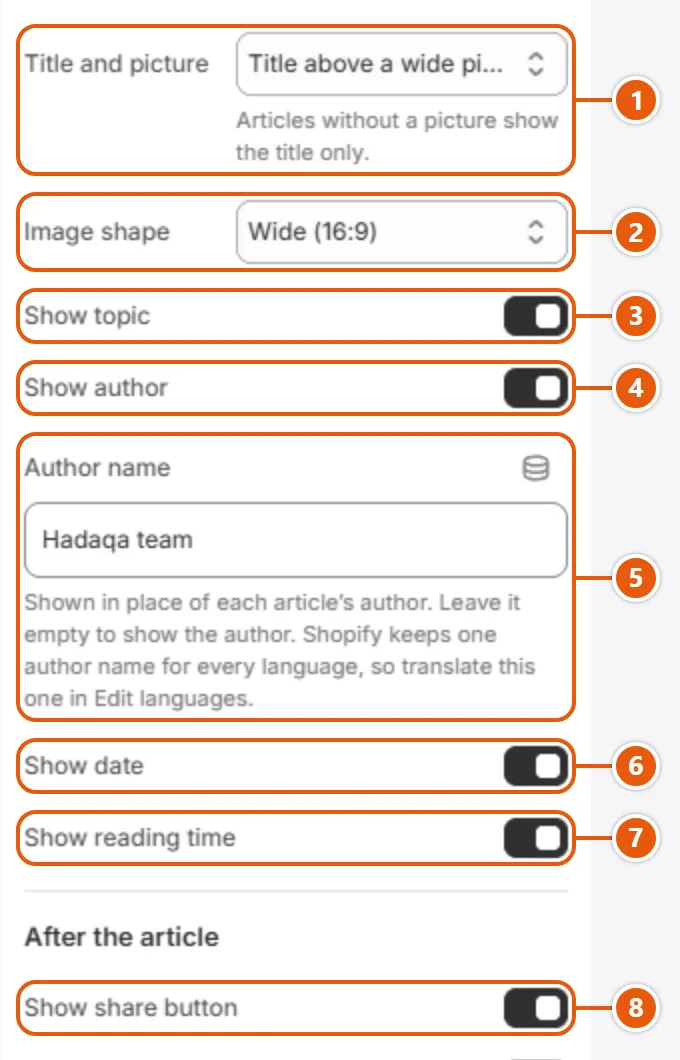
“Article” settings in the Shopify editor (1 of 2)
  1. 1“Title and picture”
  2. 2“Image shape”
    The cover picture is cropped to this shape.Shown when “Title and picture” is “Title above a wide picture”, or when “Title and picture” is “Title beside the picture”
  3. 3“Show topic”
    The first tag above the title, linking to the blog filtered by it.
  4. 4“Show author”
  5. 5“Author name”
    Replaces the article's author in the “By” line and the “About the author” card; empty shows the author. Shopify keeps one author name for all languages, so translate this one: “Translate your own words”.
  6. 6“Show date”
    The publish date under the title.
  7. 7“Show reading time”
    The reading time under the title, at 200 words a minute, at least one minute.
  8. 8“Show share button”
“Article” settings in the Shopify editor (2 of 2)
  1. 1“Show the author's note”
    An “About the author” card with the bio of the author's staff account (from “Settings” > Users); hidden when there is no bio.
  2. 2“Show previous and next articles”
  3. 3“Show related articles”
  4. 4“Heading”
    The related articles' heading. Empty reads “Keep reading” in the page's language; your own words need translating.Shown when “Show related articles” is on
  5. 5“Number of articles”
    How many related articles show, in as many columns on computers and two on tablets and large phones.Shown when “Show related articles” is on
  6. 6“Color scheme”
    The page's colors, from “Colors”; words on the picture stay white.
  7. 7“Section spacing”
    Space above and below the section, sized in “Theme settings” > “Layout”; with “Title on the picture” the picture meets the header.

The other settings

  • Picture darkening: How dark the picture is under the white words; it deepens toward the bottom, so even 0 leaves a light shade under the title.Shown when “Title and picture” is “Title on the picture”
  • App blocks: Blocks from your installed apps (reviews, comments...), shown right after the article's words.

Tips

  • These settings apply to every article on the same template.
  • Comments show only when the blog takes comments, in its settings in Shopify; if comments are moderated, the shopper is told theirs will appear once approved.
  • With an “Author name”, the “About the author” card keeps the staff account's bio, and shows the staff picture only when “Author name” is empty.

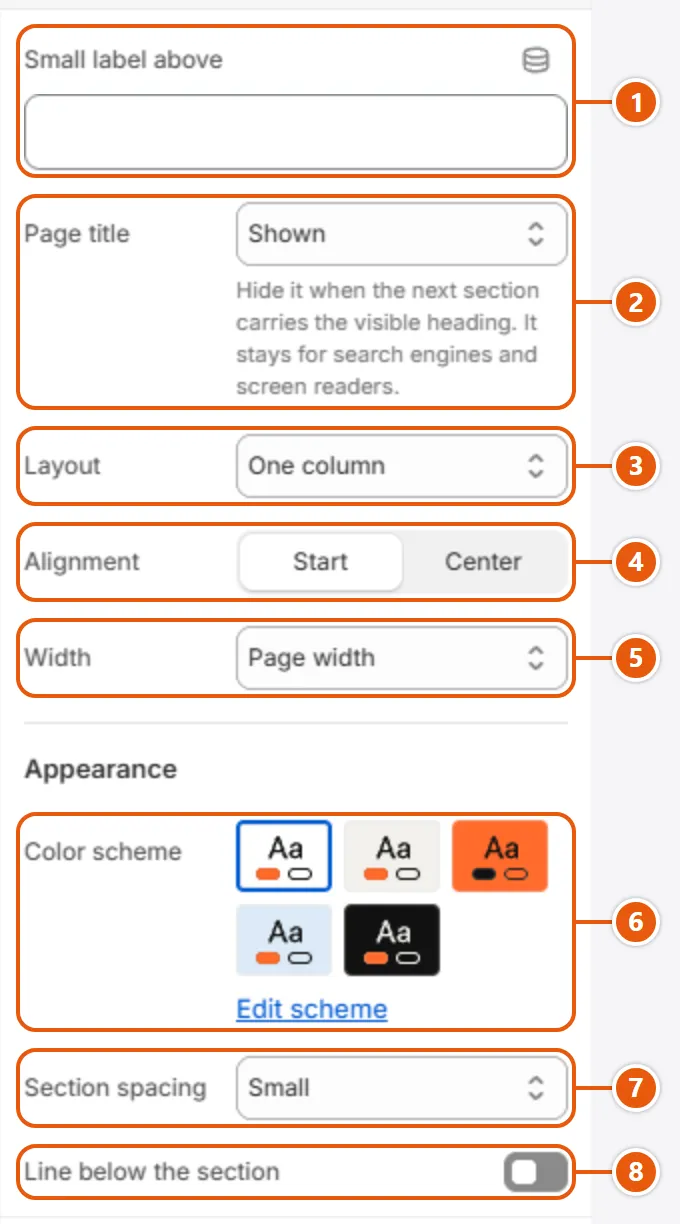
Shows any ordinary page of your store, such as delivery or terms: its title and words. It also prints the title of the About, FAQ and Contact pages.

The words are written under “Pages”.

Where “Page” shows in the store
  1. 1“Page title”
    The second choice hides the title on the page but keeps it for search engines and screen readers: for when the next section carries the visible heading.
  2. 2“Layout”
    “Title beside the content” puts them side by side on computers, the title staying in view as you scroll: for long pages such as terms.
  3. 3“Alignment”
    Aligns the label and title; in “One column”, “Center” centers the text too, while lists and tables keep to the start.
  4. 4“Width”
    “Narrow” is a reading column, “Medium” wider, “Page width” the full frame, lining up with a full-width section below such as the contact form.Shown when “Layout” is “One column”

Step by step

  1. From “Online Store”, click “Edit theme”, choose “Pages” and a page in the page picker at the top, and click “Page”.
  2. Pick the “Layout”, and with “One column” the “Width”.
  3. Pick the “Alignment”, then click “Save”.

Where to find its settings

“Page” settings in the Shopify editor
  1. 1“Small label above”
    A small line above the title; it hides along with the title.
  2. 2“Page title”
  3. 3“Layout”
  4. 4“Alignment”
  5. 5“Width”
  6. 6“Color scheme”
    The page's colors, from the schemes in “Colors”.
  7. 7“Section spacing”
    Space above and below the section, sized in “Theme settings” > “Layout”.
  8. 8“Line below the section”
    A thin line along the section's bottom edge.

Tips

  • Settings belong to the page template, so pages on one template change together; Contact, About and FAQ have their own.
  • With the title hidden and no words on the page, the section takes no room at all.

A picture beside its words: a heading and a paragraph, with bullets, facts about your store or buttons under them. It is on the ready-made About page template, and you can add it to any page.

In “Add section” it is called “Image with text” or “Image with text: two pictures” or “Image with text: panel”.

Step by step

  1. From “Online Store”, click “Edit theme”, choose the page in the page picker at the top, click “Add section” and choose “Image with text”.
  2. Upload the “Picture” and write the “Heading” and “Text”.
  3. Click “Add block”, choose “Bullets”, “Facts” or “Buttons”, and add a bullet, a fact or a button inside it.
  4. Pick the “Style” and the “Picture position on desktop”, then click “Save”.

Where to find its settings

“Image with text” settings in the Shopify editor (1 of 3)
  1. 1“Picture”
    The crop follows the “Focal point” set on the image. Without a picture a placeholder shows.
  2. 2“Style”
    “Two overlapping pictures” adds a small picture over a corner. “Panel” puts picture and words in one tinted card.
  3. 3“Second picture”
    “Two overlapping pictures” only: the small picture on the main one's lower corner; it drifts a little as the page scrolls. Without it a placeholder shows.
  4. 4“Picture position on desktop”
    “Start” is the reading-start side (the right in Arabic). On phones and tablets the picture comes first.
  5. 5“Picture width”
    “Wide” is a little wider at the words' expense. Not with “Panel”.
  6. 6“Image shape”
    The picture's proportions. In the panel style on desktop the picture fills the panel's height.
  7. 7“Picture style”
    The picture's corners: the first follows “Image corner radius”, the second “Editorial image shape”, both in “Layout”; “Rounded” rounds them more.
“Image with text” settings in the Shopify editor (2 of 3)
  1. 1“Caption”
    A few small words on the picture, such as a place or a year.
  2. 2“Caption style”
    “Pill” has rounded ends, “Square” sharp corners; with a “Caption”.
  3. 3“Caption position”
    Where the caption sits on the picture, when there is a “Caption”.
  4. 4“Small label above”
    A small line above the heading.
  5. 5“Heading”
    The section heading; bold and italic work. Without it “Name for screen readers” names the section.
  6. 6“Text”
    The paragraph; it takes paragraphs, bold and links.
  7. 7“Text position”
    Where the words sit against the picture on desktop, in every style.
“Image with text” settings in the Shopify editor (3 of 3)
  1. 1“Capital letters”
    The heading and the facts' values in capitals on English pages; Arabic is never changed.
  2. 2“Facts in three columns on phones”
    On phones the facts sit in three even columns instead of wrapping.
  3. 3“Name for screen readers”
    The section's name for screen readers when it has no “Heading”; shoppers do not see it. Empty: “About us”.
  4. 4“Color scheme”
    The section's colors, from the schemes in “Colors”; in “Panel” they color the whole card.
  5. 5“Section spacing”
    Space above and below the section, sized in “Theme settings” > “Layout”.
  6. 6“Line above the section”
    A thin line along the section's top edge.
  7. 7“Line below the section”
    A thin line along the section's bottom edge.

The other settings

  • Bullets: A list of check-marked points under the paragraph; the bullets go inside it, and an empty list does not show.
    • Bullet: One point: a heading with an optional line under it.
      • Heading: The point's heading, beside the check mark.
      • Text: A small line in a quieter color under the heading.
  • Facts: A row of real facts about your store, each a large value with small words under it; an empty row does not show.
    • Fact: One fact; without a “Value” it does not show.
      • Value: The large figure or word, such as 30 or Linen. Only a true fact, such as days to return or fabric weight; never sales, follower or review numbers.
      • Label: The small words under the value, such as days to return; keep them short.
  • Buttons: A row of buttons or arrow links under the words.
    • Button: A button or arrow link; it needs a “Label” and a “Link” to show.
      • Label: The words on the button, such as Shop the collection.
      • Link: The page the button opens.
      • Style: “Text link with arrow” is words and an arrow with no button shape; the others are buttons.
  • App blocks: Blocks from installed apps that offer them, in the order you set.

Your brand's story: an arch-shaped picture with a small square one over its lower corner, beside a heading, a few paragraphs and a link. On phones the main picture shows alone, then the words.

Step by step

  1. From “Online Store”, click “Edit theme”, choose the page in the page picker at the top, click “Add section” and choose “Brand story”.
  2. Upload the “Main picture” and the “Second picture”, and write the “Heading” and “Text”.
  3. Add a “Link label” and “Link” if you want one, pick the “Pictures position” and “Picture shape”, then click “Save”.

Where to find its settings

“Brand story” settings in the Shopify editor (1 of 2)
  1. 1“Main picture”
    The large picture in the arch (or editorial) shape, 4:5 and cropped to it.
  2. 2“Show a second picture”
    A small square picture over the main picture's lower corner; off, the main picture alone. It never shows on phones.
  3. 3“Second picture”
    The square picture, framed in the section's background color, on tablets and computers.
  4. 4“Pictures position”
    “Start” puts the pictures on the reading-start side (the right in Arabic) with the words beside them; “End” the other way. On phones the picture is above the words.
  5. 5“Picture shape”
    “Arch” gives the main picture a half-round top; “Editorial shape (Theme settings)” takes the “Editorial image shape” in “Layout”. The second picture is always square.
  6. 6“Small label above”
    A small line above the heading.
  7. 7“Heading”
    The section heading; bold and italic work.
“Brand story” settings in the Shopify editor (2 of 2)
  1. 1“Text”
    Two or three paragraphs about your brand; bold and links work.
  2. 2“Link label”
    The link's words under the text. Empty: “Read our story”. It shows only with a “Link”.
  3. 3“Link”
    The page the link opens.
  4. 4“Color scheme”
    The section's colors, from the schemes in “Colors”.
  5. 5“Section spacing”
    Space above and below the section, sized in “Theme settings” > “Layout”.
  6. 6“Line above the section”
    A thin line along the section's top edge.
  7. 7“Line below the section”
    A thin line along the section's bottom edge.

Tips

  • The arch cuts the main picture's top corners, so keep the subject away from them.

A message form (name, email and message, plus phone and order number if you ask) with a card of your details beside it. After sending, the page returns to the form with a thank-you line.

Messages reach you by email. The texts here are in your store's main language: “Translate your own words”.

Note: Messages go to the email under “Settings” > Notifications (the owner's until you change it), with each field labeled: Name, Phone, Order number. Send a test message before you publish the page.
Where “Contact form” shows in the store
  1. 1“Layout”
    “Form and address card” puts your details card beside the form on computers, under it on smaller screens; “Form only” is the form alone in a narrow column, its heading centered.
  2. 2“Heading”
    The form's heading; empty shows none (screen readers still hear “Contact form”).
  3. 3“Ask for a phone number”
    An optional “Phone number” field.
  4. 4“Ask for an order number”
    An optional “Order number” field, sent to you labeled Order number.
  5. 5“Card heading”
    The card's heading; empty shows “Visit or call us” in the page's language.Shown when “Layout” is “Form and address card”
  6. 6“Detail”
    A fact on the card with an icon, heading, text and an optional link. One with only its heading, as a new one is, stays off the live store. Up to 8 blocks in all.

Step by step

  1. From “Online Store”, click “Edit theme”, choose “Pages” and the contact page in the page picker at the top, and click “Contact form”.
  2. Pick the “Layout”; under “Form” write the “Heading” and “Text” and choose the phone and order number fields.
  3. Under “Address card” write the “Card heading”, and add your details with “Add block”: “Detail”, “Phone number” or “Email address”.
  4. Click “Save”, then send a test message from the store and check that it arrives.

Where to find its settings

“Contact form” settings in the Shopify editor (1 of 2)
  1. 1“Layout”
  2. 2“Card position”
    Which side the card takes on computers; on smaller screens it is always under the form.Shown when “Layout” is “Form and address card”
  3. 3“Small label above”
    A small line above the form's heading.
  4. 4“Heading”
  5. 5“Text”
    A line under the heading; simple formatting works.
  6. 6“Ask for a phone number”
  7. 7“Ask for an order number”
“Contact form” settings in the Shopify editor (2 of 2)
  1. 1“Card heading”
  2. 2“Show store details”
    Your store's address, phone and email from “Settings” > General, each when it is filled in there; the phone and email are links.Shown when “Layout” is “Form and address card”
  3. 3“Show social media links”
    Icons of the accounts filled in “Social media”, at the foot of the card.Shown when “Layout” is “Form and address card”
  4. 4“Card color scheme”
    The card's colors, from “Colors”.Shown when “Layout” is “Form and address card”
  5. 5“Color scheme”
    The colors around the form, from “Colors”; the card has its own.
  6. 6“Section spacing”
    Space above and below the section, sized in “Theme settings” > “Layout”.
  7. 7“Line above the section”
    A thin line along the section's top edge.

The other settings

  • Detail
    • Icon: The icon in the round badge beside the fact.
    • Heading: A small heading above the fact, such as Opening hours.
    • Text: The fact itself; simple formatting works.
    • Link words: The link's words; the link shows only when “Link” is set too.
    • Link: Where the link goes, such as a map or one of your pages; shown only with “Link words”.
  • Phone number: A phone number with a phone icon; the number is a call link.
    • Heading: A small heading above the number, such as Customer care.
    • Number: Write it the way visitors should dial it, with the country code; spaces, dashes and brackets are dropped from the call link only.
  • Email address: An email address with an envelope icon; it opens the visitor's mail app.
    • Heading: A small heading above the address, such as Orders and returns.
    • Email: The address shown on the card.
  • App blocks: Blocks from your installed apps, shown on the card among the other blocks.

Tips

  • Blocks live on the card, so “Form only” shows none of them.
  • Email and message are required; if something is wrong, Shopify returns the shopper with a list of the fields to fix.
  • To add the form to another page, click “Add section” and pick it under “Forms”.

What shoppers see at an address that does not exist (an old link, a deleted product, a typo), with ways on: a search, all products, the home page and collections you pick.

The title and the line under it are theme texts, not settings.

Where “Page not found” shows in the store
  1. 1“Layout”
    “Beside a picture” puts the words and the picture side by side on computers, the picture under the words on smaller screens. Without a picture the page stays centered.
  2. 2“Show the large 404”
    A large decorative 404 in the theme's main color above the title.
  3. 3“Show search”
    A search field that opens the search results. Off: “Shop all products” becomes the filled button.

Step by step

  1. From “Online Store”, click “Edit theme”, choose the 404 page in the page picker at the top, and click “Page not found”.
  2. Pick the “Layout”; with “Beside a picture” choose the “Picture” and its “Image shape”.
  3. Pick up to 6 “Collections to suggest”, then click “Save”.

Where to find its settings

“Page not found” settings in the Shopify editor
  1. 1“Layout”
  2. 2“Show the large 404”
  3. 3“Show search”
  4. 4“Collections to suggest”
    Up to 6 collections shown as links with their round picture under the buttons.
  5. 5“Color scheme”
    The page's colors, from the schemes in “Colors”.
  6. 6“Section spacing”
    Space above and below the section, sized in “Theme settings” > “Layout”.

The other settings

  • Picture: The picture beside the words; without it the page is centered.Shown when “Layout” is “Beside a picture”
  • Image shape: The picture is cropped to this shape.Shown when “Layout” is “Beside a picture”

Tips

  • To see the page, open your store's address followed by /no-such-page.
  • The title, the line, “Shop all products” and “Back to the home page” are the theme's own words; change them in “Edit default theme content”.

What visitors see instead of your store while it is password protected, such as before you open: your name or logo, a message, a newsletter signup, your social accounts and a button for the password field.

The default message is set under “Online Store” > “Preferences”. The texts here are in your store's main language: “Translate your own words”.

Note: This page shows while the password is on under “Online Store” > “Preferences” > “Store access”. Turn it off when you open: until then visitors and search engines cannot reach your store.
Where “Password page” shows in the store
  1. 1“Layout”
    “Beside a picture” splits the screen on computers between a full-height picture and the words; “On a full picture” sets them on a panel over it. Without a picture: “Centered”.
  2. 2“Logo”
    Your logo, as the page's heading. Without it the brand name shows as text, from “Brand name shown to shoppers” in “Brand and favicon”, else the store name.
  3. 3“Show newsletter signup”
    “Be the first to know when we open.”, an email field and “Subscribe”; signups reach you as customers tagged newsletter and password-page.
  4. 4“Show social media links”
    Icons of the accounts filled in “Social media”, under the signup.

Step by step

  1. From “Online Store”, click “Edit theme”, choose “Password” in the page picker at the top, and click “Password page”.
  2. Pick the “Layout”, and for a picture layout choose the “Picture”.
  3. Under “Words” choose the “Logo” and write the “Message”.
  4. Turn the newsletter signup and social links on or off, then click “Save”.

Where to find its settings

“Password page” settings in the Shopify editor (1 of 2)
  1. 1“Layout”
  2. 2“Logo”
  3. 3“Logo width”
    The logo's width on every screen, never wider than the screen.
  4. 4“Small label above”
    A small line under the name or logo, such as Opening soon.
  5. 5“Message”
    The message under the name. Empty uses the “Message to your visitors” from “Online Store” > “Preferences”.
“Password page” settings in the Shopify editor (2 of 2)
  1. 1“Show newsletter signup”
  2. 2“Show social media links”
  3. 3“Color scheme”
    The page's colors, from “Colors”; the password window uses the “Drawer color scheme”.
  4. 4“Section spacing”
    Space above and below the section, sized in “Theme settings” > “Layout”.

The other settings

  • Picture: The picture of the two picture layouts; without it the page is centered.Shown when “Layout” is not “Centered”
  • Picture darkening: How dark the picture is behind the panel; 0 leaves it as it is.Shown when “Layout” is “On a full picture”

Tips

  • While the store is open, add /password to your store's address, or pick the page in the editor's page picker.
  • The password window holds a fixed “Log in here” link that takes the store owner to the admin.

The cart that slides in from the side when a shopper adds a product or presses the cart icon: the products, the free delivery bar, the total and the checkout button. Here you set only the buttons of the empty cart.

Step by step

  1. From “Online Store”, click “Edit theme”, and in the sidebar click “Cart drawer” in the “Drawers” group.
  2. Click “Add Empty cart link” and type its “Label” and “Link”; up to 3 buttons, dragged into order.
  3. Click “Save”.

Settings

  • Empty cart link: The empty cart's buttons, up to 3: the first is the main one, the rest lighter. With none, the drawer shows one “Continue shopping” button to the “Button link” in “Cart”.Up to 3 items
    • Label: The button's words. A block needs both a “Label” and a “Link” to show.
    • Link: The page the button opens, such as all products.

Tips

  • The cart opens as a drawer when “After adding to cart” in “Cart” is “Open the cart drawer”; otherwise the shopper goes to the cart page.
  • The free delivery bar and the order note come from “Cart”; the cart page is set in “Cart”.
  • The drawer takes its colors from “Drawer color scheme” in “Colors”.

The drawer that opens from the menu button on tablets and phones: your menu, then collection cards, then account, language and country.

An item with sub-items opens a view inside the drawer with “Back”, “Shop all” and its links: sub-items with nothing under them first, then each sub-item that has items, as a group under its title.

Step by step

  1. From “Online Store”, click “Edit theme”, and in the sidebar click “Menu drawer” in the “Drawers” group.
  2. Pick the “Menu” and the “Menu items” style.
  3. For cards under the menu, click “Add block”, choose “Collection card” and pick its “Collection”.
  4. Choose the rows under the menu (account, language, country, social links), then click “Save”.

Where to find its settings

“Menu drawer” settings in the Shopify editor (1 of 2)
  1. 1“Menu”
    The drawer's menu, from “Menus”, used when there are no “Audience” blocks and for an audience with no menu.
  2. 2“Menu items”
    How the first level looks: “Large, in the heading font” shows big words, “A list with lines between” a plain list with rules.
  3. 3“Heading”
    The heading above the collection cards. Empty: “Collections to explore”.
  4. 4“Fill the cards from the menu”
    With no “Collection card” blocks, the first three top-level collection links of the menu that have a picture become the cards. Off: no cards without blocks.
  5. 5“Show the size scale”
    The size scale (“Pick your size”) at the top of the drawer, when sizes are on in “Fit and sizes”. Turn it off to keep it out of the menu.
“Menu drawer” settings in the Shopify editor (2 of 2)
  1. 1“Show the account link”
    A “Log in” or “Account” row under the menu, when customer accounts are on.
  2. 2“Show the language switch”
    A button per language under the menu, when the store has two or more published languages.
  3. 3“Show the country and currency picker”
    The country and currency picker under the menu, when the store sells to more than one country.
  4. 4“Show social links”
    Icons of your accounts from “Social media”, under the menu.

The other settings

  • Audience: One block per audience, up to 4, such as Women and Men, shown as tabs above the menu. Use the same audiences, in the same order, as the “Header”: a tab here switches the header too.Up to 4 items
    • Name: The tab's name, such as Women. A “Collection card” block can name it in “Audience” to show for this audience only.
    • Menu: The tab's menu. None, or a menu with no links: the “Menu” above.
  • Collection card: A card in the slider under the menu: a picture and a name. It needs a name and a link: a collection, or a “Title” and a “Link”.
    • Collection: The collection the card shows and opens; its picture and title fill the fields you leave empty.
    • Image: The card's picture, shown 3:4. Empty: the collection's picture.
    • Title: The name under the picture. Empty: the collection's title.
    • Link: Where the card leads. Empty: the collection.
    • Audience: Optional: the audience whose panel shows the card, by name (Women) or place (1 for the first). Empty: every panel.

Tips

  • The panels, icons and pictures of the “Header”'s “Menu item” blocks do not show here: the drawer shows the menu's levels as they are, all of them.
  • The drawer takes its colors from “Drawer color scheme” in “Colors”.

The window that opens from the quick add button on a product card: picture, price, options, quantity and the add to cart button, without leaving the page. On phones it rises from the bottom.

Step by step

  1. From “Online Store”, click “Edit theme”, and in the sidebar click “Quick add” in the “Drawers” group.
  2. Turn “Show a short description” and “Show the size guide button” on or off, then click “Save”.

Settings

  • Show a short description: The first 26 words of the product's description under the price, without formatting.
  • Show the size guide button: A button on the size option that opens the “Size guide” and comes back here with the choice kept, when the size guide drawer is on the page.
  • Size guide button label: The button's words. Empty: “Size guide”; a furniture store may prefer Dimensions.

Tips

  • The quick add button on the cards is set in “Product cards”; a product with a single variant goes straight to the cart without this window.
  • If you remove this section from the “Drawers” group, the quick add button opens the product page.
  • The drawer takes its colors from “Drawer color scheme” in “Colors”.

A window that opens by itself with an email field to join your newsletter, and a small round launcher in the corner that opens it again. It can give a discount code after the signup.

Signups reach you as customers tagged newsletter. The texts here are in your store's main language: “Translate your own words”.

Note: The window comes off, with sample English words: about new frames in Caliper, about letters for parents in Inchling. Write your own (and translate them) before you turn it on.

Step by step

  1. From “Online Store”, click “Edit theme”, open the “Drawers” group in the sidebar and click “Welcome window”.
  2. Turn on “Show the welcome window” and pick “Show on”.
  3. Under “Words” write the “Heading” and “Text”, and check that the “Consent line” matches what you really do.
  4. Under “When it opens” pick “Opens when” and “Not again for”, then click “Save”.
  5. Open your store in a private window and wait for it.

Where to find its settings

“Welcome window” settings in the Shopify editor (1 of 3)
  1. 1“Show the welcome window”
    A window with an email field that opens by itself once every few days, and a round launcher that stays after it closes. Off by default.
  2. 2“Show on”
    Where the window and its launcher appear.
  3. 3“Small label above”
    A small line above the heading.
  4. 4“Heading”
    The window's heading, rising word by word as it opens. Empty shows “Hear about new arrivals first”.
  5. 5“Text”
    A line under the heading, plain text; it goes once the shopper has subscribed.
  6. 6“Image”
    A picture beside the words on tablets and computers; phones show the words only.
  7. 7“Picture description”
    Describes the picture for screen readers; empty uses the picture's own description, else it counts as decoration.
“Welcome window” settings in the Shopify editor (2 of 3)
  1. 1“Button label”
    The subscribe button's words; empty shows “Subscribe”.
  2. 2“Consent line”
    The small consent line under the field; empty says that subscribing means agreeing to your emails and that they can unsubscribe at any time.
  3. 3“Thank-you heading”
    The heading shown after the signup in place of the field; empty shows “Thank you for subscribing.”
  4. 4“Thank-you text”
    The line under it; empty shows “Look out for our next letter in your inbox.”
  5. 5“Discount code”
    A code shown after the signup, with a copy button. Create it under Discounts first: the window only displays it. Empty: no promise.
  6. 6“Opens when”
    “When the pointer leaves the window (desktop)” fires when the mouse leaves through the top of the page; on devices without a mouse it waits the “Seconds” instead.
  7. 7“Seconds”
    Seconds after the page opens; the pointer choice uses them too on devices without a mouse.Shown when “Opens when” is not “After scrolling part of the page”
“Welcome window” settings in the Shopify editor (3 of 3)
  1. 1“Not again for”
    After a shopper closes it, it does not open by itself again for this many days. Their browser remembers, so another browser or a private window sees it afresh.
  2. 2“Opening effect”
    On computers and tablets each does what it says; on phones “From the ball, a circle that grows” starts from the launcher's corner and the other two rise as a sheet from the bottom.
  3. 3“Show the round launcher”
    A small round button in the corner that opens the window again; it goes after the signup.
  4. 4“Launcher words”
    Words that unfold beside the launcher on hover, and its name for screen readers; empty: “Early access”. Phones show the circle alone, and hide it on product pages.
  5. 5“Launcher side”
    The bottom corner the launcher sits in; “Start” is the reading edge (right in Arabic).
  6. 6“Color scheme”
    The window's colors, from “Colors”; the launcher takes the theme's main color.

The other settings

  • Scrolled: How much of the page the shopper scrolls before it opens.Shown when “Opens when” is “After scrolling part of the page”

Tips

  • It never opens by itself in the editor. Your browser remembers a closed window or a signup, so test in a private window.
  • The launcher comes in once the shopper scrolls past most of the first screen, or when the window opens by itself, and goes after the signup.
  • After the signup the page reloads and the window opens on the thank-you, with the code if you set one.

Footer

The footer: link menus, contact details, the newsletter signup, social links, payment methods and the copyright line.

For developers: custom code

Sections and blocks for free content or code you write yourself. Use them when the ready sections are not enough.

Note: Duplicate the theme before any code: code you add is not covered by support.

A free column you build from the theme's blocks (heading, text, button, collapsible row, Custom Liquid) and app blocks, for a simple page or a paragraph between two sections.

Step by step

  1. From “Online Store”, click “Edit theme”, choose the page in the page picker at the top, click “Add section” and choose “Custom content”.
  2. Click “Add block” and choose “Heading”, “Text”, “Button”, “Collapsible row” or “Custom Liquid”; drag the blocks into order.
  3. Pick the “Width” and “Alignment”, then click “Save”.

Where to find its settings

“Custom content” settings in the Shopify editor
  1. 1“Name for screen readers”
    Optional: the section's name for screen readers; shoppers do not see it.
  2. 2“Width”
    “Narrow” is a slim column that reads comfortably; “Page width” takes the page frame's full width.
  3. 3“Alignment”
    “Center” centers the blocks and their words, “Start” lines them up at the reading start. A “Button” or “Heading” block set to “Same as the section” follows this; any other choice follows its own.
  4. 4“Color scheme”
    The section's colors: background, text, links and buttons, from the color schemes you set in “Colors”. Switch the scheme to make a section light, dark or accent-colored without changing its colors one by one.
  5. 5“Section spacing”
    Space above and below the section, sized in “Theme settings” > “Layout”.
  6. 6“Line above the section”
    A thin line along the section's top edge.
  7. 7“Line below the section”
    A thin line along the section's bottom edge.

The other settings

  • Theme blocks: The theme's blocks: “Button”, “Collapsible row”, “Custom Liquid”, “Heading” and “Text”, in the order you set; repeat any of them.
  • App blocks: Blocks from your installed apps, between the theme's blocks.

Plus every option in “Options every section shares”.

Tips

  • For words that repeat on several pages (sizes, returns), make a page in “Pages” and pick it in “Content from a page” of a “Collapsible row” block.

A section where you write Liquid, HTML or CSS, or paste an app's code, and it runs as written inside the page frame. This code is not covered by support, and the editor does not check it.

Note: A mistake in the code can break the section: keep a copy before you change it, and check the page on the store after each change.

Step by step

  1. From “Online Store”, click “Edit theme”, choose the page in the page picker at the top, click “Add section” and choose “Custom Liquid”.
  2. Paste the code in “Custom Liquid”, then click “Save”.
  3. Open the page on the store on a computer and a phone and check that the code works.

Settings

  • Custom Liquid: Liquid, HTML, CSS or app snippets, run as you wrote them. With no code the section does not show on the store.
  • Section spacing: Space above and below the section, sized in “Theme settings” > “Layout”.
  • Line above the section: A thin line along the section's top edge.
  • Line below the section: A thin line along the section's bottom edge.

Plus every option in “Options every section shares”.

A button that opens a link, in “Custom content” and “Featured product”. It shows only with a “Label” and a “Link”.

Step by step

  1. From “Online Store”, click “Edit theme”, pick the page and click the “Custom content” section (or add it with “Add section”).
  2. Click “Add block”, choose “Button”, write the “Label” and “Link”, pick the “Style”, then click “Save”.

Settings

  • Label: The button's words.
  • Link: Where the button goes: a page, product, collection or outside link.
  • Style: “Primary” is filled, “Secondary” outlined, and “Light, for images” a pale button for over a picture.
  • Alignment: Where the button sits in its column. “Same as the section” follows the section's “Alignment”; “Start”, “Center” and “End” work whatever the section's alignment.

A row that opens and closes on a click: a heading with an icon and words under it, such as delivery, returns or sizes. In “Custom content”, “Featured product” and “Product information”.

Step by step

  1. From “Online Store”, click “Edit theme”, pick the page and click the “Custom content” section (or add it with “Add section”).
  2. Click “Add block”, choose “Collapsible row”, write the “Heading” and pick the “Icon”.
  3. Write the “Text” or pick “Content from a page”, then click “Save”.

Settings

  • Heading: The words on the row while it is closed.
  • Icon: An icon beside the heading, or “None”.
  • Text: The words shown when the row opens; paragraphs, lists and links work.
  • Content from a page: Optional: a page from “Pages” whose content shows instead of the “Text”, so you edit it in one place.
  • Open by default: The row starts open; shoppers can close it.

A block for your own Liquid, HTML or an app snippet, in “Custom content”, “Featured product” and “Product information”. The code is not covered by support, and the editor does not check it.

Note: The editor does not test the code, and a mistake in it can break the rest of the section: open the page on the store after saving.

Step by step

  1. From “Online Store”, click “Edit theme”, pick the page and click the “Custom content” section (or add it with “Add section”).
  2. Click “Add block”, choose “Custom Liquid” and paste the code in “Liquid code”.
  3. Click “Save” and try the page on the store.

Settings

  • Liquid code: The code, printed in the block's place as you wrote it.

A heading with an optional small line above it, in “Custom content”. The page's main heading (H1) is not here: it belongs to the page itself.

Step by step

  1. From “Online Store”, click “Edit theme”, pick the page and click the “Custom content” section (or add it with “Add section”).
  2. Click “Add block”, choose “Heading”, write the “Heading”, pick the “Size” and “Alignment”, then click “Save”.

Settings

  • Small label above: A small line above the heading.
  • Heading: The heading's words; bold and italic work.
  • Heading level: The heading level for search engines and screen readers; “Size” sets the look.
  • Size: “Large” is the theme's biggest heading size, “Medium” a section heading, “Small” a subheading.
  • Alignment: Where the heading sits in its column. “Same as the section” follows the section's “Alignment”; “Start”, “Center” and “End” work whatever the section's alignment.

Paragraphs of text in a size you pick, in “Custom content”, “Featured product” and “Product information”. The line width is limited so reading stays comfortable.

Step by step

  1. From “Online Store”, click “Edit theme”, pick the page and click the “Custom content” section (or add it with “Add section”).
  2. Click “Add block”, choose “Text”, write the “Text”, pick the “Size” and “Alignment”, then click “Save”.

Settings

  • Text: The words; paragraphs, bold, lists and links work. A line holds about 62 characters at most.
  • Size: “Small” is below the body size, “Medium” the body size, “Large” about 15% bigger.
  • Alignment: How the words line up; “Center” and “End” also move the block within its column.

Questions and fixes

What merchants ask most; under each question, the causes from most likely down, each with its fix.

  • “Show sizes and "My size"” is off: turn it on in “Fit and sizes”: “Fit and sizes”.
  • The product has no size tag and no Size or Age option: add the tag, such as size-m: “Set up sizes: the scale, tags and options”.
  • The tag does not start with “Size tags start with”: make the two match.
  • The size is not in “Sizes, in order”: a size-xl tag with no XL in the list is not drawn.
  • “Scale” is age bands: tags read like age-3-6m.
  • “Show sizes and "My size"” is off: “Fit and sizes”
  • You are on a phone: the header has no room for it there; the sizes sit at the top of the menu drawer: “Menu drawer”.
  • Scripts are off in the browser: the button needs them.

In the kids design the button reads “Child's age”, then “My child” once an age is saved.

  • The section does not show on the store: it has no “Size” blocks, and only the editor says so. Add one per size: “Frame size finder”.
  • The rail of frames is empty: the frames carry no size tag (size-m): “Set up sizes: the scale, tags and options”.
  • One size's rail is empty or short: the rail reads only the first 50 products of the “Collection”; pick a smaller one or put the frames in “Frames first”.
  • The saved size matches no product: each “Key” must be a size in “Sizes, in order”.
  • The lens builder on the home page: it is hidden on the store with no “Step” block, and with no “Frames” it takes the store's first products: “Lens builder”.
  • The lens choice on the frame page: it needs the “Lenses” block in “Product information”: “Lens choice on the frame page”.
  • Lenses show on other items or not on the frames: type your glasses' tag in the block's “Show for product tags”.
  • An option with a price is not added: its “Add-on product” must be a product that can be bought.
  • There are no charts: with no chart the section is not printed and its link disappears: “Size charts: the size guide and the growth chart”.
  • The size option's name is not in “Options that show the guide”: type it in every language of your store.
  • The wrong chart: a product opens the chart that names it, else the one for its type, else one for a tag. Name each in one chart only: when two do, the last opens.
  • No filter is named Size or Age: make one on the size option in Search & Discovery: “Collection filters”.
  • The filter has one value or more than twelve: the strip is left out (age bands have no limit).
  • “Show sizes and "My size"” is off: “Fit and sizes”
  • There is no reviews app: the theme reads Shopify's rating field, so install an app that fills it.
  • “Show product rating” is off: turn it on in “Product cards”.
  • The product has no reviews yet: the stars come with the first one.
  • The color values have no swatches: swatches need a color or picture on every value in Shopify: “Color swatches on products”.
  • “Color swatches shown” is 0: raise it in “Product cards”.
  • The card “Style” is “Minimal”: it has no swatches.
  • The product has one color: swatches start at two.
  • “Sale badge” is “None”: pick a format in “Badges”.
  • There is no price before the discount: enter a “Compare-at” above the price, on every variant when they share one price (the card reads the first one in stock).
  • On the product page: the badge sits above the price and needs “Show badges” in the “Price” block: “Product information”.
  • “Lie over the first section of the home page” is off: turn it on in “Header”.
  • You are not on the home page: it happens on the home page only.
  • The header is not last in its group: put it last, right before the section under it.
  • Shopify's font library has no Arabic letters: Arabic uses the visitor's device font, and yours shows on English text and digits: “Fonts and Arabic text”.
  • A setting with no effect on Arabic pages: such as “Heading case”: “Typography”.
  • You have not clicked “Save” yet: leave the editor without saving and everything goes back.
  • You saved and have a copy: take your colors from the copy you made with “Duplicate”, or publish it.
  • You saved and have no copy: “Theme style” put the design's colors and scale in place of yours; set them again in “Colors” and “Fit and sizes”, and duplicate before any change from now on: “Choosing and changing the design”.
  • The picture's shape differs from its spot: the spot fills and crops the rest, so upload in the shape listed in “Picture sizes”.
  • Product pictures differ in shape: crop them all to one shape, or choose “Show the whole image” in “Image fit”: “Product cards”.
  • The subject is off center: set a “Focal point”; most sections crop around it.
  • You have not clicked “Save”: changes do not reach the store without it.
  • This is not the published theme: visitors see the published one only; publish it from “Online Store” with “Publish”.
  • The section is hidden: click the eye beside its name: “The editor map”.
  • What you picked is empty: a collection with no products or a blog with no posts; the editor shows it, the store does not.
  • You added it to another page: check the page picked at the top of the editor.

Not answered here? Write to [email protected] with your store's address, the design's name, the page and a screenshot. What support covers: “When you need help”.

$2202 designs in one theme
Designs

Not sure which theme to pick?

Our team helps you pick the theme and customize it for your store.

Contact us